

 # macOS Development Environment Setup
This project provides scripts to automate the setup of your macOS development environment. It installs essential tools, configures your shell, and manages your personal settings (dotFile).
Setting up a development machine involves many repetitive steps: installing tools, configuring paths, customizing the shell, managing settings, etc. Doing this manually is time-consuming and error-prone.
This project helps by:
- Saving Time: Automates the installation of dozens of tools and applications.
- Reducing Errors: Scripted processes are less prone to typos or missed steps than manual setup.
- Version Control for Your Setup: By keeping your configuration (
dot/files) in a Git repository alongside these scripts, you can track changes, revert if needed, and easily replicate your setup elsewhere. - Learning: Understanding these scripts can teach you more about managing your macOS environment, shell configuration, and package management.
This setup leverages several standard technologies:
- Shell Scripting (Bash): The automation is performed using scripts written for the Bash shell (though the final environment uses Zsh).
- Homebrew: The primary package manager for installing command-line tools and GUI applications on macOS.
- Git: The version control system used to manage this dotFile repository and your own code projects.
- Zsh (Z Shell): A powerful shell (the default on recent macOS versions) that offers significant improvements over older shells like Bash.
- Oh My Zsh: A framework for managing Zsh configuration, making it easy to use themes and plugins.
- Starship: A minimal, fast, cross-shell prompt written in Rust. Uses Catppuccin Powerline theme.
- Miniconda: A minimal installer for the
condapackage and environment manager, excellent for managing Python (and other language) packages and creating isolated project environments. - Rust & Cargo: A modern systems programming language focused on safety and performance, installed via
rustup(script09). Cargo is its build tool and package manager. - mdBook: A utility (installed via Cargo) used to create an online book from the Markdown guides in the
docs/folder. - Symbolic Links (
ln -s): Used by the scripts to link your configuration files from thedot/directory in this repository to their expected locations in your home directory ($HOME). This means changes in your repository are immediately reflected in your live environment.
The detailed guides for installation and tool usage are maintained as Markdown files in the /docs directory. They are automatically built into an online book using mdBook and published via GitHub Actions to GitHub Pages.
📚 Access the Online Guides Here You can also build and view the guides locally:
- Ensure you have Rust and
mdbookinstalled (script10_install_rust.shhandles this). - Navigate to the repository root directory.
- Run
mdbook serve --open.
| Guide Title | Description |
|---|---|
| dotFile: Installing Your Automated macOS Setup | Step-by-step guide to set up your macOS environment with automation. |
| Managing Software with Homebrew 🍺 | Learn how to install, update, and manage software using Homebrew. |
| Using Your Zsh Shell Superpowers ✨ | Tips and tricks for using Zsh with Oh My Zsh, Starship, and plugins. |
| Basic Git & GitHub Workflow | A beginner-friendly guide to using Git and GitHub for version control. |
| Managing Python with Conda (Miniconda) | Guide to managing Python environments and packages with Conda. |
| Basic Docker Maintenance 🐳🧹 | Learn how to prune and clean up Docker containers, images, and volumes. |
| Your Terminal Command Center (Warp) 💻 | Guide to customizing and using Warp for an efficient terminal experience. |
| Rust Essentials Guide 🦀 | Quick reference for essential Rust and Cargo commands. |
| Mac Keyboard Shortcut Cheat Sheet ⚡️ | A handy list of keyboard shortcuts to boost your productivity on macOS. |
| Basic Mac Housekeeping 🧹✨ | Tips for keeping your Mac clean, organized, and running smoothly. |
| Custom Shell Aliases & Functions 🛠️ | Learn how to create and use custom aliases and functions in your shell. |
| Redis Cheatsheet for macOS 🍎 | Quick commands and tips for installing, managing, and using Redis on macOS. |
This repository lives in iCloud Drive and syncs across your Macs. On a new system, the repo is already available once iCloud Drive is enabled—no clone or download is needed.
- Complete macOS Setup: Finish the initial macOS setup assistant (create user, connect to Wi-Fi, etc.).
- Enable iCloud Drive: Mackup (mandatory) syncs dotfiles via iCloud. Ensure iCloud Drive is enabled in System Settings → Apple ID → iCloud. The dotFile repository is stored in iCloud Drive and will sync automatically.
- Install Xcode Command Line Tools: Open
Terminal.app(Applications > Utilities > Terminal). Run this command and follow the on-screen prompts (accept the license, click install):Wait for the installation to complete before proceeding. Then accept the Xcode license (required by the setup scripts):xcode-select --install
sudo xcodebuild -license accept
This repository is part of your synced iCloud Drive. On a new Mac, once iCloud Drive is enabled and synced, the repo is available at:
~/Library/Mobile Documents/com~apple~CloudDocs/dotFile/
No clone or download is required. If the folder is not yet visible, wait for iCloud Drive to finish syncing (Finder → iCloud Drive).
Crucial: Configure these files within the repository before running the setup.
-
Create & Edit
.envFile: From the repo root (e.g.cd ~/Library/Mobile\ Documents/com~apple~CloudDocs/dotFile), create and edit.env:- Create the file:
cp .env_example .env(ortouch .env). - Open the
.envfile:nano .env(orcode .envetc.) - Set the variables accurately:
GIT_HOME: Must be the full path to iCloud Drive (the repo's parent). Example:GIT_HOME="$HOME/Library/Mobile Documents/com~apple~CloudDocs"GIT_AUTHOR_NAME: Your full name for Git commits.GIT_AUTHOR_EMAIL: Your email address for Git commits.
- Save and close (
nano:Ctrl+O, Enter,Ctrl+X).
- Create the file:
-
Ignore
.env: The repo's.gitignorealready includes.env. If you use Git and made changes to.gitignore, commit them:git add .gitignore && git commit -m "Add .env to gitignore" -
Customize
dot/Files: Edit the files inside thedot/subfolder to match your preferences:dot/.zshrc: Configure your Zsh shell (Theme, Plugins, PATHs, etc.). Ensureplugins=(...)includesgit zsh-autosuggestions zsh-syntax-highlighting autojumpplus any others you want.dot/.config/starship.toml: Starship prompt config (Catppuccin Powerline). Copy to~/.config/starship.tomland runmackup backupto sync.dot/.aliases: Add your command shortcuts.dot/.functions: Add your shell functions.dot/.gitignore_global: Define global Git ignore patterns.
-
Customize
python/requirements.txt: List Python packages foruvto install into the base conda environment.
Only needed when setting up your first Mac or if the repo is not yet in iCloud Drive. Fork the repository on GitHub, then place it in iCloud Drive (download ZIP and extract, or clone via HTTPS). After that, it will sync to all your Macs automatically.
Mackup is mandatory. When you run all, script 03_setup_mackup.sh runs early (index 3) and executes mackup restore then mackup backup to sync dotfiles via iCloud. Git, Zsh, and SSH setup depend on Mackup.
- Navigate to Script Directory:
# Path when repo is in iCloud Drive
cd ~/Library/Mobile\ Documents/com~apple~CloudDocs/dotFile/scripts
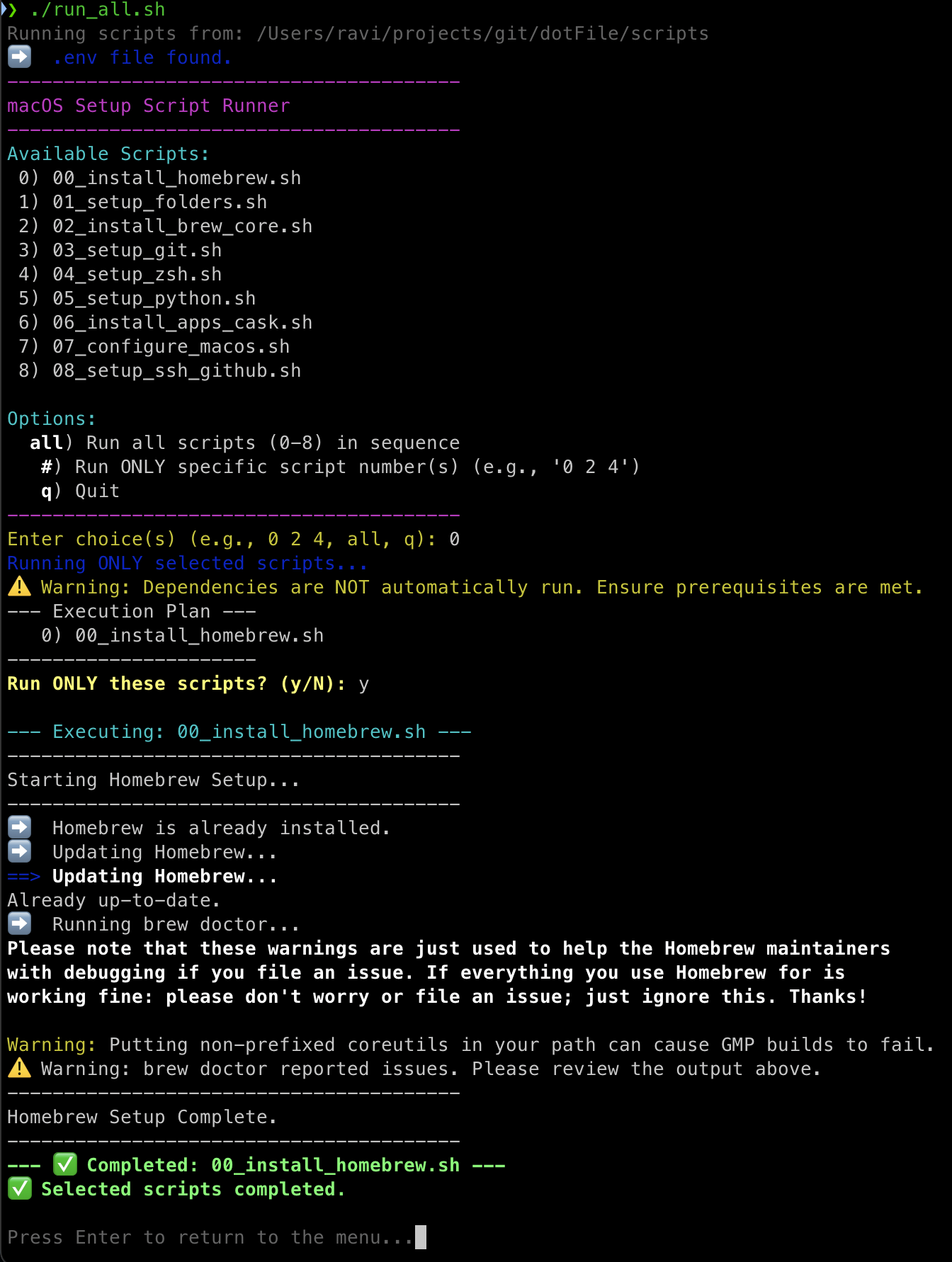
- Execute
run_all.sh: Choose a mode:- Interactive Mode (Select Scripts): Shows a menu to choose specific scripts (0-16) or
all. Warning: Selecting individual scripts runs only those scripts; dependencies are NOT automatically included. Use with caution.bash run_all.sh
- Interactive Mode (Select Scripts): Shows a menu to choose specific scripts (0-16) or
- Follow Prompts: Enter your
sudopassword and potentially your user password (chsh) when requested. - Wait: Installation takes time.
- Restart Terminal: Crucial! Quit and reopen your terminal, or log out/in.
- Add SSH Key to GitHub: If script 09 ran, copy the public key it printed and add it to your GitHub account settings online.
- Log into Apps: Launch and log into GUI apps (Docker, Bitwarden, Dropbox, etc.).
- Final Configurations: Install VS Code extensions, configure Docker, etc.
After setting up multiple Macs, use script 18 (or sync_workspace.sh) to sync your workspace directory across machines via rsync. All scripts and config live in this repo; no external dependencies beyond what the setup scripts install.
Script 18 needs SYNC_REMOTE or SYNC_REMOTES for background autosync. If not set, it will:
- Discover Macs on the local network — Run
./scripts/sync_workspace.sh discover(or let script 18 run it). This scans for Macs with Remote Login (SSH) enabled via Bonjour/mDNS. - Enable Remote Login on target Macs — System Settings → General → Sharing → Remote Login.
- Add the suggested line(s) to
.env— ReplaceUSERwith the target Mac's username:SYNC_REMOTE="user@other-mac.local:$HOME/workspace" # Or multiple remotes (space-separated): # SYNC_REMOTES="user@mac1.local:$HOME/workspace user@mac2.local:$HOME/workspace"
- Ensure SSH works: Run script 09 first to set up SSH keys. Test with
ssh user@other-mac.local. For passwordless sync, install your public key on the other Mac (ssh-copy-id -i ~/.ssh/id_ed25519.pub user@other-mac.local) and setSYNC_SSH_IDENTITY="$HOME/.ssh/id_ed25519"in.env(keys under~/.sshare usually already synced by Mackup). - Ensure
GIT_HOMEexists: Run script 01 to create the workspace directory on both Macs.
Without SYNC_REMOTE or SYNC_REMOTES set, script 18 skips the background autosync (launchd) but still installs SwiftBar and the menu bar plugin. Re-run script 18 after adding remotes to enable autosync.
SYNC_REMOTE="user@other-mac.local:$HOME/workspace"
# Or multiple remotes (space-separated):
# SYNC_REMOTES="user@mac1.local:$HOME/workspace user@mac2.local:$HOME/workspace"
# Optional: autosync tuning
# SYNC_MAX_ITERATIONS=3 # Max sync passes per autosync run
# SYNC_INTERVAL_MINUTES=15 # launchd interval
# SYNC_EXCLUDE="*.tmp .idea" # Extra rsync excludes
# SYNC_SSH_IDENTITY="$HOME/.ssh/id_ed25519" # Optional: force this key for rsync/SSHReplace user and hostname with your macOS username and target Mac hostname (System Settings → General → Sharing).
Secrets are managed via Mackup (iCloud). Add ~/.env.secrets to your Mackup config. See docs/MACKUP_OVERLAP_SUGGESTIONS.md.
| Command | Description |
|---|---|
discover [sec] |
Find Macs on local network (Bonjour). Default 8s scan. |
status [push|pull] |
Detect changes (dry-run), write status file |
dry-run push|pull |
Show what would change without syncing |
push [remote] [--yes] |
Sync local → remote |
pull [remote] [--yes] |
Sync remote → local |
autosync [push|pull] |
Sync until no changes (max SYNC_MAX_ITERATIONS) |
install-launchd |
Enable background autosync (every SYNC_INTERVAL_MINUTES) |
uninstall-launchd |
Disable background autosync |
install-ui |
Install SwiftBar + menu bar plugin (from repo) |
Sync setup (script 18) installs SwiftBar and the menu bar sync plugin when you run all. The menu bar shows:
- ✓ when no changes
- ↕ when changes detected (push/pull available)
- ⟳ when syncing
node_modules, .venv, venv, __pycache__, .cache, *.log. Requires SSH access (script 08).
- Goal: Automate macOS development setup.
- Method: Uses shell scripts (
scripts/) for automation. Manages personal config files (dot/) via symbolic links. - Configuration: Uses
.envfor variables,dot/for linked configs,python/for uv requirements.run_all.shorchestrates thescripts/.
This repository is organized to separate setup logic from personal configuration:
.env: (You Create & Git Ignore!) Stores user-specific variables like your Git name, email, and the main path for your code projects (GIT_HOME). It's sourced by scripts but should not be committed to Git if your repository is public..gitignore: Tells Git which files/folders within this repository to ignore (e.g.,.env).README.md: This file..github/: Contains GitHub Actions workflows (e.g., mdBook deployment).docs/: Source Markdown files for themdBookguides.SUMMARY.md: Table of contents for the guides.
dot/: (Your Personal Config) Contains your configuration files (dotFile). The setup scripts will create symbolic links from your home directory ($HOME) pointing to the files inside this folder (e.g.,$HOME/.zshrc->.../dotFile/dot/.zshrc). You customize these files!scripts/: Contains all the numbered setup scripts (00to12), the master runner (run_all.sh), and helper files (helpers.sh).config/: Data files for package lists (packages.core,packages.cask,mas_apps,npm_globals,bun_globals,install_scripts,dock_apps). Edit to add/remove or toggle items (1=on, 0=off).python/: Contains Python-related files, primarily yourrequirements.txtforuv.book.toml: Configuration file formdBook.
This setup installs and configures several important tools. See the Guides section above for more detailed usage.
- Homebrew: Package manager for macOS. Installs CLI tools and GUI apps.
- Miniconda:
condaenvironment manager, primarily for Python. Creates isolated project environments. - Zsh + Oh My Zsh + Starship: Your enhanced shell environment with themes and plugins.
- Rust + Cargo: Modern systems language and build tool/package manager (installed via
rustupin script09). - Node.js + NVM + Bun: JavaScript runtime via NVM (script
10), with Bun as package manager, runtime, and test runner. - mdBook: Tool to create online books from Markdown (used for the Guides).
- dockutil: Used by scripts to manage Dock icons.
- SSH Keys: Used for secure GitHub access.
(Package tables provide a reference for what's installed)
| Package | Description |
|---|---|
coreutils |
Modern GNU versions of essential tools (ls, cp, mv, etc.) with more features |
mas |
Interact with the Mac App Store from the command line |
moreutils |
Collection of useful supplementary Unix tools (sponge, parallel, etc.) |
findutils |
Modern GNU versions of find, locate, xargs |
gnu-sed |
Powerful GNU stream editor (sed) |
bash |
Latest version of the Bash shell |
bash-completion@2 |
Enhanced programmable tab completion for Bash |
gnupg |
GNU Privacy Guard (GPG) for encryption and digital signatures |
vim |
Latest version of the powerful Vi Improved text editor |
grep |
Modern GNU grep with more features than the macOS version |
ripgrep (rg) |
Extremely fast tool for recursively searching directories for text patterns |
git |
Distributed version control system (latest version) |
git-lfs |
Git extension for handling large binary files efficiently |
ssh-copy-id |
Utility to easily install SSH public keys on remote servers |
tree |
Displays directory structures in a hierarchical tree format |
wget |
Tool for downloading files from the web non-interactively |
htop |
Advanced, interactive system monitor and process viewer |
zsh |
Z shell (Installs latest version via Brew) |
zsh-syntax-highlighting |
Adds command syntax highlighting in Zsh (as Oh My Zsh plugin) |
autojump |
Learns your directory navigation habits for faster cd |
zsh-autosuggestions |
Suggests commands as you type based on history (as Oh My Zsh plugin) |
dockutil |
Command-line tool for managing macOS Dock items |
rename |
Renames multiple files using Perl regular expressions |
Note: zsh-syntax-highlighting and zsh-autosuggestions are installed as Oh My Zsh plugins in script 04. Rust is installed via rustup in script 09.
| Application | Description |
|---|---|
brave-browser |
Privacy-oriented web browser based on Chromium |
google-chrome |
Popular web browser by Google |
raycast |
Extensible productivity launcher |
visual-studio-code |
Feature-rich source code editor with extensive extension support |
cursor |
AI-powered code editor based on vscode |
claude-code |
Anthropic's terminal-based AI coding assistant (Claude Code) |
codex |
OpenAI's coding agent CLI for the terminal |
codex-app |
OpenAI's Codex desktop app for managing coding agents |
warp |
Modern, AI-powered terminal for macOS |
docker |
Platform for building, running, and managing containers |
ngrok |
Creates secure tunnels from public URLs to your local machine |
dbeaver-community |
Free multi-platform universal database management tool |
postman |
Collaboration platform for API development and testing |
zoom |
Widely used video conferencing and online meeting application |
discord |
Popular communication platform for communities |
microsoft-teams |
Business communication and collaboration platform |
bitwarden |
Secure, open-source password manager |
ollama |
Tool to easily run large language models locally on your machine |
lm-studio |
Discover, download, and run local LLMs on your computer (Apple Silicon) |
orbstack |
Lightweight Docker & Linux alternative to Docker Desktop |
superwhisper |
Dictation tool with LLM reformatting |
dropbox |
Cloud file storage and synchronization service |
google-drive |
Google's cloud file storage and synchronization service |
keycastr |
Displays your keystrokes on screen (useful for demos) |
itsycal |
Simple, small calendar display in the menu bar |
suspicious-package |
QuickLook plugin for inspecting macOS installer package contents |
webpquicklook |
QuickLook plugin enabling previews for WebP image files |
betterzip |
Powerful archiving tool supporting various compression formats |
Mac App Store (via mas): Edit config/mas_apps to add App Store apps (e.g. Magnet). App ID = number from the App Store URL. Requires signing into the App Store.
- "Command not found" (e.g.,
brew,conda,cargo): Ensure you've restarted your terminal after the setup. Check if the Homebrewevalline and condainitializeblock are present in your~/.zshrc(which should be linked todot/.zshrc). Verify Homebrew installation withbrew doctor. Ensure$HOME/.cargo/binis in your PATH (script09attempts this). - Permission Errors: Ensure you run
run_all.shas your regular user. It will ask forsudopassword when needed. Don't run the whole script withsudo. - Homebrew Issues: Run
brew doctorand follow its advice. Sometimesbrew update && brew upgradecan fix issues. - Homebrew install appears to hang: After "remote: Compressing objects: 100%, done" the install can pause for several minutes with no output before continuing (e.g. "remote: Total 324545...", then "==> Downloading and installing Homebrew..."). This is normal—the client is still receiving and resolving git objects. The prompt will return and output will resume; wait for it.
- Script Fails: The
run_all.shscript usesset -e, so it should stop on the first error. Check the error message in the terminal output to identify the problematic command or script. You can try running the failed script individually for debugging (using the interactive menu inrun_all.shmight be helpful here).
- CLI Tools & GUI Apps: Edit the data files in
config/:packages.core(formulae),packages.cask(casks),mas_apps(App Store),npm_globals,bun_globals,install_scripts(curl|bash),dock_apps(Dock). Format:1 item(1=install, 0=skip). Toggle items by changing 1 to 0. - Shell: Edit the files in the
dot/directory (.zshrc,.aliases,.functions). Mackup syncs these via iCloud. - Prompt: Edit
dot/.config/starship.toml; copy to~/.config/starship.tomland runmackup backup. - Python: Edit
python/requirements.txt. Re-run script05. - macOS: Edit
scripts/08_configure_macos.sh. Re-run script 08. Add moredefaults writecommands carefully. - Git/Project Path: Edit
.env. Re-run script01and potentially03.
These scripts modify system settings and install software. While reviewed for robustness, run them at your own risk. It is highly recommended to test the entire process on a virtual machine or a secondary, non-critical user account before running it on your primary system, especially for the first time or after making significant changes. Back up important data before proceeding.
We welcome contributions! Please see our contributing guidelines for details on how to submit pull requests, report issues, and contribute to development.
This project is licensed under the MIT License - see the LICENSE file for details.