Audio inspection for speech, ML, and signal engineering workflows inside VS Code.
Waveform · Spectrogram · Multi-channel tracks · Selection analysis · Raw PCM · Kaldi WAV Ark · Remote SSH










AudioLens turns VS Code into a practical audio viewer for audio engineers, speech engineers, and ML practitioners. Open common audio files, raw PCM dumps, or Kaldi WAV Ark entries directly beside manifests, transcripts, logs, scripts, and model outputs.
It focuses on the daily workflow that generic audio players miss: inspect waveforms and spectrograms, review multi-channel files, open audio paths from text, decode raw PCM with explicit parameters, inspect headers, and analyze selected regions without leaving the workspace.
Install from VS Code Marketplace · Install from Open VSX · Download VSIX
| Workflow | What AudioLens gives you |
|---|---|
| Speech and ML datasets | Inspect audio next to manifests, transcripts, logs, training scripts, and model outputs. |
| Multi-channel audio | Audacity-style channel tracks, per-channel waveform/spectrogram views, mute, solo, and stereo downmix playback. |
| Audio analysis | Drag a region, play only that selection, and read RMS, peak, clipping, dominant frequency, spectral centroid, ZCR, and frequency-band metrics. |
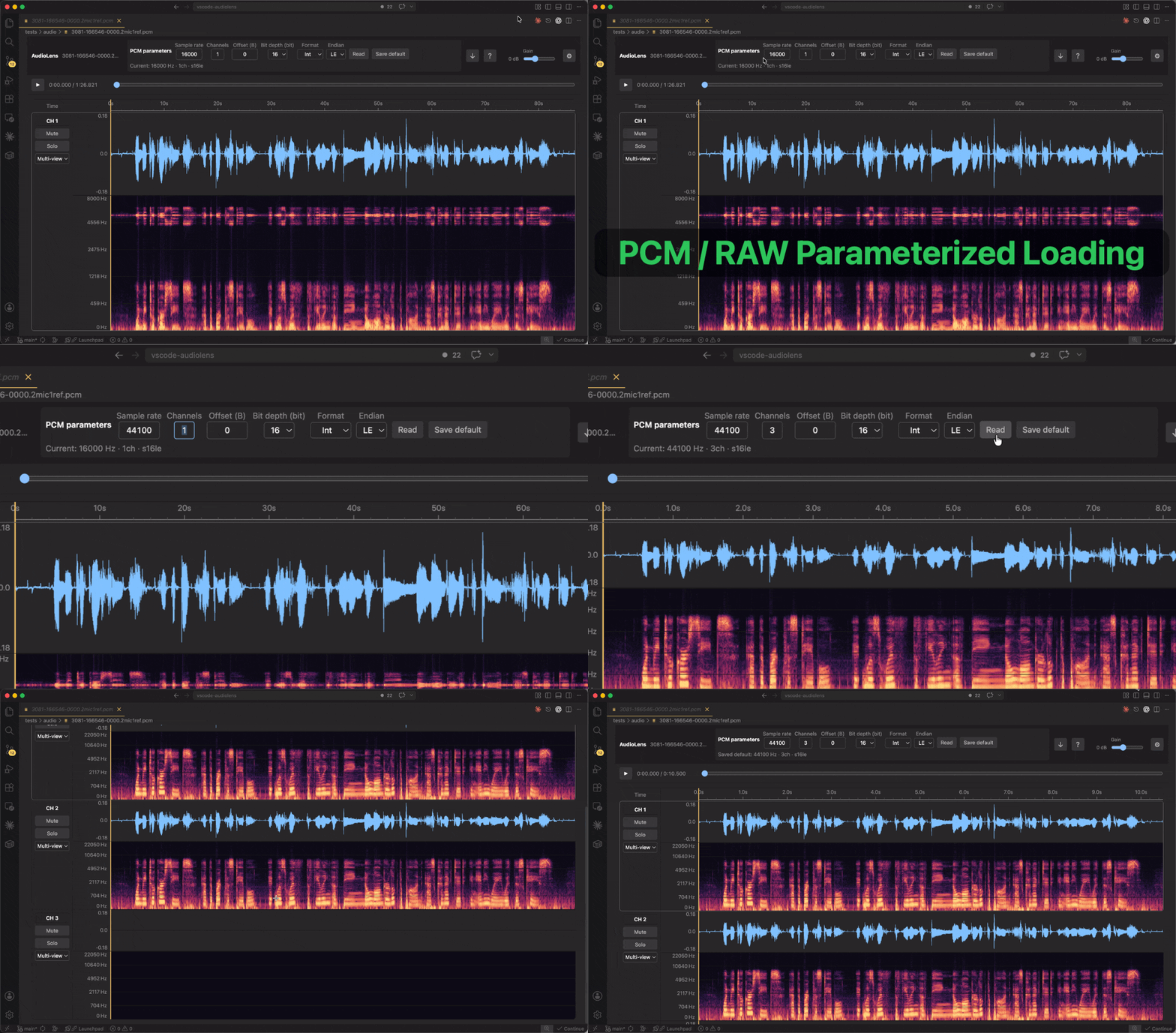
| Raw data debugging | Open .pcm / .raw with explicit sample rate, channel count, encoding, byte order, and byte offset. Reopen WAV payloads as PCM for damaged or non-standard files. |
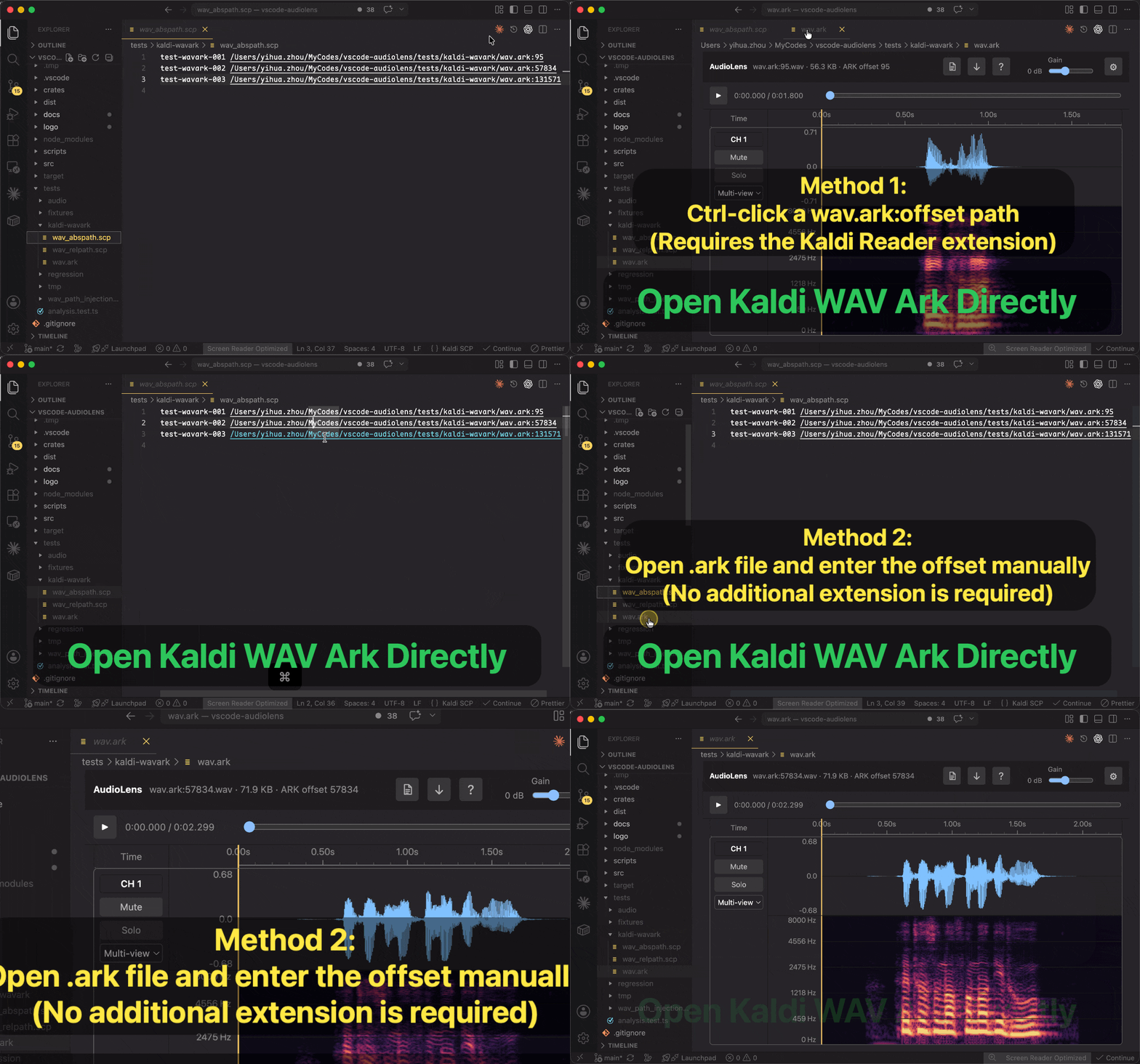
| Kaldi workflows | Open wav.ark:offset entries or manually enter an Ark offset without loading the full archive. |
| Remote development | Runs as a workspace extension, so Remote SSH workspaces can preview and analyze remote audio without copying the dataset first. |
| Area | Features |
|---|---|
| Playback | Keyboard-ready Space play/pause, seek, selection playback, playback gain, per-channel mute and solo. |
| Visualization | Waveform, spectrogram, combined view, shared timeline, configurable track heights, zoom, pan, and reset. |
| Spectrogram analysis | Frequency, reassignment, and pitch (EAC) algorithms; FFT sizes up to 32768; multiple window functions, frequency scales, palettes, and auto brightness. |
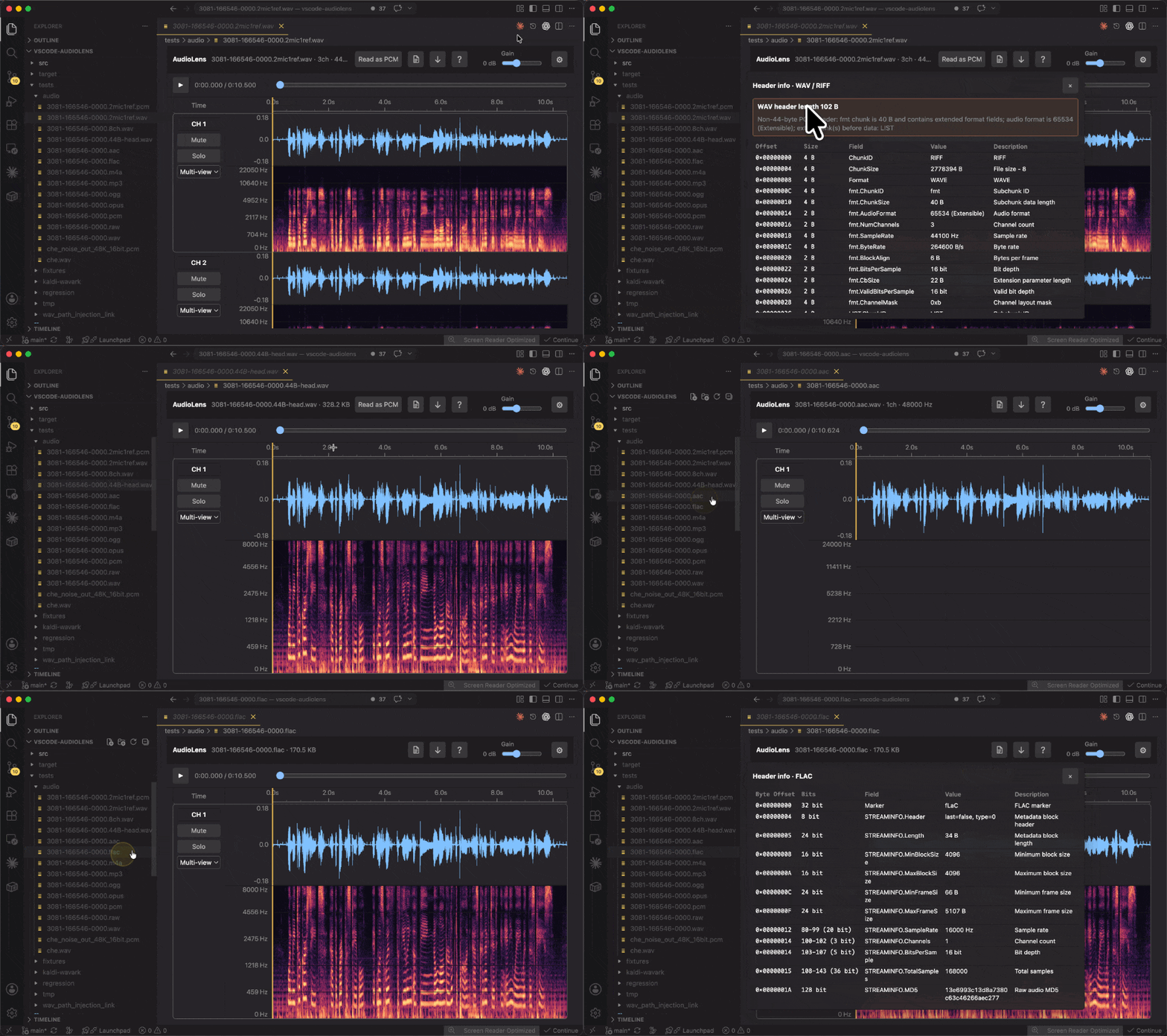
| File inspection | Structured header inspector for WAV/RIFF, FLAC, Ogg, MP4/M4A, AAC/ADTS, and MP3/MPEG frames. |
| Dataset navigation | Hover/status-bar/command entry points for audio paths in ordinary text files without generating thousands of inline links. |
| Persistence | Saves default track view, spectrogram settings, playback gain, PCM defaults, and language preference. |
Recommended: install from the Visual Studio Marketplace
https://marketplace.visualstudio.com/items?itemName=simzhou.audiolens
Alternative: install from Open VSX
https://open-vsx.org/extension/simzhou/audiolens
Command line
code --install-extension simzhou.audiolensOffline VSIX
code --install-extension dist/audiolens-1.4.2.vsix
- Method 1: Ctrl-click a
wav.ark:offsetpath. Requires Kaldi Reader: GitHub, VS Code Marketplace, or Open VSX. - Method 2: Open an
.arkfile and enter the offset manually. No additional extension is required.
AudioLens uses the browser audio stack for common encoded formats and the extension host to read files from the VS Code workspace.
| Type | Extensions | Notes |
|---|---|---|
| WAV | .wav |
Supports multi-channel WAV files, ordered RIFF chunk inspection, standard 44-byte PCM header checks, and optional one-time PCM reread. |
| Kaldi wav ark | .ark entries such as wav.ark:23252 |
Use AudioLens: Open Kaldi WAV Ark Entry or open an .ark file and enter an offset. AudioLens validates RIFF/WAVE at the offset and reads only that WAV entry. |
| Encoded audio | .mp3, .flac, .ogg, .opus, .m4a, .aac |
Uses the VS Code Webview decoder first. Header inspection shows key container or frame fields. Extension-host FFmpeg is used as a fallback when available. |
| Raw PCM | .pcm, .raw |
Requires explicit PCM parameters before reading. |
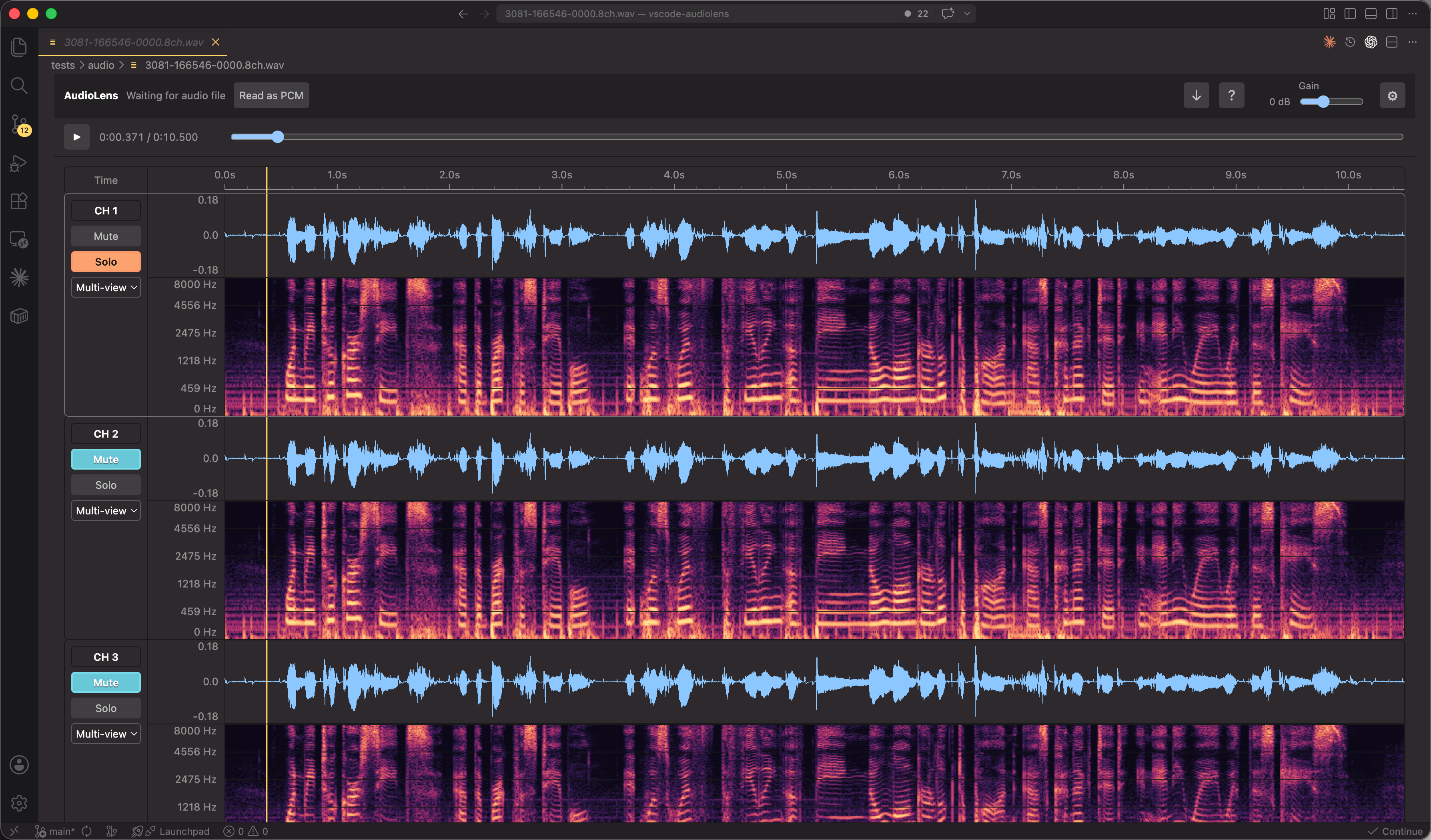
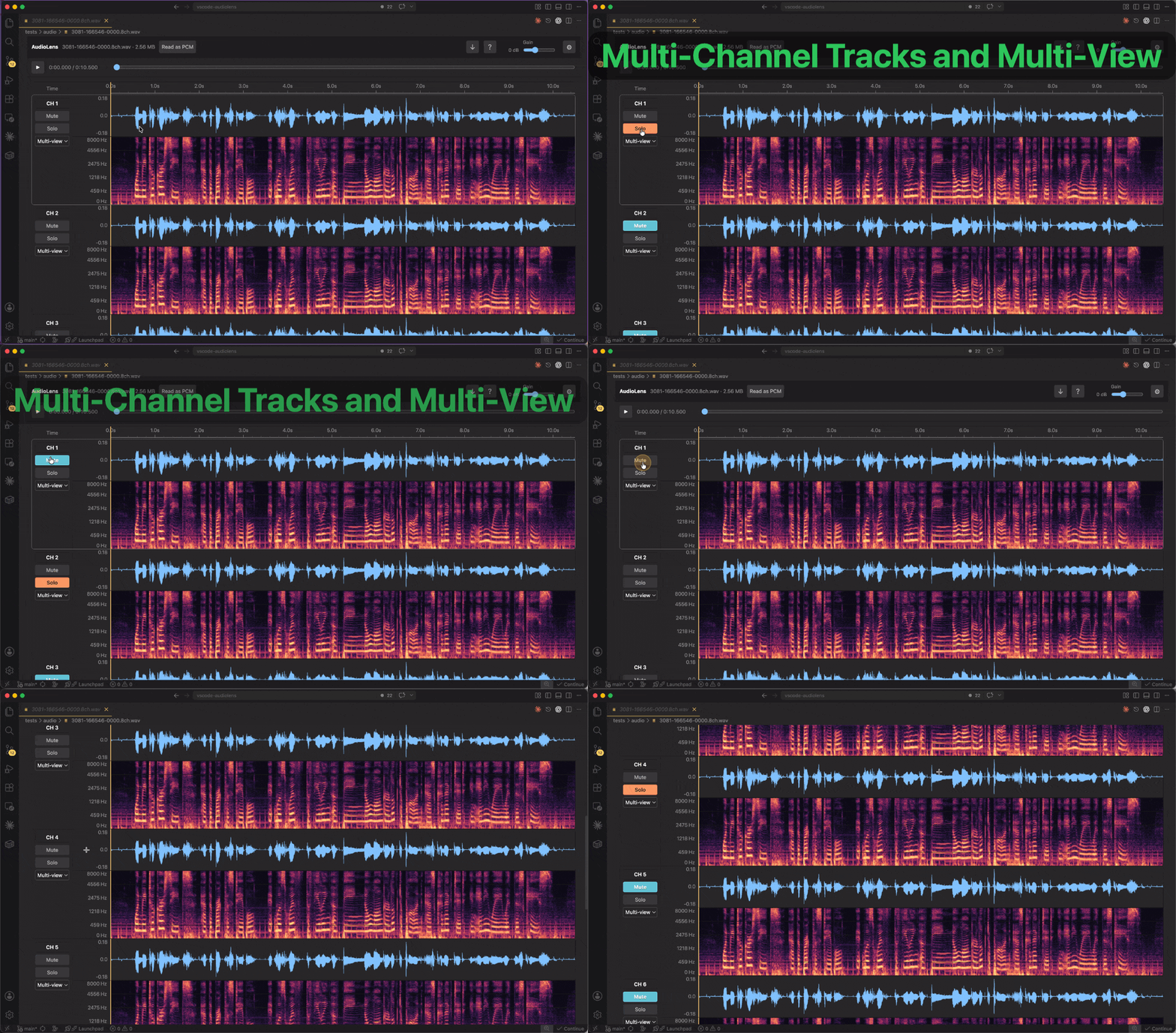
Multi-channel files are shown as separate channel tracks. Each track has a compact left control strip and a full-width analysis area.
Mutedisables playback for that channel.Soloplays that channel and silences the other channels.- The track view selector switches a channel between waveform, spectrogram, and combined view.
- Selecting a track makes it the active channel for selection analysis.
The waveform color is consistent across channels so the selected channel does not visually distort track comparison. Adjacent tracks are drawn as a compact stack with shared borders, while the selected track keeps a rounded focus outline for quick orientation.
For .pcm and .raw files, AudioLens asks for PCM parameters before decoding:
- sample rate
- channel count
- encoding, such as Signed 16-bit PCM, Unsigned 8-bit PCM, 32-bit float, or 64-bit float
- byte order, with 8-bit encodings automatically using no endian setting
- start offset in bytes
The current PCM parameters can be saved as defaults for later PCM files. AudioLens does not guess PCM parameters from the file name, because raw PCM does not contain reliable metadata.
WAV files can also be reopened as PCM from the top bar. This is a one-time operation for the current file and is useful when inspecting raw audio data, non-standard headers, or offset-sensitive test files.
Run AudioLens: Open Kaldi WAV Ark Entry from the Command Palette and enter a wav.ark:offset location. If you open an .ark file directly, AudioLens asks for the offset before reading.
AudioLens only supports ark entries whose audio payload starts with a WAV RIFF/WAVE header. It uses the WAV header size to read the selected entry and does not scan or load the whole ark file.
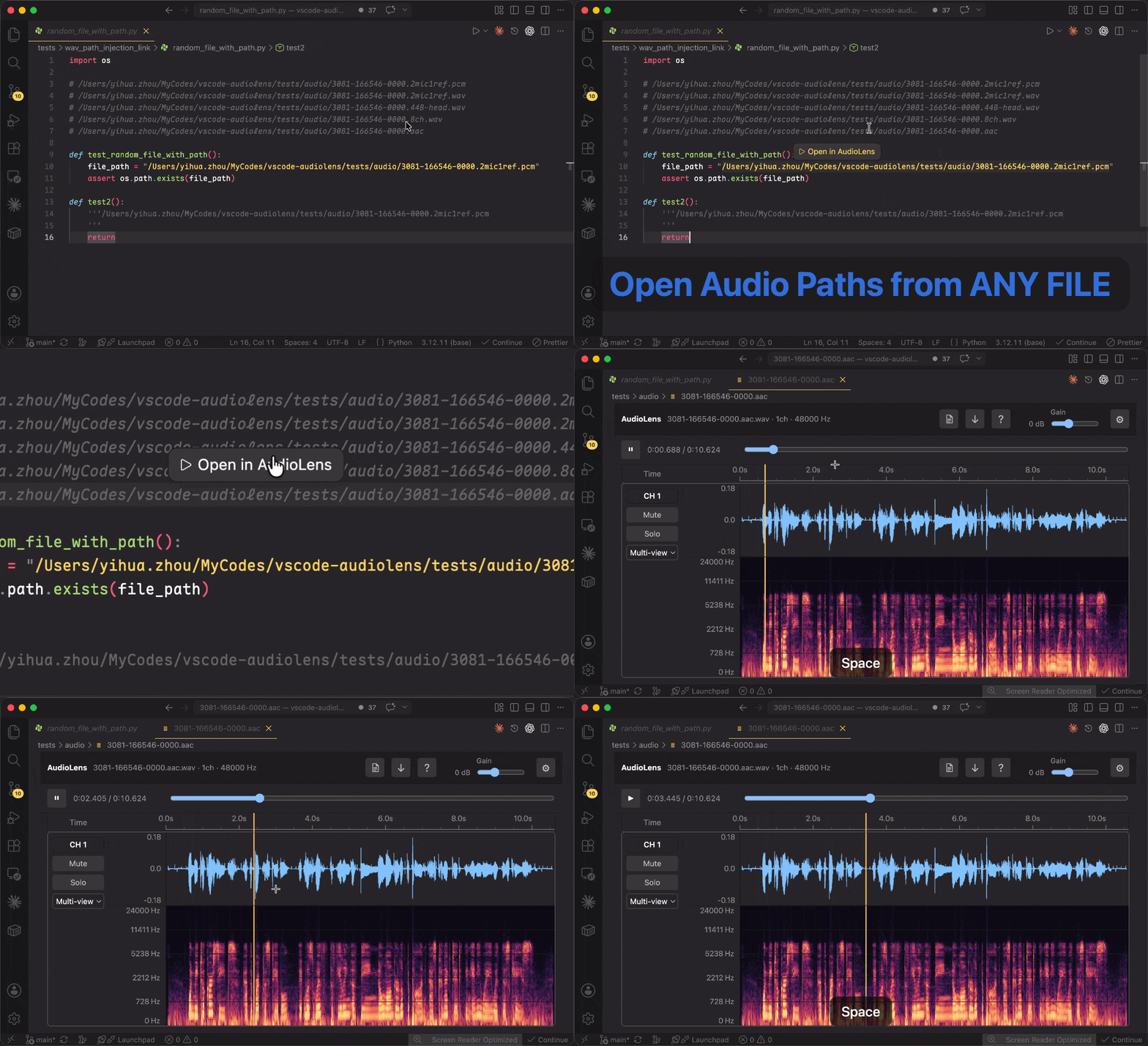
AudioLens can detect audio paths in ordinary text files and open them directly with the AudioLens editor. Hover an audio path and click Open in AudioLens, or place the cursor on a path and use the status-bar action or AudioLens: Open Audio Path at Cursor. It supports absolute paths and relative paths resolved from the current text file, workspace folders, and optional configured base directories.
Run AudioLens: Toggle "Open in AudioLens" from the Command Palette to turn this feature on or off. It is enabled by default and avoids generating inline links for the whole document, so large JSON, log, and dataset files stay responsive.
Kaldi *.ark:offset links are intentionally left to Kaldi Reader.
Use the document icon in the top bar to inspect structured header fields without leaving VS Code. AudioLens lists fields in file order and uses byte offsets for chunk-based formats, or bit ranges for packed headers such as ADTS AAC and MPEG audio frames.
For WAV files, the inspector highlights whether the file uses the standard 44-byte PCM header or contains extended chunks such as fmt extensions and LIST metadata. Audio payload rows identify the data region without dumping raw sample bytes.
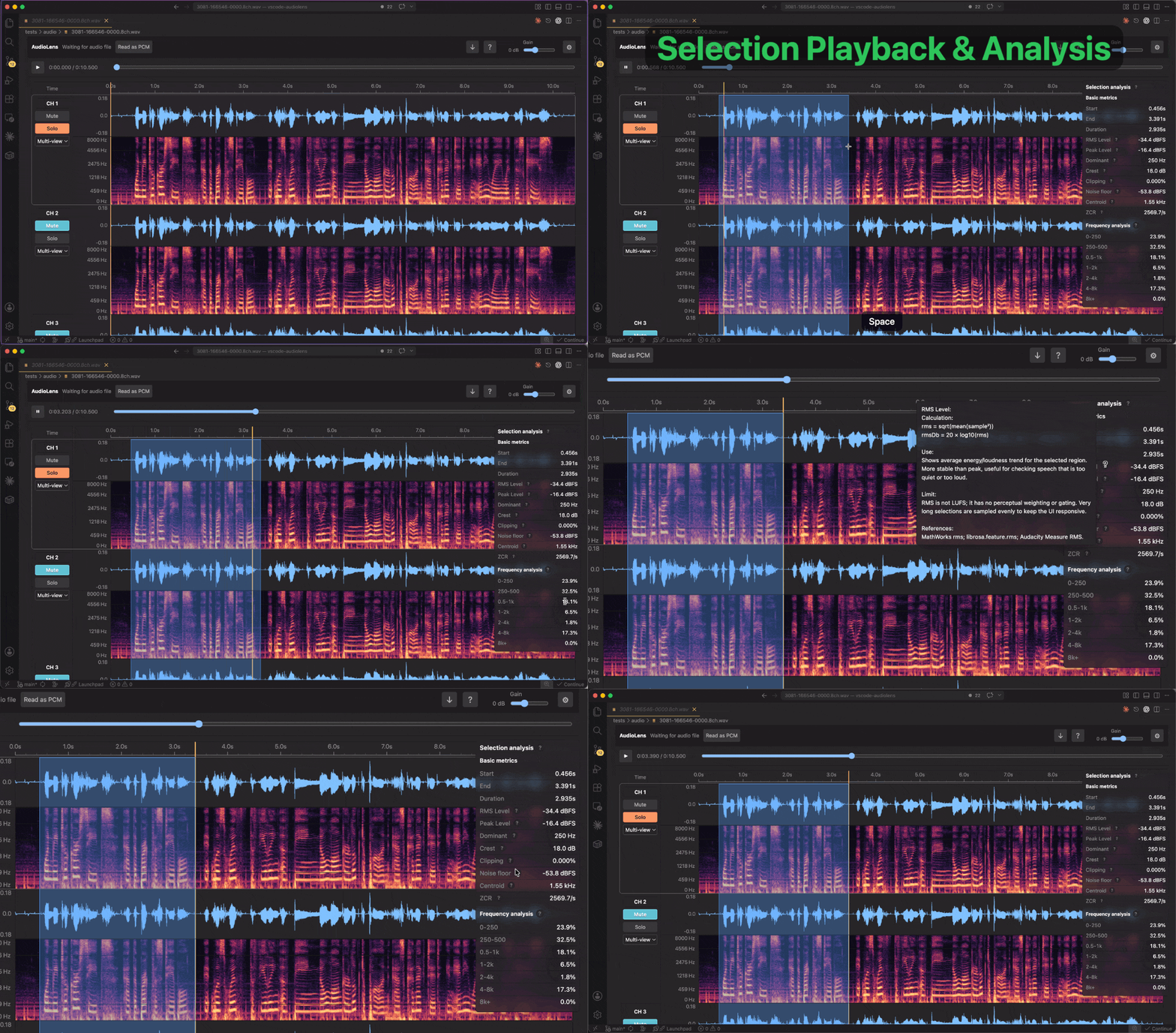
Drag across any waveform or spectrogram to create a time selection. AudioLens can play the selected range and calculate metrics for the active channel.
Current analysis includes:
- start time, end time, and duration
- RMS level and peak level
- dominant frequency
- crest factor
- clipping ratio
- noise floor estimate
- spectral centroid
- zero-crossing rate
- frequency-band distribution
Tooltips next to the metrics describe how each value is calculated and when it is useful.
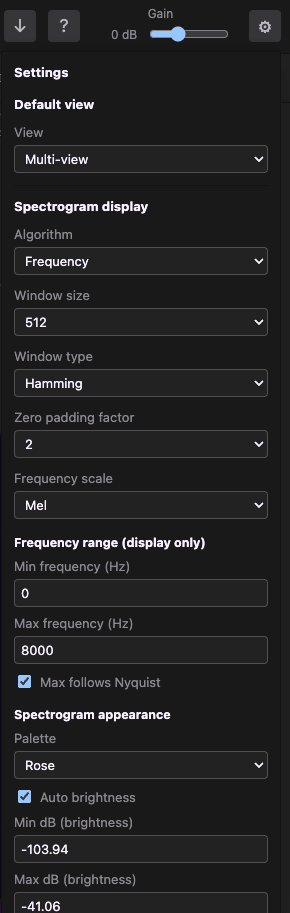
AudioLens includes practical spectrogram controls for speech and signal inspection:
- algorithms: Frequency, Reassignment, Pitch (EAC)
- FFT sizes from
8to32768 - window functions: Rectangular, Bartlett, Hamming, Hann, Blackman, Blackman-Harris, Welch, and Gaussian variants
- zero padding factors from
1to128 - frequency scales: Linear, Log, Mel, Bark, ERB
- configurable display-only frequency range, with an optional Nyquist-following maximum
- palettes: Rose, Classic, Grayscale, Inverse Grayscale
- configurable dB brightness range and auto brightness
The settings menu in the top-right corner keeps these controls close to the spectrogram view, including display-only frequency range limits and Nyquist-following maximum frequency.
Spectrogram work runs in a worker so expensive analysis does not block Webview interactions.
After opening audio, the active spectrogram or waveform is keyboard-ready, so Space can play or pause immediately.
| Action | Shortcut |
|---|---|
| Play or pause | Space |
| Clear selection or playback cursor | Esc |
| Reset time zoom | Ctrl / Command + F |
| Time zoom on macOS | Command + mouse wheel |
| Time zoom on Windows/Linux | Ctrl + mouse wheel |
| Pan visible time range | Shift + mouse wheel |
| Zoom waveform amplitude on macOS | Option + mouse wheel |
| Zoom waveform amplitude on Windows/Linux | Alt + mouse wheel |
| Reset playback gain | Double-click the gain slider |
AudioLens follows the VS Code display language by default. You can override the Webview language with the audiolens.language setting or by running AudioLens: Switch Language from the Command Palette.
Supported languages:
Simplified Chinese, Traditional Chinese, English, Japanese, Korean, French, German, Russian, Spanish, Italian, Portuguese, Indonesian, Norwegian, Dutch, Polish, Turkish, and Vietnamese.
New interface strings fall back to English until a locale has a complete translation.
AudioLens is declared as a workspace extension. In a Remote SSH window, the extension host runs in the remote workspace, reads audio files from the remote file system, and streams the data to the local Webview for playback and visualization.
Use the top-bar download button when you want to save the current remote audio file. VS Code may open the save dialog on the remote side first; choose the local location option in that dialog when saving to your machine.
AudioLens does not upload audio files to any third-party service. Audio content is read by the VS Code extension host and analyzed inside the VS Code Webview and worker runtime.
npm install
npm run build
npm run typecheck
npm run rust:test
npm run package
Press F5 in VS Code and choose the AudioLens extension launch configuration. Then open a supported audio file in the Extension Development Host.
SimZhou: https://simzhou.com/en/about/
If AudioLens helps with your speech, audio, or signal engineering workflow, you are welcome to support its ongoing development.
Support AudioLens on Ko-fi: https://ko-fi.com/simzhou
Copyright (c) 2026 SimZhou. All rights reserved.