Repository navigation
App guide
The Start, Status and History tabs put everyday controls on your phone.
Open http://<computer's IP>/ on the same network as gbs-anywhere, for
example http://192.168.1.20/, and add it to your home screen.
These recordings follow main (the redesigned app in nightly until the
next release; see Which version). They show
the real app at a phone viewport of 390 × 844 px, captured at 2×
resolution. The animations use lossless WebP, displayed at 390 px wide;
the PNG stills are also captured at 2×. Captions sit below the app, and a
green indicator shows each tap. Grinder traffic and shot readings are
simulated. No real account or device details are used. Each animation loops
and has a still image link; the written steps contain the same instructions.
Set up your E64 WS or E65/E80 GbS first. Typing a shot by hand needs no integration.
- Grind with a GbS recipe. On an E64 WS, press the grinder's rotary knob and start the shot on the machine right away. An E65/E80 GbS starts waiting after the grind, with no knob press.
- Time from pump start, weigh the coffee in the cup, and enter your measured Shot time and Weight on Start.
- Tap Send. Wait for step 3 to finish, then open it to review the result. The grinder adjusts for the next shot.

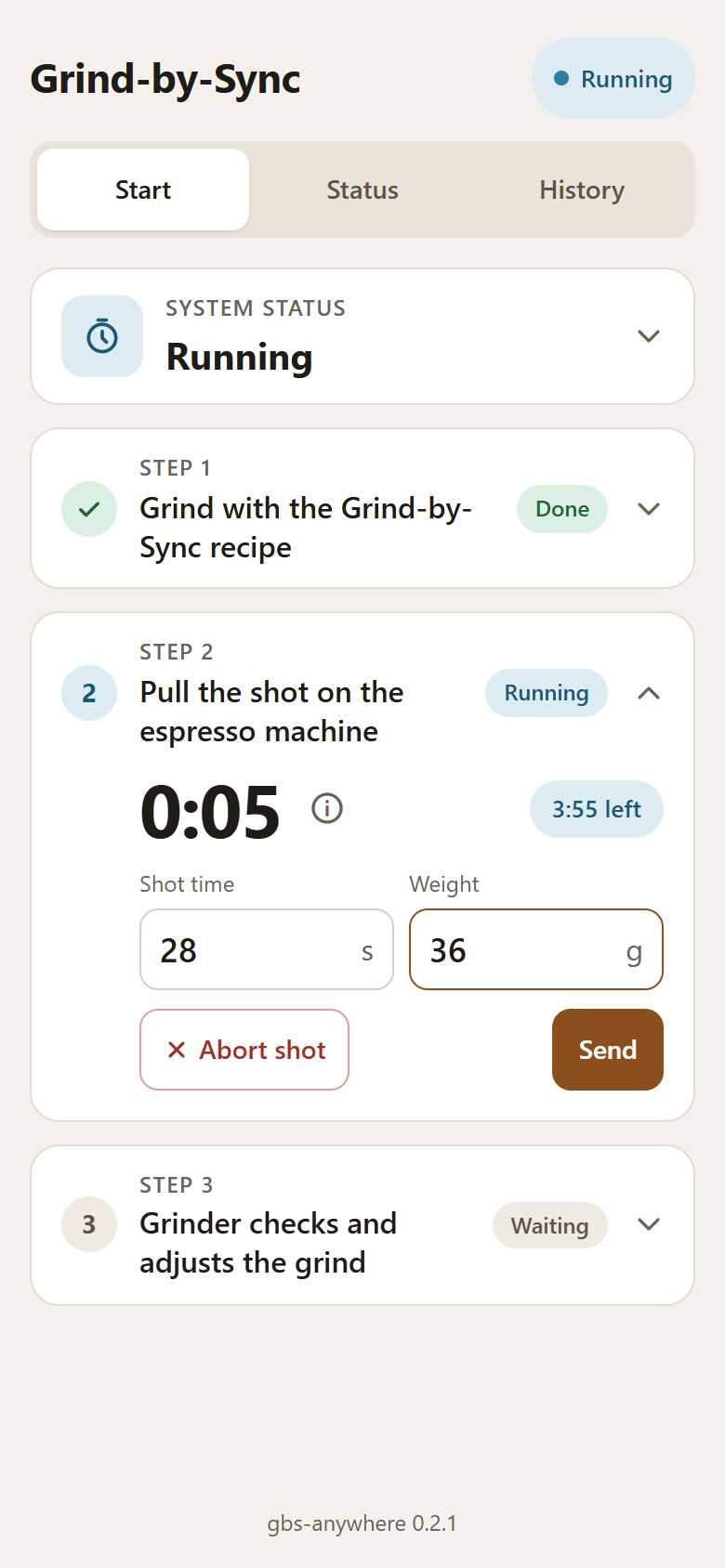
The recording shows an E64 WS and uses 28 s / 36 g as an example. The large app timer is time since the knob press or grind; enter the shot time you actually measured. Leaving Weight empty uses the recipe weight; a weight you typed stays for the next shot. The grinder ignores shots of 10 s or less and over 80 s.
The step that is running, or the one that failed, opens by itself. Step 2 also shows how much of the shot window is left. With an integration the shot is reported by itself. If it has not arrived a minute after the shot should have ended (sooner with a short shot window), or the integration is not working, the app says so and shows the fields to type it in.
Step 3 says whether the shot was too fast, too slow or on target, and what to expect next time. That is a guess: the grinder decides by itself, and may count a shot near the target as correct.
After the grinder changes its setting, the next shot or two may still contain coffee ground at the old setting, as some stays inside the grinder. Judge the change after that, not on the very next cup. If the grinder adjusts too much or not at all, see the troubleshooting for the E64 WS or the E65/E80 GbS.

- While the app waits for a shot, tap Abort shot.
- In the confirmation, tap Abort shot again.
- The grinder skips this shot and keeps its grind setting. Grind again when you are ready for the next one.
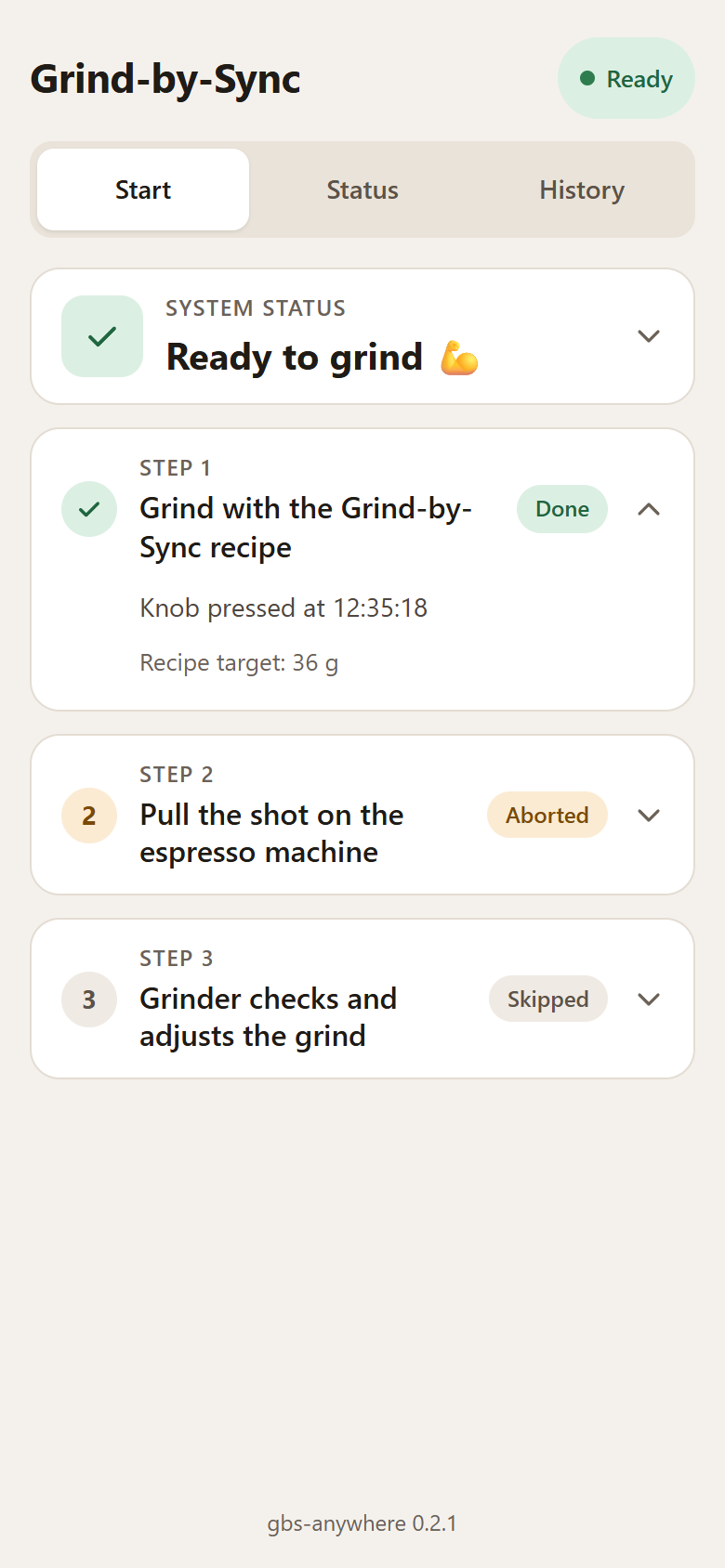

System status at the top of Start says whether everything is ready; tap it for the details.
- When something keeps a shot from starting, such as No grinder connected, it opens by itself and says why in plain words. Step 1 then shows Blocked.
- When shots still work but something needs a look, such as an integration that is not working, it turns yellow and says so.
- The last error, if there is one, sits in a box with Log ›, which opens the log.
- Open History to see recent shots, newest first, with time, weight and outcome. Recipe targets appear when available.
- Tap an outcome chip to hide that kind of shot; tap it again to show it. Filtering does not delete shots.
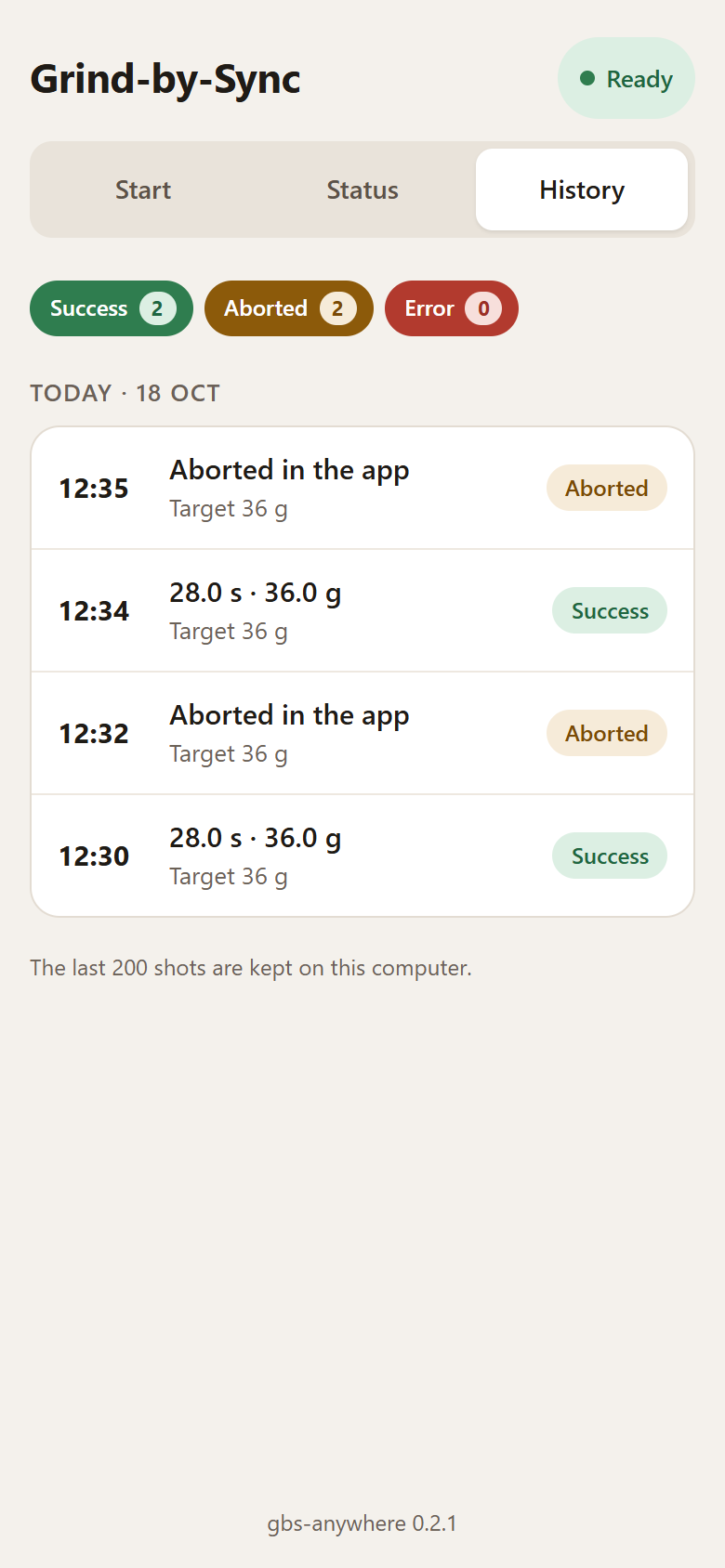
History lists each shot the grinder asked for, grouped by day. Each one ended as:
- Success: the time and weight were reported. A shot the grinder ignores (10 s or less, over 80 s) says so.
- Aborted: by you, replaced by a newer grind, or the grinder address changed.
- Error: for example, no shot within the shot window.
The last 200 shots are kept. With a settings file (the Docker image has
one in /data), history is kept across restarts.
Status has one card for each part of gbs-anywhere:
- Grinder: its address, its pairing ID on an E65/E80 GbS, the last contact and what it is doing.
- Machine integrations: each one with its state and last shot. The ⋮ menu has Edit, and Delete for those added in the app.
- Settings: Time to pull the shot, Grinder IP address and Update check are saved on the computer running gbs-anywhere and kept after a restart. From then on they win over the matching start setting (flag or environment variable). Appearance and Language are kept on each phone or computer.
- gbs-anywhere: the installed version and, with the update check on, whether a newer one is out, with a link to what's new.
- Log: closed until you tap it; see Open the log.

- Open Status → Settings → Time to pull the shot.
- Use − / + to change it by 15 seconds, or tap the value and type a time such as 4:00, 2.5 (minutes) or 150 (seconds). Press Enter or leave the field to save.
- The new window takes effect immediately, including for an open shot.
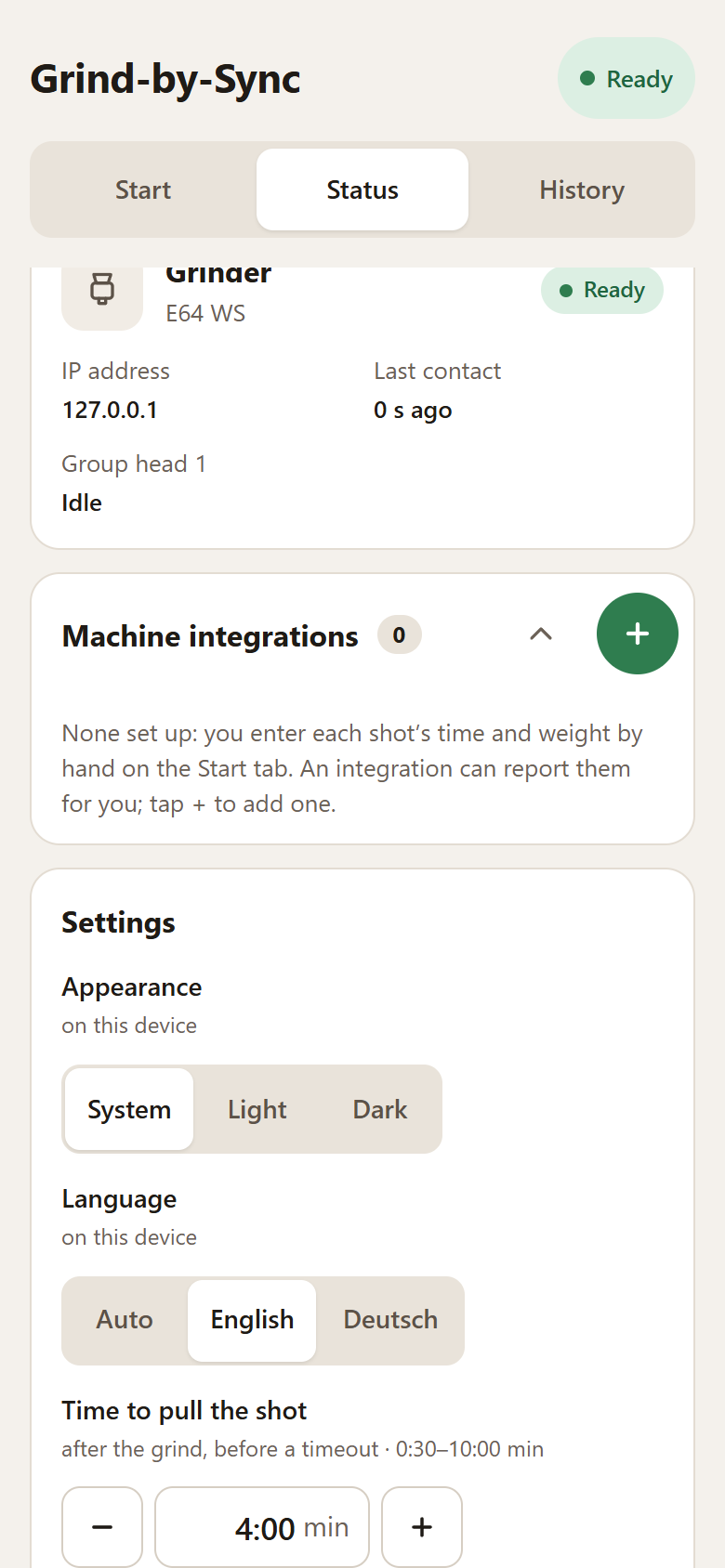
The default is 3 minutes; the app offers 0:30 to 10:00. It is the time allowed after the knob press (E64 WS) or grind (E65/E80) for the shot to be reported. A timeout tells the grinder to skip it. With a settings file, changes survive a restart and take precedence over the startup flag.
The window runs until the numbers arrive, so allow for tamping, the shot itself and, with an integration, the few seconds it takes to report.

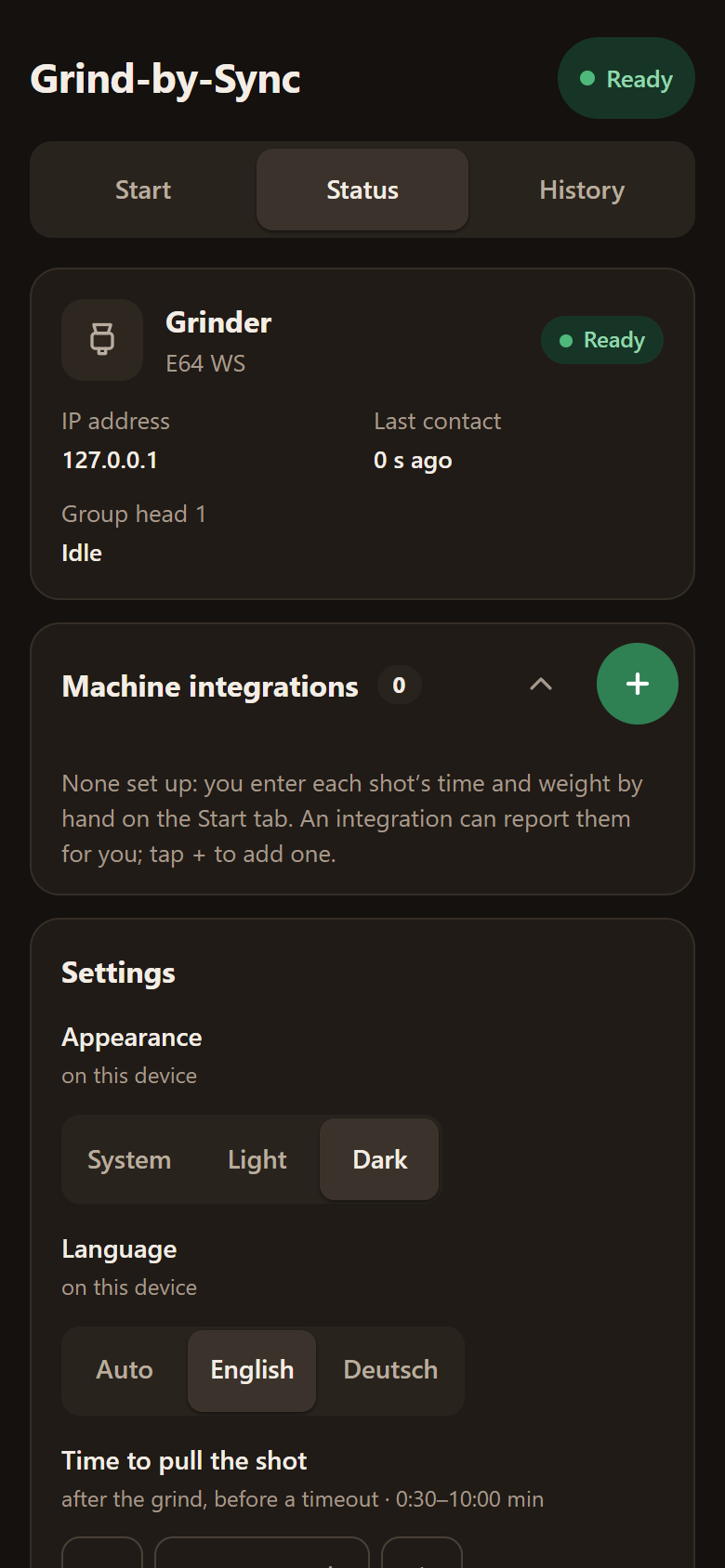

Under Status → Settings → Appearance, choose System, Light or Dark. System follows your device. This choice stays on this device; it does not change the appearance on someone else's phone.
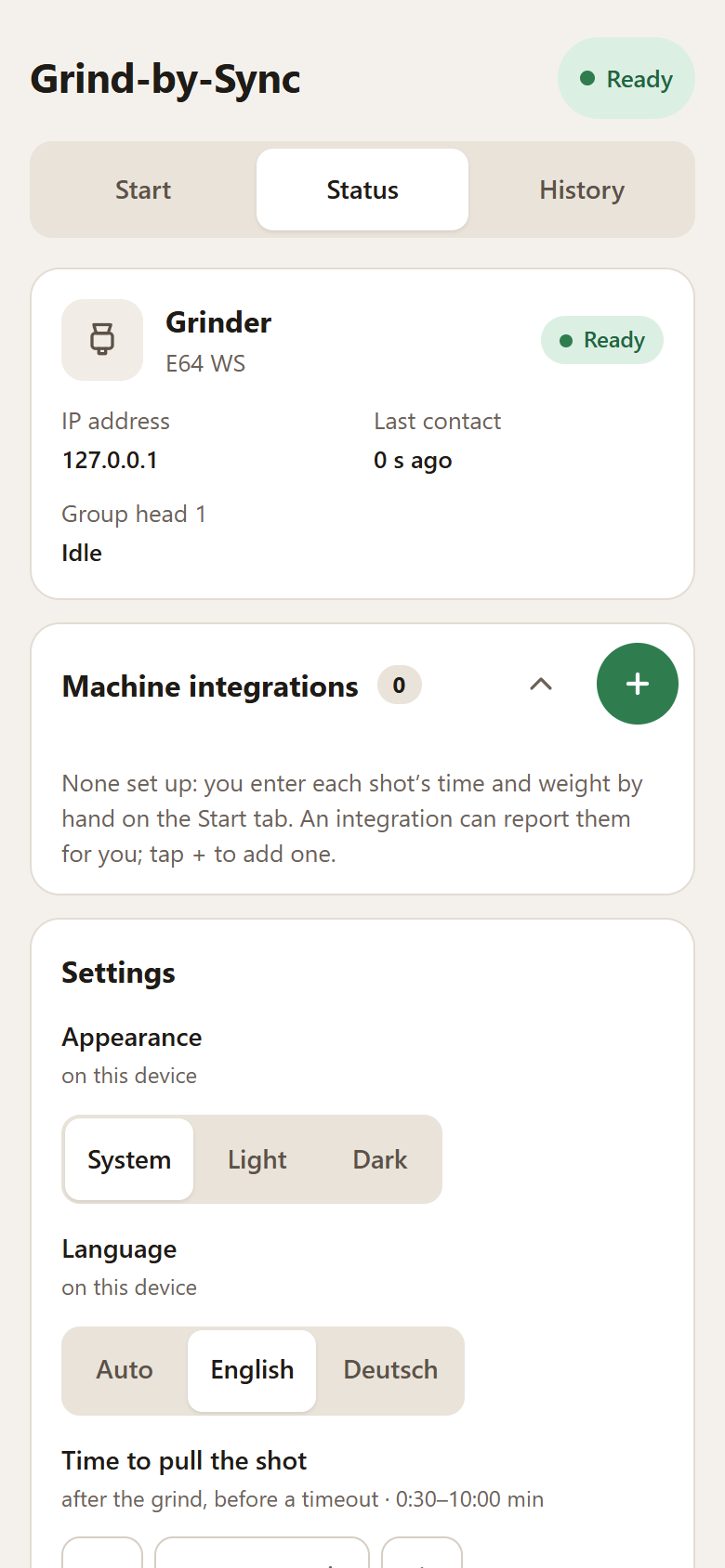
Under Status → Settings → Language, choose Auto (the device's language), English or Deutsch. Like the appearance, this choice stays on this device. Error messages, log lines and the texts of an integration the app has no wording for stay in English.
Under Status → Settings → Update check, choose On or Off. While
it is on, gbs-anywhere asks GitHub a minute after it starts, and then once
a day, whether a newer release is out; the gbs-anywhere card under Status
says so. GitHub sees the request like any other, including your IP
address; it carries nothing but the gbs-anywhere version. The startup
flag is --update-check off (-e UPDATE_CHECK=off in Docker); a choice
made in the app wins.
For an E65/E80 GbS, open Status → Settings → Grinder IP address → Change, enter its address and tap Save. Then accept pairing on the grinder. Follow the address walkthrough and pairing checklist.
For an E64 WS, leave this field empty. Enter the computer's address in the grinder's Xenia configuration instead.
Under Status → Machine integrations, tap the green + and choose:
- La Marzocco cloud for a connected machine's coffee log.
- Half Decent Scale for time from first drops and weight over WiFi.
Each page has a setup animation. Those recordings stop before Add and use example details. On your setup, add your own details and wait for the integration card to say Ready. If an integration is not working, or has not reported the shot a minute after it should have ended, the app shows the fields to enter it yourself. Whichever report arrives first wins, also when several integrations run at once.
To update an integration added in the app, open its card's ⋮ menu → Edit, change the fields and tap Save. Leaving Password empty keeps the saved password. Delete removes the integration and its saved settings. An integration from startup flags shows "From the start settings" and has no Delete: remove its flags to turn it off. With a settings file (the Docker image has one), its Edit first offers to Move into the app; read that confirmation before continuing. See Upgrading from 0.2.x for what happens to the flags afterwards.
- Open Status, scroll to Log, and tap its heading. Or tap Log › next to the last error in System status.
- Use Warnings only to narrow the list; tap it again to show all activity. Follow keeps new lines in view.
- Use Copy the last 60 minutes (up to 500 lines, as filtered) or Download the complete log (a text file) when you need a copy. Both replace IP addresses with placeholders. Review the copy for other personal details before posting it in a public issue.
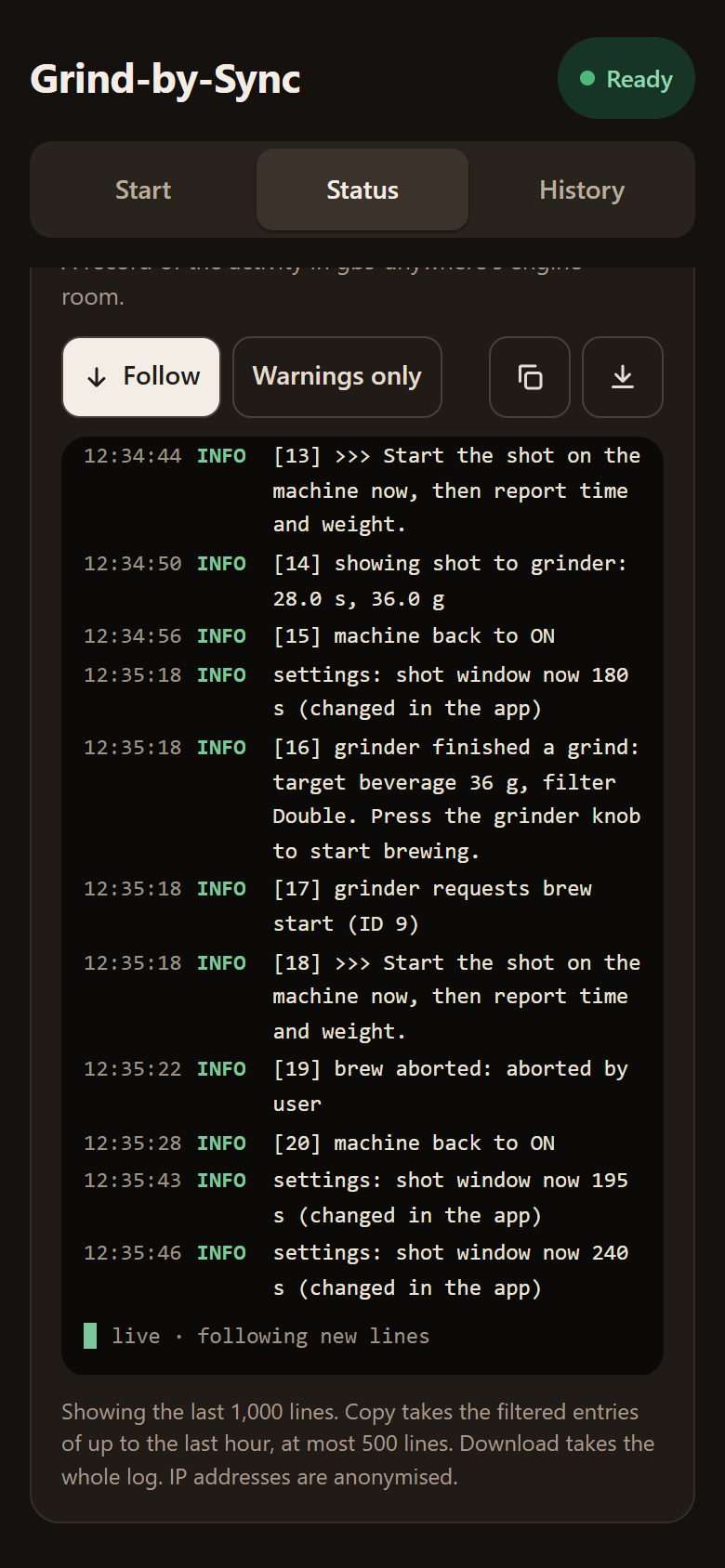
The log holds the last 1,000 lines at INFO level and above. This recording contains only local demo activity.
Copy does nothing? Browsers limit the clipboard on plain http://
pages. The app then shows the text so you can select and copy it by hand.
Download always works.