Repository navigation
Installation
Run gbs-anywhere on a device that stays on whenever you make coffee. Your phone opens its web page; it does not need an app installed. After installing, connect your E64 WS or E65/E80 GbS.
| Your device | Typical setup |
|---|---|
| Desktop PC | Windows or macOS; keep it awake while brewing |
| Server | Always-on Linux server or mini PC with Docker Engine |
| NAS | A model with a Docker-compatible container package |
| Raspberry Pi | A Pi with a 64-bit OS and Docker Engine |
The published image supports Linux amd64 and arm64. Docker Desktop runs the Linux image on Windows and macOS. A NAS must support one of those two architectures; the image does not support 32-bit ARM.
No computer that stays on? For an E65/E80 GbS, a separate experimental firmware does the same job on an ESP32-S3 board.
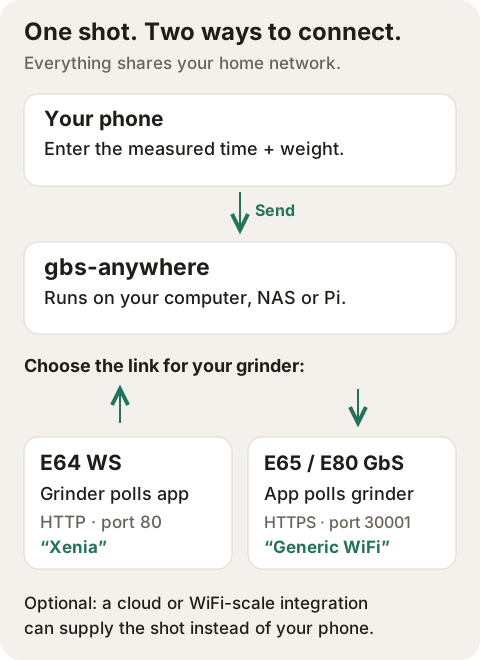
- Put the host (the PC, server, NAS or Pi), grinder and phone on the same home network. A guest WiFi network may prevent them reaching one another.
- Give the host a DHCP reservation in your router, for example
192.168.1.20. An E65/E80 grinder should keep its own address too. When an address changes, the link breaks until you enter the new one. - For an E64 WS, host port 80 must be free. The grinder connects to that port. Allow access to it from your home network in the host's firewall.
- For an E65/E80 GbS, the app can use another host port if needed; see Port 80 is already in use.
- Keep the Docker volume mounted at
/data. It holds your settings, integrations, shot history and E65/E80 pairing across container restarts and replacements.
Use the host's home-network address on your phone and grinder. Do not
use a Docker container's internal address or localhost on your phone.
The app is intended for your trusted home network and has no login; you do
not need to forward a port on your router.
This wiki follows main. Choose an image before you start:
| Image tag | What it contains |
|---|---|
latest |
The newest release, currently 0.2.1. E64 WS support; the redesigned app and E65/E80 support are not in this release. |
nightly |
Built from main each night when it changes. Includes the E65/E80 GbS and the Start, Status and History app shown in this wiki. |
A release number, such as 0.2.1
|
Keeps a specific release until you choose another version. |
The examples below use nightly so they match the walkthroughs. For a
released version, replace :nightly with :latest or a release number.
See the changelog
for changes between versions. The app shows its version under Status
and, while the update check is
on, says when a newer release is out.
Already running 0.2.1 or earlier? See Upgrading from 0.2.x for what changes and how to go back.
Example: a Windows PC or Mac that is switched on while you make coffee.
-
Install and start Docker Desktop using Docker's instructions for Windows or macOS. On Windows, use Linux containers. For a Linux desktop, use Docker Engine and the server instructions below.
-
Open PowerShell on Windows, or Terminal on macOS. Run this as one line:
docker run -d --name gbs-anywhere --restart unless-stopped -p 80:80 -v gbs-anywhere:/data ghcr.io/skamba/gbs-anywhere:nightly
-
On that computer, open
http://localhost/. Then tryhttp://192.168.1.20/on your phone, replacing the example with the computer's home-network address. -
Keep the computer awake and Docker Desktop running while you brew. Docker Desktop's Settings → General → Start Docker Desktop when you sign in to your computer can start it after login; see Docker's startup settings. The container's restart policy takes effect when Docker is running.
Continue with Connect your grinder. A container cannot answer the grinder while the computer is asleep or shut down.
Example: an always-on Linux server or mini PC on your home network.
-
Install Docker Engine and the Compose plugin using Docker's guide for Ubuntu or Debian, or choose your distribution from the supported platforms.
-
Create a directory for the project, such as
gbs-anywhere. Save the Compose file below there ascompose.yaml. -
In that directory, run:
sudo docker compose up -d
sudo docker compose ps
If your account already has access to Docker, you can omit
sudo. -
Open
http://192.168.1.20/on your phone, using the server's address. Then connect your grinder.
Docker must start on boot for the container to come back after a restart.
The unless-stopped policy restarts it with Docker unless you deliberately
stopped it.
Use this file for a server, NAS project or Pi:
services:
  gbs-anywhere:
    image: ghcr.io/skamba/gbs-anywhere:nightly
    container_name: gbs-anywhere
    restart: unless-stopped
    ports:
      - "80:80"
    volumes:
      - gbs-anywhere:/data

volumes:
  gbs-anywhere:
    name: gbs-anywhere
The first port number is the host port; the second is the container's
port. The named volume gbs-anywhere persists separately from the
container. This also uses the same volume name as the desktop command.
Run only one of these setups on a host at a time.
Example: a Synology or QNAP NAS that supports Linux Docker containers. Check your model supports amd64 or arm64 and that its container package is available. A NAS without that package cannot use this setup.
Check port 80 first. A NAS web service may already use it. If it cannot be made available, use another port for an E65/E80 GbS, or another host for an E64 WS. An alternate app port alone does not let the E64 WS connect.
- Install Container Manager from Package Center, if your model offers it.
- Open Container Manager → Project → Create.
- Name the project
gbs-anywhereand select a project folder on the NAS. - Use the YAML editor or upload a
docker-compose.ymlcontaining the Compose file. This maps host port 80 to container port 80 and mounts the named volume at/data. - Finish the wizard and start the project. Use the published port directly; this setup does not need a Web Station portal.
- Open
http://192.168.1.20/on your phone, using the NAS address, then connect your grinder.
Synology's Project guide explains the project editor and controls. Keep the project's data volume when updating or recreating it.
- Install Container Station from App Center, if your model supports it.
- Open Container Station → Applications → Create.
- Name the application
gbs-anywhereand paste the Compose file into its YAML editor. - Create and start the application.
- Open the NAS address on your phone, then connect your grinder.
See QNAP's Container Station 3 guide for the application wizard; names may differ on other versions.
Example: a Pi 4 or Pi 5 running Raspberry Pi OS Lite (64-bit), left on near your coffee setup. Use a suitable power supply and storage for the Pi.
-
Use Raspberry Pi Imager to install the 64-bit OS. Configure your network and, if you want to manage it from another computer, SSH. Raspberry Pi's getting-started guide covers the first boot.
-
Connect the Pi to the same network as the grinder and give it a DHCP reservation, for example
192.168.1.20. -
Install Docker Engine and the Compose plugin using Docker's Debian instructions. Docker directs 64-bit Raspberry Pi OS users to that guide. This image does not run on a 32-bit Pi OS installation. On Raspberry Pi OS,
dpkg --print-architectureshould reportarm64. -
On the Pi, save the Compose file as
compose.yamlin a project directory. In that directory, run:sudo docker compose up -d sudo docker compose ps
Docker selects the
arm64image automatically; no platform override is needed on a 64-bit Pi OS. -
Open
http://192.168.1.20/on your phone, using the Pi's address, then connect your grinder.
You do not need to compile Rust or build the image on the Pi. The image is already built for arm64. See Docker's Pi platform guidance for the distinction between 32-bit and 64-bit installations.
If the page opens and says No grinder connected, installation is done; the grinder still needs setup:
- E64 WS: enter the host's address in the grinder's Xenia configuration. Leave Grinder IP address in the app empty.
- E65/E80 GbS: enter the grinder's own address under Status → Settings → Grinder IP address, then accept pairing on the grinder. The host needs to reach the grinder on HTTPS port 30001.
Next, use the App guide to enter a shot by hand. Integrations are optional: La Marzocco cloud and Half Decent Scale can report the numbers for you.
For a Compose installation, run these in the directory with compose.yaml
(omit sudo when it is not needed):
sudo docker compose pull
sudo docker compose up -d
For a desktop installation made with docker run, use the following
commands, then run the same desktop command again with the image tag
you want:
docker pull ghcr.io/skamba/gbs-anywhere:nightly
docker stop gbs-anywhere
docker rm gbs-anywhere
Removing that container keeps the named data volume. Keep mounting it at
/data in the replacement container. On a NAS, use the container package's
image-update and recreate controls with the existing project and volume.
Back up the data volume before an update. It includes passwords as well as
settings and history, so keep the backup private. Do not delete the volume
or use docker compose down -v when you want to retain your setup.
Once the app opens, look at System status on Start and at the Log at the bottom of Status first: most problems are spelled out there.
Docker may report that the port is already allocated or cannot be bound. Another web service or container on the host may be using it.
- E64 WS: make host port 80 available or use another host. The grinder uses port 80; changing only the Docker host port to 8089 does not work.
-
E65/E80 GbS: you can publish the app on 8089 instead. In Compose,
replace
"80:80"with"8089:80"; in the desktop command, replace-p 80:80with-p 8089:80. Openhttp://192.168.1.20:8089/on your phone, using your host's address. The grinder connection still uses port 30001.
Use the host's home-network address, with the chosen port. Check that the host and phone are on the same network, that WiFi client isolation is off for that network, and that the host's firewall allows the published port from your home network. Keep Docker Desktop and the host awake.
With Compose, run sudo docker compose ps -a and
sudo docker compose logs --tail 50. For the desktop command, use
docker ps -a and docker logs --tail 50 gbs-anywhere.
On a NAS, open the container's logs in its container package.
If Docker reports no matching manifest, check the host uses amd64 or arm64 Linux containers. On a Pi, use a 64-bit OS; on Windows, switch Docker Desktop to Linux containers.
Mount the same named volume at /data every time. The examples use a
volume called gbs-anywhere. Without it, a new container has no saved
settings or pairing. Keep the same volume when recreating a NAS project.
This applies when gbs-anywhere runs from source in a terminal, not in Docker, and the log shows "No route to host". macOS can deny local-network access to programs that keep running in the background after the terminal or SSH session ends. Run gbs-anywhere in Docker, or allow your terminal app under System Settings → Privacy & Security → Local Network.
Follow the troubleshooting on the E64 WS or E65/E80 GbS page.
Copy the log (Status → Log → Copy the last 60 minutes; see Open the log) and open an issue. Say what you did, what you expected and what happened, with the host type, grinder model, app version and what the app shows.