Repository navigation
La Marzocco cloud
Connected La Marzocco machines log every coffee to the La Marzocco cloud, with the extraction time and, with a Connected Scale, the weight in the cup: the numbers the machine shows after a shot. gbs-anywhere can log in with your La Marzocco Home account and report shots from that log, so nothing needs to be typed.
- Works on any connected La Marzocco, including the Linea Mini R.
- Reports the weight the machine measured; without a scale reading it uses the recipe weight.
- Works with the E64 WS and the E65/E80 GbS.
- Available since release 0.1.0.
The full reference is the integration's README.
- Set up your grinder first and check that a shot typed by hand reaches it.
- In the app, open Status → Machine integrations, tap the green + and pick La Marzocco cloud.
- Enter your La Marzocco Home e-mail address and password.
- If the account has more than one machine, add the machine's serial
number (e.g.
MI000000), as shown in the La Marzocco Home app. - The integration's card turns Ready once it has logged in and found the machine.

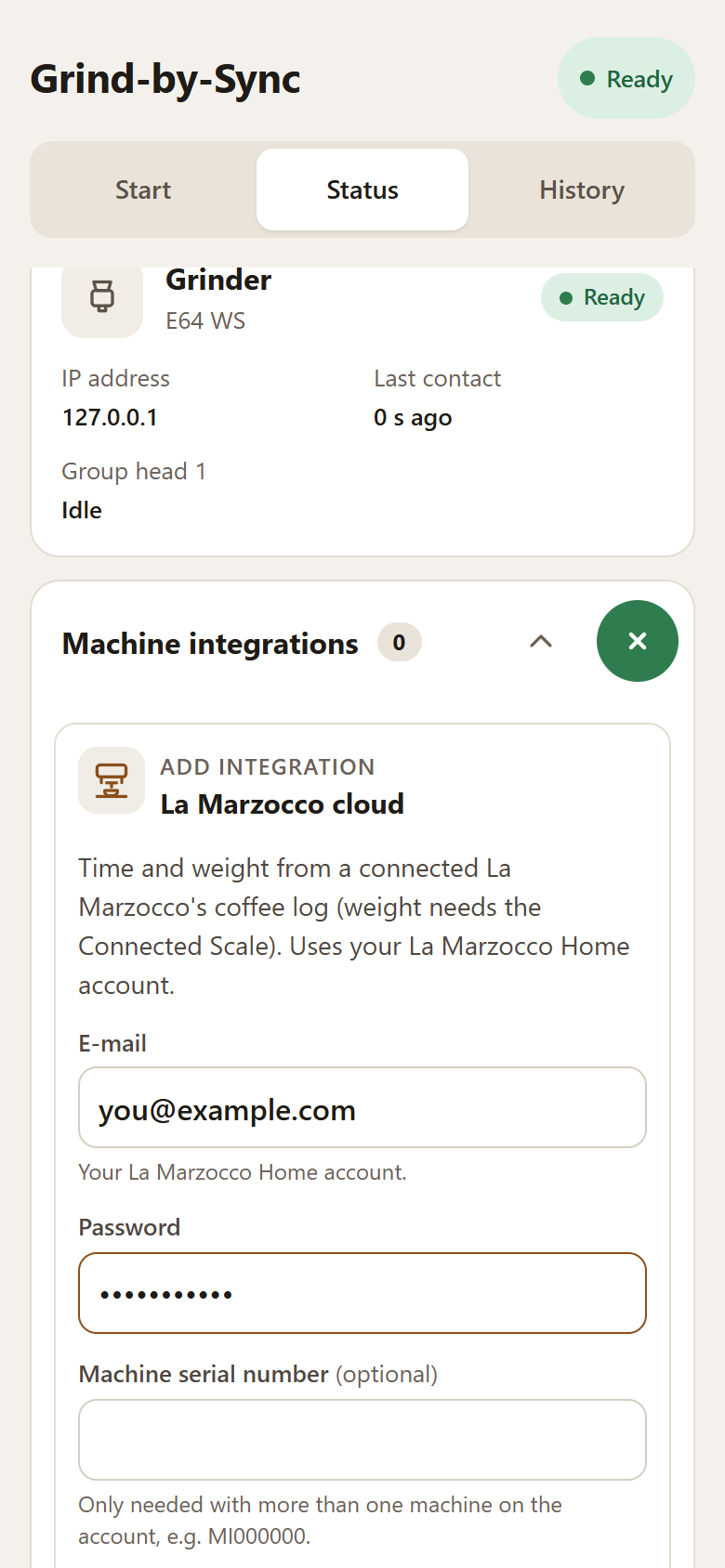
The recording uses example details and stops before Add; it does not log in. Enter your own La Marzocco Home details, add a serial number only if needed, then tap Add and wait for Ready.
Settings added in the app are saved in /data, password included. Passwords
are never sent back out by the API. Use the card's ⋮ menu → Edit to
change the settings; leave Password empty to keep the saved password.
Delete removes the integration and its saved settings.
Or start gbs-anywhere with it, in Docker:
docker run -d --name gbs-anywhere --restart unless-stopped \
  -p 80:80 -v gbs-anywhere:/data \
  -e LM_USERNAME=you@example.com \
  -e LM_PASSWORD='your La Marzocco Home password' \
ghcr.io/skamba/gbs-anywhere| setting | flag | env | default |
|---|---|---|---|
--lm-username |
LM_USERNAME |
off | |
| Password | --lm-password |
LM_PASSWORD |
|
| Machine serial number | --lm-serial |
LM_SERIAL |
the account's only machine |
| Check interval (seconds, 1 to 60) | --lm-poll-s |
LM_POLL_S |
3 |
An integration set this way shows "From the start settings", has no Delete, and is turned off by removing the flags. To change it in the app, use its ⋮ menu → Edit → Move into the app; see Upgrading from 0.2.x.
- Grind with a GbS recipe. On the E64 WS, press the knob; on an E65/E80 GbS, the grind is enough.
- Pull the shot on the La Marzocco as usual.
- A few seconds after the pump stops, the machine uploads the coffee and gbs-anywhere sends its time and weight to the grinder. The app shows Reported by La Marzocco cloud.
While the grinder waits for a shot, gbs-anywhere asks the cloud for new coffees every 3 s. The first coffee logged after the knob press (on an E65/E80 GbS: after the grind) is the shot.
- Only while the grinder waits. Coffees made at other times are never reported.
- A few seconds late. The machine uploads the coffee when the shot ends, so the grinder reacts some seconds after the pump stops.
- Flushes don't count. The cloud logs flushes separately, and coffees it marks invalid are skipped, so the grinder keeps waiting for a real shot.
- The time is the machine's. It is the extraction time the machine measured, so set your recipes' target times to match what the machine shows.
- Same account as the app. gbs-anywhere registers itself as one more installation of the La Marzocco Home app. The app keeps working alongside it.
- It retries by itself. A failed login or check is retried with backoff.
System status on Start turns yellow, and the integration's card under Status shows the last error. Fix the settings from the card's ⋮ menu → Edit. Common errors:
- "login refused (check the e-mail address and password)": the account details are wrong. Enter the right ones with Edit.
- "more than one machine on this account, set the serial number": the error lists the serial numbers it found. Add the right one.
- "machine … not on this account": the serial number does not match. The error lists the ones it found.
- "no coffee machine on this account": the machine is not registered to this La Marzocco Home account.
No shot reported. If the integration has not reported the shot a minute after it should have ended, the app says so and shows the fields to type it in. Check that the machine is online in the La Marzocco Home app and that the coffee shows up in its log.
The app shows a generic machine glyph, because vendor logos are trademarks
and are not shipped. To show your own, put a monochrome la_marzocco.svg or
.png (transparent background) you are allowed to use in a directory and
pass -v /that/dir:/icons:ro -e ICONS_DIR=/icons; the app tints it to match.