Repository navigation
StripForge 0.2.0 (beta)
Pre-release
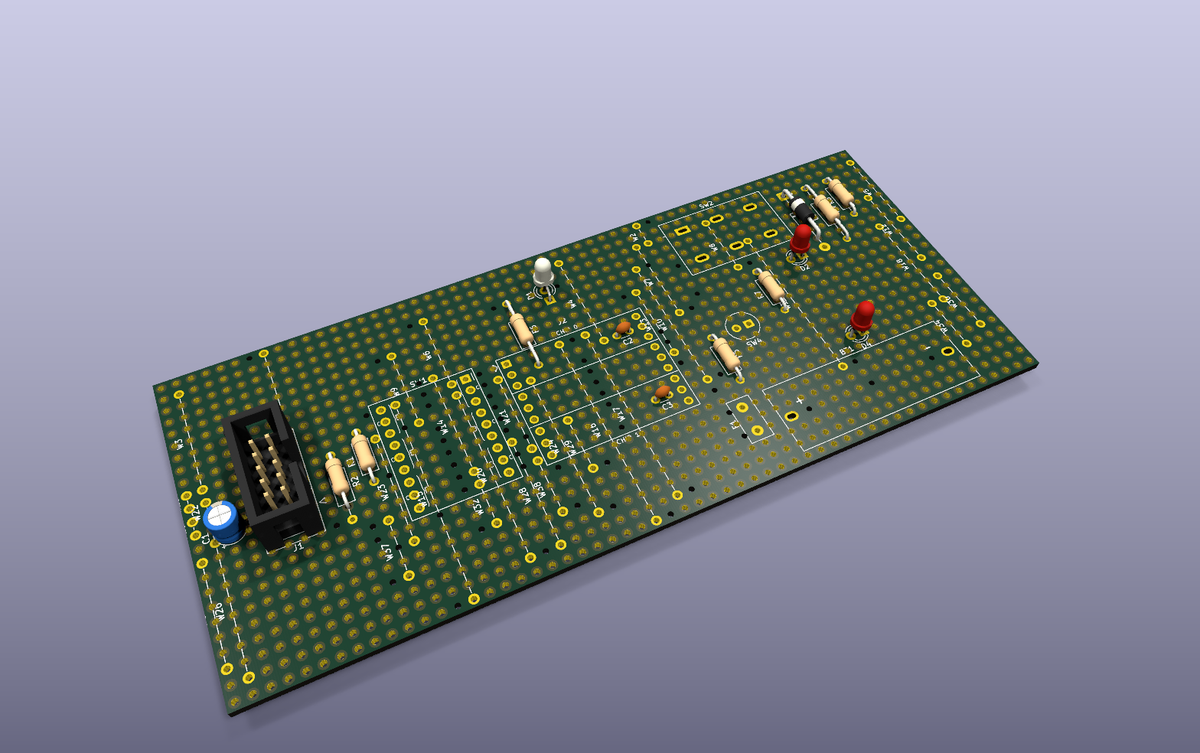
StripForge lays out stripboard (Veroboard) circuits inside KiCad 10. You place your real parts on
the hole grid; StripForge writes the strip copper, the cuts and the wire links into the board,
checks it with KiCad's own DRC, and prints a build sheet you can work from at the bench.
This is the first beta. It has been used end to end on one real board so far: an ATtiny10
programming fixture on a 24 × 56 hole stripboard, from placed parts to a clean DRC (no shorts,
nothing unconnected) and a build sheet. Other boards will find things that one didn't, and I'd
like to hear about them.
What's new since 0.1.0
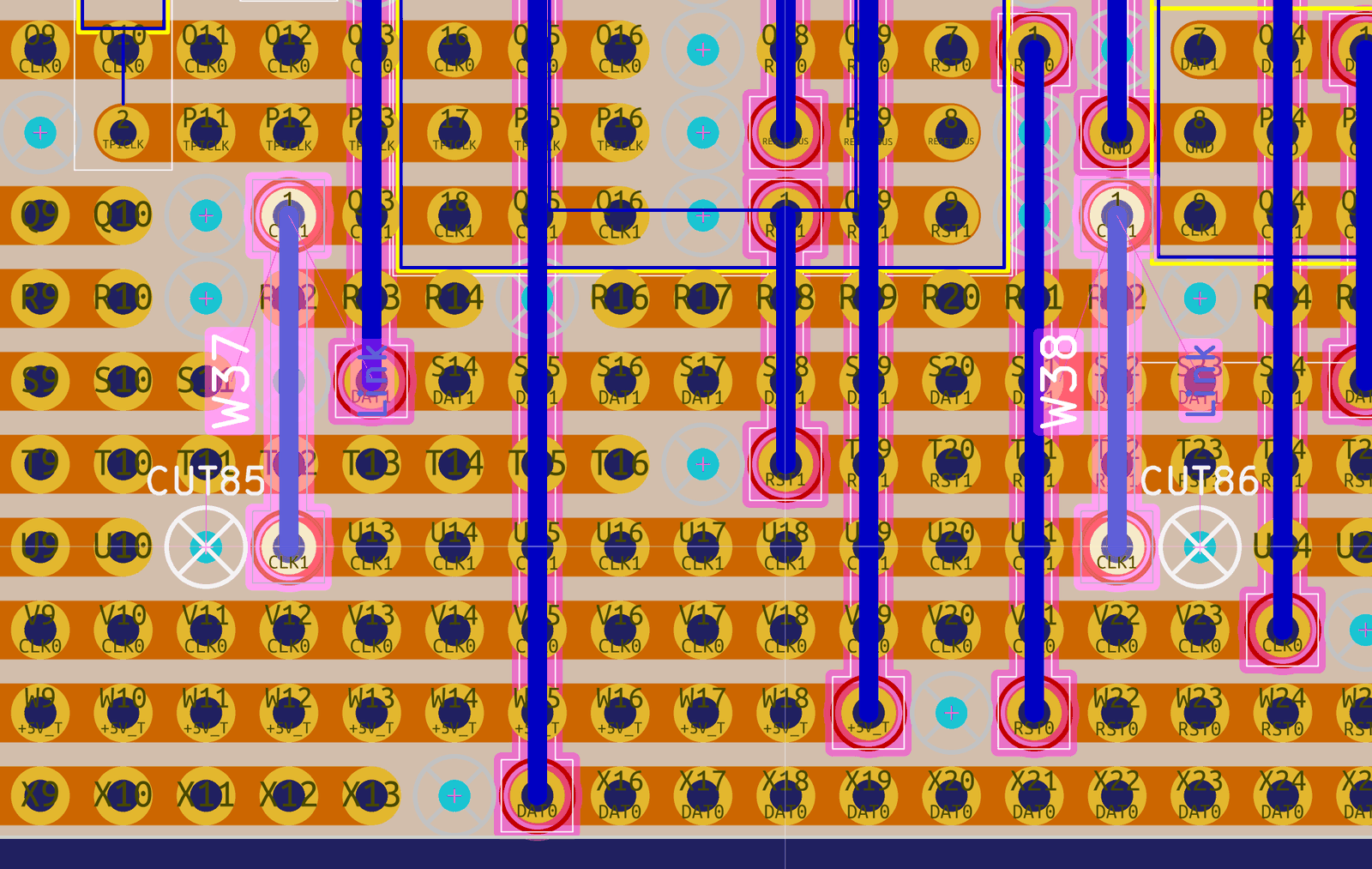
- Builds in your board. Build strips saves the project's own board, backs it up and writes the
strips, cuts and links into it, so F8 (Update PCB from Schematic) keeps working. - Links are placed for you, and the new Add links to schematic button adds their symbols
to the schematic. - Your edits are kept. Move a cut marker or a link in the board and build again: StripForge
keeps what you did and fills in the rest. - More nets joined. A spare strip can carry a net between two pieces ("bus strip"), and nets
left over get a second try after unused strip ends are trimmed. - Tick the build sheet off on screen. Click a checklist row in the HTML sheet to tick it and
strike it through (Status: "Cut" or "Installed"); progress counts, a reset button, and the ticks
survive a refresh. The PDF is for printing and ticking by pen. - Backups of the board, every schematic sheet it changes, and the previous build sheet.
- A slimmer link footprint outline, clearer reports, and many fixes. The full list is in the
CHANGELOG.
Install
-
KiCad 10 > Preferences > Plugins: tick Enable KiCad API.
-
Download
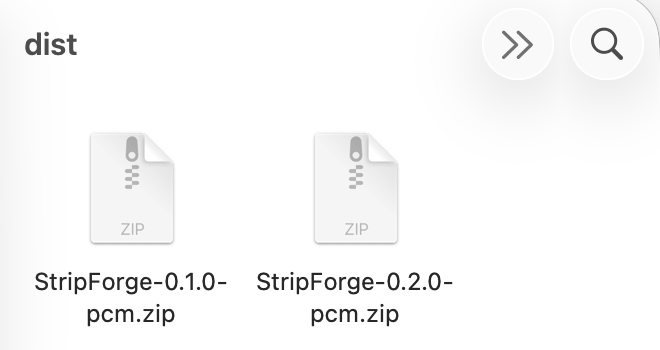
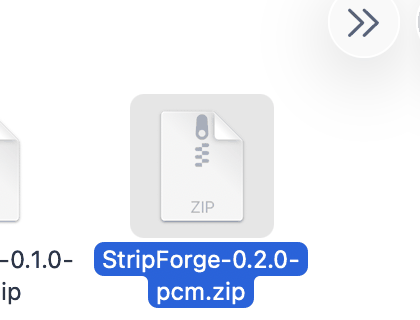
StripForge-0.2.0-pcm.zipbelow. In KiCad's Plugin and Content Manager, click
Install from File… and pick it.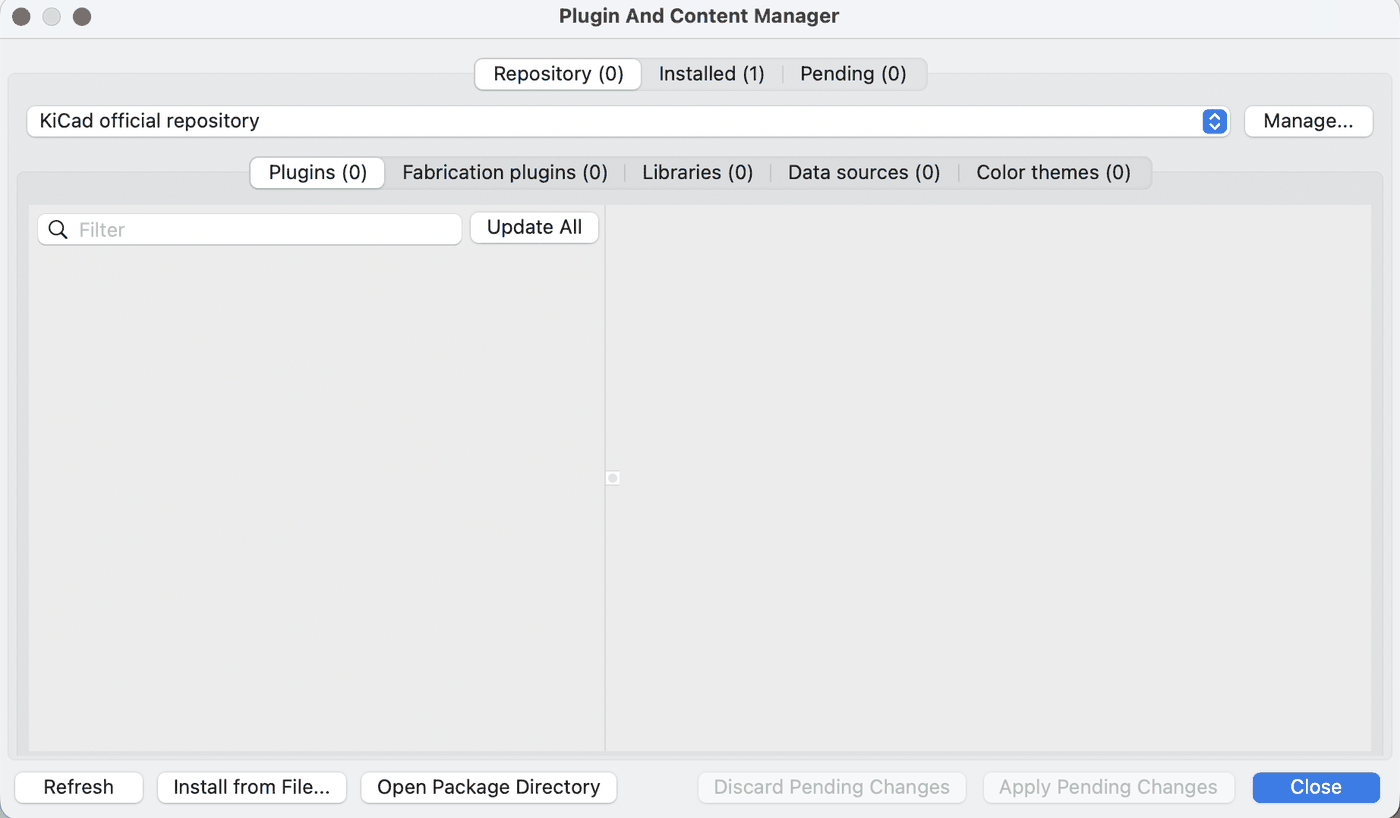
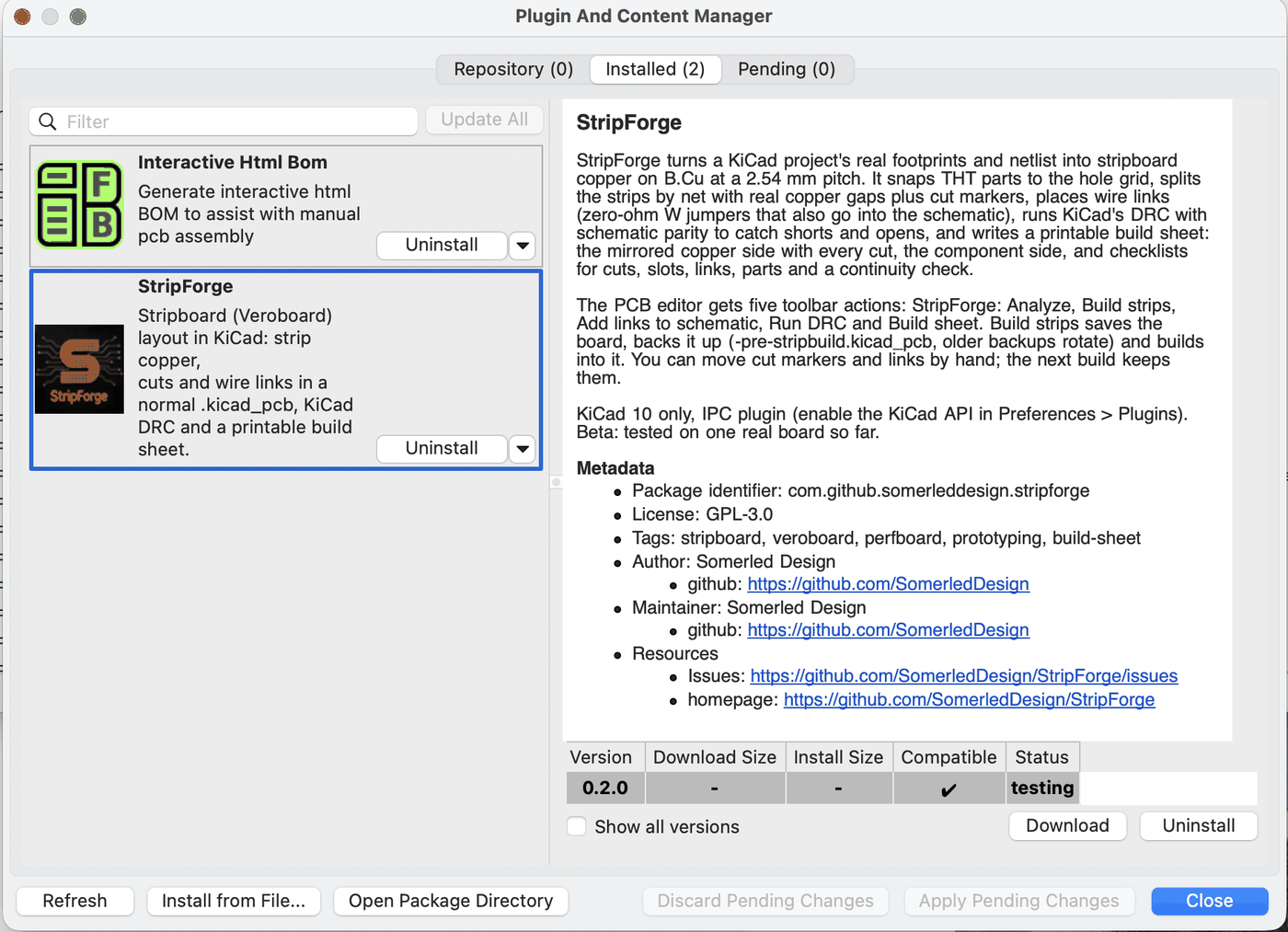
StripForge then shows on the Installed tab as version 0.2.0:
-
Restart KiCad. Five StripForge buttons appear in the PCB editor's toolbar:

-
Add the footprint library once (Preferences > Manage Footprint Libraries), nickname
StripForge, path
${KICAD10_3RD_PARTY}/plugins/com_github_somerleddesign_stripforge/footprints/StripForge.pretty
(the Plugin and Content Manager names the folder with underscores).
Then follow Using it in the README: save, Build strips, Update
Footprints from Library, Add links to schematic, close and reopen the schematic, F8, Run DRC,
Build sheet.
| Build strips report | Run DRC: clean |
|---|---|
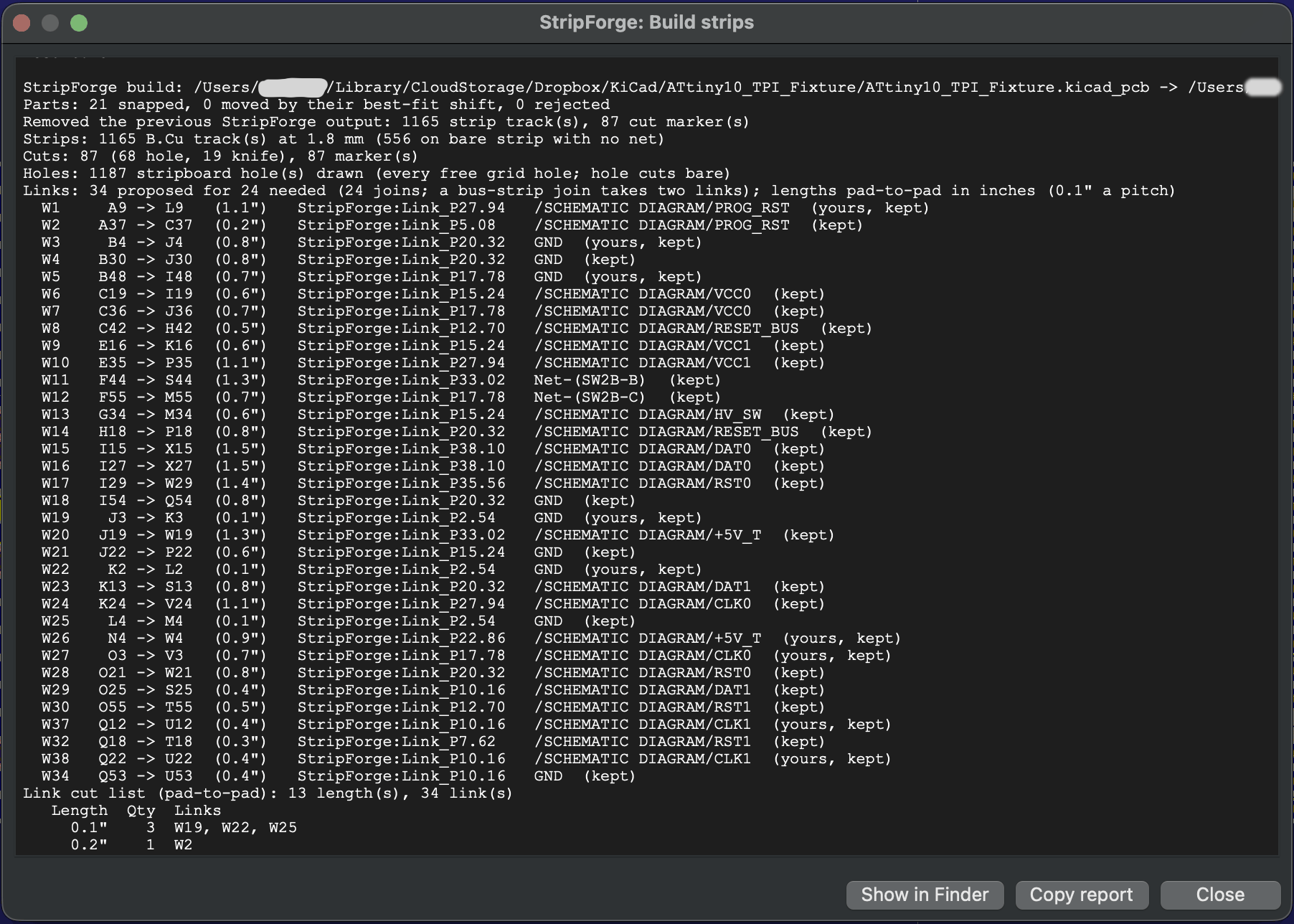 |
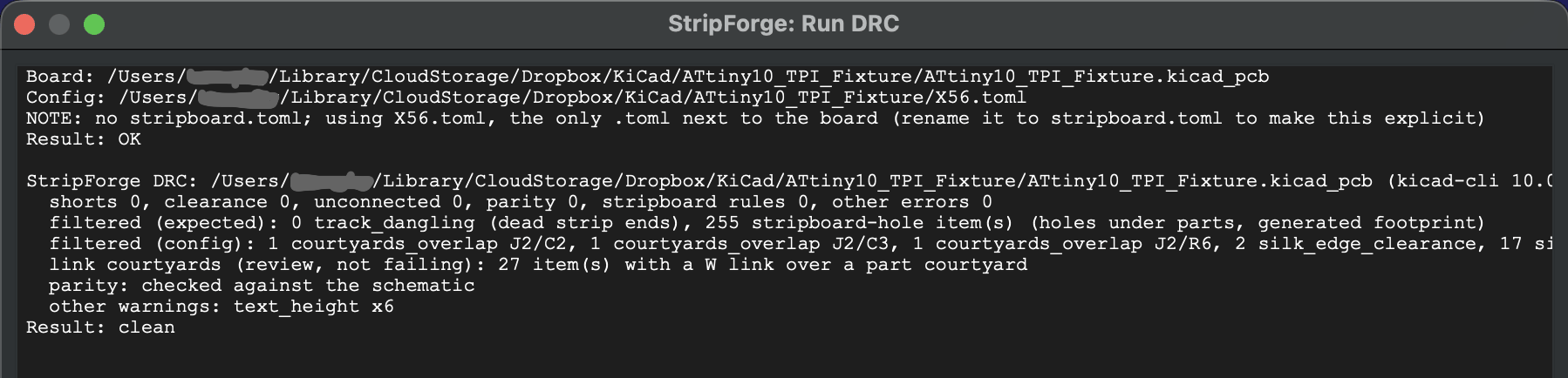 |
Updating from 0.1.0: install the new zip the same way, restart KiCad, and run Tools > Update
Footprints from Library on boards you built before, to get the new link outline.
Known limits
- KiCad 10 only (it uses KiCad's IPC API). Tested with KiCad 10.0.4 on macOS.
- Through-hole parts on a 2.54 mm (0.1") grid, strips running horizontally.
- Not yet in KiCad's official Plugin and Content Manager.
- Pre-drilled mounting holes in the stripboard aren't modelled yet.
Feedback
Issues and ideas are welcome at https://github.com/SomerledDesign/StripForge/issues. A screenshot
of the report or the board (or the .kicad_pcb itself, if you can share it) helps a lot.
sha256 of StripForge-0.2.0-pcm.zip: b5f020e9e2b9e97485a4a87d760c821f6a720027022ba0df831fec92c36a61be