Alpine linux install on Pine64 Star64
This Wiki page is about documenting the installation of Alpine Linux on the Pine64 Star64.
- Official Alpine Linux documentation
- The official wiki for the Star64
- My Wiki Page about the Star64 Projects
Because Alpine has a reputation of distro that is incredibly lightweight, blazing fast and has a wide variety of packages to choose in its repo, whilst having pre-compiled Riscv64 binaries that can be simply downloaded.
You'll need:
- An SD Card to flash the Alpine Generic U-Boot image on (detailed in Step 1)
- A storage to store your distro, it might be either an eMMC module or an nvme drive, as detailed in the table below. You'll need at least one of the two.
Below are the specs i use for this Alpine install.
| Component | My specs | Comment (if applicable) |
|---|---|---|
| CPU | Quad Core riscv64 CPU, @ 1.5GHz (without overclocking) | N.A |
| RAM | 8Gb | Swap will be added by our alpine install automatically. |
| SD Slot | SSD 256Gb - for install only | Consider choosing a microSD card with a high capacity class (e.g. Class 10 or higher) - i bought this one for my other projects. We'll need it for the install only. |
| eMMC slot | EMPTY | eMMC chips sold by Pine64 - You might use one to install alpine on it if you want |
| PCIe 2.0 ×1 lane | 500Gb nvme SSD | I used it to mount a 500Gb nvme drive, with an adapter. I reckon this is the drive i use. Scale it to your needs. This is the adapter I use. |
As mentioned in the Specs table above, the SD card serves as live-boot storage support.
To prepare the drive head to the AlpineLinux' official website, then download the "Generic U-Boot image" for the riscv64 arch, gunzip it (to obtain a .tar file) and flash that tarball archive to the SD Card, using dd for example.
Once that's done, Don't plug your SD card in your SBC yet.
You'll need to expose the SBC's Device Tree Blob or dtb file, for short.
Re-mount the SD card on your pc, access the filesystem to head over to the /boot/dtbs-lts/ directory on it:
cp /<mountpoint>/boot/dtbs-lts/starfive/jh7110-starfive-visionfive-2-v1.3b.dtb /<mountpoint>/boot/dtbs-lts/jh7110-starfive-visionfive-2-v1.3b.dtbWithout that process, the board will fail to boot.
Once that's done, you can safely un-mount the SD Card from the pc, connect it to the SBC, boot it and access the OpenSBI interface to monitor the boot sequence.
I observed that if you configured the Boot switches properly ( source), it should boot right on the SD Card.
If not, you can always force it, from OpenSBI:
sysboot mmc 1:1 any ${scriptaddr} /boot/extlinux/extlinux.confThis is the command to run a one-time boot from the SD Card, reading its extlinux.conf file to boot the kernel.
From now on, we're almost on a regular alpine setup, Mind the Step 4, still !
Right now, if you're in an alpine shell, congratulations, you're currently on the live uboot generic image you flashed on the SD card.
Please do keep in mind that a lot like Live ISOs, all the edits you'll make will be temporary her.
So, that's why, you can throw in a setup-alpine to do a regular install, which i won't detail here as, again, it's a standard install.
Only mind the storage install. I would suggest installing a sys installation (so both storage and operating system) on the definitive storage, which are either the NVME drive, if you followed my path, or the eMMC if you prefer this one.
After the install is complete, don't reboot yet, and move on to Step 4.
mount the /boot partition, that should be the first partition of your definitive support, onto the Live alpine install.
We need to fix, again, the DTB in the boot partition:
cp /<mountpoint>/boot/dtbs-lts/starfive/jh7110-starfive-visionfive-2-v1.3b.dtb /<mountpoint>/boot/dtbs-lts/jh7110-starfive-visionfive-2-v1.3b.dtbAfter that, you can un-mount the boot partition, poweroff the SBC, then remove the SD Card from its slot. From now on, you won't need the SD Card, anymore.
Since the end of Step 4, the board should boot by itself. However if it doesn't - meaning, it drops you on the OpenSBI shell without booting, you'll need to fix a few things.
Since the eMMC uses the levers mentioned above, just put the boot levers to this position:
| Lever 1 - GPIO_1 | Lever 2 - GPIO_0 | Boot mode |
|---|---|---|
| 1 (top) | 0 (bottom) | eMMC |
Note: Not gonna lie, these switches are confusing to me, i would advise forcing an setenv instead. detailed below.
However if you run an NVME drive like i do, you'll notice there are no options with the switches to boot on the drive. That's, not a problem, however, as we're able to set a default boot command into OpenSBI that will allow to boot on Alpine by default.
For that, re-access the OpenSBI shell, by interrupting the boot sequence, as usual.
Then you'll need to do two things.
First, you'll need to make OpenSBI take into account the nvme drive by running these commands:
pci enum; nvme scanOnce that's done, from the OpenSBI shell, we'll try to ls into folders, and narrow the search until we find the file.
The ls command works as is:
ls <storage> <partition> /path/to/directoryWarning: Notice how i say "Path to directory". The ls command here only lists files within directories, by pointing on them. You can't point to files.
For me, the command was:
ls nvme 0:1 /boot/extlinuxAnd that showed me the extlinux.conf file. We can safely append /extlinux.conf to the path mentioned in the command.
We'll finally, patch the boot command, which initiates the boot sequence, from OpenSBI to u-boot, and thus, shortly after, Alpine.
If you have an nvme drive, like me, the command to patch the boot sequence, were:
setenv bootcmd 'pci enum; nvme scan; sysboot nvme 0:1 any ${scriptaddr} /boot/extlinux/extlinux.conf'Please do keep in mind that the setenv command is volatile by default, and will disappear on next boot.
You can use that fact to safely try and run the boot command to check if your config is correct so far.
If it boots properly into alpine, you can do the following on next reboot:
setenv bootcmd 'pci enum; nvme scan; sysboot nvme 0:1 any ${scriptaddr} /boot/extlinux/extlinux.conf'
saveenv
boot
which will make your patches persistent across reboots. And boot your device.
If you have an eMMC chip, i lack the hardware to tell you with exact precision the process. But the general idea remains the same. You can always list all the accessible OpenSBI devices and ls your way, with try-and-error.
And you should be good !
You know it.
I know it.
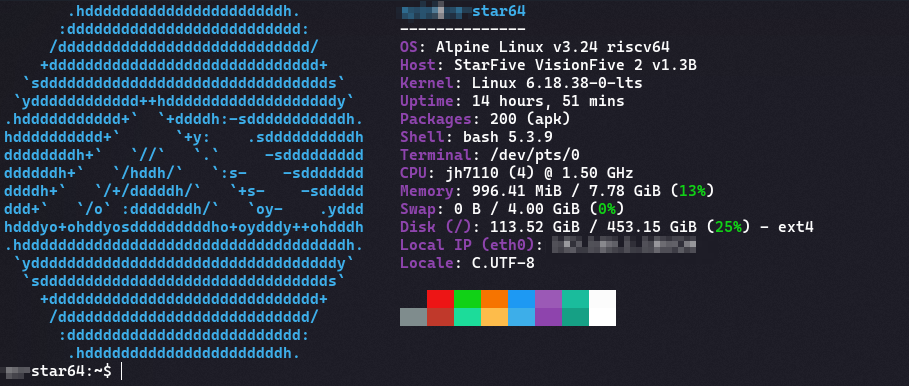
We all know, you want that fastfetch screenshot.
Well here it is.