Image class
Image is class for handling images, it has functions for loading&saving to files, editing and rendering them.
You can create blank images using Image(Vec2i Size, Color color = Color::Black) constructor.
LibGui::Image MyImage({200, 200}, Color::White);If you render it, it should look like this:

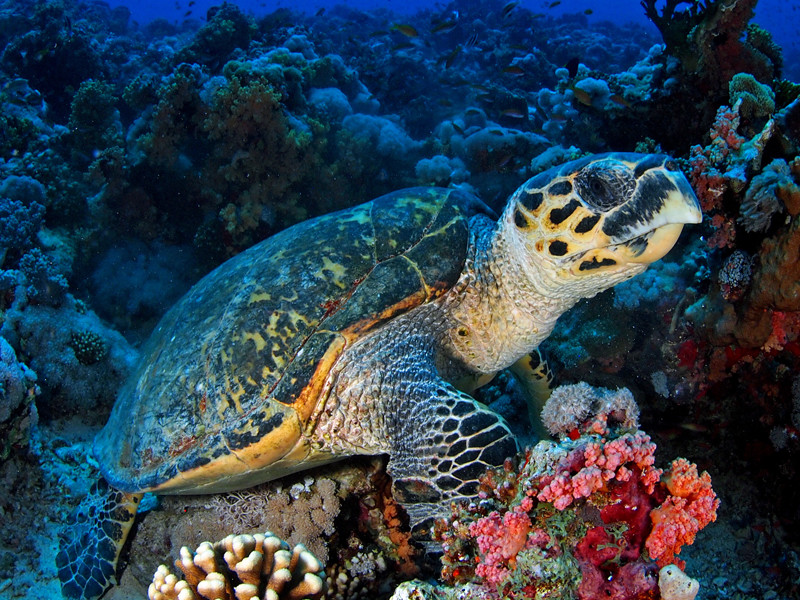
You can also load images from files using Image(const std::string& path) constructor, but remember that image will be sqeezed to fit object you render on and to fix it you should update the objects scale.
LibGui::Image MyImage("cool_turtle_image.jpg");

// the scale fix (and part of rendering)
LibGui::Texture MyTexture(MyImage);

// create MyObject and set scale to have same ratio as source image
LibGui::Object MyObject({250, 250}, MyImage.size * 0.5f, &MyTexture, LibGui::Shapes::Rectangle());
If you render it (with the scale fix), it should look like this:

source here
Important
If you want to just render an image file (without editing or re-saving), you can just use textures
To render image, you have to convert it into a texture and apply that texture to object, then render that object regularly.
// create blank image
LibGui::Image MyImage({200, 200}, Color::Green);

// create an texture from MyImage
LibGui::Texture MyTexture(MyImage);

LibGui::Object MyObject({250, 250}, {200, 200}, &MyTexture, LibGui::Shapes::Rectangle());

while (!MyWindow.ShouldClose())
{
   MyWindow.Draw();

   MyObject.Render();

   MyWindow.PushDraw();
}
After creating texture from an image, you can safely discard MyImage, you only have to keep the MyTexture and MyObject.
You can save your image to four different formats: PNG, JPG, TGA and BMP
| Function | Description |
|---|---|
SavePNG(const std::string& path) |
saves image as .png, to path
|
SaveJPG(const std::string& path, int quality) |
saves image as .jpg, to path with quality (quality ranges from 1 to 100, 100 = best, but higher size) |
SaveTGA(const std::string& path) |
saves image as .tga, to path
|
SaveBMP(const std::string& path) |
saves image as .bmp, to path
|
Returns reference to Pixel at pos, you can safely edit the pixel; {0, 0} of pos is in lower left corner of image.
Returns pixel color on given coordinates, wrapper for GetPixel.
Returns reference to Pixel at index, you can safely edit the pixel; index starts in lower left corner, then goes left by rows.
Returns pointer to first pixel of image, used in texture loading.
Structure of pixels array for image sized 2x2: (datatype of one value is char):
r|g|b|a|r|g|b|a|
r|g|b|a|r|g|b|a
you can also read it in Pixel then the image would look like this:
{r, g, b, a}{r, g, b, a}
{r, g, b, a}{r, g, b, a}
In both options, pixels start at lower left corner and go up by rows.
Returns copy of std::vectorLibGui::Pixel, starting in lower left corner of image.
Clears whole image with fillColor
Resizes the whole image, then calls Clear(fillColor);
Sets pixel color on given coordinates, wrapper for GetPixel.
Apply function effect to each pixel of image.
// darken the image
MyImage.ApplyEffect(
   [](LibGui::Pixel& pixel, size_t index)
   {
      pixel.A /= 2;
});Mirror image along X-axis.
Mirror image along Y-axis.
Remove count of pixels from side of image.
Example: (remove left part of this image)
LibGui::Image Forest("forest.png");
Forest.RemoveCount(LibGui::Direction_Left, 300); source here

Merges image img to the side of this image, if the dimensions don't match fill blank space with fill.
LibGui::Image turtle1("turtle1.jpg");
LibGui::Image turtle2("turtle2.jpg");

turtle1.MergeImage(LibGui::Direction_Right, turtle2, Color::Blue);Adds count of columns/rows, filled with color, to the side of image.