GammaOS Next Installation for Allwinner SD Card Devices

GammaOS Next for Allwinner A133P devices boots and runs entirely from a microSD card, so it leaves the device's internal stock firmware untouched. You simply flash the image to a card, insert it, and boot. To go back to stock, remove the card.
-
Patreon Password
- If you are a Patreon supporter, obtain the GammaOS Next password from the Patreon post itself (https://www.patreon.com/GammaOS). The release is locked behind that password until it goes public in 60 days.
-
7-Zip
- Install 7-Zip (or another archive tool capable of extracting split archives). You will need it to combine and extract the
.7z.001 / .002files, using the Patreon password.
- Install 7-Zip (or another archive tool capable of extracting split archives). You will need it to combine and extract the
-
A quality microSD card
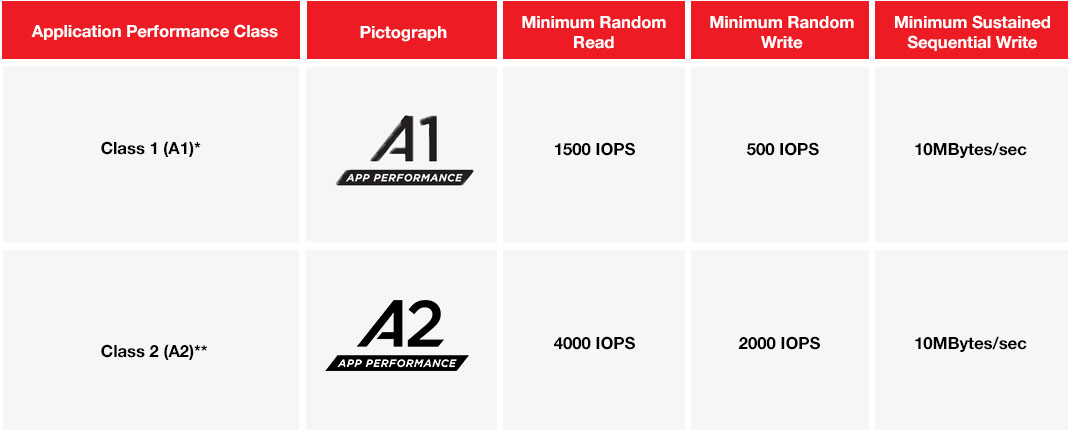
- A minimum of a 32GB A2-spec microSD card is recommended.
- Use cards with speeds similar to a SanDisk Extreme (A2 for gaming) or Samsung Pro Plus.
- DO NOT USE AMAZON BASICS OR CHEAP BRANDS. These are unreliable and may cause poor performance or boot failures.
Use this method if you want the image to auto-expand to your card size.
- Download the relevant device image parts (ending in
.001and.002) from the release. - Extract them with 7-Zip using the password from Patreon. This produces the flashable image.
- Flash using the attached PhoenixCard tool, using the following settings:
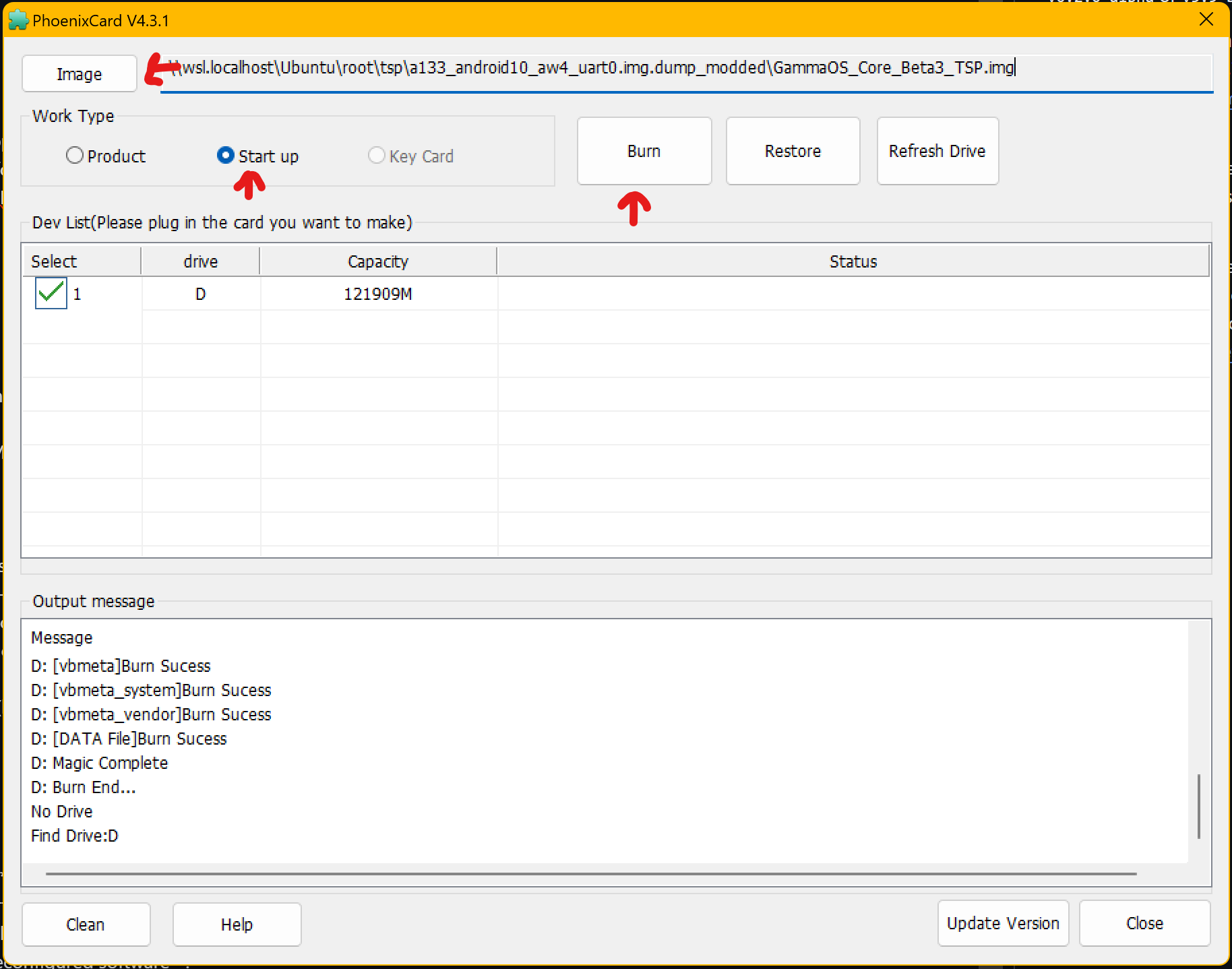
- Once PhoenixCard finishes, remove the card, insert it into the device, and power on.
- Insert the flashed microSD card and power on the device.
- First boot takes longer (1 to 3 minutes) while Android sets up file systems and initial configuration. The screen may appear to hang on the boot logo, which is normal.
- Follow the on-screen prompts to complete initial setup.
- Once setup completes, you will land on the GammaOS Next home screen.
- If the device does not boot from the card:
- Re-flash with PhoenixCard.
- Verify the card is genuine and meets the A2 speed recommendation.
- Make sure the download and extraction completed without errors.
- To return to stock firmware, simply power off and remove the microSD card; the internal firmware is untouched.
- For any errors or unexpected behavior, post details on the GammaOS Next GitHub Issues page.
Thank you for using GammaOS Next! For updates and support, join our Patreon.