Manual
EZFXLayer is a tool used in the authoring of VRChat avatars. It simplifies the authoring of toggles that would involve customizing VRChat avatars' FX playable layer, distilling animator controller, animation, expression menu, and expressions parameters creation and modification into simple configurations.
First, it is important to note that EZFXLayer currently works on all avatars in a scene. To apply different toggles to different sets of avatars, it is recommended to use different scenes.
A scene is configured with a reference FX layer animator controller, base expression menu, and base expression parameters. Additionally, EZFXLayer's animation layers are configured, which contain sets of GameObjects and blend shapes used for toggles.
In order to apply these configurations or any changes to the base assets, the Generate button must be clicked.
The easiest way to install EZFXLayer is via the package that can be downloaded from BOOTH: https://nyanmamu.booth.pm/items/4192647
This package will automatically install both EZFXLayer and the package manager that can be used to update it in the future.
Additional information about alternative installation methods, updating, and uninstalling can be found here.
A sample configuration can be added to the scene by right-clicking in the Hierarchy window and clicking
Add EZFXLayer Sample to Scene.
This will add a sample avatar and EZFXLayer configuration to the active scene.
Be aware that clicking the Generate button will apply this sample configuration to all avatars in the scene.
Consider creating a new scene, then playing around with the sample to see how EZFXLayer works. If added to an existing scene, delete the sample configuration and avatar before continuing.
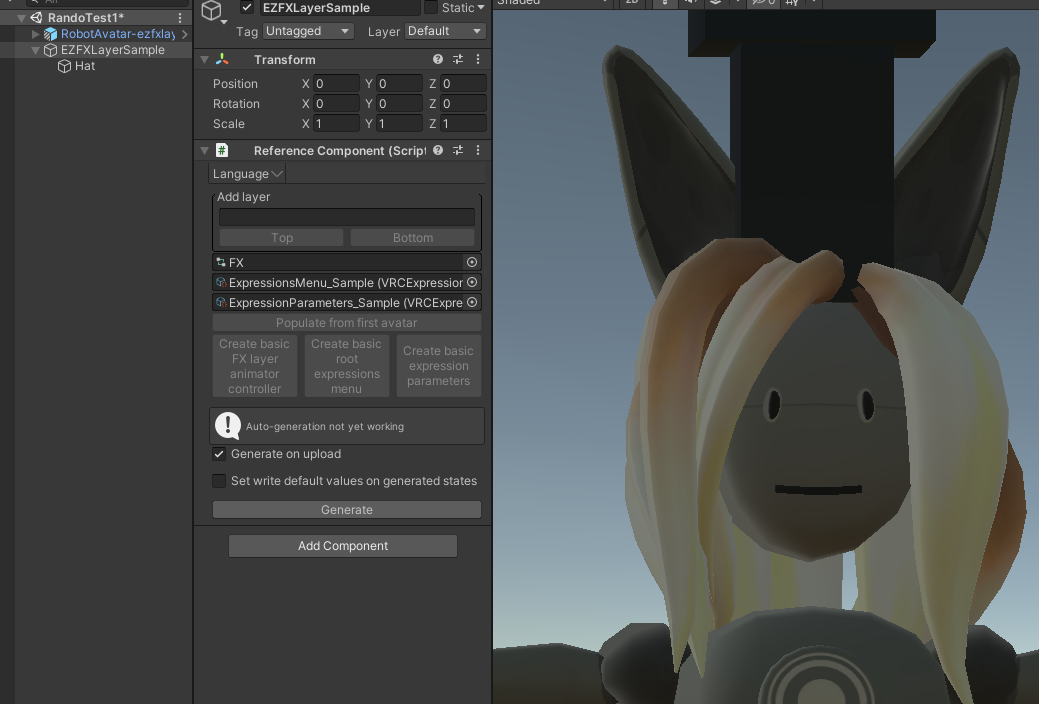
Right-click in the Hierarchy window and click Enable EZFXLayer in Scene.
This will pre-populate the EZFXLayer reference configuration with information from the first avatar in the scene.
You may then customize the configuration in the EZFXLayer GameObject as necessary.
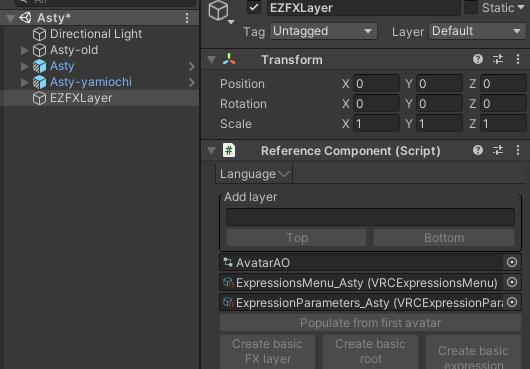
EZFXLayer needs to know what FX playable layer animator controller, VRC expression menu, and VRC expressions parameters
to make a copy of and modify. Such is the purpose of the EZFXLayer reference configuration.
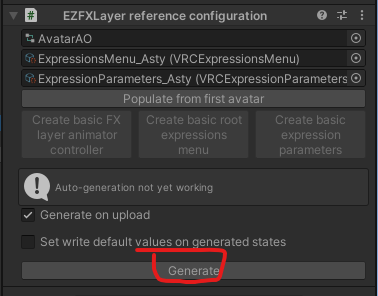
This is also where the Generate button is found.
When clicked, EZFXLayer will make a copy of these three assets, add in the toggles,
and apply these new assets to all the avatars in the scene.
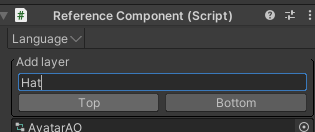
In EZFXLayer object's reference configuration, at the top, is a section for adding layers.
Input the name of the layer (Hat in this example) and click one of the buttons to add it.
Within the EZFXLayer object will be an object of the same name, containing an animator layer configuration.
The default menu path will create the toggle in the very first set of controls when opening the radial menu in VRChat.
If set to, for instance, Clothing, a submenu Clothing will be created or populated, and the toggle will be found there.
If set to, for instance, Clothing/Head, a submenu of Clothing will be created or populated,
within it another submenu of Head created or populated, and the toggle will be in that Head submenu.
For this example, the Clothing menu path is used so that future clothing toggles can be put here.

The reference contains the default set of GameObjects and blend shapes that will be used across toggles and animations for the layer. The values in the reference will be the default values used when adding animations.
After animations are created, adding or removing this items will update all existing animations. This helps ensure each animation contains the right object toggles and blend shape changes to keep.
For this example, the Hat GameObject of the avatar is dragged to the Add GameObject field.
A blend shape is also added by clicking the Add blend shapes button and selecting the blend shape.
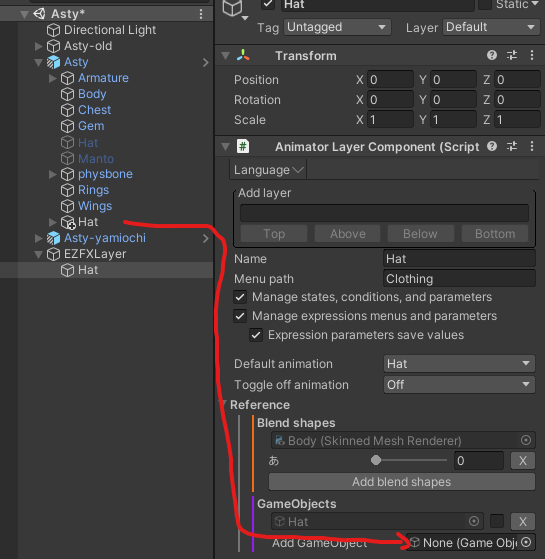
An animation configuration contains the things to animate when toggles are turned on and off.
EZFXLayer supports blend shapes and GameObjects.
GameObjects can simply be turned on an off, such as an article of clothing
or some other gimmick added to the avatar.
Blend shapes are something configured on meshes that allow deforming the mesh across a value of 0% to 100%.
Examples include opening the mouth fully, closing it fully, or somewhere in-between.
The number of animations is important:
- If no animations are added, then the animator layer does nothing.
- If a single animation is added, the avatar will always use that animation. It cannot be toggled off.
- If two animations are added, one will be used when toggled off, and one will be used when toggled on.
- If three or more animations are added, one will be used when toggled off, and there will be a toggle for each additional animation.
If an animation is used for a toggle, the animation name is used for the toggle name. There is an additional setting to override this, as well.
For this example, Add animation is clicked twice.
The first is called Off, and the second is called Hat.
The GameObject and blend shape added in the reference will be in the animations.
For the Off animation, the object is disabled, and the blend shape is 0.
For the Hat animation, the object is enabled, and the blend shape is set to some value.

The default animation is the animation that is used when resetting the avatar from the radial menu.
For this example, the hat can be on by default by changing the default animation to Hat.
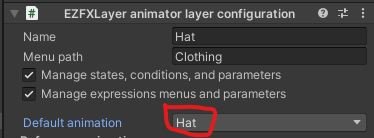
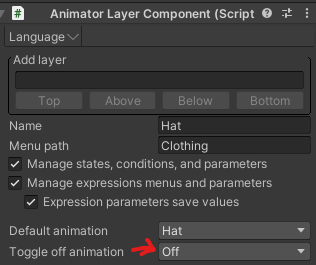
The toggle off animation is the animation used when no toggle is on.
For this example, the hat should not be visible when not toggled on, so the toggle off animation is changed to Off.
It's now time to take the authored EZFXLayer configuration and apply it to the avatars in the scene.
Go back to the reference configuration and click the Generate button.
To see the changes done in Play Mode, Avatar 3.0 Emulator can be used. Or, simply upload the avatar -- build and test, or normal upload -- and verify in VRChat.
The radial menu indeed has a Clothing submenu.

Within that submenu, there is a Hat toggle that is already enabled. The avatar also has the hat on and mouth slightly open.

Toggling the hat off removes the hat and closes the mouth.

Pictured avatar is Asty by Furriverse.
Hat is from the Witch Costume for Lila by Clil.
First, every avatar in the scene has been changed to use the same FX layer, menu, and parameters. It is not currently possible to create toggles for specific avatars in a scene, nor is it possible to exclude avatars from receiving configuration from within a scene. The only workaround for this is to keep them in separate scenes. Eventually this will be supported.
One benefit is that, even if some toggles do nothing, all the submenus and toggles are in the same position and don't change from avatar to avatar.
Here's what it looks like within the example avatar:
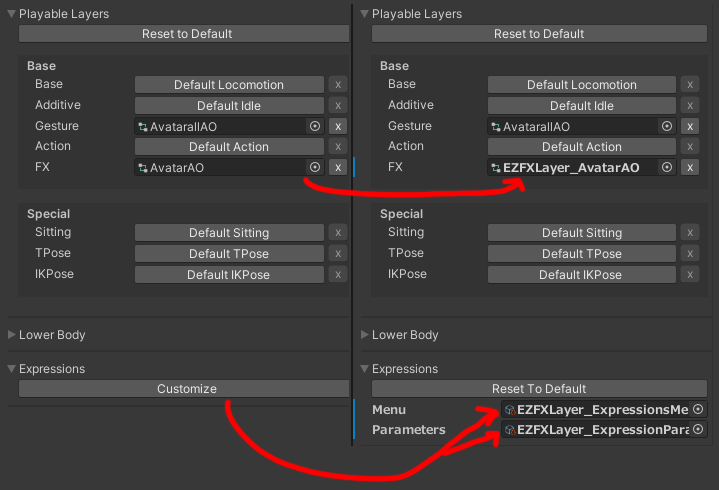
Notice that the assets being used aren't the assets in the reference configuration. Instead, they were copied, modified, and saved. The originals are completely unchanged, so, if there was some issue, no damage has been done. This is why project backups should not be necessary.
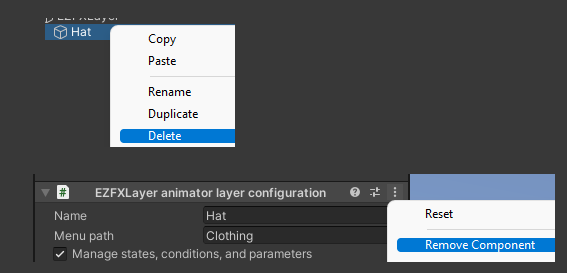
Animator layer configurations can be removed either by removing the component or
deleting the GameObject containing the component.
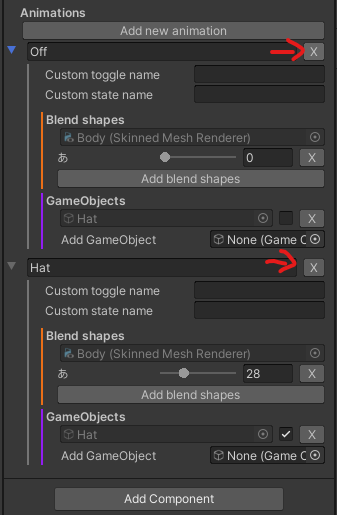
Animations can be removed by clicking the X button next to the name of the animation.
GameObjects and blend shapes can be removed by going into the reference (not animations) and
clicking the X button next to them.
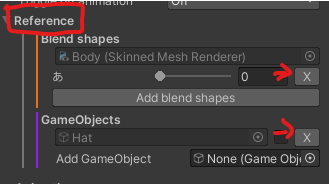
For this example, the blend shape to move the mouth will be removed, leaving only the Hat GameObject.
To apply the changes, go back and hit the Generate button again.
There is now only one GameObject and no blend shapes.
And the mouth is closed, as expected.

Not yet written