Repository navigation
Video courses
Ride along a real video that plays as fast as you ride: climb slowly and it slows down, sprint and it speeds up.
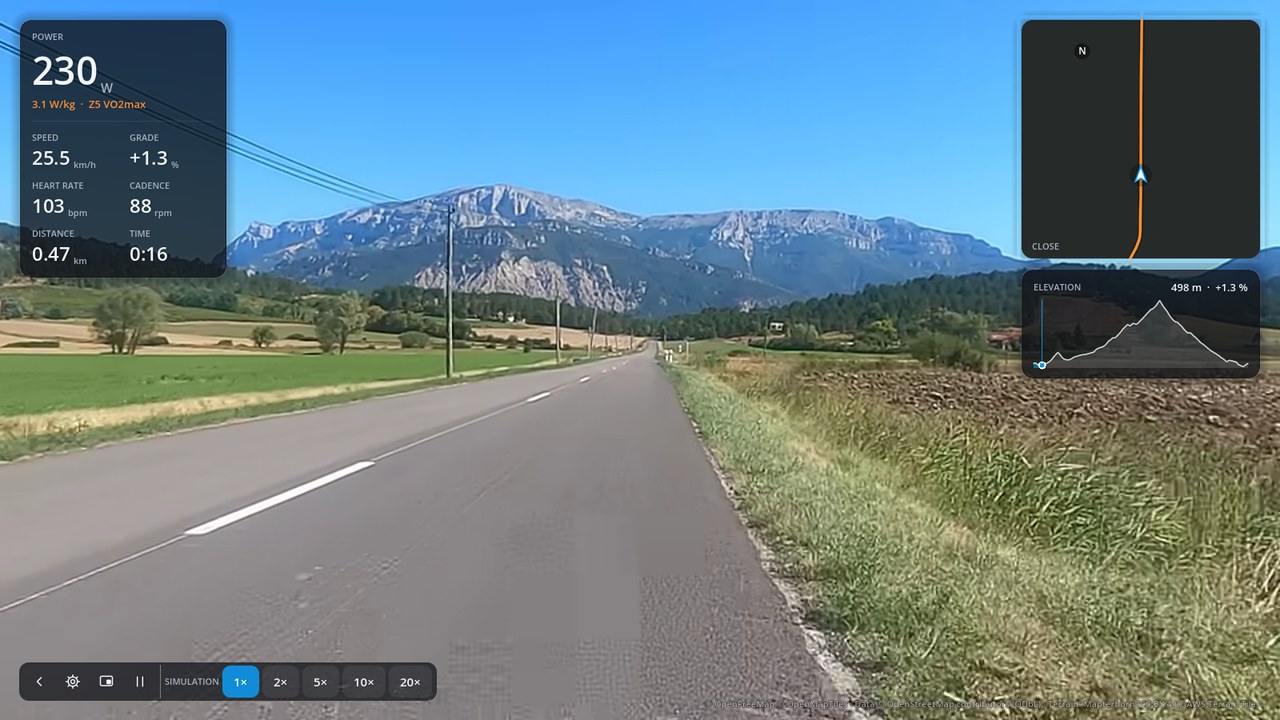 “Le petit Menglonnais” by Fred Van Gestel, CC BY-NC-SA 4.0
Use Import on the Courses tab:
| You have | Choose | Notes |
|---|---|---|
| A GoPro video with GPS | the video (.mp4, .mov) |
The route comes from the video's GPS |
| An Incyclist route video | the .xml file |
Keep the video, .gpx and .xml together |
| A Tacx Real Life Video | the .rlv file |
Video only: no 3D world or map position |
| Any other video | — | Add it to a GPX course, see below |
The course is marked Video on its card.
- Import the GPX route of the ride in the video.
- Open the course, press the pencil beside its name, then Add video….
- In Align video with route, set the moment in the video for the route's start and end, checking the frame shown.
- Where the footage stops or changes speed (a traffic light, a steep climb), Add point and align it the same way.
- Save.
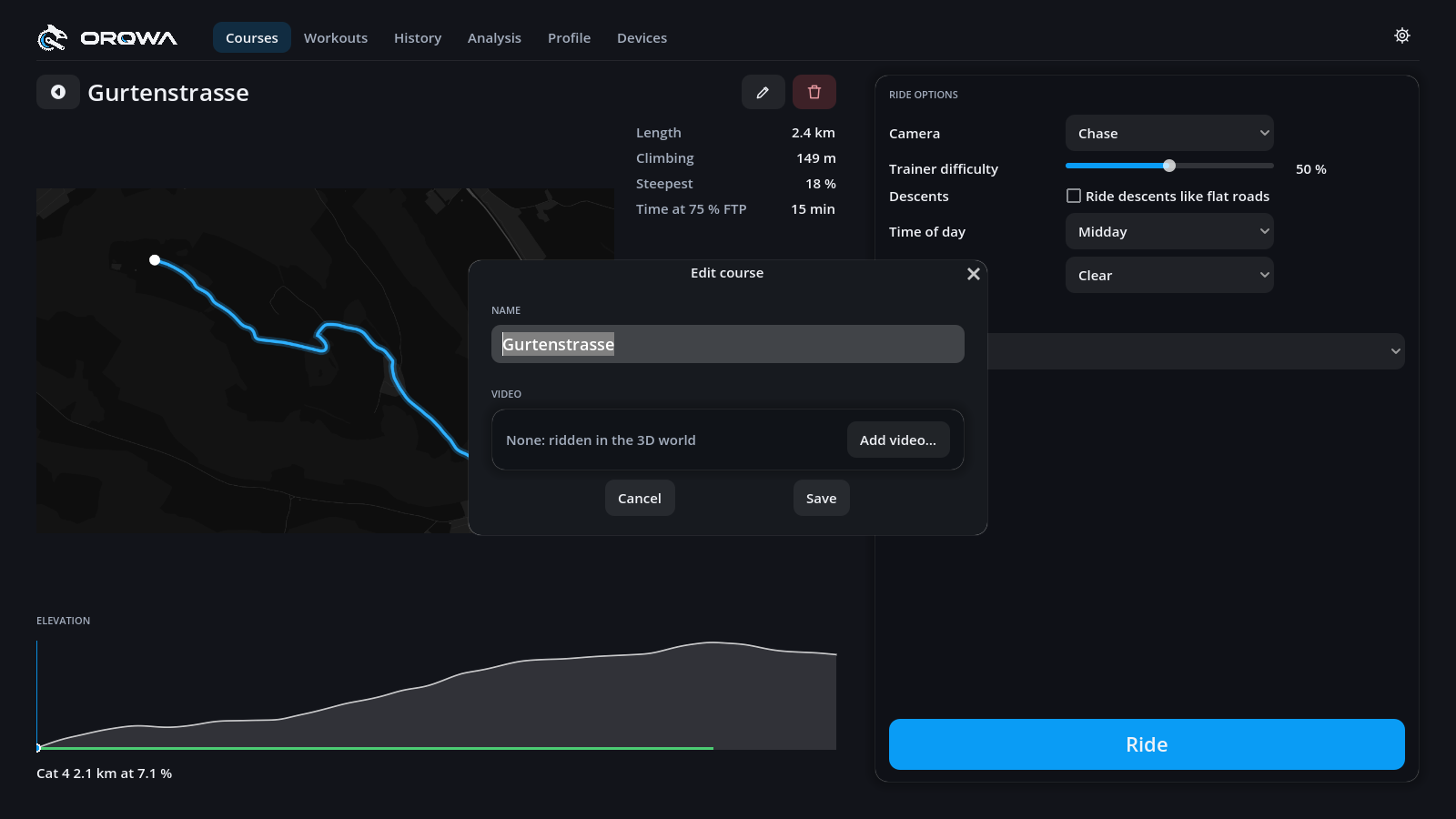
Align video… changes the points later; Remove video turns it back into a 3D course.
Press Ride and choose along the video or in 3D. The video's own sound plays at your speed without changing pitch; switch it off under Sound in the ride options.
Videos are decoded on the processor. 1080p is the target; larger videos may not keep up on a
small machine. Check one with orqwa-cli video (see the
command-line tool).
A video course refers to its video rather than containing it. ORQWA keeps a copy (or a
space-free hard link) next to the course in the library. To move it to another computer, copy
the .tqc and the video into the same folder.
Route videos belong to whoever filmed them, often for personal use only. Share them only where their licence allows.