Repository navigation
Getting Started
Who this is for: anyone signing in to Cubhouse, guardians and family members alike. If you do not have an account yet, first join with an access code.
- Open the site address the family gave you.
- Type your Email and Password.
- Select Sign In.
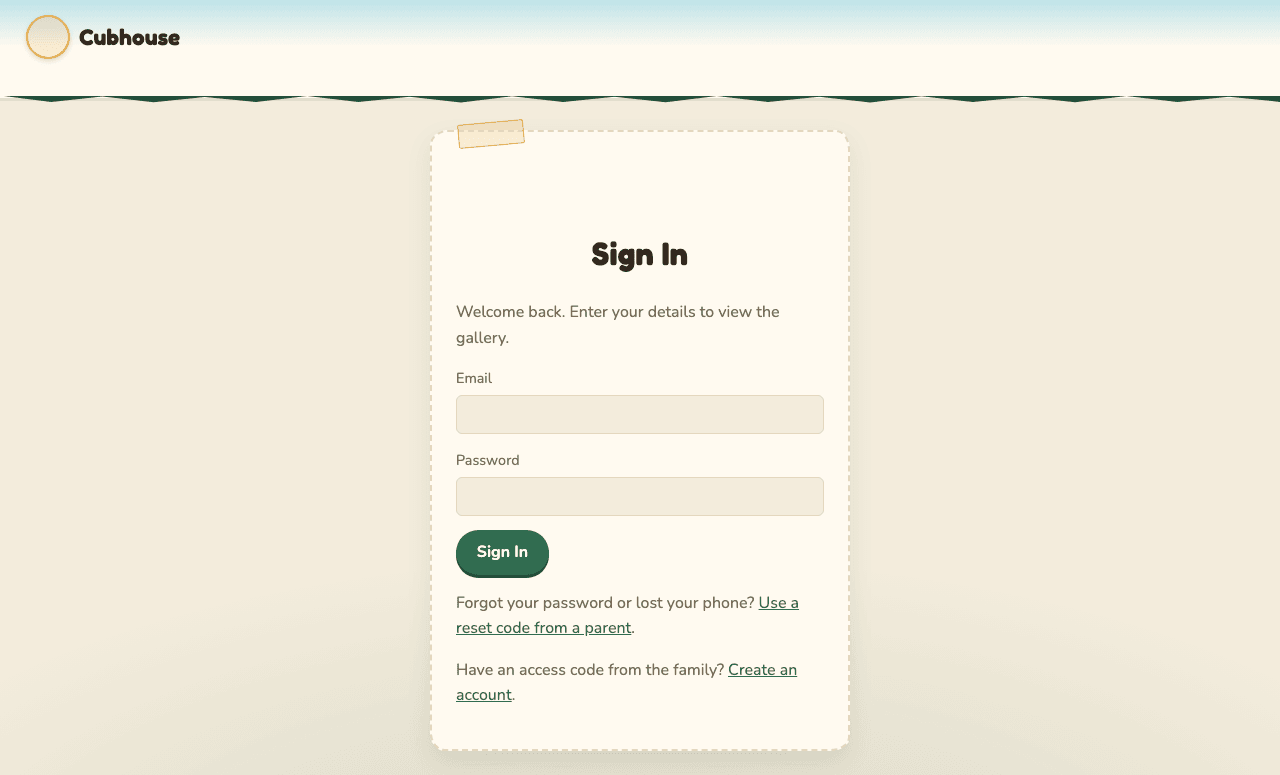
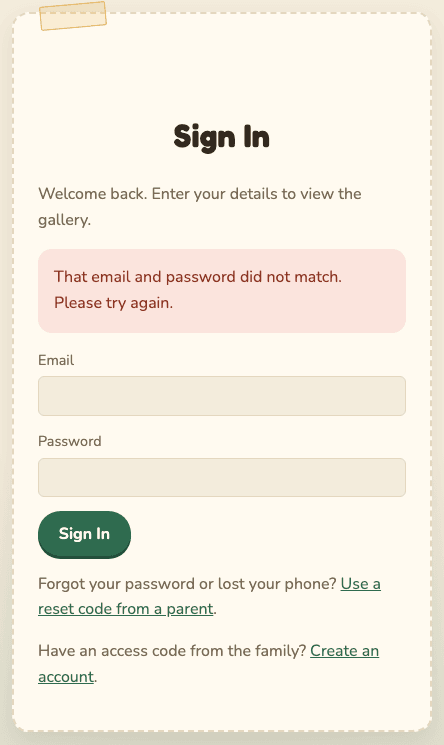
If the email or password is wrong, you will see: "That email and password did not match. Please try again." The message is the same whether or not the email has an account, on purpose.
After 8 wrong tries, sign-in pauses for 15 minutes. You and the guardians get an email about it. See Troubleshooting.
- If you do nothing for 15 minutes, you are signed out.
- Even if you keep using the site, you sign in again after 7 days.
- To sign out yourself, open your menu (the round button at the top right) and choose Sign out.
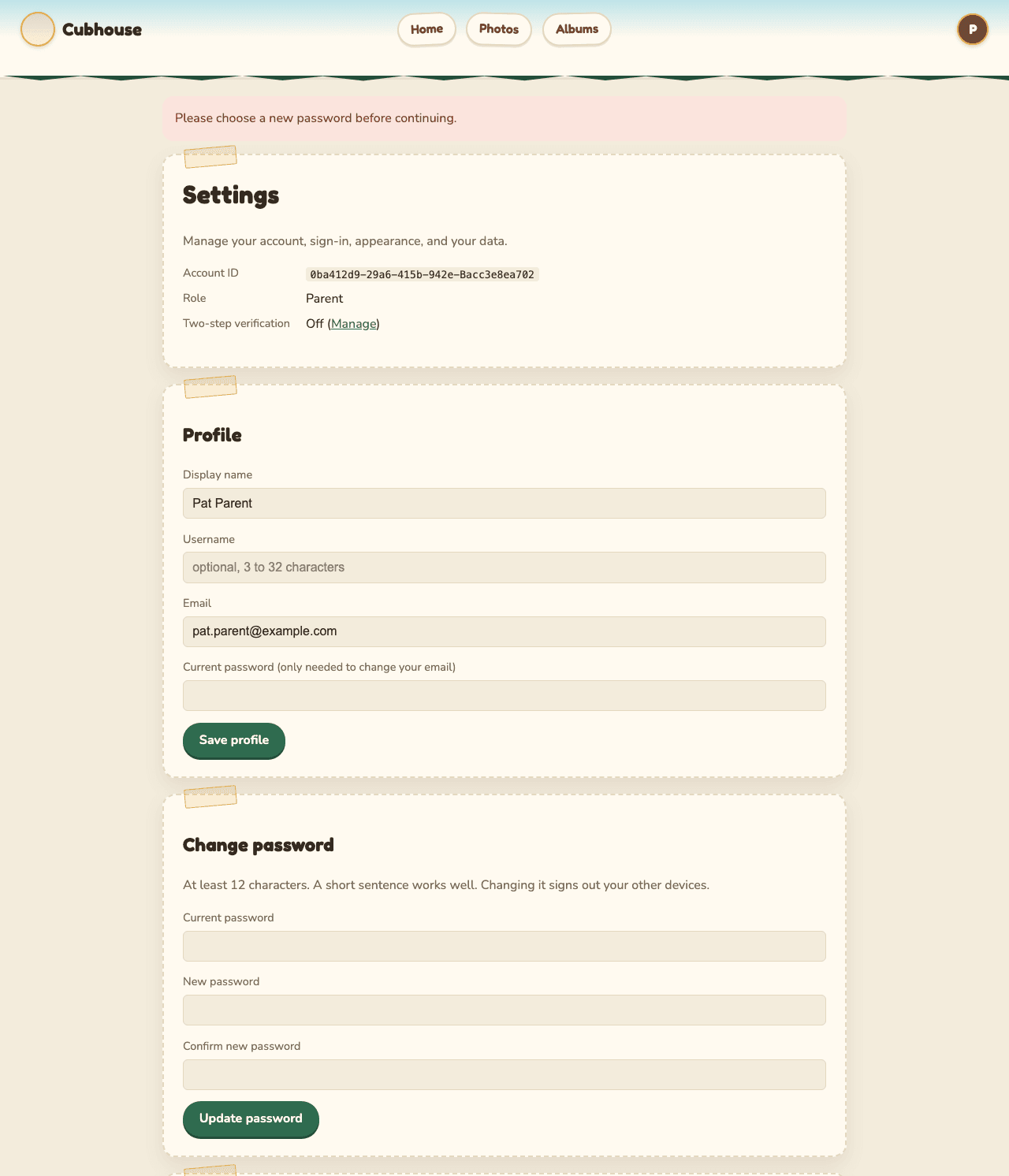
Some accounts are set up with a temporary password. The first guardian account on a new site always is. When that happens, the site sends you straight to Settings with the message "Please choose a new password before continuing." You cannot use the rest of the site until you do.
- In Current password, type the temporary password.
- In New password and Confirm new password, type your new password.
- Select Update password.
Password rules:
- At least 12 characters. A short sentence you can remember works well.
- It cannot be the same as your email.
- On the family's real site, passwords that are known to have leaked elsewhere are refused. (Only a small, scrambled piece of the password is checked. The password itself never leaves the site.)
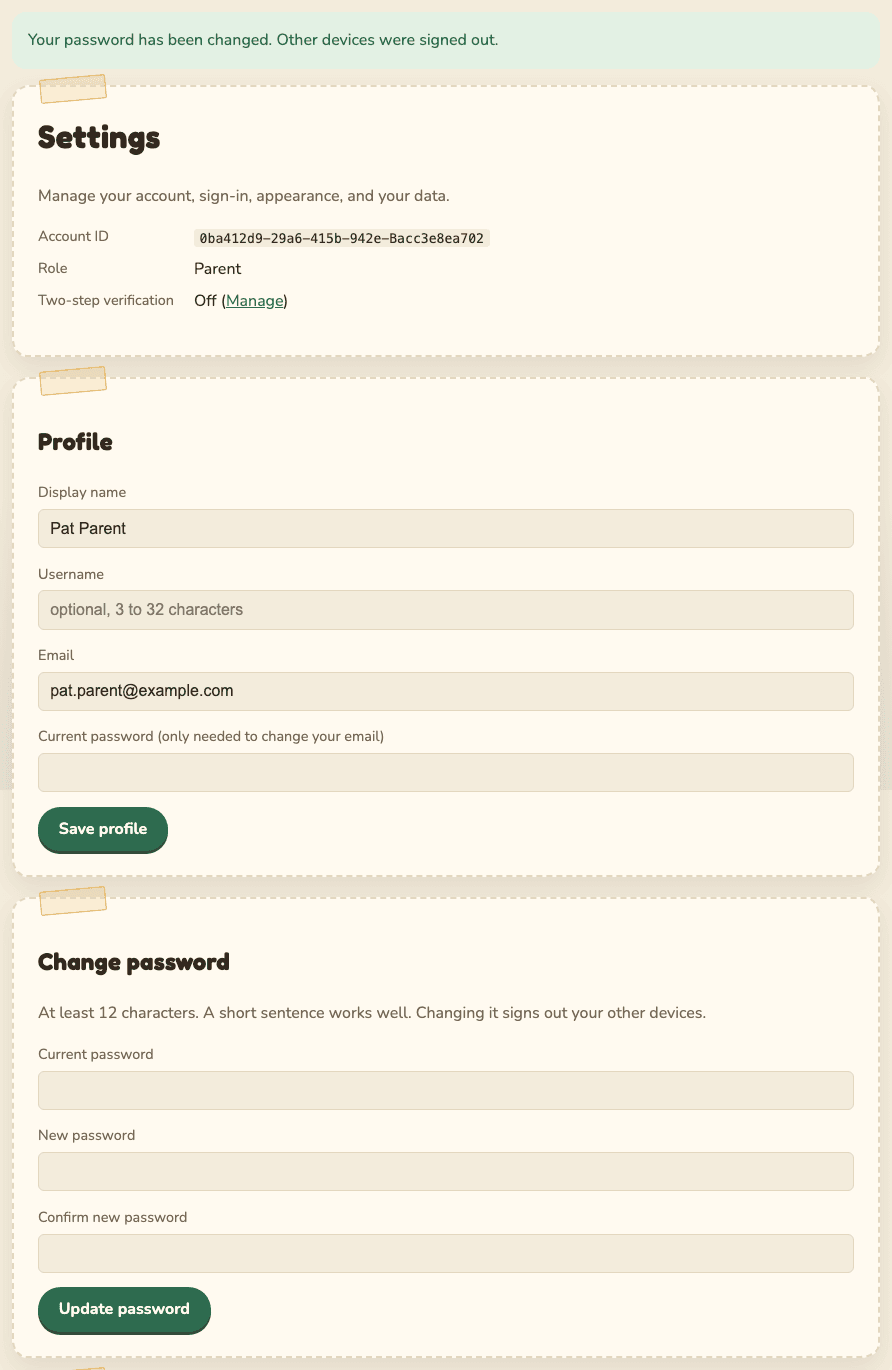
When it works you see "Your password has been changed. Other devices were signed out." Any other phone or computer signed in to your account is signed out at the same time.
Two-step verification means you need two things to sign in: your password, and a 6-digit code from an app on your phone. Someone who learns your password still cannot get in without your phone.
- Guardians must turn it on. On the family's real site, a guardian cannot use anything until it is on.
- Family members can choose. We recommend it.
You need an authenticator app on your phone. Many phones have one built into the password manager. Google Authenticator, Microsoft Authenticator and similar apps also work.
- Open your menu and choose Security.
- In your authenticator app, add a new account and choose enter a setup key (it may say "enter code manually").
- Type the setup key shown on the page. Or, if you are reading this page on the same phone as your authenticator, select add to authenticator.
- The app now shows a 6-digit code that changes every 30 seconds. Type it into Enter the 6-digit code it shows.
- Select Turn on two-step verification.
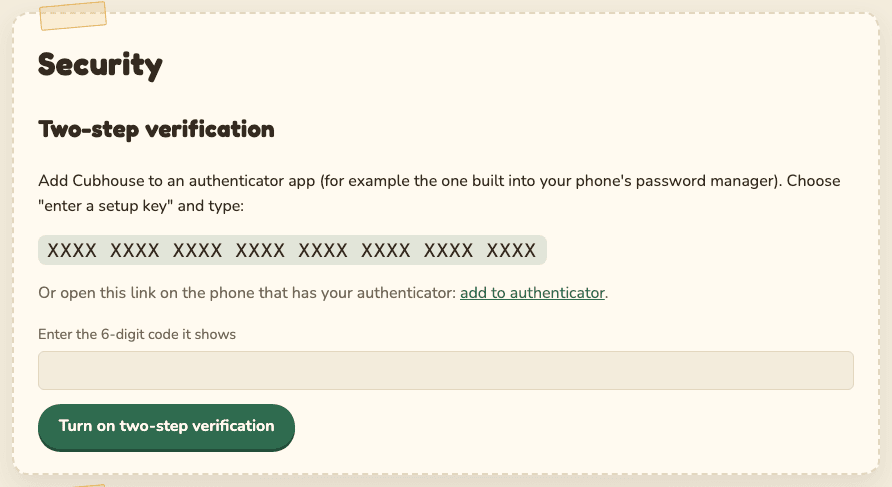
The setup key is a secret. Do not share it, photograph it, or send it to anyone. (It is hidden in the picture above.)
The site may first ask you to confirm your password. That is normal; see Confirm it is you.
If you see "That code did not match. Check the time on your phone and try again.", your phone's clock is probably off. See Troubleshooting.
As soon as it is on, the page shows 10 recovery codes. Each one gets you in once if you lose your phone.
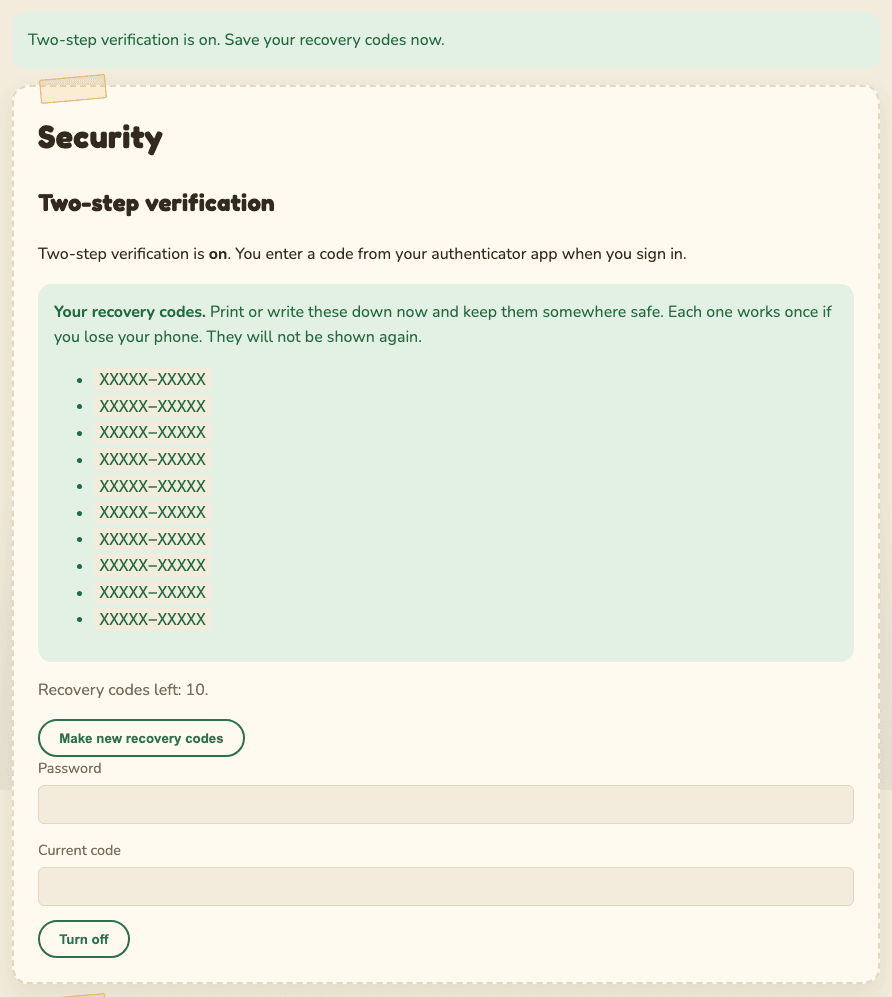
- Print them, or write them on paper.
- Keep them somewhere safe at home, away from your phone.
- Do not save them in email or a photo on your phone.
They are shown only once. If you lose them, you can make a new set any time: open Security and select Make new recovery codes. The old ones stop working. The page also tells you how many codes you have left.
After your password, the site asks for a code.
- Open your authenticator app.
- Type the 6-digit code for Cubhouse.
- Select Verify.
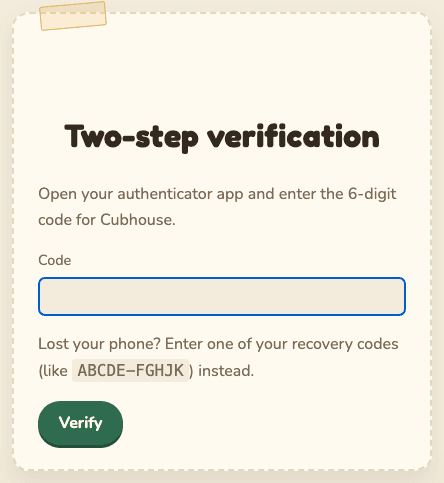
Lost your phone? Type one of your recovery codes (they look like ABCDE-FGHJK) in the same box.
Each code works once. You get an email each time one is used, saying how many are left. Then read
Account recovery.
Family members can turn it off on the Security page by entering their password and a current code, then selecting Turn off. Guardians cannot turn it off on the family's real site.
Before some important changes, the site asks for your password again (and your 6-digit code if you use two-step verification). This is called step-up confirmation. It stops someone who finds your computer unlocked from making big changes.
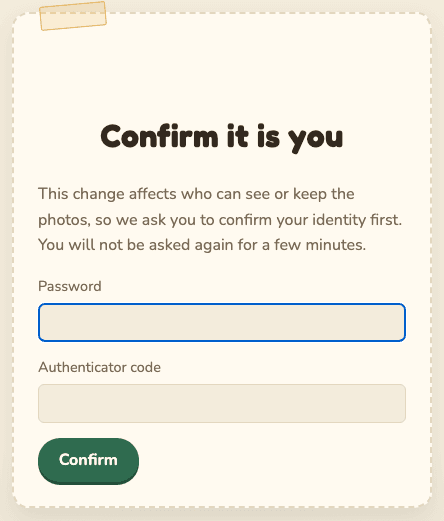
- Type your password (and code, if asked).
- Select Confirm.
- You are taken back to the page you were on, with the message "Thanks. Please submit your change again." Make the change again.
You will not be asked again for 5 minutes. Signing in also counts.
The privacy notice explains, in plain words, what the site keeps about you and why. You can read it before you join, from the link on the Create Account page, and any time from the Privacy notice link at the bottom of every page.
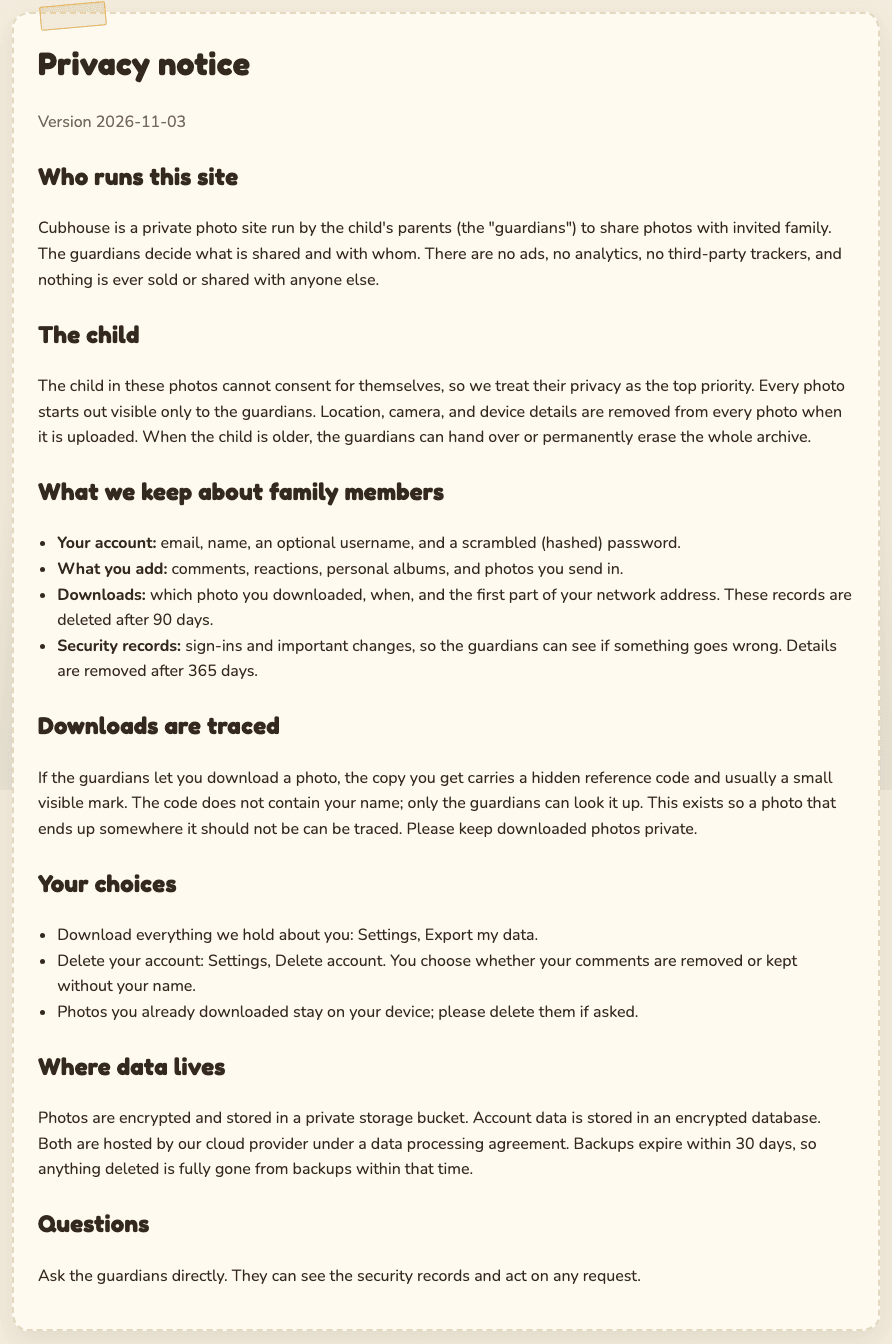
When the notice changes, a blue bar appears at the top of each page: "The family privacy notice has been updated. Please take a moment to read it." Open it and select I have read this notice at the bottom to make the bar go away.
- Family members: what you can do.
- Guardians: your controls.
- Worried about a lost password or phone: Account recovery.