Repository navigation
Guardians
Who this is for: the child's parents or guardians. Your account shows the role Parent.
You have full control: you upload and share photos, invite and remove people, and approve the other guardian's protected changes. A few big changes need both guardians to agree; those are explained in Two-guardian approval.
The golden rule: restricting is always instant, widening needs the other guardian. You can always hide a photo, lock downloads or remove someone on your own, right now.
On the family's real site you must turn on two-step verification before you can use anything. Many actions below ask you to confirm it is you first.
As a guardian, Home adds:
- Waiting for your approval: photos family members sent in.
- Add a photo: upload to the family library.
- Waiting on a guardian: a count of protected changes waiting for a decision, with a Review requests button.
- Parent controls: the number of members and access codes, and an Open the ranger station button that takes you to Admin.
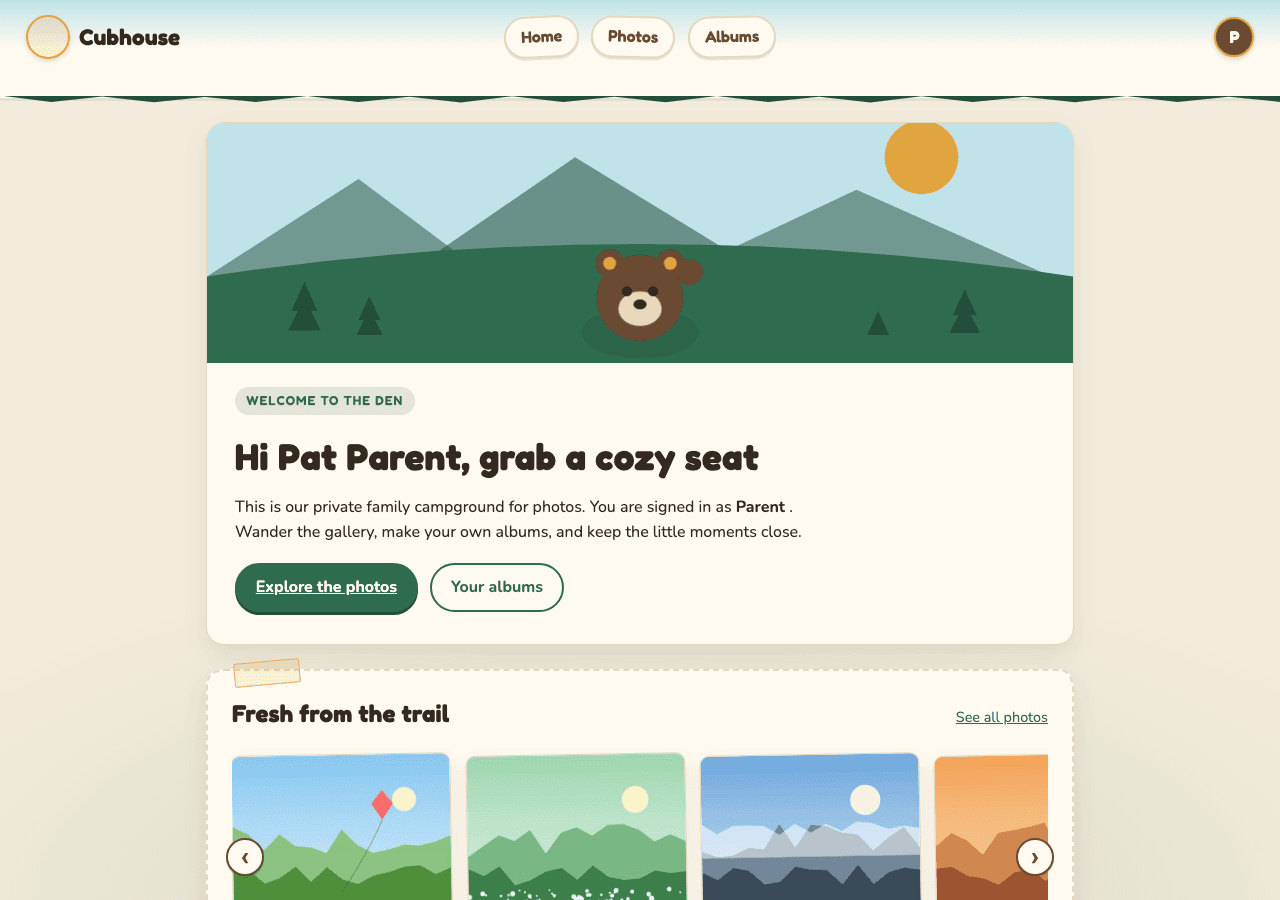
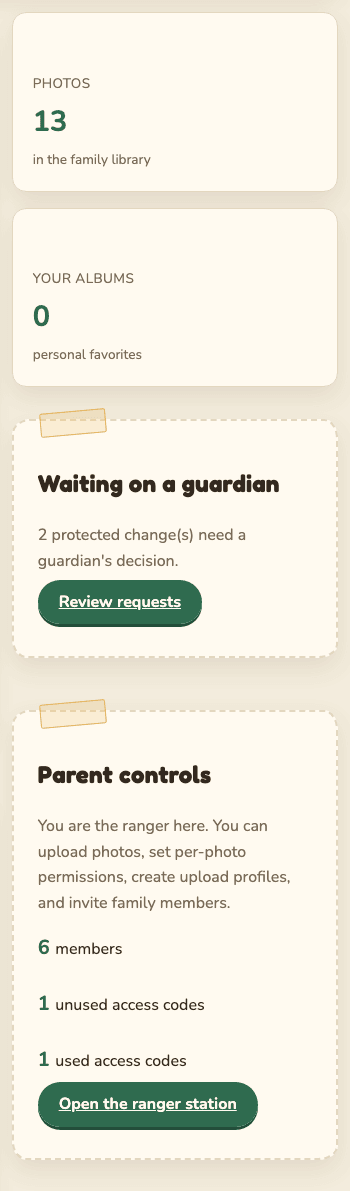
You can upload one photo or a whole batch at once.
- Go to Home.
- In Add a photo, select Choose photos and pick as many as you like. On a computer you can also drag photos onto the box. Each photo appears in a list.
- Add a caption if you like. It goes on every photo in this batch. Skip full names, schools and addresses.
- Optional: in Share using a profile, pick an upload profile to share them right away. Leave it on Keep it private for now to share later.
- Select Upload photos. Keep the page open until it says Finished.
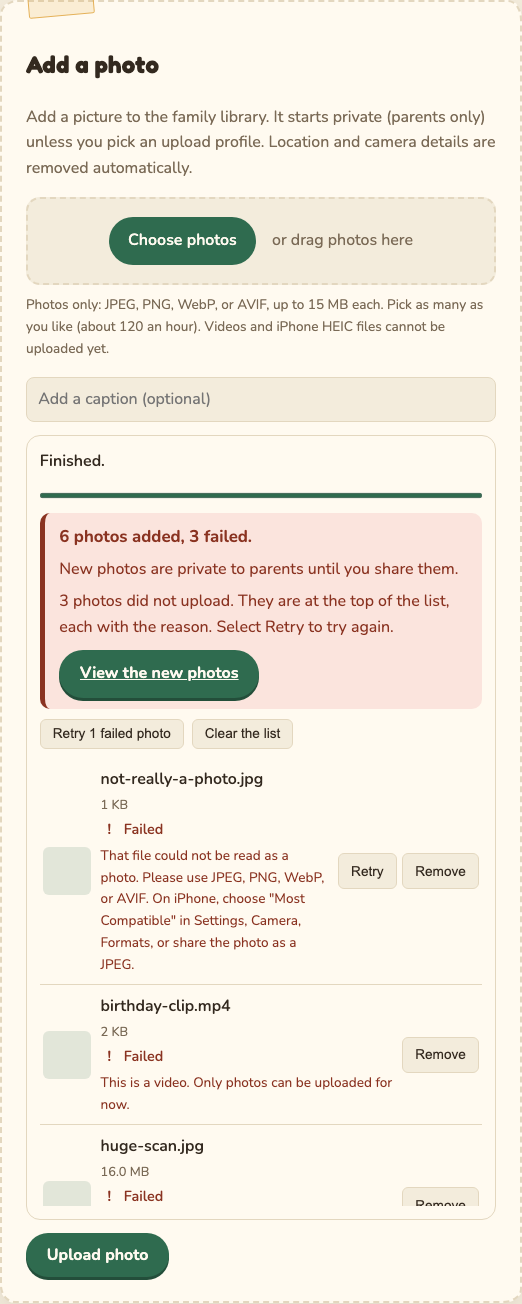
While the batch uploads, each photo shows where it is: Waiting, Uploading with a percentage, Saving (the site is removing location details), then Added or Failed with the reason. Three photos go at a time, and one failure does not stop the others.
- Select Cancel on a photo, or Cancel all, to stop. Once a photo says Saving it can no longer be cancelled.
- When the batch ends, a summary says how many were added and how many failed. Failed photos move to the top of the list. Select Retry on one, or Retry failed for all of them.
- Select View the new photos to open Photos, or View on one photo to open it.
- If you try to leave the page mid-upload, your browser asks you to confirm first.
- JPEG, PNG, WebP or AVIF, up to 15 MB each, and about 120 photos an hour. Videos and iPhone HEIC files cannot be uploaded yet. Files like these fail straight away, before anything is sent.
- Every photo is rebuilt from its pixels. GPS location, camera model and every other hidden detail are removed. The original file is not kept.
- New photos are visible to guardians only until you share them.
- If the profile you picked shares with the whole family or allows downloads, the upload works but the sharing waits for the other guardian. Each photo then says Added, sharing awaits a guardian, and the other guardian gets one request per photo. For a big batch it is quicker to upload privately, then share them all at once from Photos.
Contributions appear on Home under Waiting for your approval. They stay private until you act.
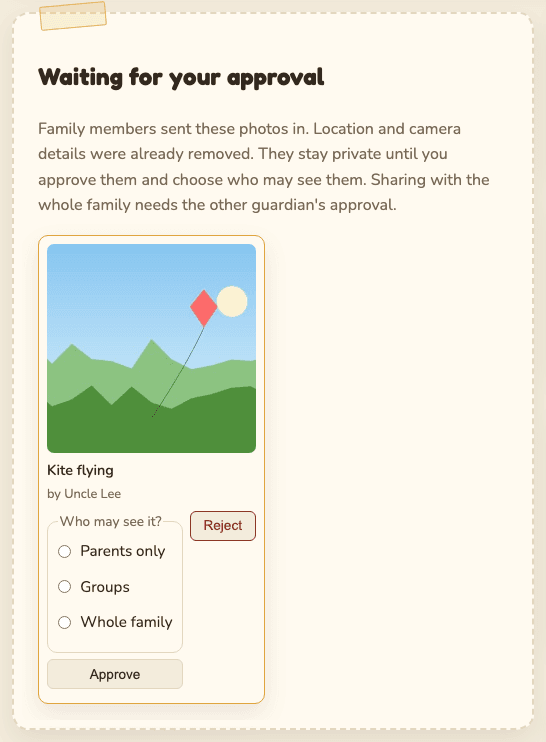
- Select the picture to look at it closely if you need to.
- Under Who may see it? choose Parents only, Groups (then tick the groups), or Whole family. You must choose; there is no default.
- Select Approve.
Or select Reject to delete it permanently.
Choosing Whole family needs the other guardian's approval. To share with specific people, approve it as Parents only first, then change its sharing on the photo's page.
Open Photos. As a guardian you see every photo, with badges for its settings: Pending approval, Hidden, No download, Watermark, Comments off, Reactions off, and who can see it (Parents only, Everyone, Groups, Specific people).
Under each photo:
- Hide / Unhide: hiding is instant. Unhiding may need the other guardian.
- Lock download / Allow download: locking is instant. Allowing needs the other guardian.
- Select photos by clicking the frame around a photo (not the picture itself), or tick the box in its corner. Hold Ctrl (or Cmd on a Mac) to add one at a time, or Shift to select a range.
- The toolbar shows how many are selected.
- Choose Hide, Unhide, Lock download, Allow download, Watermark on, Watermark off or Delete. Or pick an upload profile and select Move to profile.
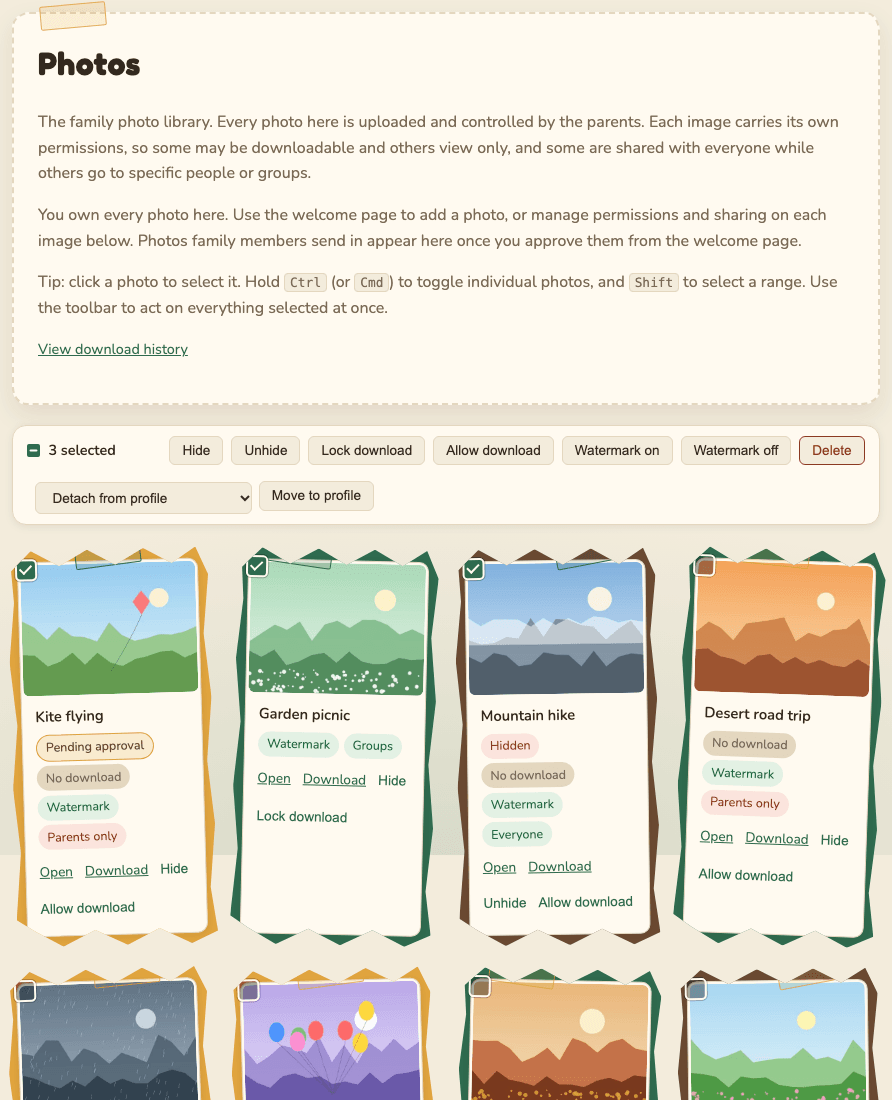
Bulk Delete always needs the other guardian. Bulk changes that widen sharing need them too.
Open a photo's page and scroll to Parent controls.
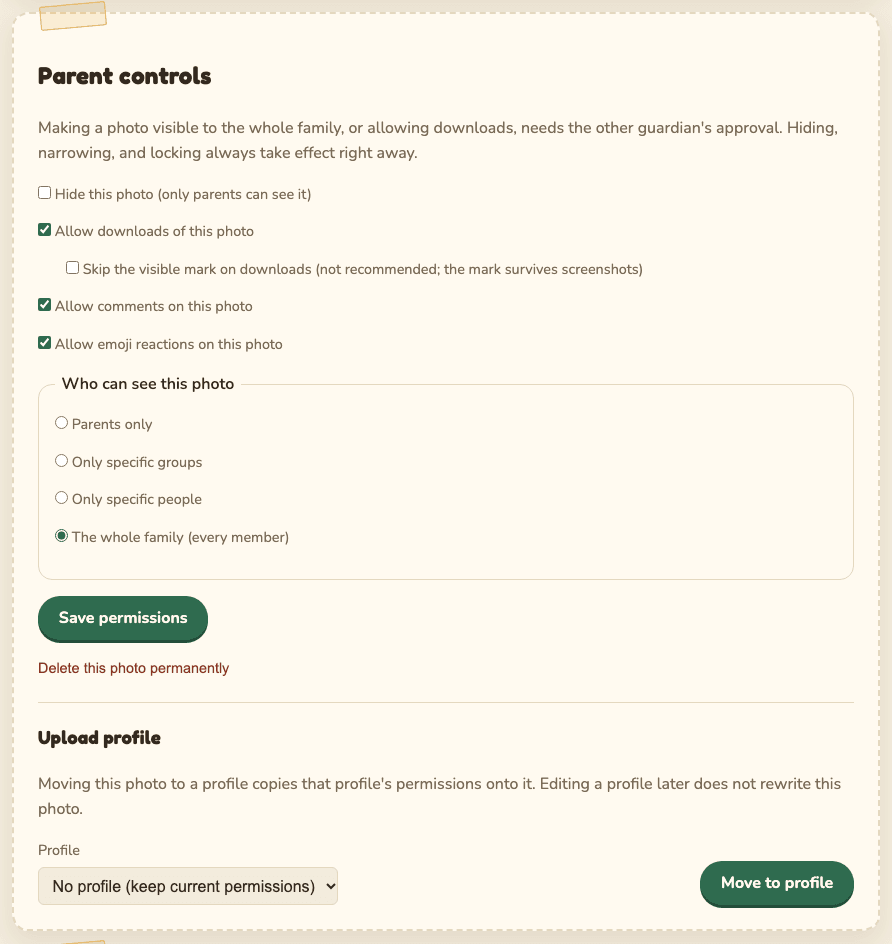
- Tick or untick:
- Hide this photo (only parents can see it)
- Allow downloads of this photo. When on, you can also tick Skip the visible mark on downloads (not recommended: the mark is the only thing that survives a screenshot).
- Allow comments on this photo
- Allow emoji reactions on this photo
- Under Who can see this photo, choose Parents only, Only specific groups, Only specific people, or The whole family (every member), and tick the groups or people.
- Select Save permissions.
If the change widens who can see or download it, you see "This widens who can see or download photos, so it is waiting for guardian approval." Sharing with more than half of the family by name, or with groups that cover more than half, counts as widening too.
Further down:
- Delete this photo permanently: removes every copy the site holds, its comments and reactions. You confirm first. The other guardian gets an email. Copies family members already downloaded cannot be recalled.
- Upload profile: Move to profile copies a profile's settings onto this photo. Changing the profile later does not change the photo.
- Download history for this photo: who downloaded it and when.
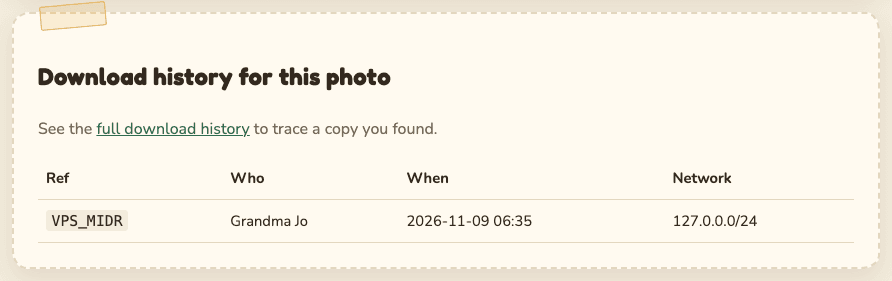
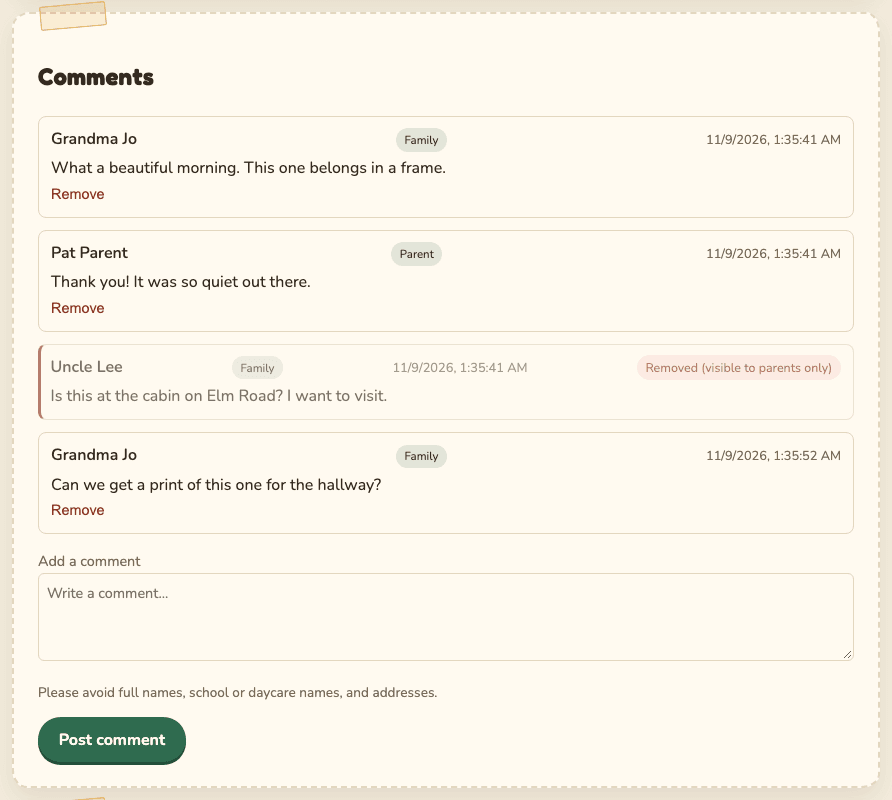
You can remove any comment. Removed comments disappear for family members, but you still see them, marked Removed (visible to parents only), so there is a record.
Open your menu and choose Admin. It has everything for people, sharing and records, top to bottom.
An email can't know where its reader is, so times written in emails (when an invite code expires, when a change waiting on the safety delay takes effect, when a guardian's reset code starts working) use one family time zone, always with the zone named, for example "Fri, Nov 13, 2026, 4:46 PM EST".
- On the Admin page, find Family settings.
- In Time zone for emails, type to search the list, for example
ChicagoorEurope/London, and pick your zone. Or select Use my current time zone to take the one your browser is in. - Check the example line, Invite codes will say: ..., then select Save time zone.
In effect shows the zone emails use now and where it comes from: set here, the server default
(APP_TIME_ZONE), or UTC when neither is set. To go back to the server default, select Clear and
use the server default.
Any one guardian can change it at once; it does not need the other guardian, because it changes how times are written, not who can see anything. Each change is in the audit trail as settings.time_zone, with the old and new zone.
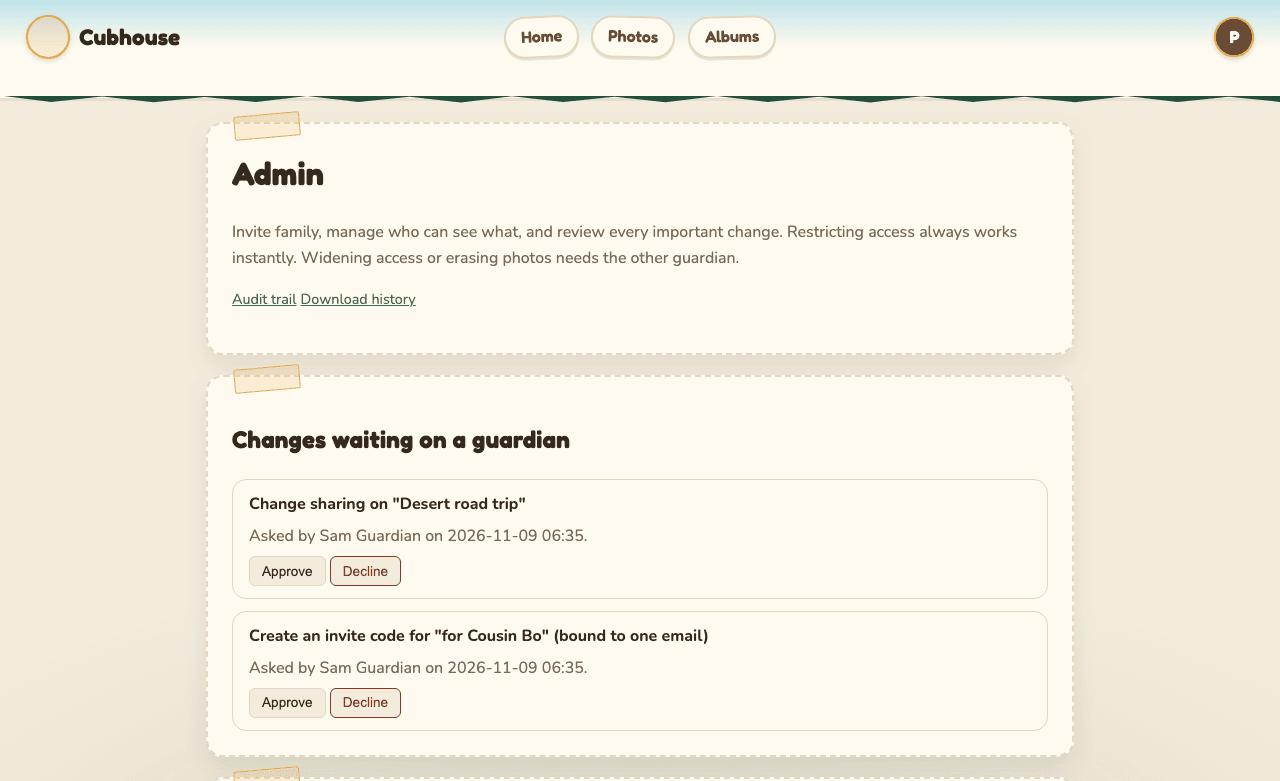
Protected changes asked for by either guardian. See Two-guardian approval. Each shows when it was asked for and, with one guardian, when it takes effect, in the family time zone.
- In Their email (recommended), type the person's email. The code then only works for them, so a forwarded code is useless.
- In Note, write who it is for, for example "for Grandma".
- Optional: in Add them to a group, choose a group they join automatically.
- Select Request invite code.
Creating a code needs the other guardian. Once approved, the code appears in Invite codes. Give it to the person by phone or in person. It works once and expires after 72 hours.
To have the site email the code for you, fill in Their email, then under Email it to them tick Email the code to the address above. You can add their first name for the greeting.
The email goes out once the code is created: after the other guardian approves, or with one guardian, after the 24-hour safety delay. If the request is declined, cancelled or expires, nothing is sent. The other guardian sees Invite code for the address in their approval list. An emailed code is always bound to that address.
The email says who invited them, shows the code in a large box, and has a Join button that opens the sign-up page with the code filled in. It also says when the code expires. It never includes photos or family details. It loads nothing from the internet, so nobody can tell when it is opened.
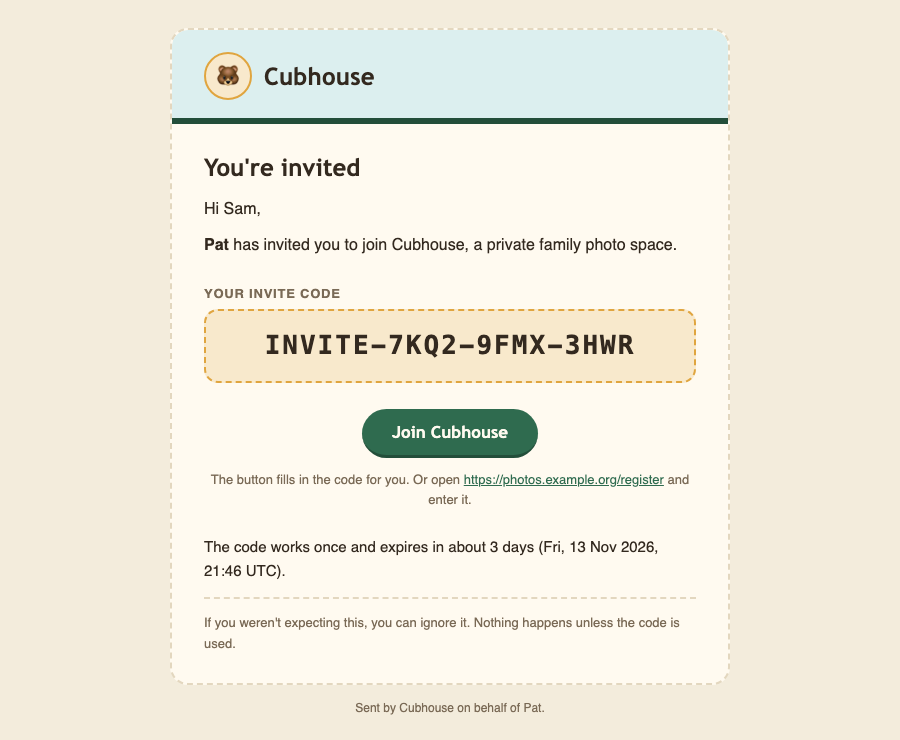
To email an open code you already have, select Send by email next to it in Invite codes. A code bound to an email only goes to that address. Each guardian can send up to 10 invite emails an hour. Every send is in the audit trail as invite.emailed, with the address partly hidden.
If email is not set up on the server, the form says so. The code is still created and shown to you, so share it yourself.
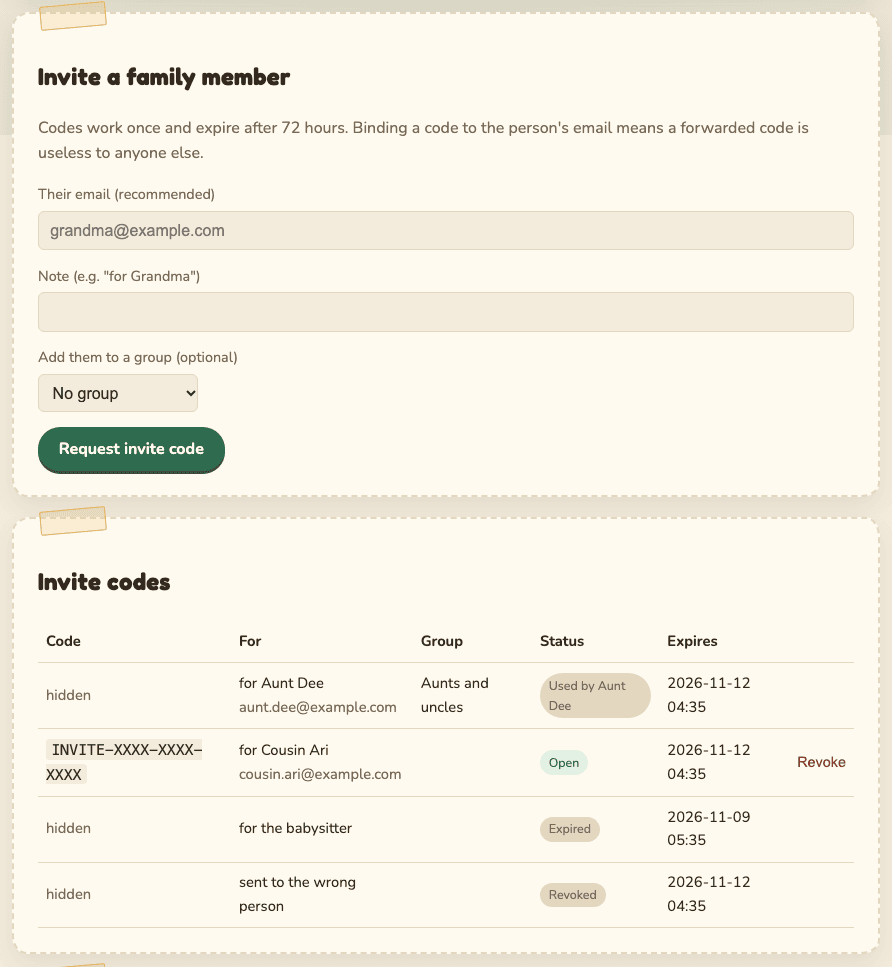
The Invite codes table shows each code's note, email, group, status (Open, Used by someone, Expired, Revoked) and expiry. Only open codes are shown in full.
To cancel an open code, select Revoke. That is instant. You get an email when someone joins with a code.
The Members table lists every account with email, role, groups and status badges: Removed, Muted, 2-step on.
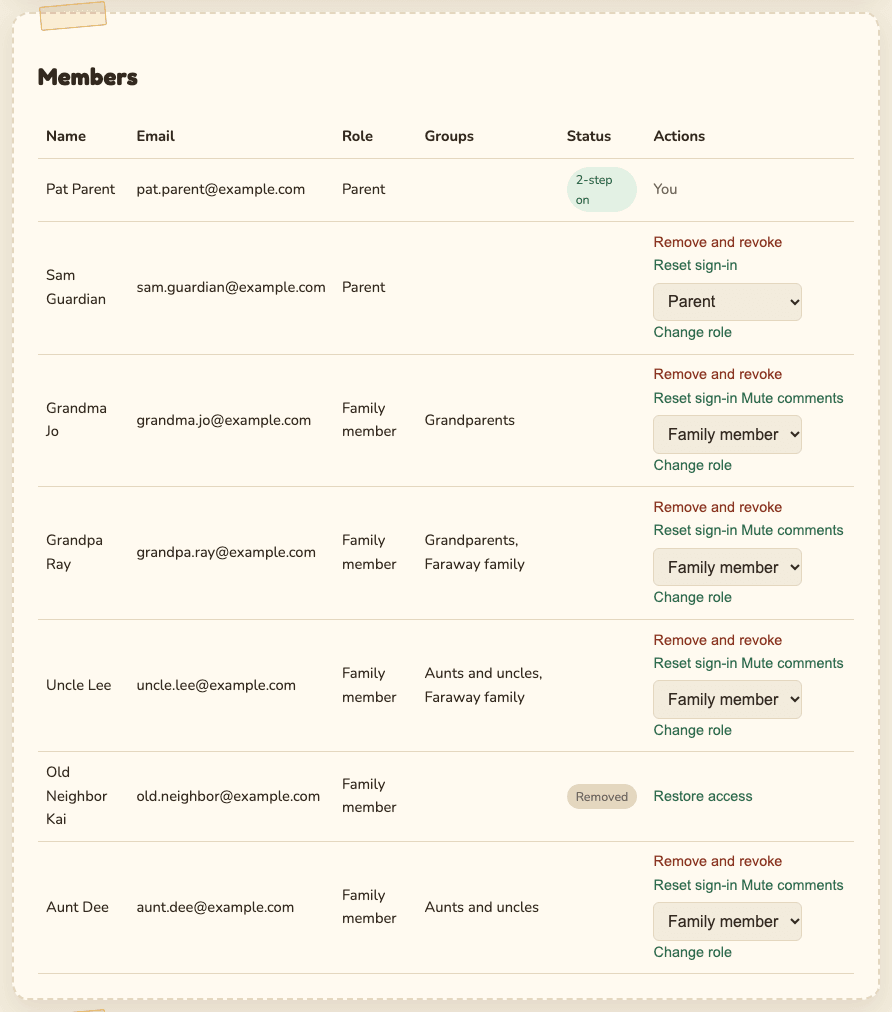
Actions next to each person:
| Action | What it does | Needs the other guardian? |
|---|---|---|
| Remove and revoke | Signs them out everywhere at once, blocks the account, takes them out of all groups, and cancels invite codes they made. Their history stays for the records. | Only when removing a guardian. The last guardian cannot be removed. |
| Reset sign-in | Gives you a one-time code so they can set a new password. See Account recovery. | No |
| Mute comments / Unmute | Stops them commenting and reacting. Family members only. | No |
| Change role | Switch between Family member and Parent. They are signed out and sign in again with the new role. | Yes |
| Restore access | Shown for removed accounts. Lets them back in. Group memberships must be added again. | Yes |
You confirm before Remove and revoke and Reset sign-in. The other guardian gets an email when you remove someone.
Groups let you share with several people at once, for example "Grandparents".
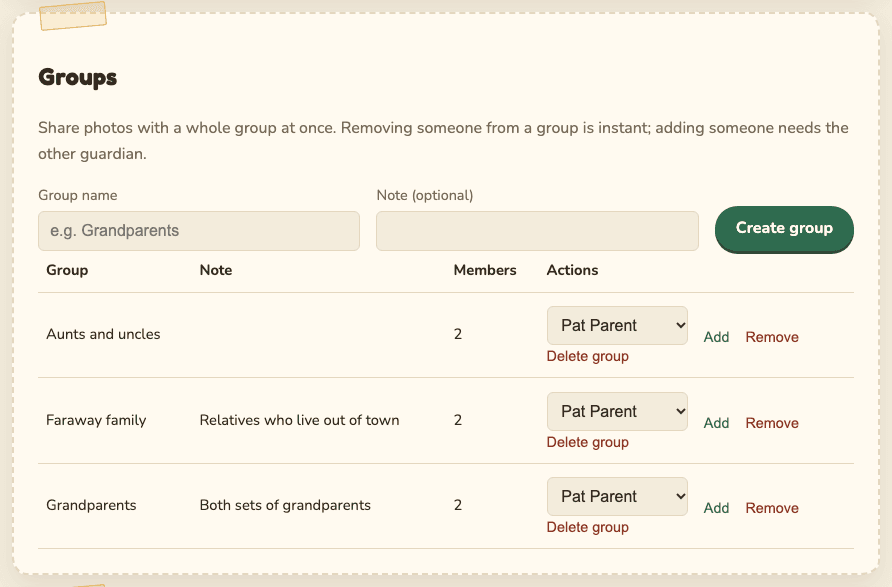
- Create a group: type a Group name (and a note if you like), then select Create group.
- Add someone: in the group's row, choose the person and select Add. This needs the other guardian, because it widens what they can see.
- Take someone out: choose the person and select Remove. Instant.
- Delete group: instant. Photos shared only with that group become guardian-only.
Every photo has one audience:
| Audience | Who sees it (besides guardians) |
|---|---|
| Parents only | Nobody else. The default for new photos. |
| Only specific groups | Members of the ticked groups. |
| Only specific people | The ticked people. |
| The whole family | Every member. |
An upload profile is a saved set of photo settings, for example "Grandparents, downloadable". Use it when uploading, from a photo's page, or on many photos at once.
- Open Create an upload profile.
- Give it a Profile name.
- Tick Allow downloads (and optionally Skip the visible mark), Allow comments, Allow reactions.
- Choose the Audience: Parents only, Specific groups, Specific people or Whole family, and tick who.
- Select Create profile.
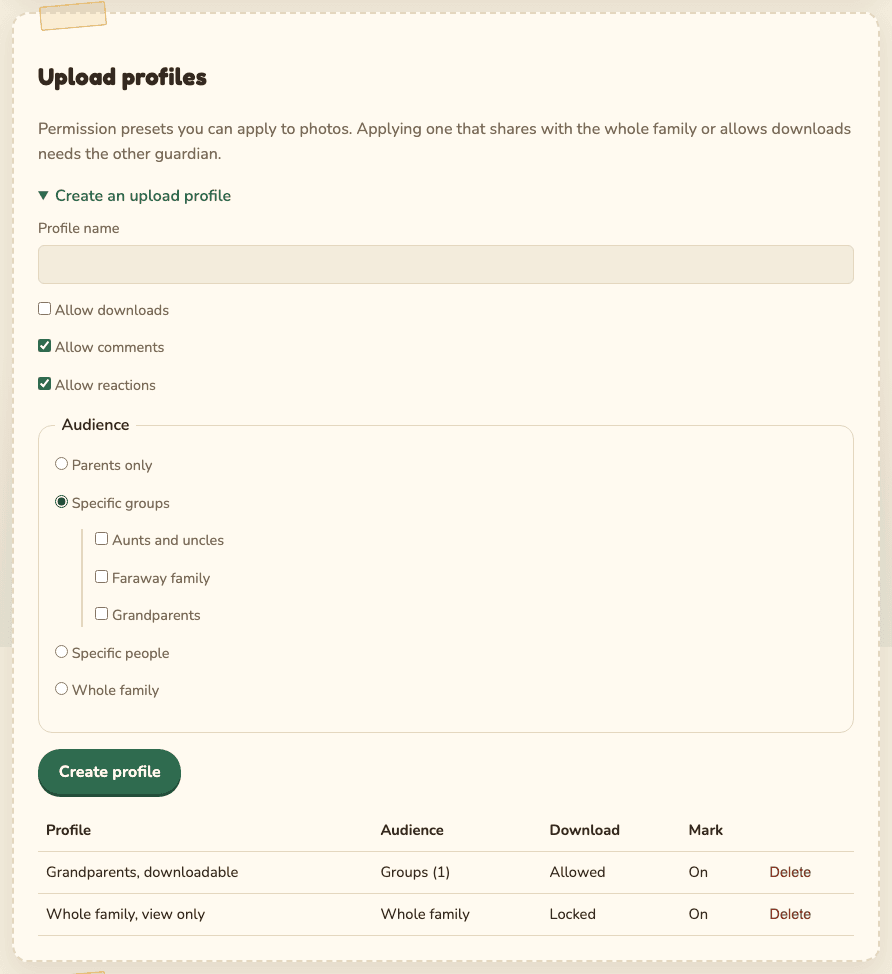
Creating, changing or deleting a profile never changes existing photos. Applying a profile that widens sharing needs the other guardian. Select Delete in the table to remove a profile.
When a family member reports a comment, you get an email and it appears under Reported comments.
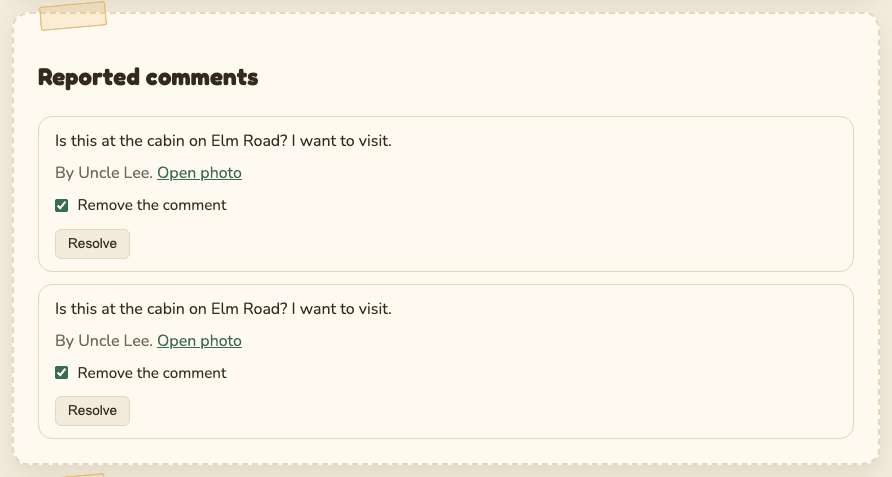
- Select Open photo to see it in context.
- Leave Remove the comment ticked to remove it, or untick to keep it.
- Select Resolve.
If someone keeps posting unkind or unsafe comments, use Mute comments in Members.
The last section on Admin lets you export every photo, or ask to erase them all. See Data export and erasure.
Open Admin and select Download history (or View download history on Photos).
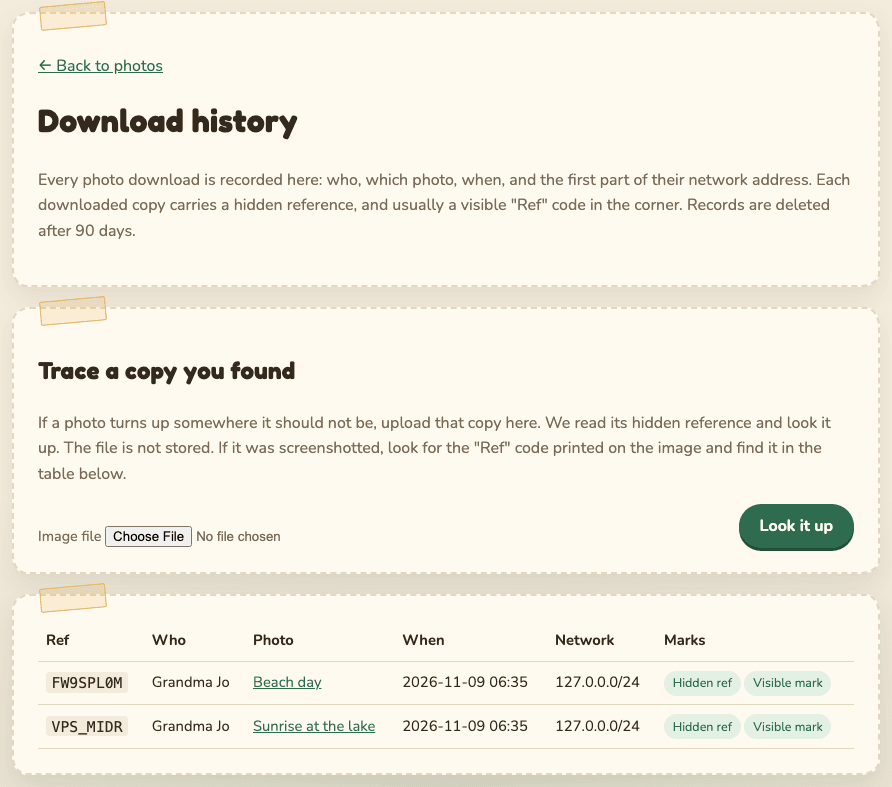
Each row shows the Ref code, who downloaded, which photo, when, the first part of their network address, and whether the copy has a hidden reference and a visible mark. Rows are deleted after 90 days.
If a photo turns up somewhere it should not be:
- Save the file exactly as you found it. Do not screenshot it yourself.
- Under Trace a copy you found, choose the file and select Look it up.
- The page tells you who downloaded that copy and when. The file is not stored.
- If it was screenshotted, look for the "Ref" code printed on the image and find it in the table.
Then remove that person (Admin, Members, Remove and revoke) and ask the website to take the copy down.
Open Admin and select Audit trail. It lists every sign-in and every important change: who, what and when. Nobody can edit or delete it, not even a guardian.
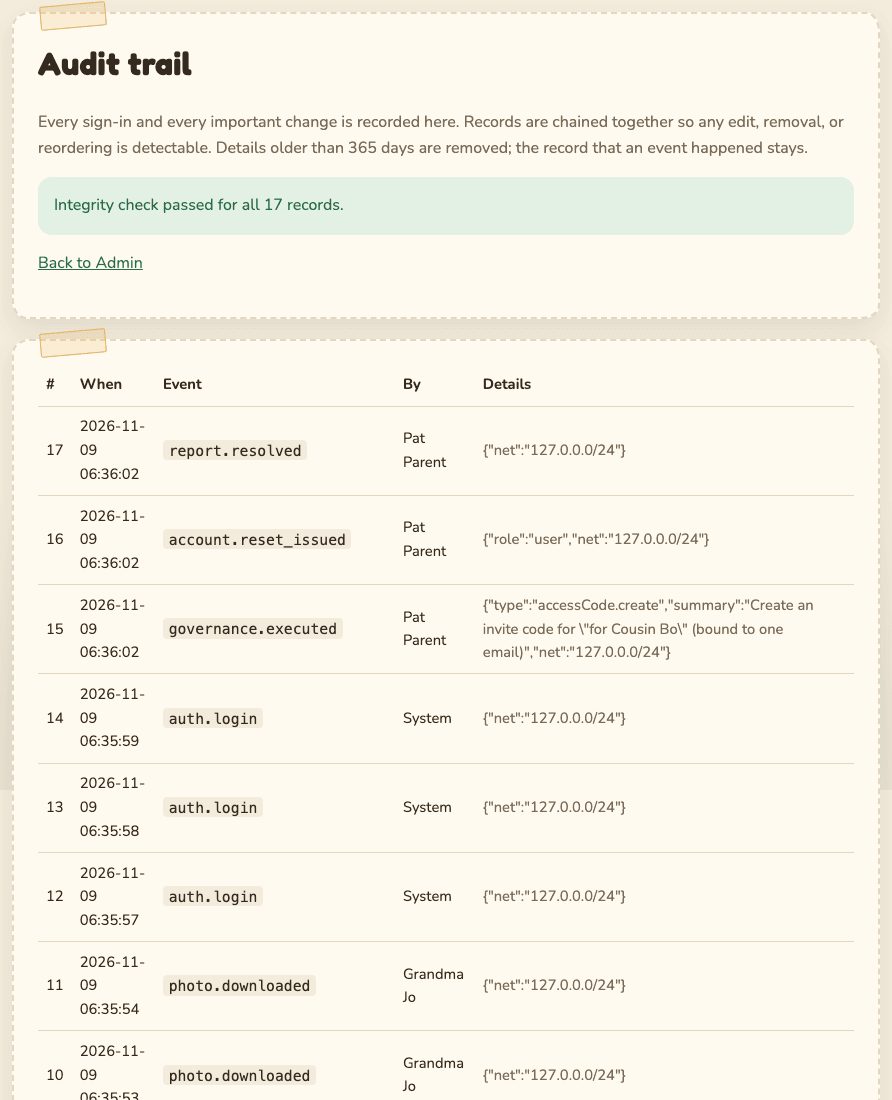
- The green bar "Integrity check passed" means no record was changed or removed. A red bar means someone may have tampered with it. Tell the other guardian and whoever runs the server.
- Event names are short codes, like
auth.login(a sign-in),member.removedorgovernance.executed(an approved change ran). - Sign-ins show System in the By column. The person is in the event itself.
- After 365 days the details are removed, but the record that something happened stays.
The site emails guardians when, among other things: someone joins with a code, a photo is sent
in, a comment is reported, an account is locked after wrong passwords, a guardian signs in from a
new device, the other guardian deletes a photo, removes someone or exports the archive, and when a
change needs your approval. There is also a daily summary of downloads. Email subjects start with
the site name in brackets, like [Cubhouse]. If they land in spam, see
Troubleshooting.