Repository navigation
Troubleshooting
Who this is for: anyone who hit a problem. Find the message or symptom below.
Cubhouse sends emails about sign-ins, resets, approvals and reports. Their subjects start with the
site name in brackets, for example [Cubhouse] A change needs your approval.
If they land in spam or junk:
- Open your spam or junk folder and find one of the emails.
- Mark it Not spam (or Not junk).
- Add the sender address to your contacts.
Guardians: if nobody gets emails at all, tell whoever runs the server. The site checks its email
connection when it starts and every 6 hours, and reports a problem on its /readyz status page.
An invite email says the code expires at an odd hour, or a "takes effect" time is hours off. Emails
write times in the family time zone, with the zone named (for example EST or UTC). If that zone
is not yours, a guardian sets it on the Admin page under Family settings, Time zone for
emails. See Family settings. Emails already
sent keep the old time; new ones use the new zone.
This happened on an older version of Cubhouse, when an account had to choose a new password at first sign-in. It is fixed in current versions.
- Ask whoever runs the server to update Cubhouse to the latest version.
- Then clear the site's cookies in your browser (or use a private window) and sign in again.
Messages: "That code did not match. Check the time on your phone and try again." (when turning it on) or "That code did not work." (when signing in).
The codes depend on the time, so the most common cause is a phone clock that is a little off.
- On your phone, open the date and time settings and turn on Set automatically.
- Wait for a fresh code to appear in the app, then type it.
Also check:
- You are using the Cubhouse entry in the app, not another account.
- You did not just use the same code. Each code works once; wait for the next one.
- You type it within 30 seconds or so.
Still stuck? Use a recovery code, or ask a guardian for a reset code.
"Too many failed attempts. Please wait 15 minutes and try again." Wait 15 minutes, then try again. If you have forgotten your password, ask a guardian for a reset code.
Check for typing mistakes, Caps Lock, and that you are using the email you joined with.
You were signed out: after 15 minutes idle, after 7 days, after a password change, after Sign out everywhere, or because a guardian changed your account. Sign in again.
The page was open too long. Go back, reload the page, and do it again.
Type your password (and code), select Confirm, then make the change again. See Confirm it is you.
Your password manager should fill the password and offer the code. Cubhouse marks the code box as a one-time code, so 1Password, Bitwarden, Chrome, and the code suggestions on iPhone, iPad, and Mac can fill it, or offer it above the keyboard. It should never put your email there.
If it still does:
- Update the password manager or browser. Older versions guessed more.
- Check that the saved login for Cubhouse uses the email you sign in with.
- Bitwarden: the code is filled only if the Cubhouse login in your vault has an authenticator key and your plan includes it. Otherwise copy the code from your authenticator app.
- Delete what was filled and type the 6-digit code yourself. That always works.
Boxes like "Type DELETE to confirm" or a reset code are not passwords, so password managers should leave them empty.
It may be mistyped, used already, expired (codes last 72 hours), or tied to a different email. Type it exactly as given, with the email the guardian expected. Otherwise ask for a new code.
- "That file could not be read as a photo..." iPhones often save photos as HEIC, which Cubhouse cannot read. On the iPhone, open Settings, Camera, Formats, and choose Most Compatible. Or share the photo as a JPEG.
- "That photo is too large. Please keep uploads under 15 MB." Pick a smaller version, or send it from your phone's share menu, which often shrinks it.
- "Animated or multi-page images are not supported." Upload a still photo.
- "This is a video." Only photos can be uploaded for now.
- "This is an iPhone HEIC photo." See the first point. Photos picked from the iPhone's photo library are usually converted for you; HEIC files copied to a computer are not.
- "The connection dropped." Your Wi-Fi or mobile signal cut out. Once it is back, select Retry on the photo, or Retry failed for all of them.
- "Upload limit reached for now." Each person can upload about 120 photos an hour. Wait a while, then select Retry failed.
- "You were signed out" or "This page expired." Refresh the page, sign in if asked, and add the photos that did not go through. Photos marked Added or Sent for approval are already safe.
- "Already in this list, so it was skipped." You picked the same photo twice. Nothing to do.
- The Send to parents (or Upload photo) button stays grey until you choose a photo.
On a phone, the round menu button with your initial sits at the top right, next to the site name. Home, Photos and Albums are on a row of their own just below.
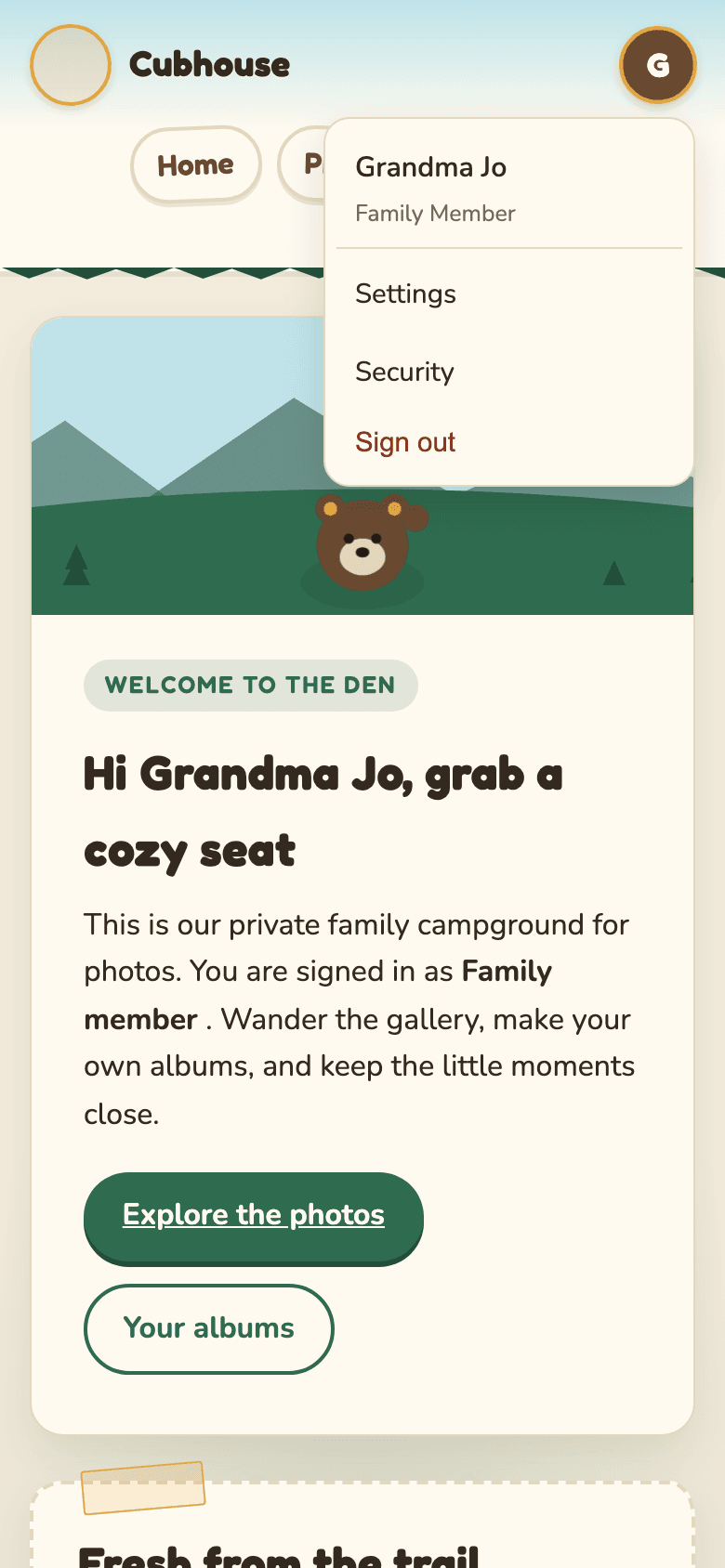
If the menu button is off the edge of the screen, or the Albums button covers it, the site is running an older version. Ask whoever runs the server to update Cubhouse. Until then:
- Turn your phone sideways. The menu button fits.
- Or type the address directly:
/settingsfor Settings,/settings/securityfor Security, and/adminfor guardians. - To sign out, use Sign out everywhere on the Security page.
A guardian stopped sharing it with you, hid it, or deleted it. Albums only show photos you can see.
Only accounts with the role Parent see Admin in the menu. On the family's real site, a guardian must turn on two-step verification first; the site sends you to Security until you do.
Tell a guardian what you were doing and the exact message you saw. Guardians can look for it in the audit trail.