Repository navigation
Home
SceneEditor is a browser-based editor for three.js scenes. You drop 3D models into it, then light them, change their materials and save the result.
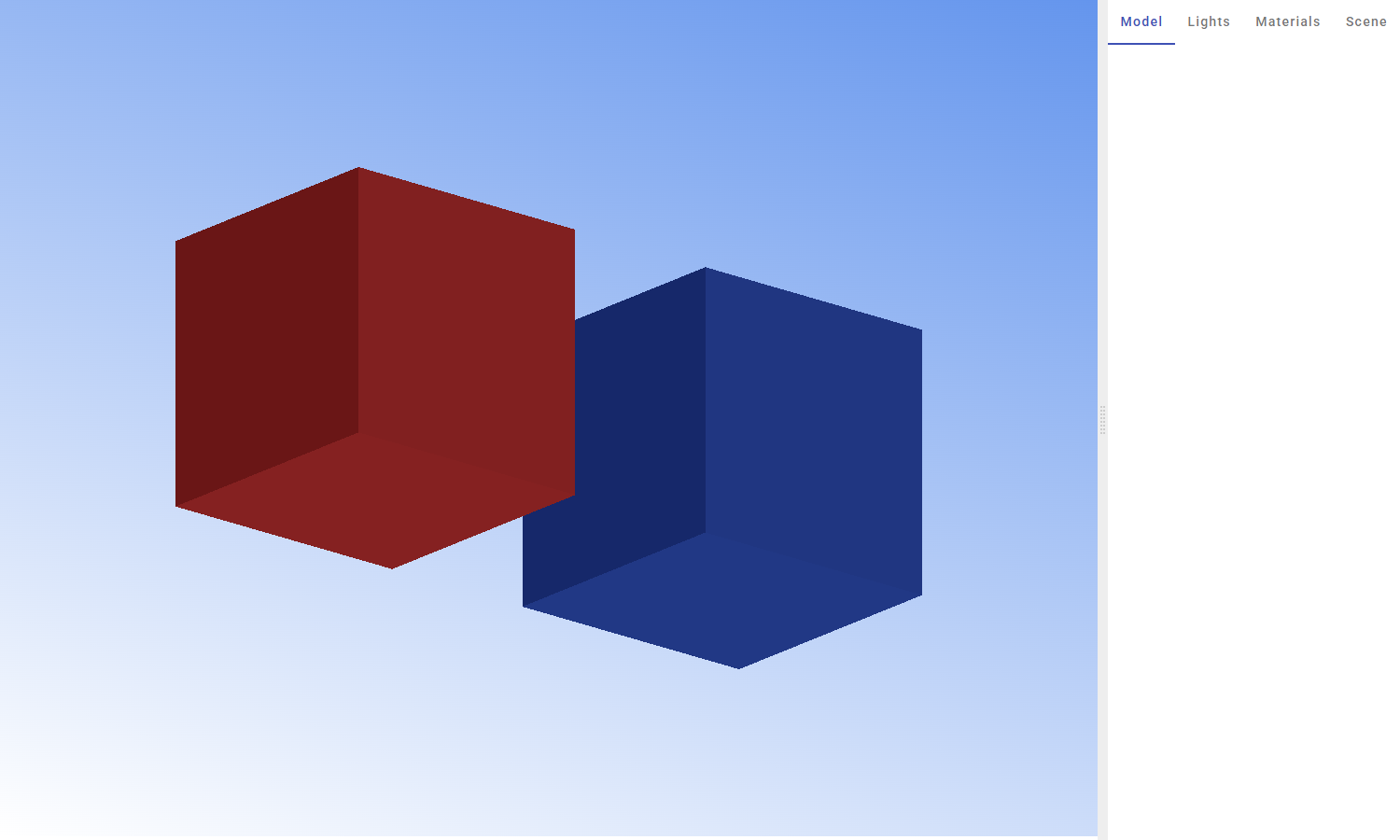
- View glTF, GLB, Collada (
.dae), STL, IFC (.ifc, IFC2X3 to IFC4X3) and STEP (.stp,.step, AP203, AP214 and AP242) models. - Add, position and adjust lights, and switch between sets of lights.
- Pick objects in the view, then edit their materials or assign new ones.
- Apply textures, bump maps, normal maps and environment maps.
- Save lights and materials as library files to reuse in other projects.
- Ray trace the view, with shadows and reflections, and save the image.
- Save the finished scene as glTF.
SceneEditor can't model geometry, or move or delete the objects you load.
- Getting started: open the editor and try it in five minutes
- Loading and viewing models: file types, the view and navigation
- Lights: light sets, light types and moving lights
- Materials: selecting objects, assigning materials and using textures
- Ray tracing: the Photorealistic tab, in the view or a separate window
- Saving your work: what is saved where, and how to get it back
- Known issues: problems to avoid, with workarounds
Save often. SceneEditor has no undo and no autosave, and reloading the page discards everything you haven't saved. See Saving your work.
This guide describes the Version-2.0 branch.