Repository navigation
Getting Started
Online: go to scene.meercad.com. This site runs an older build, which has three tabs and no Model tab. Otherwise the layout is the same, but some details in this guide may differ.
From source, to get Version 2.0, you need Node.js ^22.22.3, ^24.15.0 or >=26.0.0, and npm 12:
git clone -b Version-2.0 https://github.com/VJigouline/SceneEditor.git
cd SceneEditor
npm ci
npm start
Then open http://localhost:4200/.
From a release: Version 1.0 is at builds/Releases/SceneEditor.1.0.zip on the master branch. Unzip it onto a web server and open index.html. Opening the file directly from your disk won't work, because browsers block its scripts.
You need a browser with WebGL. Everything you load stays in your browser, and models aren't uploaded anywhere.
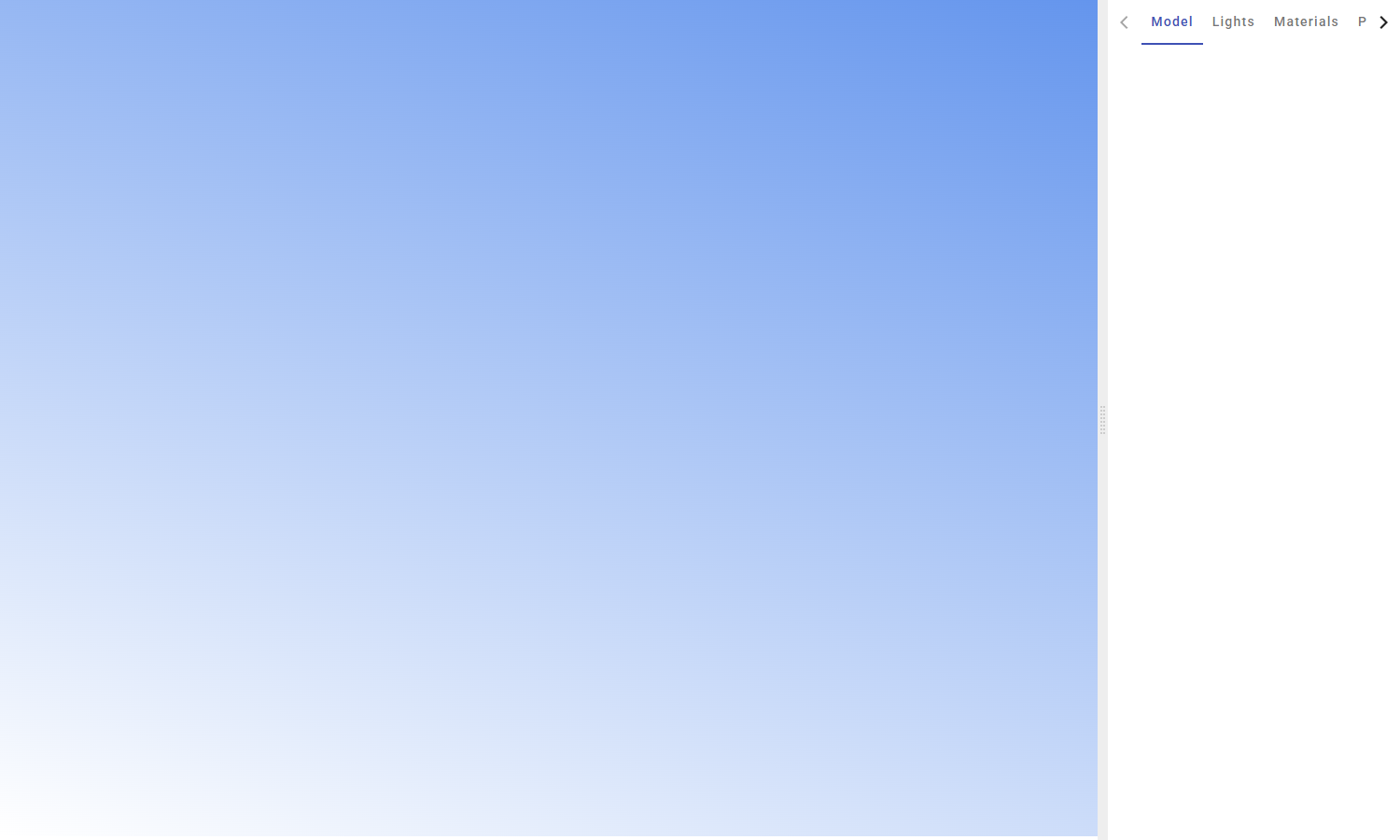
The large area on the left is the view, where you drop files and see the scene. The panel on the right has five tabs:
| Tab | Use |
|---|---|
| Model | Nothing yet. It's a placeholder for future work. |
| Lights | Create and adjust lights. |
| Materials | Select objects and edit materials. |
| Photorealistic | Ray trace the scene, in the view or a separate window. |
| Scene | Open files, clear the scene, fit it to the view, and save it. |
When the panel is too narrow for all five, arrows at either end of the tabs scroll them.
Drag the bar between the view and the panel to resize them.
-
Load a model. Drag a
.glbfile from your file manager onto the view. The model appears, fitted to the view. - Look around. Drag with the left mouse button to rotate, and use the wheel to zoom.
- Change the lighting. Open Lights, choose Directional 1 under Select light to edit, and move the Intensity slider. The view updates as you drag.
- Change a material. Open Materials, choose a set and a material, then hold Ctrl and click an object in the view to give it that material.
-
Save the result. Open Scene and click Save Scene. Your browser downloads
scene.gltf.
If you don't have a model to hand, the Khronos glTF sample assets include plenty.