Repository navigation
Loading and Viewing Models
There are two ways to load files:
- Open a file dialog: on the Scene tab, click Open files (the folder icon) and choose one or more files.
- Drag and drop: drag files or a whole folder from your file manager onto the view.
| Extension | Format | Notes |
|---|---|---|
.glb |
Binary glTF | A single file, so the simplest choice. |
.gltf |
glTF | If it uses separate .bin or texture files, see below. |
.dae |
Collada | If it uses separate textures, see below. |
.stl |
STL | Loads with a default metallic material, which can look black. See below. |
.ifc |
IFC building model | IFC2X3, or any IFC4 version up to IFC4X3, detected from the file. See below. |
.stp, .step, .p21, .stpz
|
STEP CAD model | AP203, AP214 or AP242, detected from the file. .stpz is compressed STEP. See below. |
.polygons |
SceneEditor polygon list | A JSON list of polygons. |
If you load only other file types, including a scene.json saved by SceneEditor, a Nothing to load message lists them. Other files loaded alongside a model are ignored, or used by it if they're its textures or buffers.
If a model can't be read, a Failure message explains why. Close it and carry on, as the scene is unaffected.
Both ways also accept .ltslib and .matlib library files.
A .gltf or .dae file can depend on other files. Load them together:
-
In the file dialog: select the model and its
.binand texture files together. The dialog can't select a folder, so if those files are in subfolders, drag the model's folder onto the view instead. - By dragging: drop the model's whole folder.
Each load adds to the scene, and doesn't replace it. The view then refits to everything in the scene. To start again, open Scene and click New empty scene (the NEW icon) first.
Models aren't rescaled to match each other. A model in millimetres next to one in metres keeps that size difference, and one may look tiny.
IFC files from building design software load with their colours, in metres. SceneEditor reads IFC2X3 and every version of IFC4, including IFC4X3, and works out which one a file uses. Older versions, such as IFC2X2, show a Failure message.
- What comes in: walls, slabs, roofs, beams, columns, windows, doors, pipes and the other building elements, with openings cut where windows and doors go. Rooms (IfcSpace) are left out, as they would hide what's inside them.
- What's left out: curved faces that some programs export as B-spline surfaces. Anything left out is listed as a warning in the browser's console (F12).
- How long it takes: models of a few megabytes load in well under a second. Very large models take longer, and the page doesn't respond until they've loaded.
STEP files from mechanical CAD programs load in metres, with their assembly structure and their colours. SceneEditor reads the AP203, AP214 and AP242 versions of STEP, and works out which one a file uses.
-
What comes in:
- Solids and surfaces: flat, cylindrical, conical, spherical, toroidal and free-form (NURBS) faces, turned into triangles. Curved faces are smooth to within 0.1% of each part's size.
- Assemblies: each part and sub-assembly becomes a group in the scene, placed as in the assembly. Repeated parts, such as screws, share their geometry.
- AP242 meshes: triangle meshes stored in AP242 files, used when a part has no exact geometry.
-
What's left out:
- Annotations: dimensions, tolerances and notes (PMI).
- Wireframe geometry.
- Hidden parts: parts the file marks as hidden.
- Unreadable faces: faces that can't be read are listed as warnings in the browser's console (F12).
-
How long it takes:
- Typical parts and assemblies load in a second or two.
- Large assemblies take longer, especially with modelled screw threads: about 25 seconds for a 15 MB assembly. The page doesn't respond until they've loaded.
A file that isn't STEP, or an IFC file renamed to .stp, shows a Failure message.
STL files have no materials, so SceneEditor gives them a metallic one, and with no reflections to show, it can look black. To fix this, open Materials, choose a material, and Ctrl+click the model.
| To | Do this |
|---|---|
| Rotate | Drag with the left button |
| Pan | Drag with the right button |
| Zoom | Mouse wheel |
| See the whole scene | Scene tab, Fit to view icon (the second one) |
The view has no perspective: objects look the same size however far away they are. So zooming, and not moving closer, is what makes something larger.
On the Materials tab, a left click on an object selects it, so hold Alt when you start dragging from an object. See Materials.
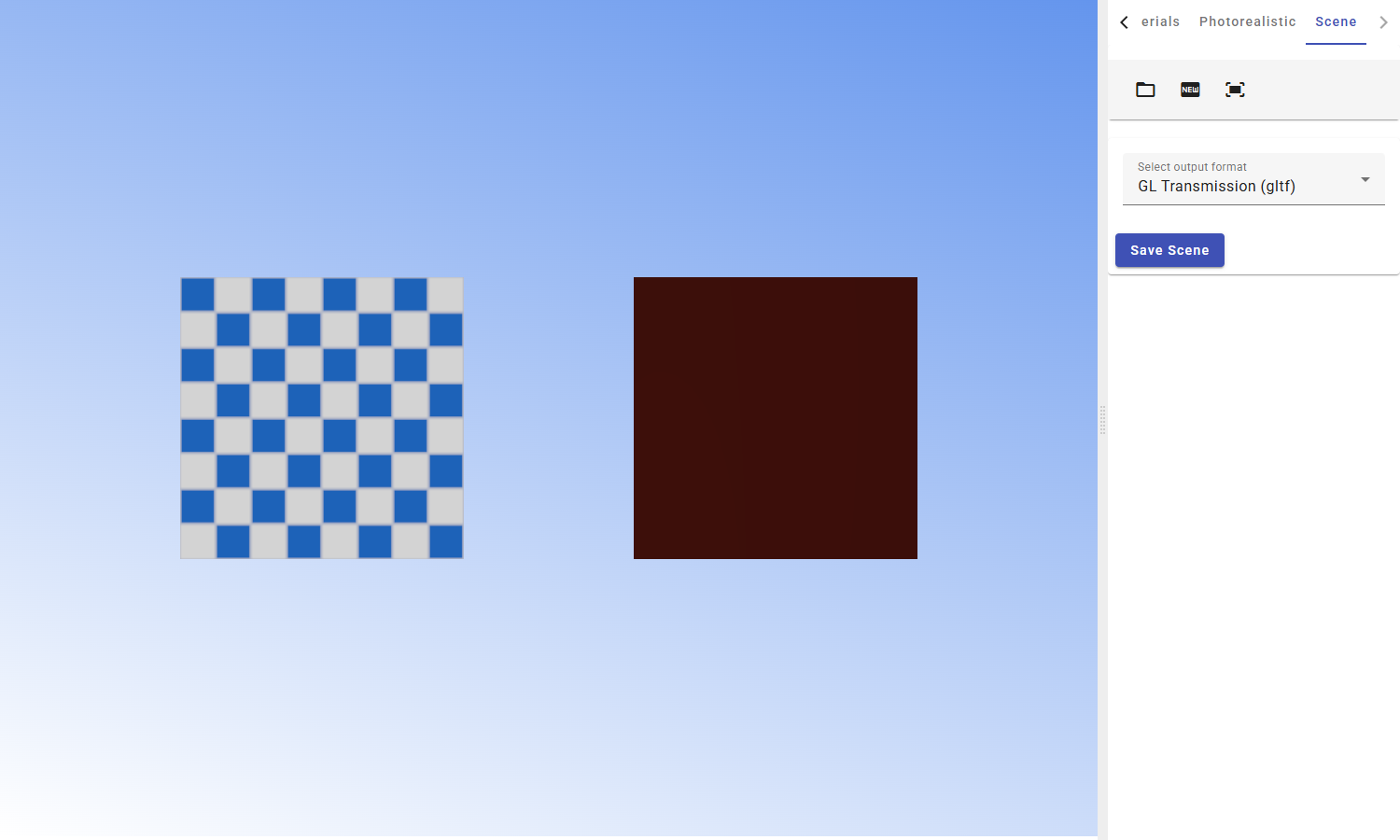
| Icon | Action |
|---|---|
| Folder | Open files. Opens a file dialog to load files into the scene. |
| NEW | New empty scene. Removes all models straight away, with no confirmation. Your lights and libraries stay. |
| Frame | Fit to view. Fits the whole scene into the view. |
To ray trace the view, use the Photorealistic tab. See Ray tracing.
Next: Lights