Repository navigation
Lights
Lights are organised in three levels. A library holds light sets, and each set holds lights. Only one set lights the scene at a time, so you can compare lighting setups by switching sets.
The default library has five sets: Three directional lights, Ambient, Directional, Spotlight and Point light. Your lights stay when you load or clear models.
Model too dark? Many models need more light than the defaults give. Raise Intensity on the lights in the current set, or add another light.
Choose the active set in Select lights to edit. The toolbar at the top of the Lights tab applies to sets:
| Icon | Tooltip | Action |
|---|---|---|
| NEW | New light set | Adds an empty set and makes it current. The scene goes black until you add a light. |
| Copies | Clone light set | Copies the current set. |
| Bin | Delete light set | Deletes the current set, after asking. |
| Down arrow | Save light set | Downloads the whole library as an .ltslib file, despite the tooltip. |
| Up arrow | Load light set | Adds the sets from an .ltslib file to the library. |
| X | Remove all light sets in the library | Deletes every set and creates one empty set, after asking. |
Library name sets the name of the saved file, and Lights name renames the current set.
- In Select light type, near the bottom of the panel, choose a type.
- Click New. The light is added to the current set and selected.
- Change its settings. The view updates as you go.
To edit another light, choose it in Select light to edit. The Light editor toolbar copies, pastes and deletes the selected light. A pasted light goes in the current set, so you can copy a light from one set to another.
Maximum intensity sets the top of the Intensity slider. Increase it if the slider's end isn't bright enough.
| Type | Effect | Settings |
|---|---|---|
| Ambient | Even light everywhere, with no direction and no shading | Colour |
| Directional | Parallel rays, like the sun | Colour, position, target, cast shadow |
| Spotlight | A cone of light | Colour, position, target, angle, decay, penumbra, distance, cast shadow |
| Point | Shines in all directions from a point, like a bulb | Colour, position, decay, distance, cast shadow |
| Hemisphere | Soft light that blends a sky colour with a ground colour | Colour, ground colour, position, cast shadow |
In a spotlight, Angle is the width of the cone in radians, up to 1.57, and Penumbra softens its edge, from 0 to 1. Decay controls how quickly spotlights and point lights fade with distance.
Models you load don't cast or receive shadows, so Cast shadow currently shows no visible effect. The Distance field also has no effect at present. See Known issues.
Type values into Position and Target, or drag the handles in the view.
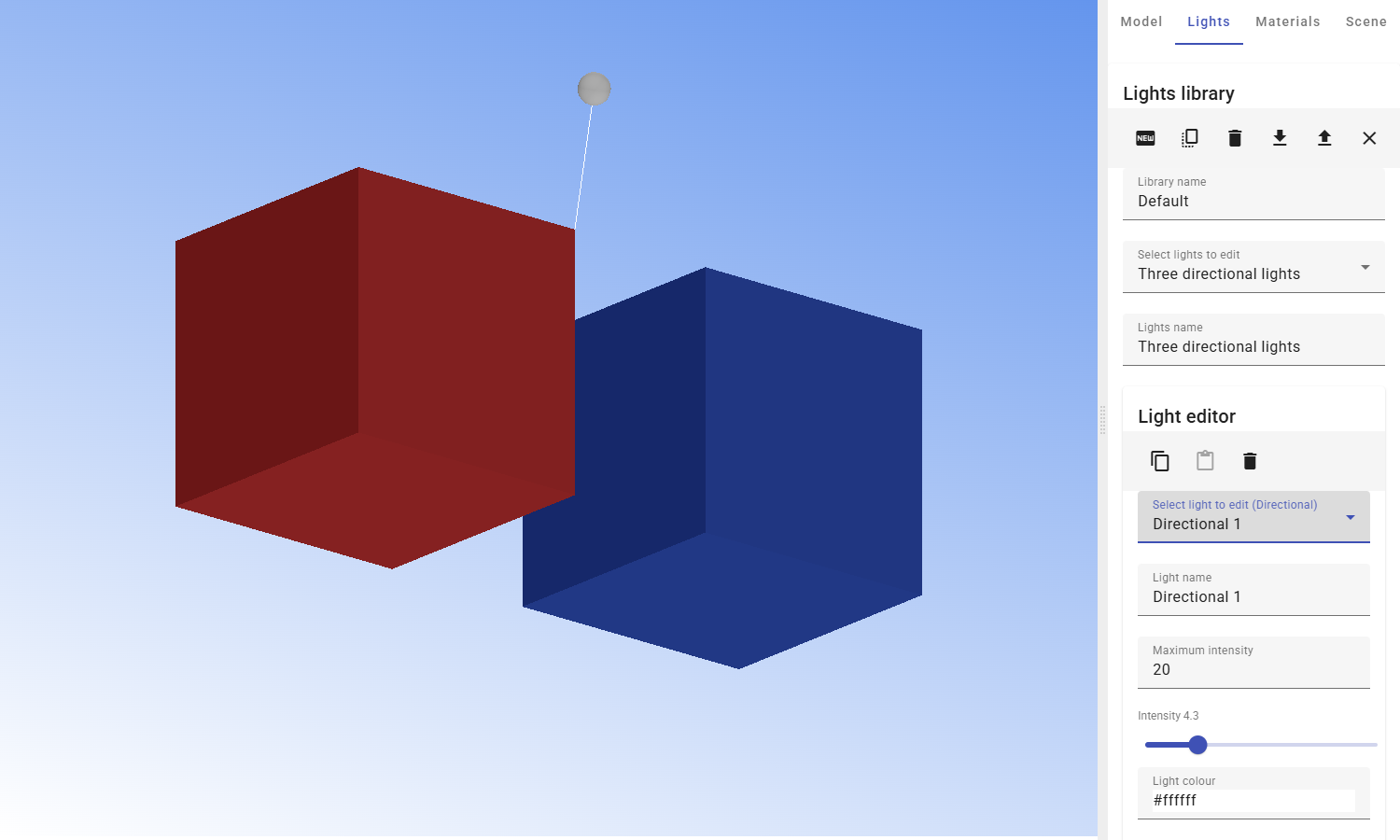
Choosing a light in Select light to edit shows its handles. Directional lights and spotlights have a large sphere at the light and a small one at its target. Point and hemisphere lights have one sphere, and ambient lights have none.
Hover over a sphere to show the move control, then:
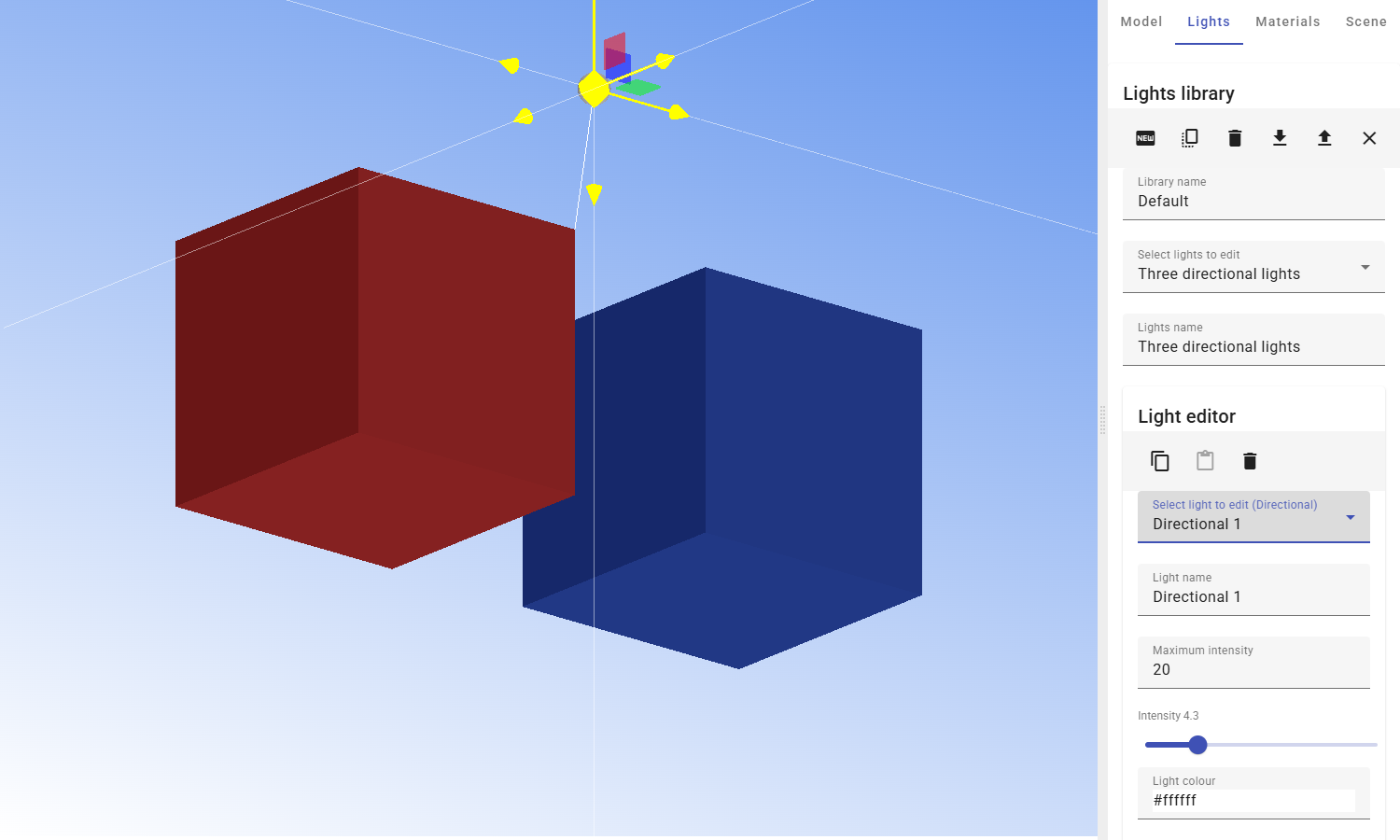
- Drag an arrow to move along that axis.
- Drag a square to move in that plane.
- Drag the centre to move freely.
The control lets go about 2.5 seconds after your pointer leaves it, though it can stay on screen until the view next redraws.
Two things to watch for:
- The number fields don't update as you drag. To see the new values, choose another light, then choose this one again.
- Handles disappear when you change tabs. To get them back, choose a light again in Select light to edit.
Next: Materials