Repository navigation
On your screen
Part of Features. New here? Start with how it works.
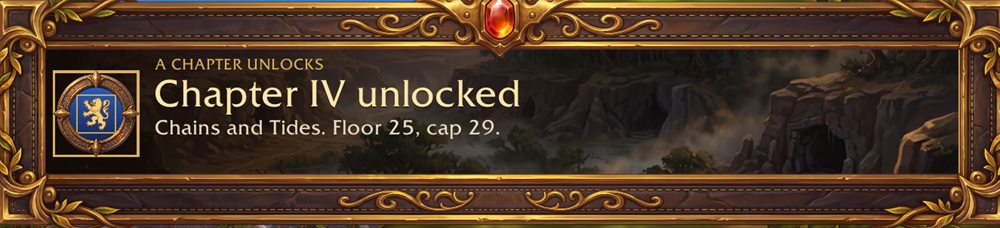
- Toasts: a banner when a chapter unlocks, everyone reaches the floor, a dungeon is cleared, an Adventurer reaches the floor or the cap or goes over it, new rules, a Gathering soon, an attunement opens, and more. Big moments get a big banner. Each can be turned off, and you can drag them where you like. Click one to open the page it is about.
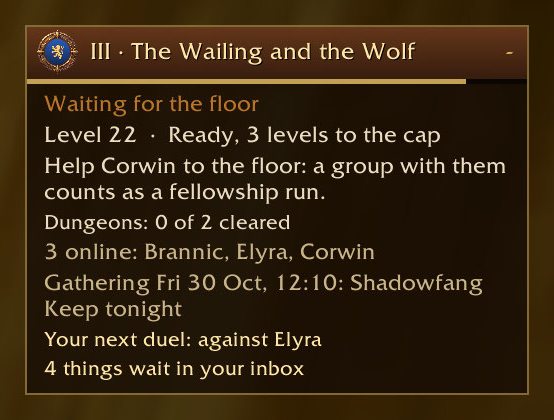
- The tracker, under the game's quest tracker as one more section in the game's own look: the chapter, where you stand (with a little bar to the floor or the cap), the next step, dungeons cleared, who is online, the next Gathering, shared quests, your next duel and your inbox, each line with its icon. It moves and folds with the game's list. Or make it a panel you drag anywhere, which can hide until you point at it.
- Picture after a final boss: Take a picture (with or without the interface) or open the group photo, right there in the dungeon.
- The inbox in the header: invitations, votes, Gatherings, asks to group up, the tournament.
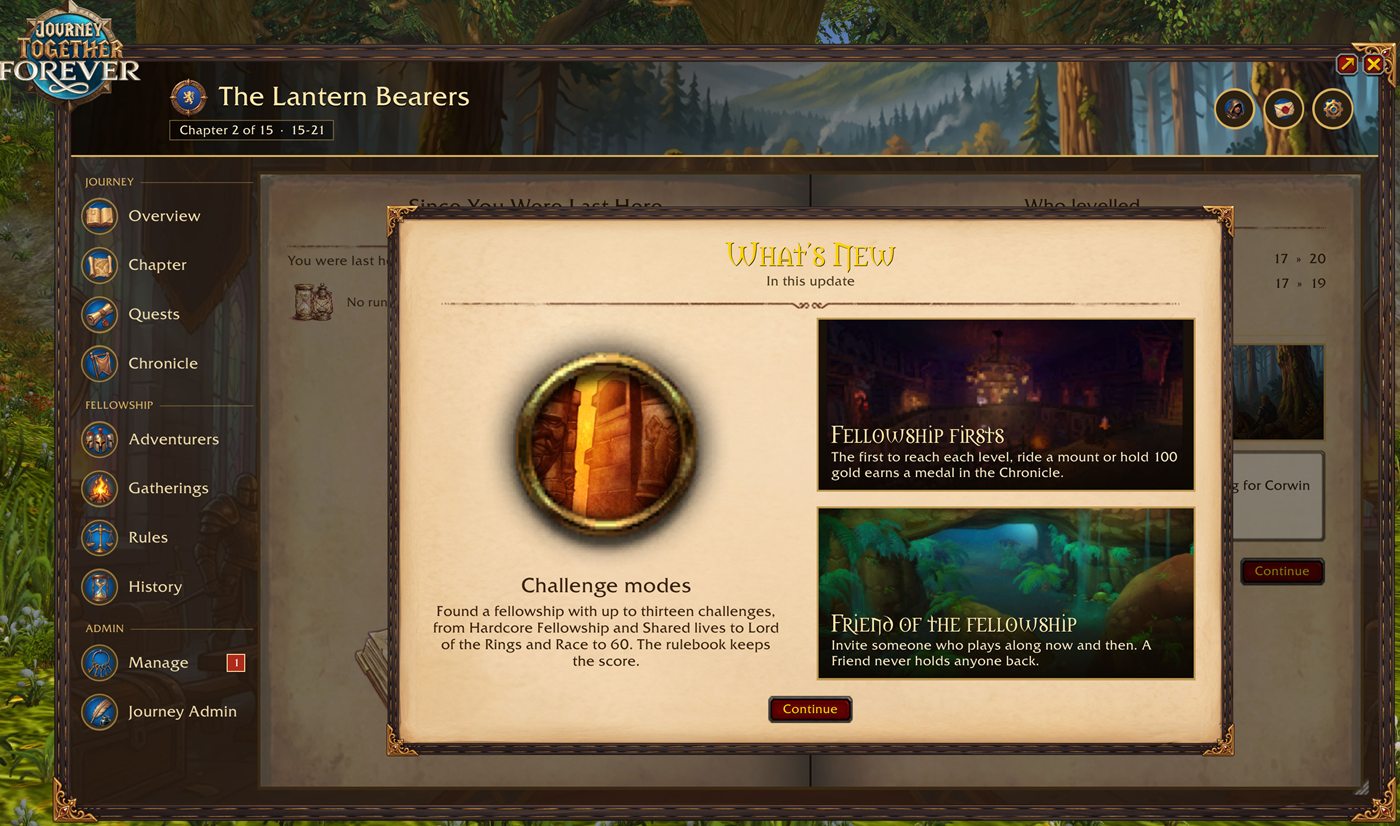
- The book: a leather book with parchment pages and art for every page, in the game's own look (its fonts, buttons and frames). Drag the corner to resize it (80% to 120%), or go full screen, edge to edge.
- Themes: Journal, Night, and Faction (Alliance blue or Horde red).
- A setup guide the first time, and Show me around: a two-minute walkthrough of the book on a sample fellowship, for your rank.
- Settings for every toast, the tracker's lines, chat messages, the cap warning, sounds, reduced effects and the minimap button.
-
What's New: once after an update, a page over the book with the update's news.
/jtf newsshows it again.