Repository navigation
Getting Started
This page contains all of the information you need to take your first steps in the project. Remember that if you want to be very efficient in the project, you should read all the pages displayed in the General section of the Wiki. Don't forget that this may be hard and you can, sometimes, have a lack of motivation. But we have a solution to this issue.
In case of demotivation, Break Glass
% //////////////// %
% //////////////// %
% Motivation Kit %
% //////////////// %
% //////////////// %
Well, let's start your tour of our wonderful Velandel World! 👏
First of all, you have to download and install Unity and Visual Studio.
Versions at the date of this post :
Unity : Unity 2017.2.0f3
Visual Studio : 2017
- Step 1: Download the latest version of Unity by following this link. Check the box and click on Download. Once the executable is downloaded, just launch it and follow the instructions on the screen. At a certain point, the installer will ask you what component you want to install, please ensure that you checked the correct box as shown on the following picture.
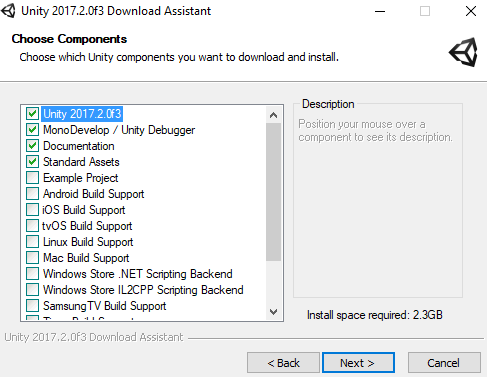
Don't forget to check the Linux/Mac Support if you are not running on windows. Also these elements are required for the projects but you can also check other components if you want.
-
Step 2: Unity is now installed. It is time to download and install Visual Studio. You can download the latest version of Visual Studio by clicking on the following link. Once it is downloaded, you just have to install the Visual Studio Community 2017 and follow the instructions on the screen.
-
Step 3: Now, you have to configure Unity so that it automatically works with Visual Studio. Open the Preferences by clicking on _Edit > Preferences
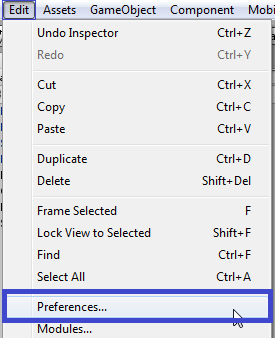
- Step 4: A new window appears. Select the External Tools section and click on the External Script Editor Menu. Now you just have to select the Visual Studio option in the list. Also, take a look at the Editor Attaching : The box must be checked.
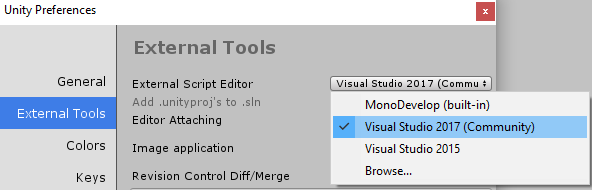
You are now ready to work on Unity and make your first codes and GameObjects. Congratulations! Now, you need to create your KanBoard account. If you do not know what KanBoard is, do not worry. Everything will be explained later in the wiki. Open the following link in a new Tab: https://velandelstudio.com/ This is the link of our organization, and you will find everything you need to develop in great conditions.
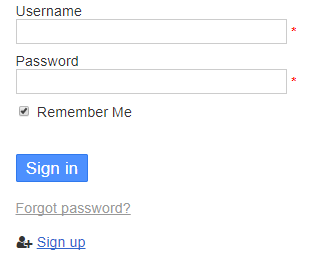
You just have to click on the Sign Up button to open a new window and fill in the blank with correct information as shown in the example below. Please be sure to Enable email notifications!
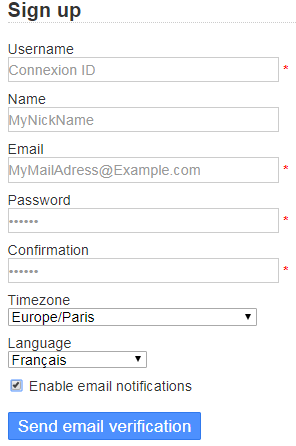
Once it is done, KanBoard will send an email to the adress you provided. This process can take several minutes, so please take a coffee.
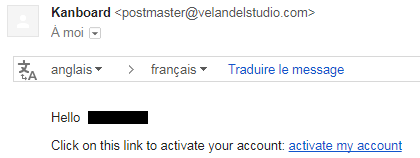
When you receive the email (check your spam folder!), you just have to click on the link to activate your account and then, you can log in to the Kanboard.
Once logged in, you will see that there is no project. Do not panic! You just have to wait for an admin to confirm your account and add you to the project. This seems to be a heavy process but it is necessary to ensure the security of the project.
Congratulations, you now have a KanBoard account! Brace yourself, You only have one more step to go.
As you should probably know, Git is an amazing versioning tool that works pretty well with codes. But you should also know that, in Unity, we work with elements such as GameObjects, Prefabs, and a lot of stuff written in binaries. The problem is that it is literally impossible to compare versions of binary elements, and to commit these elements will generate tons of conflicts impossible to resolve.
In order to fix this issue, we need to configure Unity and Git to make them work together. The main goal is to transform all binary information (prefabs, scenes, whatever) into something readable by Git. In that way, Git will be able to compare versions of our GameObjects. And there is a tool for that called YAML which is able to transform every GameObjects in a complete String format file.
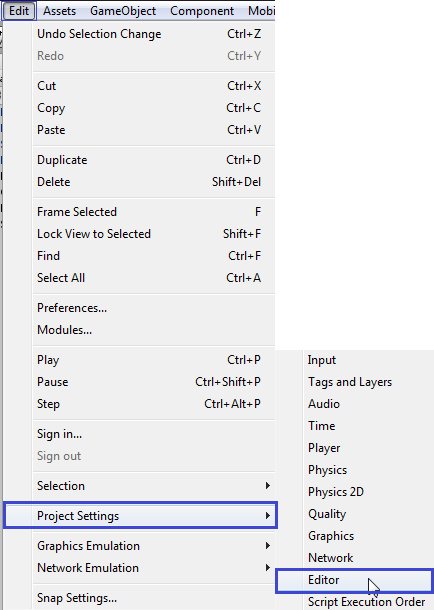
- Step 1: Open the Editor Settings by clicking on Edit > Project Settings > Editor
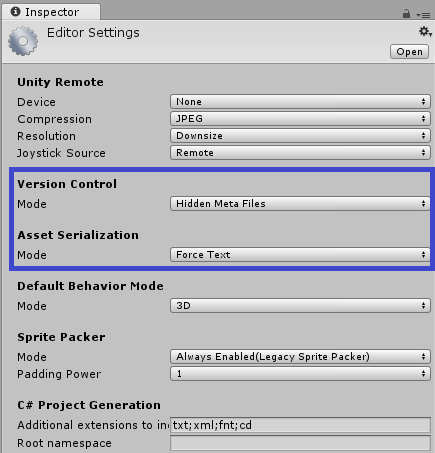
- Step 2 : In the Editor Settings window, set the Version Control Mode = Hidden Meta Files and Asset Serialization Mode = Force Text
-
Step 3: Close Unity
-
Step 4 : Last step to go! You now need to configure Git to ask it to also check these files when merges occur. To do that, you have to find your .gitconfig file. Most of the timen the file is located at :
C:\Users\<Your_User_Name>\.gitconfig
Edit it with a text editor (notepad++ recommanded) and add, next to the elements already present :
[merge]
tool = unityyamlmerge
[mergetool "unityyamlmerge"]
trustExitCode = false
cmd = "C:\\Program Files\\Unity\\Editor\\Data\\Tools\\UnityYAMLMerge.exe" merge -p "$BASE" "$REMOTE" "$LOCAL" "$MERGED"
Please note that the "C:\Program Files\Unity\Editor\Data\Tools\UnityYAMLMerge.exe" can be different on your computer. Make sure to locate where Unity is installed and check the path to the UnityYAMLMerge.exe Also, ensure tu put double antislash (\) and not simple antislash or slash (\ or /) in the path. -
Step 5: Have fun on your fresh dev' environment!