Keep your terminal. Add AI context.
Termia brings Pi
into the terminal you already use. Keep iTerm2, Windows Terminal through WSL2,
and the shell workflow you already trust. Termia gives Pi a real persistent
PTY, structured command history, and an Active Workspace that follows you
through local shells, nested SSH sessions, and managed remote sudo/su user
switches.
Use the model access already configured in Pi—your subscription, API key, or local model. No replacement terminal, separate Termia account, or copying terminal output into chat.
Start Pi and enable Termia:
pi
/termia
Press Ctrl+] to enter the persistent terminal, then work normally:
ssh ops@app-server
sudo -i
systemctl status nginx
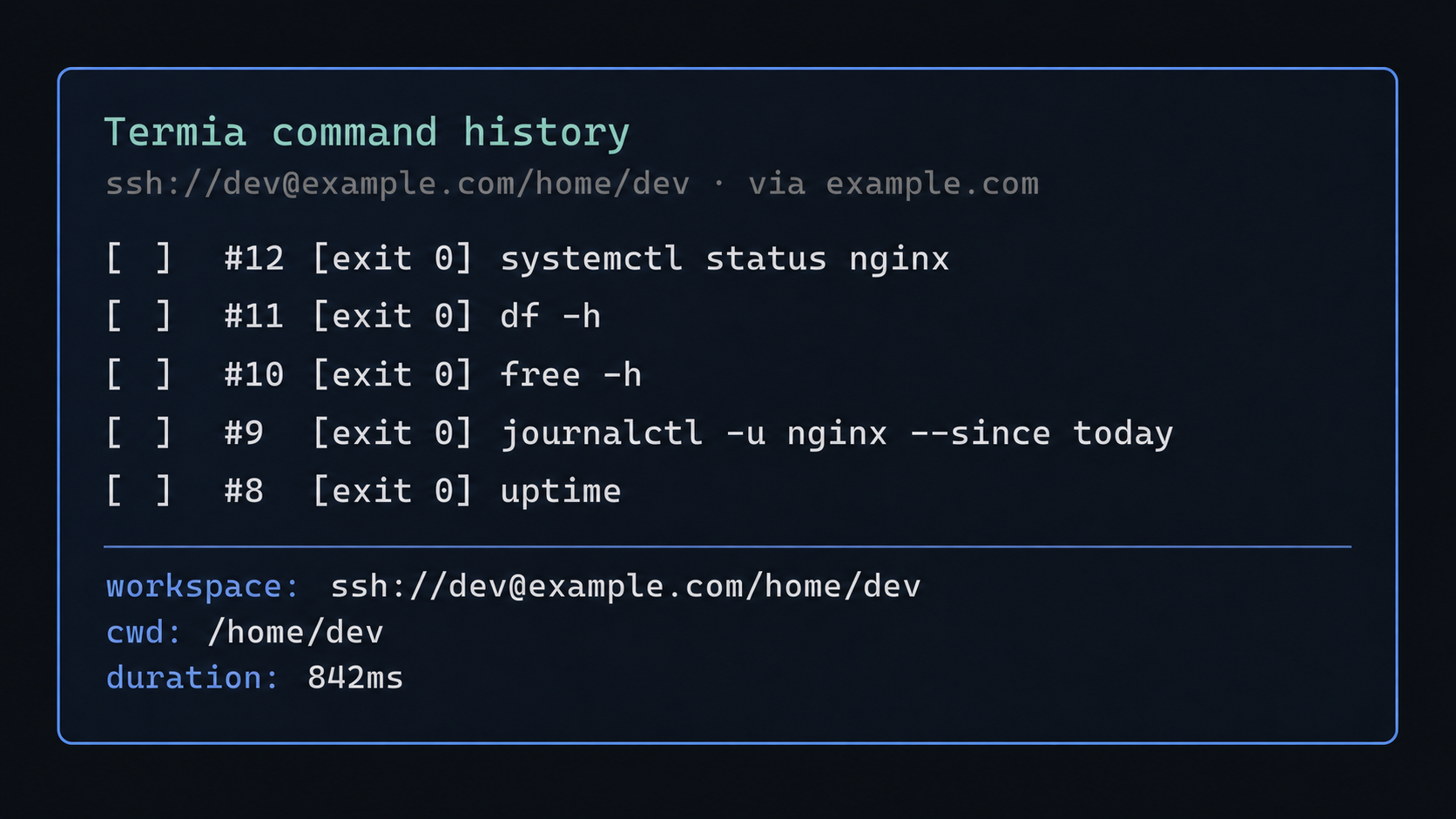
Press Ctrl+] to return to Pi and open the history picker:
/history
Select the failed command with Space, press Enter, and ask:
Why did the selected command fail?
Termia gives Pi a compact reference to the command, workspace, cwd, exit code, time, and duration. Pi reads the recorded output only when it needs it. There is nothing to select with a mouse and nothing to paste into a chat box.
AI-first terminals such as Warp and Wave, and replacement emulators such as Tabby, ask you to adopt a different terminal application or integration layer. Termia takes the opposite approach: keep the terminal, shell, and AI CLI you already know, then make Pi aware of the environment you are actually using.
| Design choice | Replacement-terminal approach | Termia approach |
|---|---|---|
| Application | Adopt a dedicated terminal application | Keep your compatible terminal emulator |
| Interaction | Use a product-specific Agent and terminal UI | Use Pi and a real persistent PTY |
| Model access | Use the product's configured AI integration | Inherit your Pi model configuration |
| History context | Use the product's capture or context workflow | Select structured /history references |
| Remote context | Use a product-specific remote mode | Follow managed SSH routes and supported user switches |
Termia is a Pi package, not another terminal window. It works inside compatible terminal emulators on Linux, macOS, and WSL2, including iTerm2 and Windows Terminal through WSL2. It does not ask you to replace your tabs, panes, renderer, shell, dotfiles, or keyboard habits.
Termia runs a real interactive PTY. Its current foreground shell retains cwd,
environment variables, aliases, functions, and jobs while Pi is running.
Passwords, confirmations, /dev/tty, full-screen tools, SSH, and sudo remain
ordinary terminal interactions rather than chat abstractions.
In a managed SSH session, Pi's file tools, project resources, and Agent Bash follow the committed Active Workspace. Nested hops keep their real route. After a supported managed user switch, Pi follows the effective remote user too. Termia fails closed instead of silently sending an Agent operation to the wrong host, directory, or identity.
/history lets you select previous commands while keeping full terminal output
out of the prompt. Pi receives small, stable references and retrieves only the
output needed for the current question.
Termia inherits Pi's authentication and model selection. Use a subscription, API key, custom provider, or local model supported by your Pi setup. Termia does not add another AI account, proxy, credit balance, or model plan.
Install Pi, then install Termia from npm:
npm install -g @earendil-works/pi-coding-agent
pi install npm:@vibecodingstudio/termia
If Pi does not already have model access configured, run pi and use /login.
Use Pi's /model command to choose among the models available to your current
provider configuration.
Termia requires Node.js 22.19 or newer. Managed SSH file access also requires
SSHFS on the machine running Pi and SFTP on the remote host. On Linux, install
both sshfs and fusermount3; on macOS, install a compatible SSHFS
implementation.
To install from source:
npm install
pi install ./Start pi in a persisted session. Termia starts disabled in every Pi process.
/termia           enable or disable Termia
/termia reset     confirm and replace the terminal with a fresh local runtime
Ctrl+]            switch between Agent and PTY while the Agent is idle
!command          run in the current foreground shell and add result context
!!command         run in the current foreground shell without result context
/history          browse and select recorded command history
Enabling Termia creates a fresh Pi conversation for terminal-aware work and
remembers the conversation you came from. Running /termia again disables the
mode and returns to that original conversation.
The terminal prompt begins with [termia]. Press Ctrl+] while the Agent is
idle to move between Pi and the terminal without stopping the shell or losing
an unfinished Pi draft. While the Agent is running, the shortcut is consumed
instead of being queued for a later switch.
Termia records ordinary interactive commands with their cwd, exit code, time,
duration, output, and workspace. Commands submitted with ! and !! are also
recorded. Managed ssh, sudo, and su transitions may be consumed as
workspace events rather than ordinary history entries.
Open /history to inspect the most recent commands:
- Up/Down moves through commands.
- Space selects or deselects commands.
- Pi's tool-output expansion key (
Ctrl+Oby default) previews the active command's output. - Enter inserts compact references for the selected commands into the Pi editor.
- Escape closes the picker.
The references include stable command indexes and execution metadata, not the full transcript. Pi can retrieve the corresponding output on demand, so long logs do not have to be copied into the conversation.
Manual terminal commands, !, and !! use the same persistent PTY and current
foreground shell. Local, remote, and switched-user shells can therefore keep
their own cwd, variables, aliases, functions, and jobs while they remain
active. Re-entering the terminal replays a bounded tail of its recorded output
before live output resumes. Press Escape to interrupt a running ! or !!
command.
Agent Bash is deliberately different. It runs as a detached, concurrent, non-interactive job in the Active Workspace. It does not inherit process-local aliases, functions, unexported variables, or jobs, and its commands are not added to Termia history.
Because Agent Bash has no interactive input or controlling terminal, commands
that require a password, confirmation, or /dev/tty fail normally instead of
blocking. Use the persistent terminal for interactive authentication, package
upgrades, full-screen programs, and other prompts.
The PTY and its process-local state live for the current Pi process. Recorded history survives on disk, but Termia does not promise to restore running jobs or shell state after Pi exits or crashes.
From the persistent terminal, a supported plain interactive ssh host becomes
a managed workspace. ssh -4, ssh -6, -p, -l, and -- are supported.
Remote commands, tunnels, and unsupported advanced forms keep their native SSH
behavior but do not become managed workspaces.
Managed hops can nest, for example local -> bastion -> app -> database. Each
hop runs through its immediate parent, so credentials for deeper hosts stay on
the machine that owns them. Pressing Ctrl+] returns to Pi without closing the
SSH chain. Pi's file tools, @file, project resources, and detached Agent Bash
then operate on the active remote workspace, shown with a logical cwd such as:
ssh://ops@app-server/srv/app
SSH file access requires SSHFS locally and SFTP remotely. If that file path cannot be prepared, the interactive SSH shell can continue, but Termia does not expose the failed remote workspace to Pi. Password-authenticated SSH remains interactive; Termia never stores or replays passwords.
Termia does not automatically reconnect a dropped SSH route. Return to a live parent in the terminal and reconnect manually. Exiting SSH returns through the retained parent hops and finally to the local directory that was active before the first hop. Quitting Pi closes the managed SSH connections.
Inside a managed SSH workspace, Termia can also follow these interactive, no-command user switches:
sudo -i
sudo -s
sudo -u app -i
sudo --user=app --shell
su -
su - app
su --login app
After a supported switch, history and the Active Workspace follow the target
shell. Pi's file tools, @file, and detached Agent Bash use the effective remote
user. Exiting the switched shell restores the exact parent SSH workspace, and
managed switches can nest with SSH hops.
Other forms—including sudo command, sudo -u app command, sudo -E -i,
su app, and su - app -c command—run with their native sudo or su
behavior and do not create a managed user workspace. A local interactive
sudo -i remains usable in the terminal, but Termia does not expose it to Pi as
a managed root workspace. Using command sudo, command su, or an absolute
executable path bypasses Termia's shell wrappers.
Managed remote user switching requires a usable system OpenSSH server and
ssh-keygen, or a Dropbear build with isolated authorization-directory support
and dropbearkey, on the remote host. SFTP must also be available. Termia uses
an ephemeral, password-disabled, loopback-only sidecar. Its private key remains
on the machine running Pi, and it does not modify a permanent authorized_keys
file. If the required capabilities are unavailable, the switched shell remains
usable interactively but Pi stays in the previous Active Workspace.
Agent actions follow the committed Active Workspace, not every transient shell transition. A route, mount, or Pi session-handoff failure leaves the new environment Pending while Agent operations stay in the previous Active Workspace.
If a remote Active Workspace becomes unavailable, Termia retains its host and user identity and blocks affected remote file and Bash operations. It never silently falls back to a different host or reconnects with guessed credentials.
If a failed Pi session handoff cannot be rolled back, Termia marks the Active Workspace as desynchronized and blocks Agent workspace tools until Terminal Reset. It does not guess which host or session should receive the next action.
/termia reset is the explicit last-resort recovery action. After confirmation,
it stages a fresh local terminal and Pi session, switches only after the new
runtime is ready, then discards the previous PTY and managed SSH chain. Reset is
never automatic and loses running terminal jobs and process-local shell state.
- Node.js 22.19 or newer
- Linux, WSL2, or macOS
- Pi TUI mode with a persisted session
- bash, zsh, BusyBox ash, or BusyBox sh as the interactive shell
- SSHFS locally and SFTP remotely for managed SSH file access
fusermount3on Linux for managed SSH mounts- Remote OpenSSH or a compatible Dropbear setup for managed remote
sudo/suworkspaces
Termia stores its data under Pi's agent directory:
~/.pi/agent/termia/history.db        command metadata
~/.pi/agent/termia/transcripts/      recorded terminal output
~/.pi/agent/termia/pi-sessions/      Termia Pi sessions
~/.pi/agent/termia/retired/          superseded sessions
Setting PI_CODING_AGENT_DIR moves the complete termia/ tree with Pi's agent
configuration.
Pi packages execute local code. Termia starts an interactive shell, records terminal output, and can expose remote files to Pi through managed SSH workspaces. Install it only from a source you trust. Before approving changes, verify the Active Workspace host, user, and directory, and review destructive commands carefully.
pi remove npm:@vibecodingstudio/termia- LINUX DO — A friendly community for open technology sharing and discussion.
MIT