Repository navigation
Replay
Instant replay records chosen inputs while the show runs, so that you can play back a marked moment at any speed.
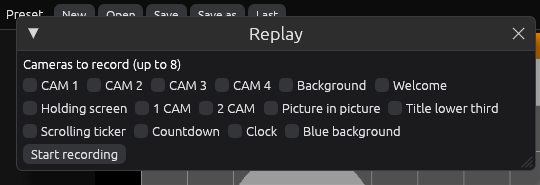
- Click Replay (above the cards, to the right) to open the Replay window.
- Under Cameras to record (up to 8), tick the inputs to record. Any input with a picture is listed, not only cameras.
- Click Start recording.
LiveCraft records each ticked input to its own file, at the output size and frame rate, and adds an input called Replay to your desk if there is none. The files are written to a folder called LiveCraft-ralenti inside your Windows temporary folder.
While recording, the window shows how much has been Recorded and these controls:
| Control | What it does |
|---|---|
| Mark in, Mark out | Mark the start and the end of a moment, by hand |
| 5 s, 10 s, 20 s | Mark the last 5, 10 or 20 seconds in one click |
| speed | Playback speed, from 0.05 to 1 |
| Four angles | Play all the cameras at once |
| Stop | Ends the session |
Each marked moment becomes an event in the list. You can pick the camera for an event, type a Note, and add comma-separated Tags. The search box, Search for a moment or a tag, filters the list.
Marks are moments of the show, not positions in a file, so they stay exact even if a recording dropped a few pictures.
Click Play beside an event. It plays on the Replay input, which is put in preview. Take it on air like any other input.
- Stopping is refused while the padlock is closed.
- The replay files are in a temporary folder. Copy them from there if you want to keep them. Marks you made are not saved as part of a project file.
- A later session records to new files, and old events keep pointing at the old ones.