Repository navigation
The desk
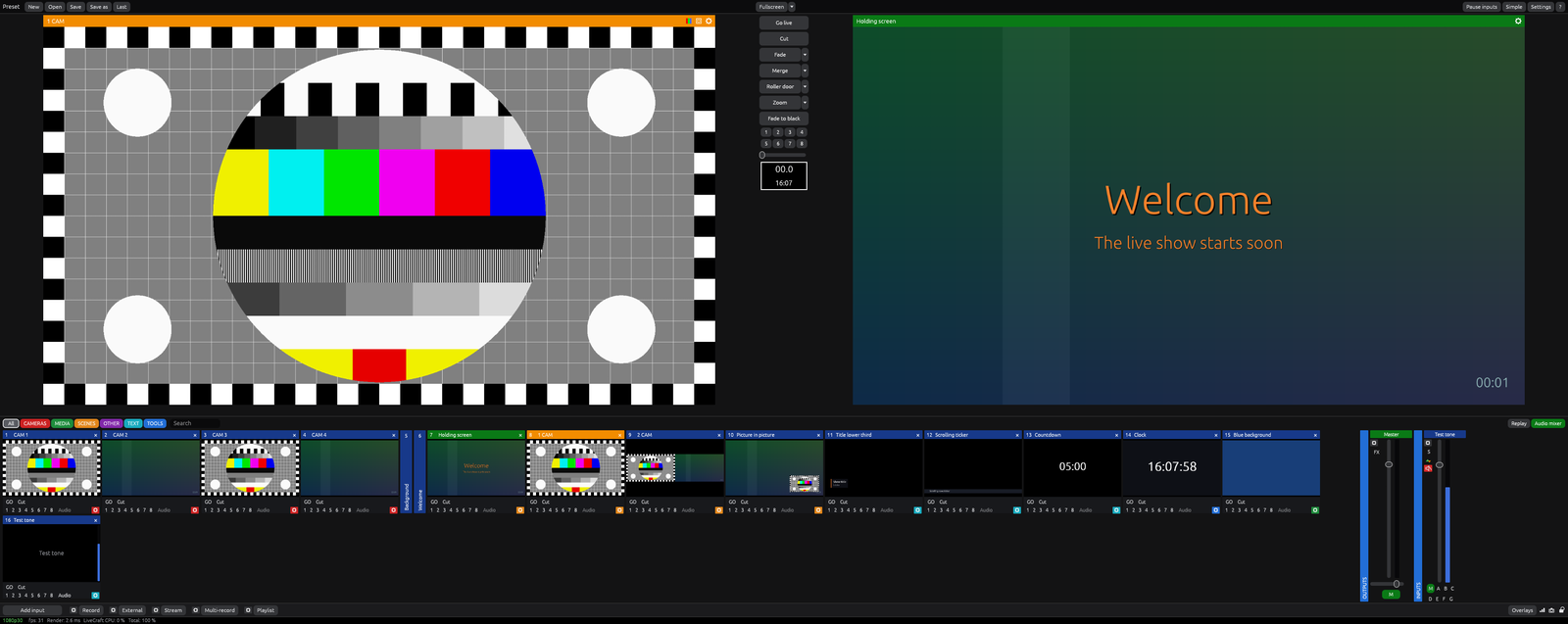
A tour of the main window. Labels are the English ones from the interface.
| Control | What it does |
|---|---|
| Project name | The file you are working on. A fresh desk shows Preset. A .vmix file you opened shows its own name until you save a new .livecraft
|
| New | Clears the desk after asking. Disabled while the padlock is closed |
| Open | Open…, Add the inputs of a project…, Open the sample project |
| Save, Save as | Write a .livecraft project |
| Last | Reopens the last project you saved or opened |
| Undo | Appears after you close an input. Its tooltip says "Reopen “name”" |
| Fullscreen | Opens the output, or the picture you pick with its small arrow, as a full-screen window. See Outputs |
| Pause inputs | Pauses every input with a timeline (files, lists, DVDs...) that is playing. Press it again and only what was playing starts again |
| Simple / Advanced | Hides or shows the input buttons and the mixer |
| Settings | The Settings window. See Settings and languages |
| ? | The list of keyboard shortcuts |
- The preview monitor is on the left, the program monitor on the right.
- Each monitor has a gear in its header that opens the settings of the input shown in it. The preview header also has Safe areas (click to step through the guides) and Waveform and vectorscope, which opens a scope window with RGB, Luma, Parade and Vectorscope views.
- Under a monitor showing a file, a list or a DVD, you get position and play controls.
- The column between them holds Go live, Cut, four transition buttons (each with a small arrow for its effect and duration), Fade to black, eight overlay buttons numbered 1 to 8, the T-bar, and, if enabled, two production clocks. See Switching and layers.
Below the monitors, each input is a card:
- The header shows the input's number, its name and a close button (×). Green means program, orange preview, blue neither.
- Click a card to put it in preview. Double-click it, or click its gear, for its settings. Right-click the title to fold the card to a narrow strip (right-click a strip to unfold it).
- Drag a card to reorder, or drop it on a coloured tab to file it.
- Right-click a card for a menu: Settings…, Input snapshot…, Duplicate (virtual input) and, depending on the kind, PTZ control…, Draw…, Edit title…, or a list of items, slides, chapters or camera presets.
- Row one: GO (runs the input's own GO action, quick play by default), Cut, and, where they apply, loop, play/pause, restart, previous and next buttons.
- Row two: eight overlay buttons (1 to 8), an Audio button that mutes or unmutes, and the gear. Right-click the gear for an input snapshot.
A search box filters cards by name. The All tab and the coloured tabs filter by category. Right-click a tab to rename, recolour or hide categories (up to 22). Replay and Audio mixer buttons at the right of the tab row open the replay window and show or hide the mixer.
If nothing is loaded, the card area says: "No inputs: use “Add input” at the bottom left, or drop files here".
At the bottom right: Master, any bus that an input is sent to, then one strip per input with sound. See Audio.
| Control | What it does |
|---|---|
| Add input | The menu of every kind of input. See Inputs |
| Record, Stream, Multi-record, Playlist, External | The main button starts or stops. The small gear opens its settings. Record and Stream show a running timer |
| Overlays | Settings for the eight overlay channels and eight stingers |
| Statistics icon | Frame rate, late frames, status of each input, and of each encoder with frames written and dropped |
| Camera icon | Saves a picture of the program as PNG, JPG or BMP. By default it offers your Pictures\LiveCraft folder |
| Padlock | Protects the stop buttons, closing inputs, and changing project |
The very bottom line shows the output format (for example 1080p30), then: fps: … Render: … ms LiveCraft CPU: … % Total: … %. If the machine cannot keep up it says Machine overloaded. Messages and errors appear on the same line for about twelve seconds.