Repository navigation
Settings and languages
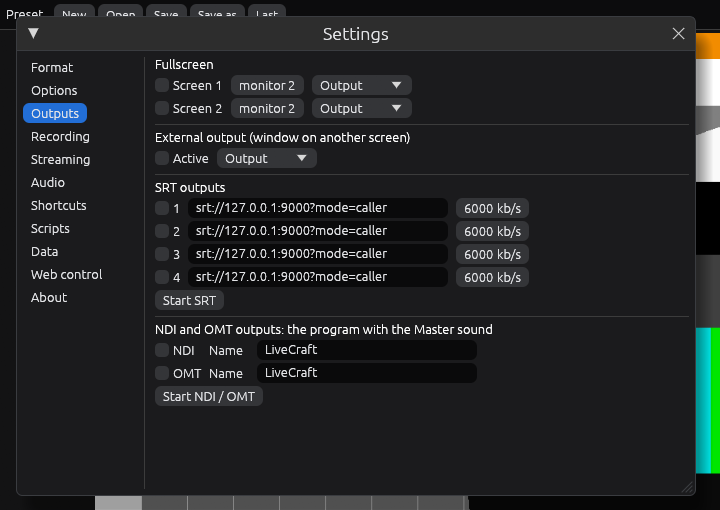
Click Settings in the top bar. The window has eleven tabs on the left.
| Tab | What is in it |
|---|---|
| Format | Output format: 480p, 720p, 1080p, UHD, 4K DCI or Vertical HD, and 24, 25, 30, 50 or 60 fps, then Apply. Locked while any output runs. Also Picture composition: Compose on the graphics card, and which one is in use |
| Options | Interface language. Take on air: the quick play effect and length. Production clocks. Decode on the graphics card |
| Outputs | Fullscreen 1 and 2, External output, SRT outputs, NDI and OMT outputs. See Outputs |
| Recording | The folder and the two recorders. See Outputs |
| Streaming | Up to five destinations. See Outputs |
| Audio | Devices for Master, headphones and buses A to G, and Fade to black also mutes the audio. See Audio |
| Shortcuts | Your own key bindings. See Remote control |
| Scripts | Scripts. See Remote control |
| Data | CSV or text files linked to titles. See Titles |
| Web control | The ports, Reachable from the local network, Password |
| About | The version, Updates (see below), which FFmpeg is used and what it can do, and the NDI trademark notice |
A new project starts at 1080p, 30 fps. Sizes in a project are saved as fractions of the picture, so a project survives a change of format.
The About tab shows the version you run, then two sections.
Updates. LiveCraft can tell you when a newer version is out. It never downloads or installs anything.
- A few seconds after start, and at most once a day, LiveCraft sends one request to GitHub's public API for the list of releases. It carries only the program's name and version (
LiveCraft/<version>), nothing about your projects. GitHub sees your IP address, as with any web page. - If a newer version exists, a blue link "LiveCraft is available" appears at the right of the status line. Click it to open that version's page in your browser. The cross beside it hides the notice for that version. A newer one shows again.
- A test version (such as an alpha) looks at test and stable releases. A stable version only looks at stable releases.
- Under Updates, a line says when the last check ran and what it found. Check now asks at once. A failed check says "The check failed: ..." here only, never on the desk.
- To turn it off, untick Check for updates at start. Then LiveCraft sends nothing.
FFmpeg. The tab shows "Found: " and how it was found (variable LIVECRAFT_FFMPEG, beside LiveCraft, or on the PATH), the version, whether it can do SRT, and the hardware encoders. Each hardware encoder (NVIDIA, Intel, AMD) is really tried on a small picture and shown as "works" or "failed". A failure does not remove the encoder from the list: a busy card or a session limit can cause it. Click Check again to try once more. If FFmpeg is missing, or lacks SRT while an SRT input or output is set up, the tab says what to do. See Installing.
LiveCraft composes the picture on your graphics card (DirectX 12 or Vulkan) when it finds a suitable one, and on the processor otherwise. Format tells you which: "On the graphics card: " or "On the processor: ".
If the card fails, LiveCraft switches to the processor by itself. The reason is shown, for example "no suitable graphics card", " is only a software emulation", "graphics card lost" or "the graphics card stopped responding". When you see one of these, untick and tick Compose on the graphics card to try the card again.
On the processor, 1080p is fine on a desktop processor. 4K needs a DirectX 12 or Vulkan card.
LiveCraft speaks English and French.
- It follows your system language. If your system language is neither, it uses French.
- To change it, go to Settings, Options, Interface language, and click English or Français. The change is immediate and is remembered.
- To start in a language from the command line:
livecraft --lang en(orfr). This also keeps that choice.
To add another language, see CONTRIBUTING. A language is one text file in the locales folder.
| What | Where (Windows) |
|---|---|
| Session: your desk and settings, saved every 30 seconds and when you close | %APPDATA%\LiveCraft\session.json |
| The session before you last opened a project from the command line or by double-click | %APPDATA%\LiveCraft\session.prev.json |
| Recordings |
Videos\LiveCraft in your user folder, unless you picked another with Folder…
|
| Snapshots | The dialog offers Pictures\LiveCraft
|
| Imported LUTs | %APPDATA%\LiveCraft\luts |
| Replay files | %TEMP%\LiveCraft-ralenti |
| Converted slides | %TEMP%\livecraft-slides |
Stream keys, the remote-control password and similar secrets are sealed with your Windows account in the session file. A copy of the file on another account cannot read them. If sealing fails, LiveCraft says "Keys and passwords could not be protected: they are not saved and must be typed again at the next start". Project files never contain keys or passphrases.
If LiveCraft is already open and you start it again, for example by double-clicking a .livecraft file or with livecraft --project show.livecraft, the new start hands the project to the window that is already open and ends. That window comes to the front and opens the project as if you had dropped it on the window: at once if the desk is empty, after asking if it is not, and never while the padlock is on. Starting LiveCraft with no project just brings the open window to the front. A relative path is made absolute first.
This uses a private channel for your Windows account. It opens no network port, so no firewall prompt appears.
If the open window does not answer (it is frozen or very busy), the new start waits up to about a minute, then runs on its own. To keep the first window's session safe, it does not save the session: the status line shows Session not saved, and LiveCraft says "LiveCraft is already open but not answering: to keep its session safe, this window does not save over it." Save your project with Save as. When the other window closes, this one saves the session again, and keeps the other's last session beside it in a session.<time>.json file.
livecraft --project show.vmix             open a project, .vmix or .livecraft (in the open window, if there is one)
livecraft --import-report show.vmix       say what a .vmix keeps, without opening it
livecraft --screenshot out.png            start, save a picture of the window, quit
livecraft --lang en                       start in English (or fr), and keep that choice
--selftest, --soak and --livecheck are checks for developers. See the README.