Repository navigation
Settings and Tray
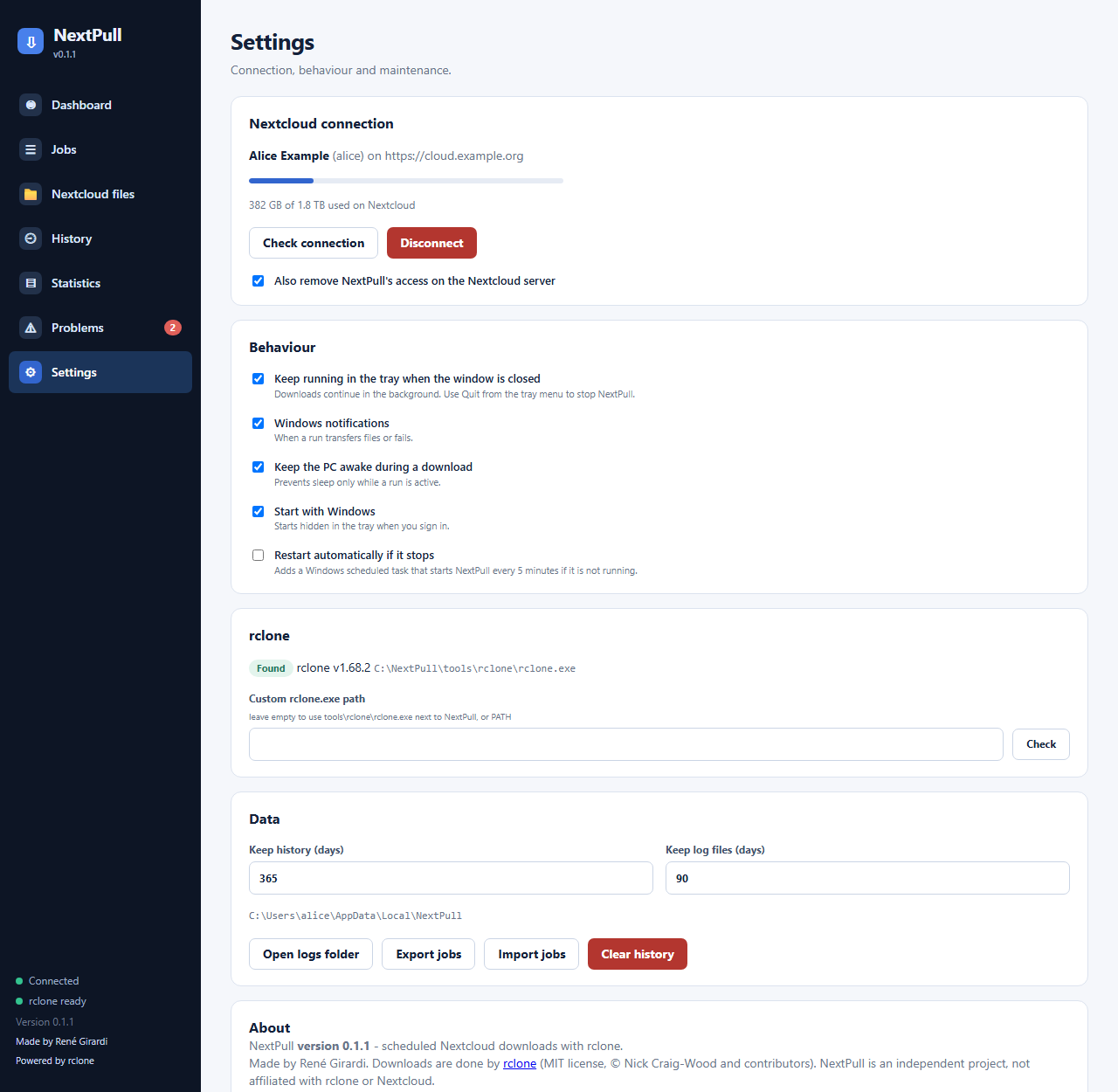
Connect or disconnect, check the connection, see your quota. Disconnect can also remove NextPull's access on the Nextcloud server (recommended). Scheduled jobs fail until you connect again.
| Setting | Effect |
|---|---|
| Keep running in the tray when the window is closed | Closing the window hides it; downloads continue. Use Quit in the tray menu to stop. |
| Windows notifications | A notification when a run transferred files or failed. |
| Keep the PC awake during a download | Prevents sleep only while a run is active. |
| Start with Windows | Starts hidden in the tray when you sign in (a per-user Run entry, no admin rights). |
| Restart automatically if it stops | A Windows scheduled task starts NextPull every 5 minutes if it is not running. |
Only one copy of NextPull runs at a time: starting it again just brings the running window to the front.
Shows the rclone that is used and its version. Set a custom rclone.exe path if you do not want the bundled one.
How many days of history and run logs to keep, the data folder location, Open logs folder, Export jobs / Import jobs (text without passwords), Clear history.
Version, credits (made by René Girardi) and the note that the transfers are done by rclone.