Macintosh installation
by Rob Faludi (http://faludi.com), Jordan Husney (http://jordan.husney.com), Michael Sutherland (http://digi.com) & Ted Hayes (http://log.liminastudio.com),
The XBee Internet Gateway makes it easy to connect Digi's XBee radios to the Internet. Plug a sensor into your XBee and stream environmental data right into your online application. Attach a switch, motors or lights to an XBee, then activate them from the Internet. All the tricky technical aspects of web connections are all handled for you behind the scenes! Add an Arduino or microcontroller to make your XBee a web browser that can read from or post to any web page. The XIG gives your XBee a simple yet completely flexible pathway to any web service, including ones that you created yourself. You can read industrial sensor networks, analyze and control distant equipment, scrape gossip from Facebook or simply flip switches in your own home!
Xbee Internet Gateway will soon work directly on Macintosh, Windows and Linux computers. For longer-term, dedicated installations we recommend running XIG on Digi's line of ConnectPort gateways, that can host stable connections via Ethernet, cellular data, satellite links and more.
XIG is an open-source team effort lead by Internet of Things enthusiasts Rob Faludi and Jordan Husney. It was written with valuable support from a community of commercial and educational users including Ted Hayes, Michael Sutherland, Tom Collins and many others.
System requirements:
- MacOS X Lion (other versions may also work fine)
- Chrome, Firefox, Safari or similar web browser
Hardware requirements:
- XBee USB adaptor (XBee Explorer, Parallax, Adafruit, Digi XBee Evaluation board or similar)
- USB cable
- 802.15.4 (Series 1) or ZigBee ZB (Series 2) XBee radio Hardware configuration 802.15.4 (Series 1):
- For 802.15.4 XBee radios, pick a PAN ID between 0x0 and 0xFFFE. This will need to be set the same for all radios in your network.
- We recommend updating your XBee to the latest firmware in X-CTU
- Use X-CTU or a terminal program to configure your 802.15.4 radio with the following settings: * ATRE (to factory reset the radio…alternately use the Reset button in X-CTU) * ATID 1966 (please replace 1966 with your chosen PAN ID!) * ATAP 1 (sets your radio to basic API mode) * ATD6 1 (turns on monitoring for RTS) * ATBD 6 (sets baud rate to 57,600 which is currently the highest supported baud rate) * ATWR (saves these as the startup settings) Hardware configuration ZB ZigBee (Series 2): 1. For ZigBee XBee radios, picking a PAN ID is optional, so we'll skip that for now.
- You will need to update your radio to use the ZigBee Coordinator in API mode firmware in X-CTU.
- Use X-CTU or a terminal program to configure your ZigBee Coordinator radio with the following settings: * ATRE (to factory reset the radio…alternately use the Reset button in X-CTU) * ATD6 1 (turns on monitoring for RTS) * ATBD 7 (sets baud rate to 115,200 which is the highest supported baud rate) * ATWR (saves these as the startup settings) Software Installation:
- Download the latest version of the software from https://code.google.com/p/xig/wiki/DownloadFiles?tm=2.
- Double-click to open the zip file
- Drag the xig_1_5_0 folder to your Desktop or to your Applications directory to install it.
- Plug your XBee radio into its USB adaptor and then plug that adaptor into one of the USB ports on your computer. You may also need to load the FTDI drivers (http://www.ftdichip.com/Drivers/VCP.htm) if the adaptor does not show up in the list in the XIG.
- Open this xig_1_5_0 folder and double-click on "xig" to start the XIG application:
* You will see a windowless application open in the background:
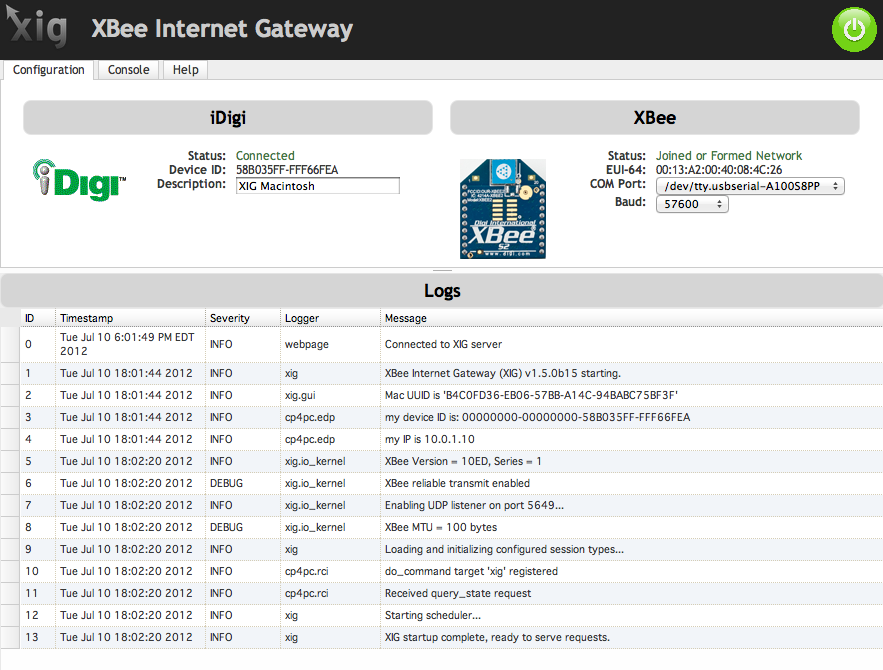
* then your default web browser will be launched and directed to http://localhost:8000 to display the online user interface for the XIG (below).
 * You will see a windowless application open in the background:
 * then your default web browser will be launched and directed to
 - Select the correct COM port for your XBee USB adaptor in the pop-up list. It will probably look something like "/dev/tty.usbserial-A4001234".
- Select the correct baud rate for your XBee, typically 115200 on Macintosh. With the correct COM port and baud rate, your XBee Status should change to a green "Joined or Formed Network" indicator.
- Enter a friendly name for your XBee Internet Gateway in the Description field.
- Create a FREE account on Device Cloud.
- Log in to your new account.
- Select the Devices tab, to see the Devices panel:
- Click on Add Devices:
- Click on the Add Manually button:
- On the pop-up list, switch from MAC Address to Device ID. Then enter the Device ID that shows in the XIG Admin dashboard:
- Click the Add button to add that device to the list, then click the OK button at the bottom of the window:
- Your device should show up in the list, it might still appear as Disconnected:
- Wait a few moments, then click on the circling yellow arrows to Refresh the list:
- You should now see your device listed as Connected:


(By default you will be connected to the login.etherios.com server. If you would like to use a different server you can edit the address in xig/src/settings.json) CONGRATULATIONS, you're done! Here's a quick tour of the important Device Cloud features:
- Getting Data: Click on the Data Services tab. This is where data uploaded from your XIG will appear. The data you send will become available in a series of XML-formatted files. See the UserDocumentation under "Sending Sample Data to Device Cloud" for more information.
- Sending Data and Commands: Click on the Web Services Console. This is where you can send test sending ASCII text and AT commands directly from the Internet to your XBees. See the UserDocumentation under "Sending Messages from the Internet to an XBee Using Device Cloud " and "Setting or Getting Remote XBee AT Settings via Device Cloud" for more information.
- Follow the XIGproject on Twitter.
- Join the XBee Internet Gateway discussion group
See the XBee Internet Gateway UserDocumentation for further information.