Setting file to emulate vim with AutoHotkey, works with SuperMemo
I apologise for still not finished writing a documentation (it's being written incrementally!), the keybinds are fairly similar to Vim, except q for extract and z for cloze, so you can do stuff like zt. to cloze until a full stop, and qip to extract inner paragraph. vim-sneak is added as well, so you can do d2zth to delete until the 2nd "th".
Financial incentives:) https://ko-fi.com/winstonwolf or https://www.buymeacoffee.com/winstonwolf or https://www.paypal.com/paypalme/winstonwolfie
Vim notations:
-
Capitalised letters need to be pressed with
Shift, eg,T = Shift + T. CapsLock is disabled because CapsLock.ahk is included. -
<C-{key}>meansCtrl + {key}, eg,<C-v>=Ctrl + V. -
<A-{key}>meansAlt + {key}, eg,<A-s>=Ctrl + S. -
Similarly,
<S-{key}>meansShift + {key}, so<C-S-A-a>=Ctrl + Shift + Alt + A. -
<CR>means theEnterkey. -
<leader>means the'key.
At any point the script goes wrong, you can press <C-A-r> (ie, Ctrl + Alt + R) to reload it.
Also see: VSCode Vim cheat sheet
h: left
j: down
k: up
l: right
w: next word (= Ctrl + Right)
b: previous word (= Ctrl + Left)
e: end of current word
ge: end of previous word
i: go to insert mode (remember you can use CapsLock.ahk to fast navigate in insert mode (eg, CapsLK + w = Ctrl + Right, CapsLK + b = Ctrl + Left and so on)
a: go to insert mode after the cursor (append)
v: go to visual mode
:: go to command mode (does not need to press Enter after the letter, ie, the two keys :F are sufficient to initiate the cleaning HTML command)
<C-[> / CapsLock / Esc: go back to normal mode (long pressing <C-[> sends the actual <C-[> keys)
f{character}: find next {character} (eg, fe goes to the next e)
F{character}: find previous {character}
t{character}: find next {character} but put caret before it
T{character}: find previous {character} but put caret before it
s{2 characters}: find next {2 characters} (use z for motions (eg, dzth deletes until the next occurrance of th))(inspired by vim-sneak)
S{2 characters}: find previous {2 characters} (in visual it's <A-s> because S is taken by vim-surround)
;: repeat last search of f, t or s
,: repeat last search of f, t or s but reversed (so if you searched forward before, , lets you search backward)
0 / ^: go to the start of a line
$ / g_: go to the end of a line
}: jump entire paragraphs downwards
{: jump entire paragraphs upwards
<C-d>: go down 10 lines
<C-u>: go up 10 lines
+: go to the start of the nth next line
-: go to the start of the nth previous line
<C-A-f>: search using IE's search window
/: normal search (uses F3 in HTML)
?: visual search (selects the first result and goes to visual mode)
<A-/>: cloze search (makes a cloze out of the first result)
<A-S-/>: cloze search but with a cloze hinter
gn: repeat last search and go to visual mode
Additional searching in non-SuperMemo softwares (from the original vim_ahk)
| Key/Commands | Function |
|---|---|
| / | Start search (search box will be opened) |
| n/N | Search next/previous (Some applications support only next search) |
| * | Search the word under the cursor. |
{count}{motion}: repeat {motion} {count} times
2w: jump to second word
4f": jump to fourth occurrence of the " character
3/cucumber: jump to third match of "cucumber"
gx: going to the link under cursor (only works in HTML)
gn: open the text/HTML file in notepad
gs / gf: open the text/HTML file in VSCode
gs: go to current reference link (gS to open in IE)
gm: go to the link found in comment (gM to open in IE)
gn: open the last focused text/HTML file in notepad
gf: open the last focused text/HTML file in VSCode
gu: click the "go to the source" button
gg: go to the top
{line}gg: go to {line}
{line}G: go to {line} on screen
G: go to the end
{operator}{count}{motion}: apply operator on bit of text covered by motion
d: delete
c: change
y: yank (copy)
p: p (paste text after the cursor)
g~: switch case
dd: delete a line
cc: change a line
yy: yank (copy) a line
g~~: switch case of a line
>>: shift paragraph right
<<: shift paragraph left
D: delete from cursor to the end of the line
C: change from cursor to the end of the line (like D but going to insert)
Y: yank (copy) a line. Like yy
P: put (paste) at the cursor
{operator}a{text-object}: apply operator to all text-object including trailing whitespace
{operator}i{text-object}: apply operator inside text-object
diw: delete inner word
daw: delete a word
dis: delete inner sentence
das: delete a sentence
dip: delete inner paragraph
dap: delete a paragraph
di(dib: delete inside parentheses
da(dab: delete text inside parentheses (including parentheses)
di{diB: delete inside braces
da{daB: delete text inside braces (including braces)
di[: delete inside brackets
da[: delete text inside brackets (including brackets)
di": delete inside quotes
da": delete a quoted text (including quotes)
dit: delete inside tag
dat: delete a tag (including tag)
ciw: same goes for other operators...
.: repeat the last change
x: delete a character after the cursor
X: delete character before the cursor
~: switch case of the character after the cursor
u: undo last change
C-R: redo last undo
{count}u: undo last {count} changes
I: go into insert mode at the beginning of a line
A: go into insert mode at the end of a line
o: insert new line below current line and go into insert mode
O: insert new line above current line and go into insert mode
V: go into line-wise visual mode
C-V: go into paragraph-wise visual mode
{trigger visual mode}{motion}{operator}: visual mode operates in kind of the opposite way to normal mode. First you specify the motion to select text, and then you apply the operator
{operator}gn: apply operator on next match
.: after using {op}gn, the dot commant repeats the last change on the next match
y{motion}: yank (copy) text covered by motion
p: put (paste) after cursor
P: paste at the cursor
yy / Y: copy line
yyp duplicate line
ddp: swap lines
xp: swap characters
ds: delete surroundings, eg, ds[ (delete the surrounding square brackets)
cs: change surroundings, eg, cs*( (change surrounding asterisks to parentheses)
ys: add surroundings, eg, ysiw" (add quotes to the current word)
ds": delete surrounding quotes
cs_ti<CR>: change surrounding _ for the <i> tag (= cs_<i<CR>)
ysiw": surround word under the cursor with quotes
S (in visual mode): add surroundings, eg, S} (add curly brackets to the current selection)
s{char}{char}: jump to the next ocurrence of {char}{char}
S{char}{char}: jump to the previous ocurrence of {char}{char} (note: in visual mode it's <A-s> because S is taken by vim-surround)
;: go to next occurrence of {char}{char}
,: go to previous occurrence of {char}{char}
{op}z{char}{char}: apply operator on text traversed by vim sneak motion (Z if previous ocurrence)
Hugely inspired by Vimium keys.
gg: go to top
G: go to bottom
{count}gg: go to the {count}th line (eg, 3gg goes to the third line)
gU: click the source button
gS: open link in IE
gs: open link in default browser
g0: go to root element
g$: go to last element
gc: go to next component
gC: go to previous component
h: scroll left
j / <C-e>: scroll down
k / <C-y>: scroll up
l: scroll right
d: scroll down 2 times
u: scroll up 2 times
0: scroll to top left
$: scoll to top right
r: reload (go to top element and back)
p: play (= Ctrl + F10)
P: play video in default system player / edit script component (= q -> Ctrl + T -> F9)
n: add topic (= Alt + N)
N: add item (= Alt + A)
x: delete element/component (= Delete key)
<C-i>: download images (= Ctrl + F8)
f: open links
F: open links in background
<A-f>: open multiple links
<A-S-f>: open links in IE
<C-A-S-f>: open multiple links in IE
yf: copy links
yv: select texts
yc: go to texts
X: Done!
J / ge: go down elements
K / gE: go up elements
gu / <A-u>: go to parents
H / <A-h>: go back in history
L / <A-l>: go forward in history
b: open browser
o: open favourites
t: click first text component
yy: copy reference link
ye: duplicate curernt element
{count}g{: go to the {count}th paragraph
{count}g}: go to the {count}th paraggraph on screen
m: set read point
`: go to read point
<A-m>: clear read point
<A-S-j>: go to next sibling (= Alt + Shift + PgDn)
<A-S-k>: go to previous sibling (= Alt + Shift + PgUp)
\: SuperMemo search (= Ctrl + F3)
s: switch plans
b: begin (= Alt + B)
s: switch tasklists
H: click the top of the text
M: click the middle of the text
L: click the bottom of the text
{count}<leader>q: Add > to {count} lines (useful for email replies)
gx: open hyperlink in current caret position (gX to open in IE)
gs: open current file in Vim (if focused on an image component, gf to open in Photoshop (requires ps in PATH to open Photoshop))
gf: open current file in Notepad
>>: increase indent
<<: decrease indent
gU: click the source button
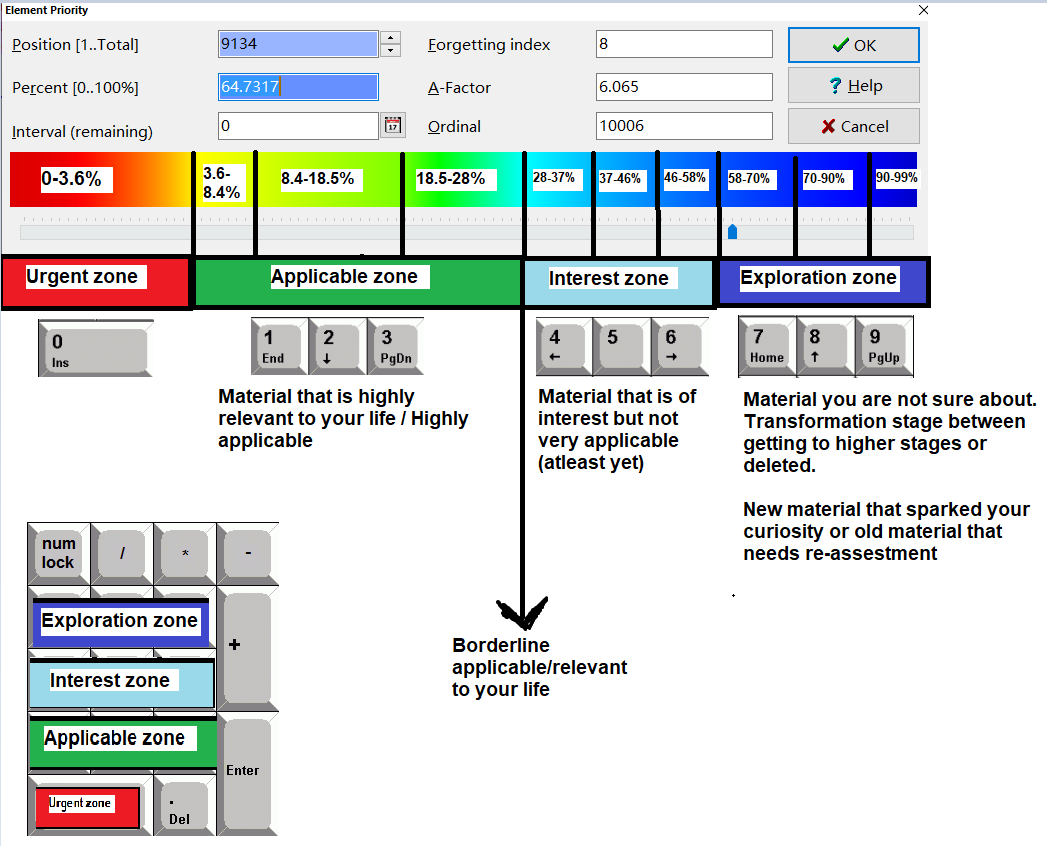
<leader><A-{number}> / {Numpad}: Naess's priority script
.: selected text becomes [...]
<C-h>: parse HTML (= Ctrl + Shift + 1)
<A-a>: add HTML tag
m: highlight (mark)
q: extract (quote)
Q: extract with priority
<C-q>: extract and stay in the extracted element
z: cloze
<C-z>: cloze and stay in the clozed item
Z: cloze hinter
<CapsLock-z>: cloze and delete [...]
H: select until the top of the text on screen
M: select until the middle of the text on screen
L: select until the bottom of the text on screen
<C-A-.>: find [...] and insert
<C-A-c>: change default concept group
(RC: right Ctrl; RS: right Shift; RA: right Alt)
<RC-RS-BS> / <RA-RS-BS>: delete element and keep learning
<RC-RS-\> / <RA-RS-\>: Done! and keep learning
<C-A-S-g>: change current element's concept group