Releases: acltabontabon/draft-canvas
Release list
Draft Canvas 1.12.0

160e2fa  acltabontabon
Alvin Cris Tabontabon
acltabontabon
Alvin Cris Tabontabon
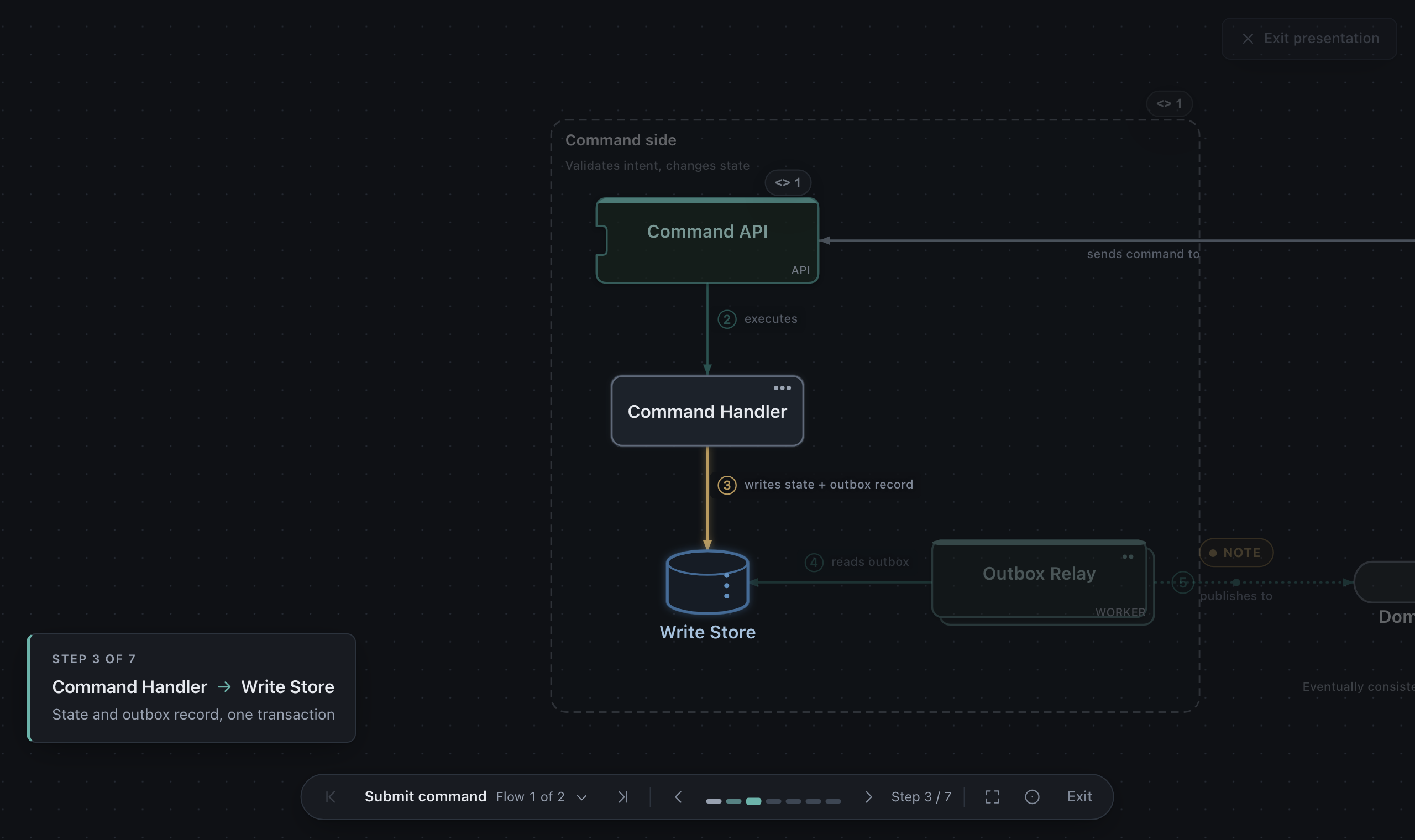
Draft Canvas 1.12 is about getting diagrams in and out. Paste a Mermaid flowchart and get a laid-out architecture. Send a link and the other person sees the whole diagram, with nothing uploaded. Export the architecture to C4-PlantUML, Structurizr or draw.io. Connectors now say what actually happens, presenting a flow tells it step by step, and in the desktop app an AI agent can draw for you. Saving, editing and exporting got a long list of fixes, and every diagram you already have still opens.
Get it
| Web | acltabontabon.com/draft-canvas. Nothing you draw leaves your browser. |
| macOS | Apple Silicon · Intel. Installed copies update themselves. |
| Windows | Installer. It installs for your user only, with no administrator rights needed. |
| Docker | docker run -d -p 8080:8080 acltabontabon/draft-canvas:1.12.0 |
| Docs | acltabontabon.com/draft-canvas/docs. Guides for every part of the app. |
Note
Downloaded 1.12.0 in its first hours? This build adds a few fixes, listed under Fixed. The updater won't offer it, because the version number is the same, so reinstall from the links above to get them.
Important
Running the Docker image? It now listens on port 8080 and runs as a non-root user. Change -p 8080:80 to -p 8080:8080, or use -p 80:8080 to keep serving on port 80.
What's new
Paste Mermaid, get an architecture

Paste flowchart or graph text onto the canvas, or drop a .mmd or Markdown file on the Library or the canvas. It comes in as Draft Canvas shapes: actors, services, queues and data stores, with subgraphs as boundaries and labels and direction kept, all laid out for you. If Mermaid says something Draft Canvas doesn't draw, you're told what, so nothing is dropped silently.
The flowchart behind this picture
flowchart LR
  customer((Customer)) -->|places order| api[Order API]
  api -->|hands off| q[[Order queue]]
  subgraph Fulfilment
    q -.->|picked up by| worker[Fulfilment worker]
    worker --> db[(Orders)]
  end
  api -->|charges| pay[Payments]
  api --> cache[(Session cache)]
Share a diagram with a link

Copy share link (in ⌘K or the Export dialog) puts the whole diagram in the link itself. Whoever opens it gets a read-only view and can choose Make an editable copy. Nothing is uploaded anywhere. A link holds up to 32 KB of diagram.
Get the architecture out, not only the flows
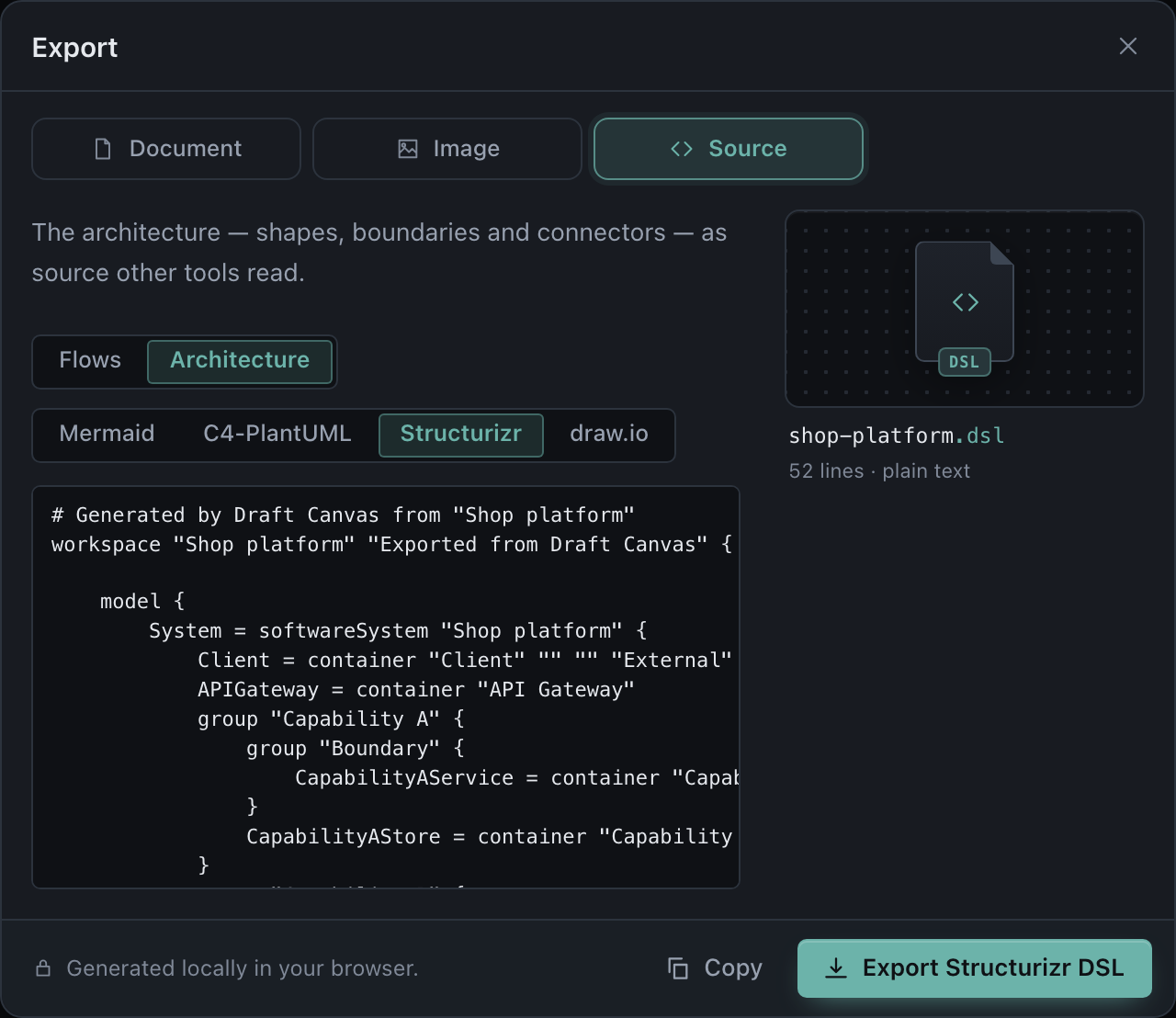
Source export now writes the whole architecture, not just its flows: as a Mermaid flowchart, C4-PlantUML, Structurizr DSL or an editable draw.io file. The Source tab previews the text, with Copy beside Download. Copy as image, Copy as SVG and Copy source are commands too. An SVG export also carries the diagram inside it, so dropping the picture back onto Draft Canvas opens it as a diagram again.
Connectors that say what actually happens
A service and its database are joined by reads / writes. A cache is read from. A work queue carries a command: dashed, handed off and not waited for, while a topic still publishes. A stream is read by each consumer group in full. Protocols read as verbs (calls over HTTP, emits, streams changes to), every arrow in the starters starts at whatever does the work, and a sequence export sends each message from the side that sends it.
Present a flow, step by step
Presenting a flow opens on its whole path. Each step sends one signal along its connector, lights up where it arrives, then holds still while you talk. A caption names the step and what the connector means: a condition, an event, a retry, a failure path, a reply. The camera stays put when the next step is already in view. Re-centre (R) and Overview (O) are one key away, and a strip of step marks lets you jump with 1–9.
AI agents draw in the desktop app
Turn it on in Settings → AI agents, choose the project folders an agent may use, and connect Claude Code or Cursor. The agent describes the system, and Draft Canvas lays it out as an ordinary diagram you can edit. An agent can send a proposal instead of editing: you see it on the diagram, with additions outlined and removals crossed out, then accept it as one undo step or reject it. Agents always work on the file as it is on disk, can see the picture they drew, and can read a diagram as Mermaid, PlantUML or C4-PlantUML. This is off until you turn it on, and Draft Canvas itself sends nothing off your computer.
An Outline you can drive from the keyboard

⌥O opens the Outline, which lists the current level as a tree: shapes in reading order, boundaries holding their members, and each shape's connectors beneath it. You can work it entirely from the keyboard, and it stays in step with the selection. Screen readers hear what's selected in the canvas's own words, for example "Orders API, API service, 2 connectors". Shape outlines now reach 3:1 contrast in both themes, and on touch a long press opens the menu and handles are easier to hit.
Also new
- Name a shape as it arrives. Every new shape opens ready to type its name, and
F2renames. - Open points. Mark what a discussion hasn't settled on the shape or connector it concerns (
I, or right-click), and the status bar counts what's still open. - Arrange diagram lays the current level out in place as one undo step. Find and replace (
⌘⌥F, Ctrl+H on Windows and Linux) works across every level. - Technology and description on shapes, C4-style, edited from Details. Boundaries show their kind (System, Domain, Network, Deployment, Group), each with its own outline and header.
- PNG at the size you meant. Pick 1×, 2× or 3×; the file records its resolution, so it pastes into a document at its drawn size. Every level, one export: one image per level, zipped.
- The address keeps your place. A refresh, Back and bookmarks all come back to the open diagram.
- Files that diff. A
.draftcanvasfile is written in one fixed order, so saving an unchanged diagram gives identical bytes. A background image of up to 2 MB travels inside the file. - Back up all diagrams on the web writes every diagram into one zip, and Restore brings them back without overwriting anything.
- Five starters up front: Monolith, Microservices, Event-Driven, Hexagonal and CQRS, with the rest a name away in ⌘K. All of them were redrawn to be more accurate: sagas that finish, outbox relays that read. See them in Architecture examples.
- The documentation has a home on the website. Documentation in the app opens readable guides at acltabontabon.com/draft-canvas/docs instead of files on GitHub.
- Third-party licences, linked from About, list every package the app ships with its licence.
Fixed
- Saving you can trust. An undo made while a save was in flight is no longer lost. A refresh keeps the last few seconds of work. A failed save is no longer recorded as a camera-only one. Text stays within the limits a file can be opened with, and you're warned before a diagram gets too big to export and import again.
- Editing. Nudging, aligning, distributing and resizing a boundary all update what's inside it. The clipboard says what it's doing. Letter shortcuts no longer fire from a focused button. The canvas no longer jumps when you place a shape, and a connector you just drew no longer opens its panel over your work.
- Connectors and exports. Connectors never route through their own shapes. Right-to-left text and emoji wrap correctly. Exports work in other tools: SVG ids are scoped, shadows use SVG 1.1, and Mermaid and PlantUML labels are escaped. Attachment chips appear in images, iPhones and iPads no longer get a blank PNG, and the Source formats fit their picker.
- Presenting. Dragging a Note or Code card no longer hides its connectors, and a presented note no longer lingers after its step.
- Desktop. A file changed by
git pullor another editor is reloaded before an age...
Draft Canvas 1.11.1
4d83d32
acltabontabon
Alvin Cris Tabontabon
Get it
- On the web: acltabontabon.com/draft-canvas. Nothing you draw leaves your browser.
- Desktop (macOS and Windows): the installers under Assets below. Installed copies update themselves.
- Docker:
docker run -d -p 8080:80 acltabontabon/draft-canvas:1.11.1 - VS Code: Draft Canvas for VS Code, on its own release schedule.
Big diagrams open in a fraction of the time, and stay quicker to point at once they are open.
Web and desktop
Changed
- Large diagrams open much faster. A diagram of 500 shapes opens in under a second instead of nearly three, and one of 1,000 in about a second instead of ten, without the page freezing while it appears.
- Pointing at a large diagram does less work. Clicking a shape selects it sooner, and moving the pointer over connectors no longer costs a few milliseconds on every move.
Fixed
- A shape's connection points no longer react before the pointer reaches the shape: the empty canvas just outside it stopped showing a connect cursor for handles you couldn't see. They appear as soon as you point at the shape or select it, as before.
Full changelog: 1.11.1
Opening the desktop app the first time
The desktop installers are not signed or notarized, so your OS warns you the first time. They are built by this repository’s release workflow from the tagged source, and SHA256SUMS.txt lists their checksums.
- macOS: open the .dmg and drag Draft Canvas to Applications. On first launch macOS says it can’t verify the app: open System Settings → Privacy & Security, scroll to the message about Draft Canvas and choose Open Anyway. Or, once, in Terminal:
xattr -dr com.apple.quarantine "/Applications/Draft Canvas.app". - Windows: run the installer. If SmartScreen says it protected your PC, choose More info → Run anyway. It installs for your user only and needs no administrator rights.
Draft Canvas 1.11.0
e295a6e
acltabontabon
Alvin Cris Tabontabon

Walk through several flows without leaving presentation mode — the bar names the current flow and its position, and connectors keep their labels.
Get it
- Web: acltabontabon.com/draft-canvas — Nothing you draw leaves your browser.
- Desktop: Installers for macOS (Intel and Apple Silicon) and Windows under Assets below. Updates install automatically.
- Docker:
docker run -d -p 8080:80 acltabontabon/draft-canvas:1.11.0 - VS Code: Draft Canvas for VS Code
What's new
Move between flows without leaving presentation mode
The presentation bar now names the flow you're in and its position — Payment processing · Flow 2 of 4. Use Shift+→ and Shift+← to move to the next and previous flow, or press the title (or Shift+F) to jump to any flow. At the end of each flow the next one names itself, so you can hand off mid-sentence. At the last flow it says End.
Connector labels stay visible while presenting
Adding a connector to a flow no longer replaces its label with a bare step number. The label and number now sit side by side on the canvas, in exported images, and in the presentation bar.
Fit to view and other fixes
- Fit to view frames the flow you're presenting instead of the whole diagram.
- Leaving presentation mode returns you to your previous view and selection.
- Losing the last step on screen no longer ends the presentation.
- Shared connector labels keep their step numbers visible.
- A panel that fails to load after an update now offers to reload instead of failing repeatedly.
Web: New landing page
acltabontabon.com/draft-canvas is now a home page for Draft Canvas. The editor has moved to /draft-canvas/editor/. Your diagrams stay where they are — they're saved per browser, not per URL.
Desktop: Intel Mac support
Draft Canvas Desktop now runs on Intel Macs. The second .dmg under Assets is for Intel. Both update automatically.
Navigation changes
Shift+→ and Shift+← now change flows during presentation (they used to move steps, like plain arrow keys).
Opening Desktop for the first time
The installers aren't signed or notarized, so your OS warns you the first time:
macOS: Drag the app to Applications. On first launch, open System Settings → Privacy & Security and choose Open Anyway next to Draft Canvas. Or, in Terminal: xattr -dr com.apple.quarantine "/Applications/Draft Canvas.app".
Windows: Run the installer. If SmartScreen blocks it, choose More info → Run anyway.
Full changelog: 1.11.0
Draft Canvas 1.10.0
0ccabb4
acltabontabon
Alvin Cris Tabontabon
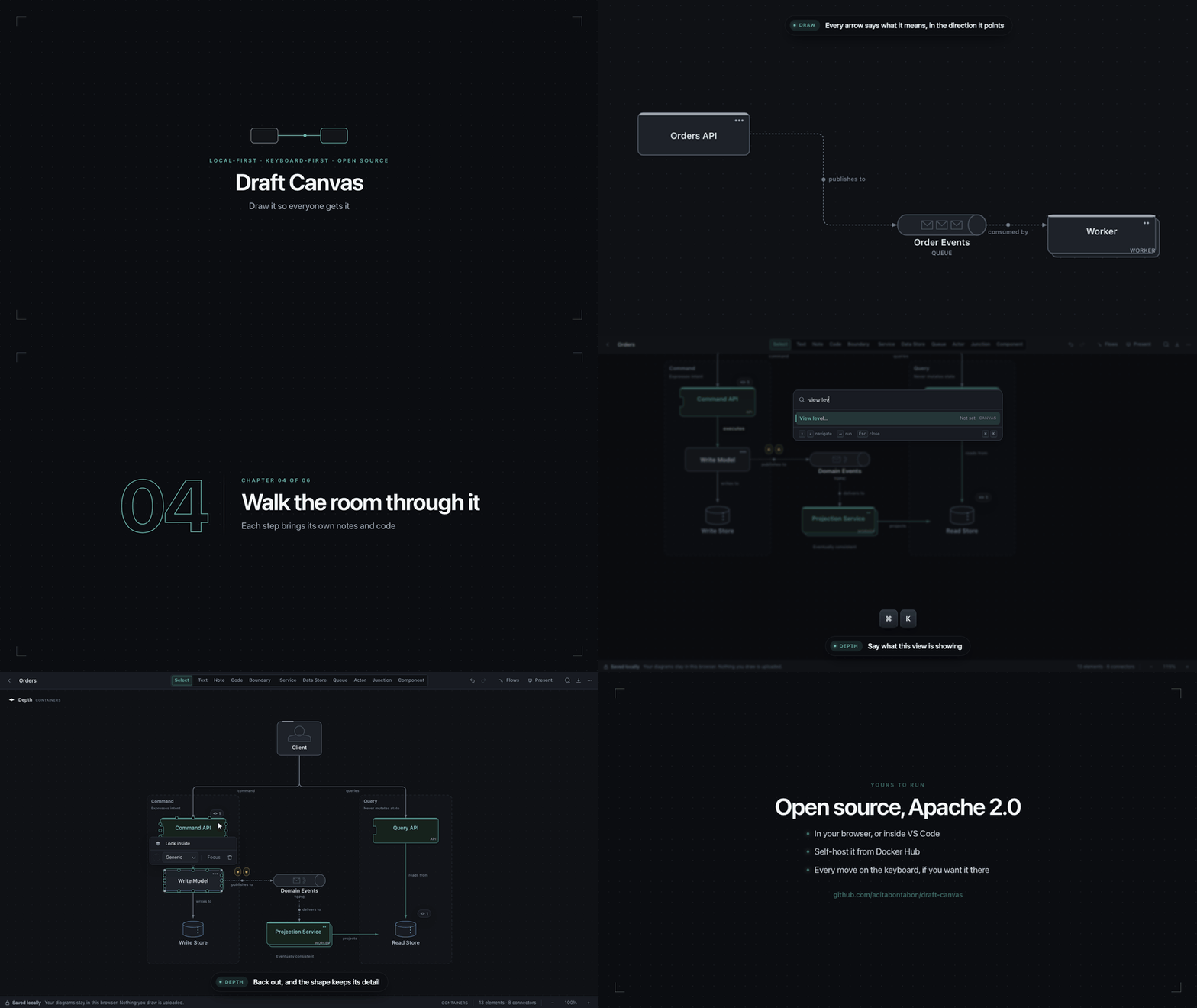
Draft Canvas Desktop is here — the same editor in its own window, a click away in your menu bar or tray, with diagrams as .draftcanvas files on your disk.
Get it
- Web: acltabontabon.com/draft-canvas — Nothing you draw leaves your browser.
- Desktop: Installers under Assets below:
.dmgfor macOS (Apple Silicon),.exefor Windows (x64). Updates itself. - Docker:
docker run -d -p 8080:80 acltabontabon/draft-canvas:1.10.0 - VS Code: Draft Canvas for VS Code
What's new
Easier connector selection
Click connectors anywhere — along the line, at bends, in gaps (for dashed/dotted lines), or on the arrowhead. The nearest one wins. Hovering shows you which connector you're about to select with a faint highlight and endpoint marks.
Grouped connector labels
When connectors leave a shape along the same line with the same label, the label appears once. Click it to pick one connector, click again for the next.
Better diagram loading
Diagrams now open framed to fit — centred and zoomed to show everything, instead of wherever the camera was last.
Other improvements
- Quick Draft (
⌘N/Ctrl+N) opens a blank canvas instantly from the menu bar or tray. - Home is itself a diagram: Quick Draft, your drafts, recent files, projects and starters are all drawn.
- Projects: add folders you work in; Find a diagram (
⌘F) searches all of them, recent files, and drafts, browsing into subfolders. - Your diagrams are files: Open, Save, Save As, Rename File…, drag and drop. Saves are atomic; nothing unsaved is lost on quit, restart, or update.
- Menu bar / tray panel with Quick Draft and recent work. Closing the window keeps it running; Quit really quits.
- Private by design: only touches files and folders you choose; never uploads your work.
- Dark mode dotted background is now quieter; light mode unchanged.
- Fixed: going back to a project's folders after opening a diagram no longer crashes the app.
Full details: CHANGELOG.md
Opening Desktop for the first time
The installers aren't signed or notarized yet, so your OS warns you once:
macOS: Drag Draft Canvas from the .dmg to Applications. On first launch, open System Settings → Privacy & Security and choose Open Anyway. Or, in Terminal: xattr -dr com.apple.quarantine "/Applications/Draft Canvas.app".
Windows: Run the installer. If SmartScreen appears, choose More info → Run anyway. It installs for your user only with no admin rights needed.
Draft Canvas 1.9.4
c7d55ce
acltabontabon
Alvin Cris Tabontabon
What's new
Compensation now hand-drawable
A saga's compensation can now be drawn by hand, not only through the Saga starter. Drag a second arrow onto a service the first one already calls, or use Add compensation on the step's connector. Compensates is also on a Service → Service connector's Interaction menu.
Full details: CHANGELOG.md
Draft Canvas 1.9.3
fbedf34
acltabontabon
Alvin Cris Tabontabon
What's new
Smarter suggestions with ]
On shapes Draft Canvas can't auto-suggest for (Table, Cache, etc.), pressing ] now opens the add-element menu with an explanation of why. A Table that's fed by another offers the pipeline's next stage. A saga coordinator offers Compensate … for steps it drives but can't undo yet.
Clearer shape visuals
- System actor is now a computer, Third Party is an office building — each reads at a glance for what it is.
- Data Store starts narrower and taller, with its icon filling more of the box. Existing stores keep their size.
VS Code improvements
- Select All, Copy, Cut, Paste and Undo now work in text fields.
⌘P,⌘⇧P,⌘Wand other VS Code shortcuts work from the canvas (needs extension 0.1.6).- Canvas background images are saved alongside the diagram (
name.draftcanvas.background.png) instead of being lost (needs extension 0.1.6).
Full details: CHANGELOG.md
Draft Canvas Desktop updates
c7d55ce
acltabontabon
Alvin Cris Tabontabon
Not a download. Installed copies of Draft Canvas Desktop read stable.json or alpha.json from here to learn whether a newer version exists. The releases to install from are the desktop-v… ones.
Draft Canvas 1.9.2
70d2cfd
acltabontabon
Alvin Cris Tabontabon
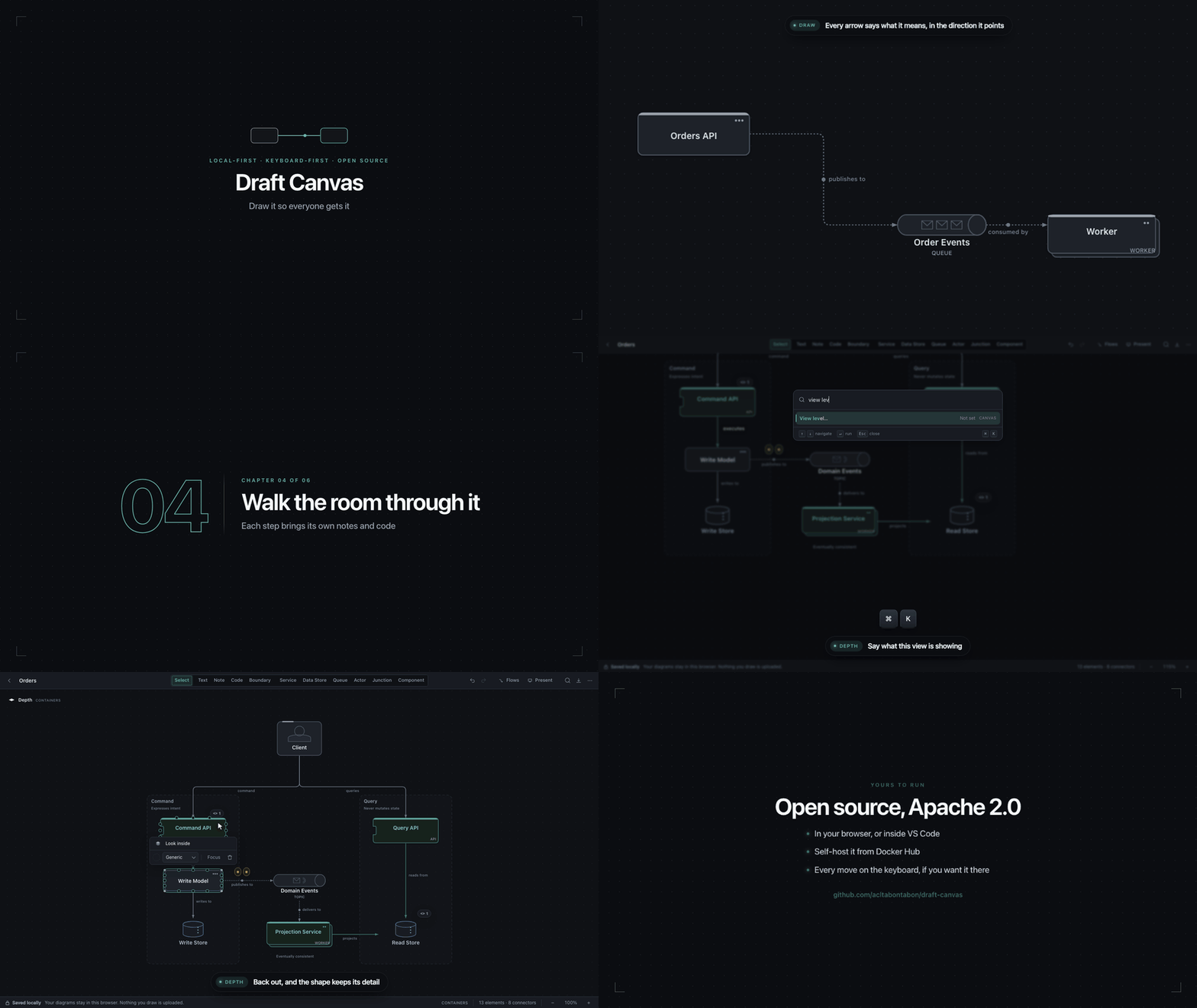
What's new
Smarter shape placement
Suggested shapes now step clear of connectors and captions already drawn, not just other shapes. Where nothing is clear, shapes appear as before. Preference applies globally.
Improved Data Stores
- Data Stores are drawn larger by default so cylinders, folders, buckets, and cards hold their own beside Services.
- Connectors now meet the Store's actual shape instead of stopping at the box edge. Anchors and exports follow it.
- Stores at default size or smaller look as before.
Contextual Service suggestions
Services now read what points at them. One behind a Gateway leads with its store and cache. One fed by a Queue leads with where the result lands. One woken by a Scheduler reaches outward. The same alternatives are still in the cycle — only the order changes. A Service that writes to a Data Store can now add a Search Index to it (offered only when there's something to index).
Other improvements
- Connector labels now match relationship captions — same size, tone, and distance from the line. Full strength while hovering or editing.
- Projects is no longer a connector type. Projections writing to read stores are now ordinary writes to. Diagrams using projects open with writes to instead. CQRS, Kappa, and CDC starters updated.
- Starters line up Data Stores on connections so arrows run straight into the shape, not stepping around it.
- Table cards no longer print "Table" on top of the description; names and kinds get proper room like every other Data Store.
Full details: CHANGELOG.md
Draft Canvas 1.9.1
8460ae8
acltabontabon
Alvin Cris Tabontabon
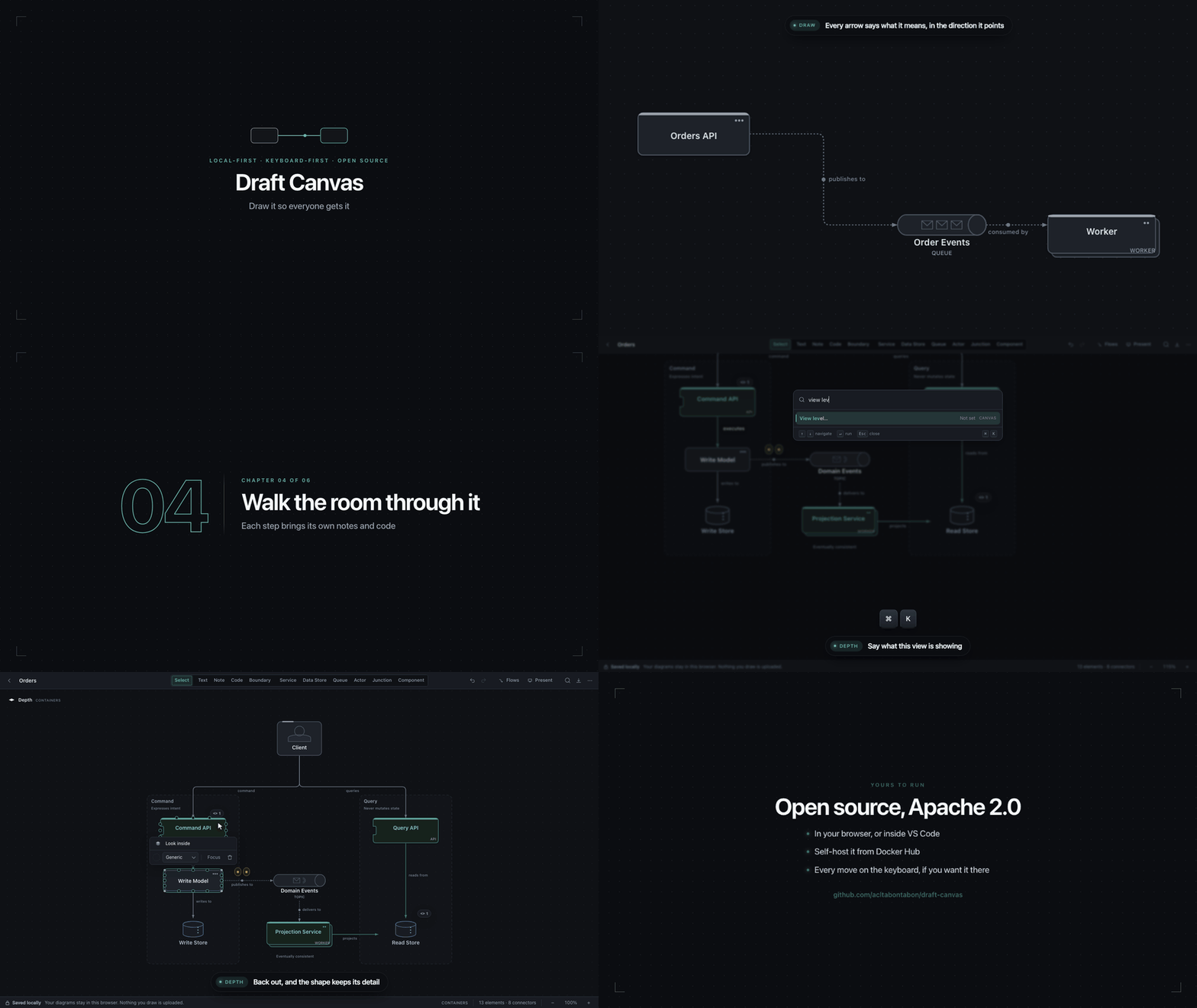
Fixes
Text editing
- Enter on a selected Boundary now edits its caption.
⌘Enter(Ctrl+Enter) starts presenting like the Present button: plays the flow, fits to screen.- Long connector labels, conditions, responses, and shape text are held to full saved length — nothing is quietly cut short on reload.
- Detach on notes and code cards keeps the text you just typed, not the older version.
Layout and drawing
- Copying a shape out of a Boundary and pasting it back inside keeps it in the Boundary.
- Connectors in a fan no longer run through other shapes in the same fan.
- Line jumps over a shared trunk no longer disappear when a second connector joins it.
- Alt+Shift+←/→ can walk past shapes with two connectors to the same neighbour.
- Step numbers sit on straight connectors where they appear in exports.
Visual polish
- Draft and Sketch looks now reach every shape — API, Gateway, Module, Adapter, Cache, File System and Object Storage were staying crisp.
- Tabs in code cards line up the same in every language.
Dialog and menu behavior
- Dialogs from the command palette give focus back to your work.
- Clicking the palette's edge no longer drops your typing.
- Export's Selection only no longer stays ticked from earlier.
- Passphrase prompts can't be dismissed halfway through encrypting or decrypting.
- Arrow keys and Space no longer advance flows behind open dialogs.
⌘Kcloses the More menu instead of opening over it; Move menu closes on Tab.- Starters inside shapes can't push files past their flow limit.
- Save indicator settles when you undo before it saves.
Full details: CHANGELOG.md
Draft Canvas 1.9.0
bd62dcf
acltabontabon
Alvin Cris Tabontabon
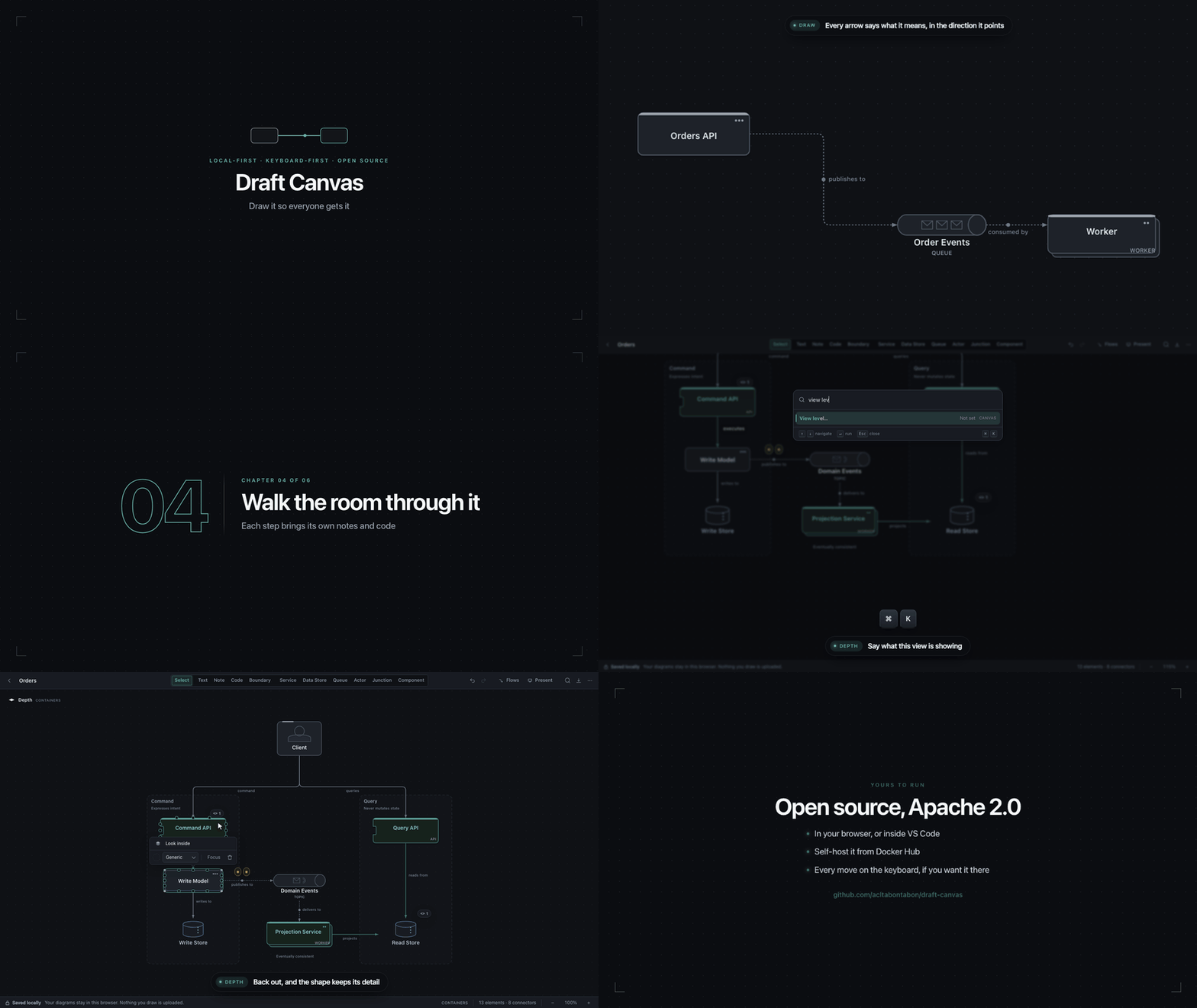
Added
- Takeaways. Press
Ito capture what needs to happen next — decisions, questions, and open actions — without stopping the drawing. A quiet count in the status bar opens Takeaways, each diagram shows how many actions remain, and you can copy them as Markdown to paste anywhere. - When a canvas still has open actions, a small note points them out for a few seconds on open, then folds into the status bar count.
- Line jumps. Where two connectors cross, one now hops over the other with a small arc, so a crossing reads as a crossing rather than a join. Nothing to turn on and nothing to place — they appear, move and disappear as you draw, they keep working in dense diagrams of hundreds of connectors, and they show up in exported images too.
- ⌘0 (Ctrl+0) resets the zoom to 100%, alongside the existing zoom in and out.
- Escape now cancels a drag. The shape goes back where it started, and nothing is moved, attached or added to the undo history. It cancels a connector you are drawing out too, and switching to another window mid-drag puts the shape back instead of leaving it wherever it stopped.
Changed
- Dragging a Note or Code card onto a connector now shows a small tag (
NOTE,TYPESCRIPT) as soon as you reach something it can attach to. The connector's target line is forgiving about a few pixels, tells you where the note will land, and picks the nearest line when several run close together. A connector carrying several notes now rests as a row of small dots and spells them out when you reach for it. - Your diagram list no longer counts elements and connectors on each row. The little thumbnail beside a diagram already shows how big and how tangled it is, and shows it faster.
- Big diagrams are smoother. On a diagram of around 500 shapes and 800 connectors, clicking a shape takes about a third of the time, panning and zooming hold much closer to 60 frames a second, and the pause after dropping a shape, drawing a connector or renaming one is roughly halved or better — on a 200-shape diagram it is gone.
Fixed
- Two shapes left slightly out of line no longer get a small kink in the connector between them — it draws as the single straight line you meant.
- An attachment's popover and the Flows panel list now work correctly with screen readers and keyboard navigation. Arrow keys move between popover buttons, and all interactive elements are properly announced.
- A dropdown next to a shape near the edge of the canvas no longer squeezes itself into the gap and hides options behind a scrollbar — it opens where there is room for all of them, and moves out of the way again if the window is made smaller while it is open.
- Dragging several shapes, or a boundary, out of the boundary they are in now takes them out of it for real. Before, deleting that boundary afterwards deleted them with it, even though they were nowhere near it.
- A shape's toolbar no longer ends up off the screen when the shape is bigger than the window, such as a large boundary at high zoom.
- Panning or zooming in one tab no longer makes another tab with the same diagram report that it "changed in another tab" the next time you edit.