Releases: acltabontabon/scuttle
Release list
v0.1.0

d42b9d5  acltabontabon
Alvin Cris Tabontabon
acltabontabon
Alvin Cris Tabontabon
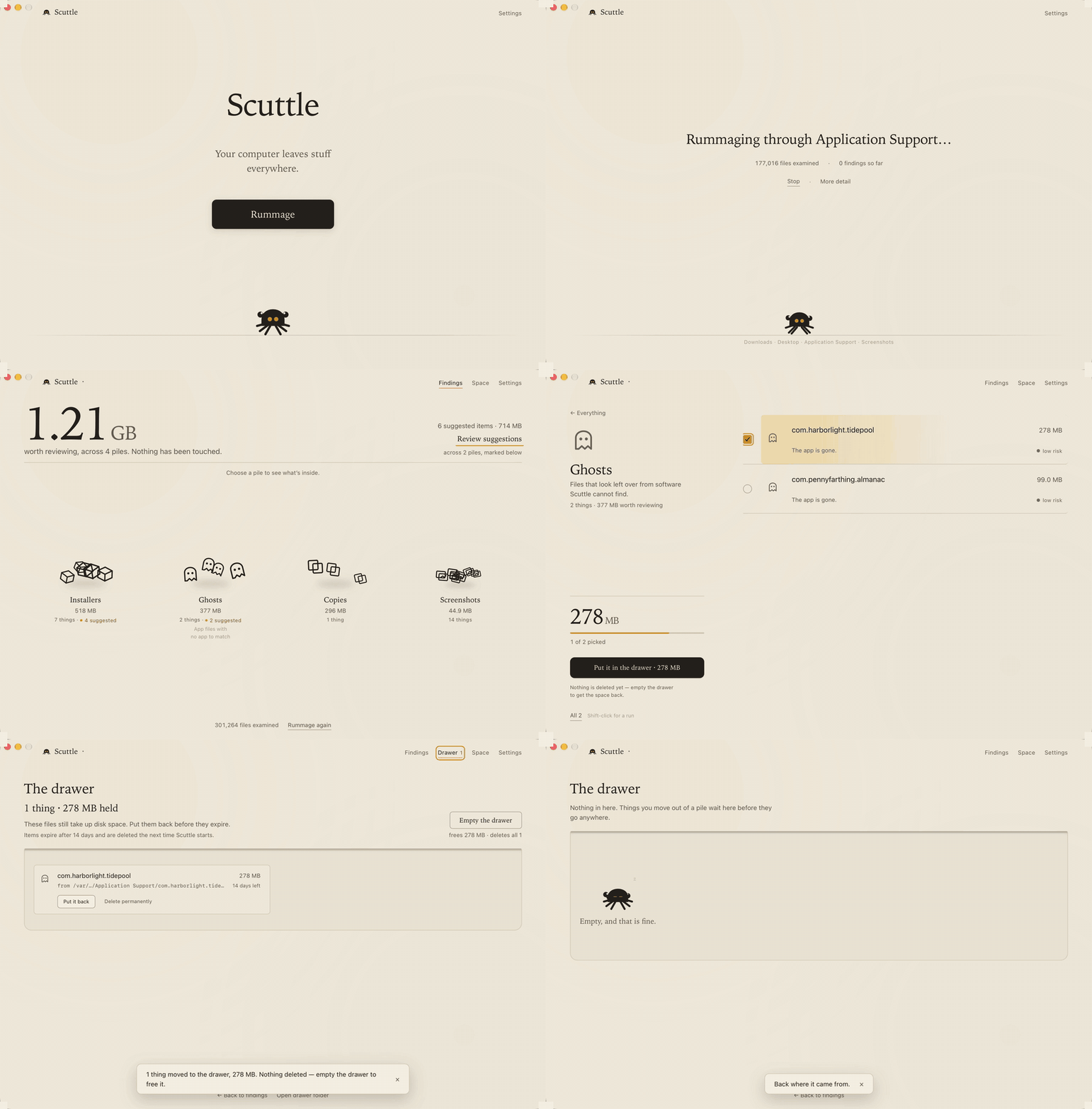
The first stable release of Scuttle.
What's new
- See before you move. Every move opens a review first: the exact path, whether it's a file or a whole folder, why Scuttle noticed it, and how to get it back.
- Your files, your call. Downloads, screenshots, documents and recently edited files can always be moved. Anything worth knowing is said once for the whole move.
- Installed apps are left alone. Scuttle recognises applications by how they're built, never suggests them for cleanup and never includes them in a batch.
- A safer drawer. Only caches and re-downloadable installers expire on their own; everything else stays until you remove it. Restores never overwrite and check the way back first. Copies across drives are verified before the original is removed.
- Scuttle's burrow. Click the tray icon for a quick look at where things stand, with shortcuts to open Scuttle, the drawer, a rummage or settings. Right-click still opens the menu. Quiet Scuttle in Settings tones it down.
- Updates. Scuttle checks about once a day and always asks before downloading or restarting.
Download
| Your computer | Download |
|---|---|
| Mac with Apple silicon (M1 and later) | Scuttle-0.1.0-macos-apple-silicon.dmg |
| Mac with an Intel processor | Scuttle-0.1.0-macos-intel.dmg |
| Windows 10 or 11, 64-bit | Scuttle-0.1.0-windows-x64-setup.exe |
If you're on 0.1.0-alpha.1 or alpha.2, install this one by hand; later versions update themselves.
First launch
Scuttle isn't signed with a paid certificate, so your system will warn you once.
- macOS: open Scuttle from Applications, then go to System Settings → Privacy & Security and click Open Anyway.
- Windows: when SmartScreen appears, click More info → Run anyway. No administrator rights needed.
Good to know
- Nothing goes to the Trash or Recycle Bin. Items wait in the drawer until you empty it, and emptying is permanent.
- Folders on a different drive from the drawer can't be moved as a whole; move the files inside instead.
- Linux isn't supported yet.
SHA-256
25d0924fbe300fb69dfaa127ca23e4ff7d14838c2fb1980b8ff705dfd07776d5  Scuttle-0.1.0-macos-apple-silicon.app.tar.gz
7213ffdd7f8da5b5dbd177a8b9807ca4663d7245fa4fa2825a7030533461ca92  Scuttle-0.1.0-macos-apple-silicon.dmg
4c1342adcf0cdfe95e8efe29dbe3b7bc5f070598c4e7ffd0a6acf8d01731f32f  Scuttle-0.1.0-macos-intel.app.tar.gz
29e67a4dd3f1349ebb2564b06acef33c2a92989dd185ec70e4648dd2a6986d44  Scuttle-0.1.0-macos-intel.dmg
b68ea92a049c2e49f65f80b639fa0ff7220cce693dc7f37e8448101246678d22 *Scuttle-0.1.0-windows-x64-setup.exe
v0.1.0-alpha.2
84cff15
acltabontabon
Alvin Cris Tabontabon
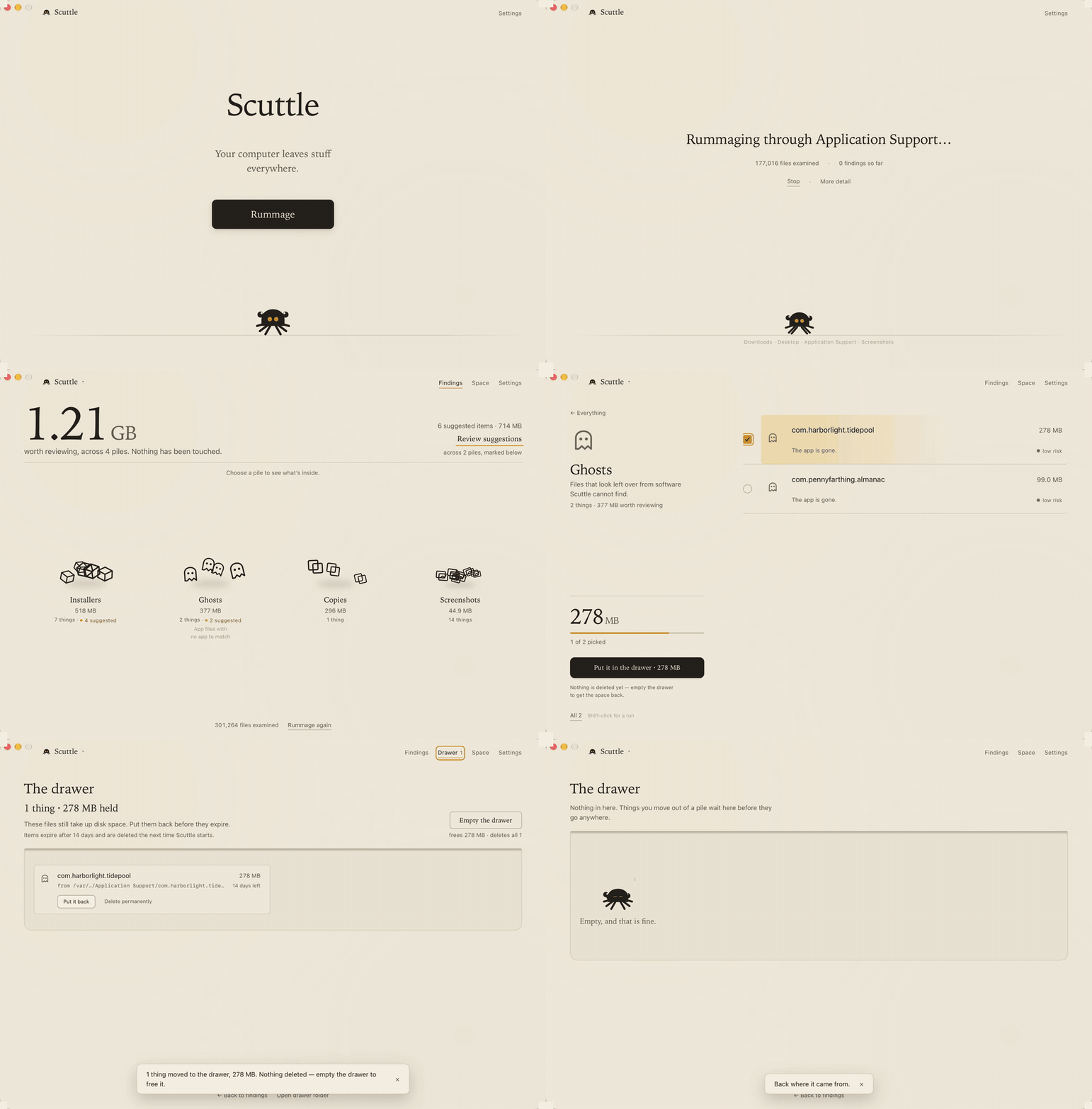
Added
- Scuttle can stay in the menu bar (system tray on Windows) instead of quitting when you close the window. Off by default. ⌘Q, logging out and shutting down still quit properly.
- Optional background checks. At most one a day, and only when the machine is on mains power and not busy. They read names, sizes and dates and never open a file, so they cannot find duplicates or near-identical screenshots — the findings screen says so. Nothing is moved or removed.
- Optional notifications. One summary a day at most, only when something new turned up, and never containing a filename. Pause until tomorrow from the menu or Settings.
- Launch at login, as an ordinary per-user login item. Separate setting.
- Progress while moving. A progress track with real counts and Cancel, an indicator in the header, and anything left unfinished stays reachable with what happened and what to do about it.
- Recovery from an interrupted move. Scuttle settles what really moved on the next start, and deletes nothing it is unsure of.
Changed
- Expired drawer items are now removed while Scuttle is running, not only at startup. How long things last is unchanged.
Fixed
- Moving a folder that is in use no longer fails with "modified since Scuttle found it". This is what made the Windows temp folder impossible to move.
- A failed folder move could lose files. It no longer can.
- Moving no longer freezes the window.
- Nothing is ever overwritten by a move or a restore.
- Moving, restoring, emptying the drawer and scanning no longer run over each other.
- Starting a rummage while a background check was running could still be refused as busy, if the check was slow to stand down. A rummage now displaces it outright.
- On Windows, long-path handling turned any path containing a forward slash into one the system could not open. Nothing shipped was affected — Scuttle builds its own paths a piece at a time — but every move failed under test, which is how it was found.
Known limitations
- None of the background behaviour has been tested on Windows. It builds and its tests pass in CI, but the tray icon, power checks, login item and notifications were only tried by hand on macOS.
- Background checks cannot find duplicates or near-identical screenshots.
- Hiding the window does not give the memory back. Idle CPU is unmeasurable either way; the webview stays resident.
- Scuttle cannot tell a free machine from a merely quiet one, so expect it to skip days.
- On Windows the tray icon picks light or dark once at startup.
- On macOS the dock icon disappears while the window is hidden.
Which one do I want?
| Your computer | Download |
|---|---|
| Mac with Apple silicon (M1 and later) | Scuttle-0.1.0-alpha.2-macos-apple-silicon.dmg |
| Mac with an Intel processor | Scuttle-0.1.0-alpha.2-macos-intel.dmg |
| Windows 10 or 11, 64-bit | Scuttle-0.1.0-alpha.2-windows-x64-setup.exe |
Not sure which Mac you have? Apple menu → About This Mac. "Apple M1" or later
means Apple silicon.
The warning you are going to get
Scuttle is built without paid code-signing certificates, so neither operating
system can tell you who made it. Both of them will say so once, the first time.
macOS — open the .dmg, drag Scuttle to Applications, and open it from there.
You will be told the developer cannot be verified. Go to System Settings →
Privacy & Security, scroll to Security, and click Open Anyway next to
Scuttle, then open it again. That button appears only after you have tried to
open the app, and only for about an hour afterwards. You do this once.
Windows — run the -setup.exe. Microsoft Defender SmartScreen will say it
stopped an unrecognised app: click More info, then Run anyway. Scuttle
installs for your user account only, so there is no administrator prompt.
Please do not turn off Gatekeeper, SmartScreen or your antivirus for this — or
for anything else. Neither instruction above changes a system setting.
Verifying what you downloaded
Each download has a .sha256 file beside it.
shasum -a 256 -c Scuttle-0.1.0-alpha.2-macos-apple-silicon.dmg.sha256      # macOS
Get-FileHash .\Scuttle-0.1.0-alpha.2-windows-x64-setup.exe -Algorithm SHA256   # Windows
Worth knowing
- These builds are not signed with an Apple Developer ID and not notarized
on macOS, and the Windows installer is unsigned. macOS bundles are ad-hoc
signed, which is what lets an Apple silicon build launch at all — it is not a
verified identity and it is not notarization. - There is no automatic updater. Come back here for the next version.
- Linux is not supported yet. Scuttle compiles there, but it knows nothing
about where a Linux system keeps things, so there is no Linux download. - Nothing Scuttle removes goes to the Trash or the Recycle Bin. Things wait in
the drawer until you empty it, and emptying it is permanent.
Full changelog ·
Installing and what Scuttle does
SHA-256
7bdb09482ce1fe17160e5111452d7ff5058e75fad716647727795586c60e4d71  Scuttle-0.1.0-alpha.2-macos-apple-silicon.dmg
d83e6c898bce575f05521316c39c7b0cafc4d662929d7f0671021a2235a841b5  Scuttle-0.1.0-alpha.2-macos-intel.dmg
f8b18993c86b96743ee0c2d9fcef31f1c1b7bba63a1a78ad9177c2336c525a14 *Scuttle-0.1.0-alpha.2-windows-x64-setup.exe
Update channels
d42b9d5
acltabontabon
Alvin Cris Tabontabon
Not a download. Installed copies of Scuttle read stable.json or alpha.json from here to learn whether a newer version exists. The releases people install from are the others.
v0.1.0-alpha.1
2f2f0e8
acltabontabon
Alvin Cris Tabontabon
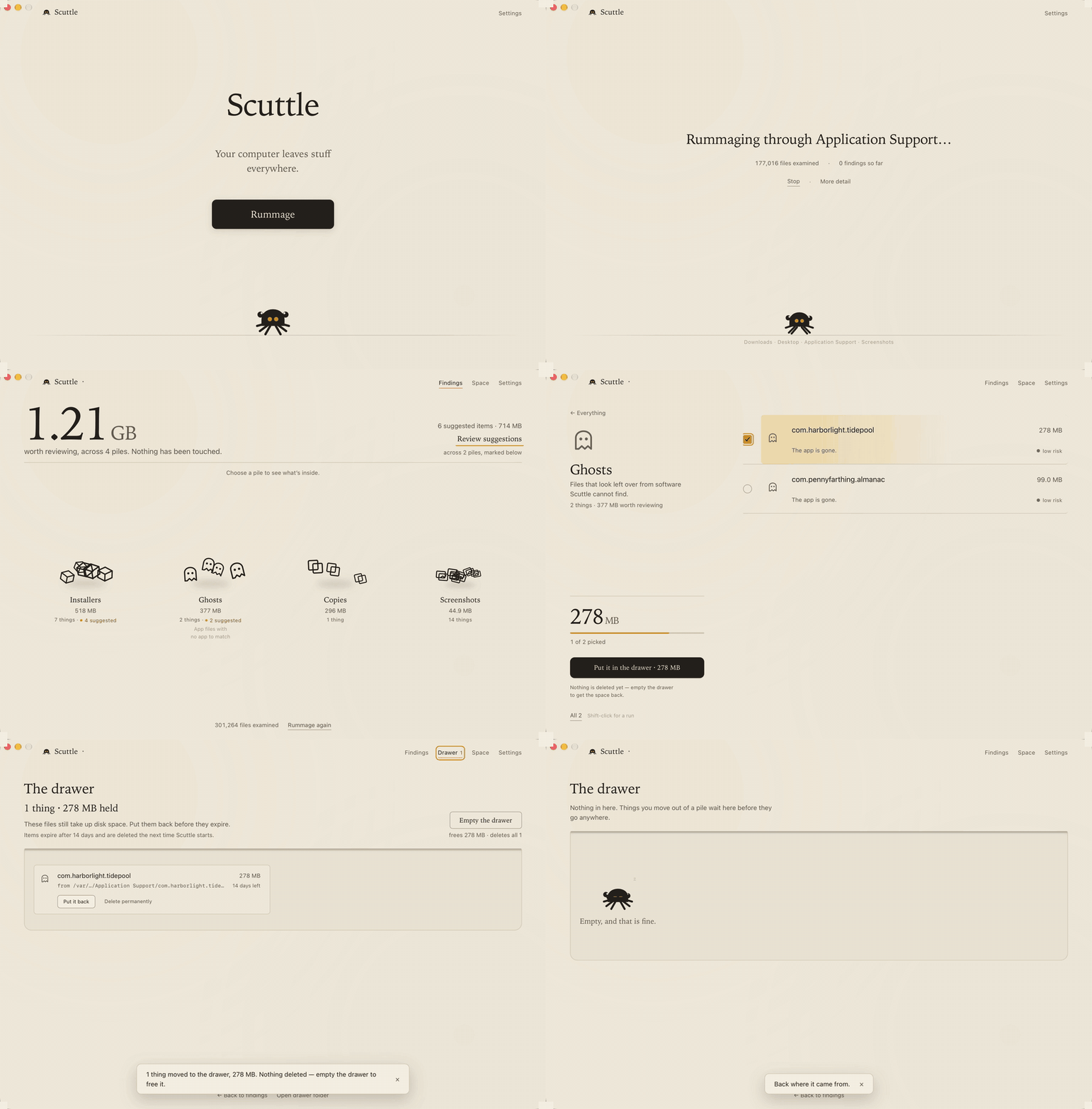
The first public build. Scuttle rummages through the forgotten corners of your
computer, shows you what turned up and why it noticed, and never removes
anything on its own.
An alpha because of where it has been, not what it does: everything below is
finished and tested, on two operating systems, over fixture filesystems that
cover the awkward cases. What it has not had is a few hundred real machines,
which is the only thing that finds the rest. Treat emptying the drawer with
the seriousness the confirmation asks for — it is the one action that cannot
be undone.
Added
- Rummage. One button walks the places a computer accumulates things — Downloads, Desktop, application support and cache folders, screenshot folders, and Steam and Epic libraries where they exist — and reports what it found without touching any of it.
- Seven detectors. Leftovers from software that is no longer installed, screenshots nobody looked at again, installers that already did their job, duplicate files, caches attributed to the application that made them, large strays, and developer build debris. Each finding carries the evidence behind it, and anything that cannot be named lands in Oddments rather than being guessed at.
- Findings you can argue with. Every finding shows what was observed, a confidence and a risk, and reasons to leave it alone where they exist. Nothing is presented as disposable just because it was found.
- The drawer. Removing something moves it to a holding folder inside Scuttle's own data directory and records where it came from, in the database and in a readable manifest beside the item. Nothing is deleted until you empty the drawer. Items expire after a retention window you choose, and are removed the next time Scuttle starts.
- Restore. Anything in the drawer goes back where it came from. Restoring recreates a parent folder that has since been deleted, and never overwrites something that arrived in the meantime — it restores alongside it and says so.
- A safety layer that refuses. System locations, credential stores, browser profiles, mail and message stores, and anything reached through a symbolic link are refused outright. Protected findings are still shown, so you know they exist, but Scuttle will not act on them.
- Space. A breakdown of what is actually using the disk, so a rummage's findings sit in proportion to the volume they came from.
- Ignore lists for a single item, an application, or a whole category.
--dry-run. A terminal report of everything Scuttle would classify and what it would recommend, changing nothing. The one place full paths are printed.- Local by default. No account, no network calls, no telemetry. Findings and drawer records live in a SQLite database on the machine that made them.
- macOS and Windows support, from one platform layer with a real implementation on each:
.appbundles andInfo.pliston macOS, the uninstall registry in both WOW64 views on Windows. - A recorded run of the whole thing, filmed from the real application against 300,000 invented files — it leads this release, and the README.
Known limitations
- Releases are not signed with an Apple Developer ID and not notarized on macOS, and the Windows installer is unsigned. Both operating systems will warn you the first time; the README explains what you will see and what to do about it.
- Linux is not supported. The platform layer compiles as a stub that knows about nothing, so a rummage there would find almost nothing and misjudge what it did find. There is no Linux download.
- Nothing goes to the Trash or the Recycle Bin. Emptying the drawer deletes permanently, which is what the confirmation says.
- A drawer on a different volume from the item being held turns the move into a copy, which needs room for both copies while it runs and reports no progress while it does. Most commonly a Steam library on a second drive on Windows.
- There is no automatic updater. New versions are downloaded from the releases page by hand, on purpose.
- Scuttle asks for no special permissions, so folders that need Full Disk Access on macOS are simply skipped and counted as places that could not be read.
- On Windows there are no cache rules for Chrome or Edge. Both keep their cache inside the browser profile directory, which Scuttle protects outright because it also holds logins, cookies and history. Firefox, which keeps its cache somewhere else, is covered.
Which one do I want?
| Your computer | Download |
|---|---|
| Mac with Apple silicon (M1 and later) | Scuttle-0.1.0-alpha.1-macos-apple-silicon.dmg |
| Mac with an Intel processor | Scuttle-0.1.0-alpha.1-macos-intel.dmg |
| Windows 10 or 11, 64-bit | Scuttle-0.1.0-alpha.1-windows-x64-setup.exe |
Not sure which Mac you have? Apple menu → About This Mac. "Apple M1" or later
means Apple silicon.
The warning you are going to get
Scuttle is built without paid code-signing certificates, so neither operating
system can tell you who made it. Both of them will say so once, the first time.
macOS — open the .dmg, drag Scuttle to Applications, and open it from there.
You will be told the developer cannot be verified. Go to System Settings →
Privacy & Security, scroll to Security, and click Open Anyway next to
Scuttle, then open it again. That button appears only after you have tried to
open the app, and only for about an hour afterwards. You do this once.
Windows — run the -setup.exe. Microsoft Defender SmartScreen will say it
stopped an unrecognised app: click More info, then Run anyway. Scuttle
installs for your user account only, so there is no administrator prompt.
Please do not turn off Gatekeeper, SmartScreen or your antivirus for this — or
for anything else. Neither instruction above changes a system setting.
Verifying what you downloaded
Each download has a .sha256 file beside it.
shasum -a 256 -c Scuttle-0.1.0-alpha.1-macos-apple-silicon.dmg.sha256      # macOS
Get-FileHash .\Scuttle-0.1.0-alpha.1-windows-x64-setup.exe -Algorithm SHA256   # Windows
Worth knowing
- These builds are not signed with an Apple Developer ID and not notarized
on macOS, and the Windows installer is unsigned. macOS bundles are ad-hoc
signed, which is what lets an Apple silicon build launch at all — it is not a
verified identity and it is not notarization. - There is no automatic updater. Come back here for the next version.
- Linux is not supported yet. Scuttle compiles there, but it knows nothing
about where a Linux system keeps things, so there is no Linux download. - Nothing Scuttle removes goes to the Trash or the Recycle Bin. Things wait in
the drawer until you empty it, and emptying it is permanent.
Full changelog ·
Installing and what Scuttle does
SHA-256
2f5d5185e281b4110963d83925bb6f533f72332b3dd7e51520d4208e7b7ec0ea  Scuttle-0.1.0-alpha.1-macos-apple-silicon.dmg
4f03fc01a1d7068d9e2b56d7b30571d8908697a4057679934175fc9665864e5d  Scuttle-0.1.0-alpha.1-macos-intel.dmg
21e16169fe93a789733c2bf6bf8fbc0d37b852e0d5264fff8e623157c8ffc502 *Scuttle-0.1.0-alpha.1-windows-x64-setup.exe