2. Finding Container Images and Building Them 🛠
- What is an Image?
- Images and Their Layers: Image Cache
- Image Tagging and Pushing to Docker Hub
- Dockerfile
Table of contents generated with markdown-toc
An Image is a compilation of an application binaries and dependencies and metadata about the image data and how to run the image.
An Image is an ordered collection of root filesystem changes and the corresponding execution parameters for use within a container runtime.
Not a complete OS. No kernel, kernel module (e.g., drivers)
docker image history shows the history of an image.
Aditya :: System32 » docker image history alpine
IMAGE          CREATED       CREATED BY                                      SIZE      COMMENT
389fef711851   3 weeks ago   /bin/sh -c #(nop)  CMD ["/bin/sh"]              0B
<missing>      3 weeks ago   /bin/sh -c #(nop) ADD file:ec475c2abb2d46435…   5.58MB
Aditya :: System32 » docker image history centos
IMAGE          CREATED       CREATED BY                                      SIZE      COMMENT
300e315adb2f   4 weeks ago   /bin/sh -c #(nop)  CMD ["/bin/bash"]            0B
<missing>      4 weeks ago   /bin/sh -c #(nop)  LABEL org.label-schema.sc…   0B
<missing>      4 weeks ago   /bin/sh -c #(nop) ADD file:bd7a2aed6ede423b7…   209MB
docker image inspect displays detailed information on one or more images.
Aditya :: System32 » docker image inspect alpine
[
    {
        "Id": "sha256:389fef7118515c70fd6c0e0d50bb75669942ea722ccb976507d7b087e54d5a23",
        "RepoTags": [
            "alpine:latest"
        ],
        "RepoDigests": [
            "alpine@sha256:3c7497bf0c7af93428242d6176e8f7905f2201d8fc5861f45be7a346b5f23436"
        ],
        "Parent": "",
        "Comment": "",
        "Created": "2020-12-17T00:19:42.11518025Z",
        "Container": "6cb7658787e77979d777b9725147ac992230ccc7426e678c918c3144e5ccb78e",
        "ContainerConfig": {
            "Hostname": "6cb7658787e7",
            "Domainname": "",
            "User": "",
            "AttachStdin": false,
            "AttachStdout": false,
            "AttachStderr": false,
            "Tty": false,
            "OpenStdin": false,
            "StdinOnce": false,
            "Env": [
                "PATH=/usr/local/sbin:/usr/local/bin:/usr/sbin:/usr/bin:/sbin:/bin"
            ],
            "Cmd": [
                "/bin/sh",
                "-c",
                "#(nop) ",
                "CMD [\"/bin/sh\"]"
            ],
            "Image": "sha256:174c398109132a9b2fc879f752eeef1b25528a04b514a1e3ff1b5085bcf28f51",
            "Volumes": null,
            "WorkingDir": "",
            "Entrypoint": null,
            "OnBuild": null,
            "Labels": {}
        },
        "DockerVersion": "19.03.12",
        "Author": "",
        "Config": {
            "Hostname": "",
            "Domainname": "",
            "User": "",
            "AttachStdin": false,
            "AttachStdout": false,
            "AttachStderr": false,
            "Tty": false,
            "OpenStdin": false,
            "StdinOnce": false,
            "Env": [
                "PATH=/usr/local/sbin:/usr/local/bin:/usr/sbin:/usr/bin:/sbin:/bin"
            ],
            "Cmd": [
                "/bin/sh"
            ],
            "Image": "sha256:174c398109132a9b2fc879f752eeef1b25528a04b514a1e3ff1b5085bcf28f51",
            "Volumes": null,
            "WorkingDir": "",
            "Entrypoint": null,
            "OnBuild": null,
            "Labels": null
        },
        "Architecture": "amd64",
        "Os": "linux",
        "Size": 5577287,
        "VirtualSize": 5577287,
        "GraphDriver": {
            "Data": {
                "MergedDir": "/var/lib/docker/overlay2/cc1468eb925342627363ace0c3f6513751214cdf63c852d40bd1d9d70a47f8c4/merged",
                "UpperDir": "/var/lib/docker/overlay2/cc1468eb925342627363ace0c3f6513751214cdf63c852d40bd1d9d70a47f8c4/diff",
                "WorkDir": "/var/lib/docker/overlay2/cc1468eb925342627363ace0c3f6513751214cdf63c852d40bd1d9d70a47f8c4/work"
            },
            "Name": "overlay2"
        },
        "RootFS": {
            "Type": "layers",
            "Layers": [
                "sha256:777b2c648970480f50f5b4d0af8f9a8ea798eea43dbcf40ce4a8c7118736bdcf"
            ]
        },
        "Metadata": {
            "LastTagTime": "0001-01-01T00:00:00Z"
        }
    }
]- Images are made up of file system changes and metadata.
- Each layer is uniquely identified and only stored once on a host.
- This saves storage space on host and transfer time on push/pull.
- A container is just a single read/write layer on top of image.
docker image tag assigns one or more tags to an image.
The images have three information pieces:
[org_name]/[img_name]:[tag_name]
docker image tag nginx daitya96/nginx:v1.0docker login
docker image push daitya96/nginx:v1.0
docker logoutFROM sets base distribution for the image.
ENV sets environment-variables.
RUN executes shell commands and shell scripts.
EXPOSE exposes specified ports the virtual docker network.
CMD runs this command when the container is launched.
docker image build -t [img_name] .Assignment: Build your own image
docker image prune to clean up just "dangling" images
docker system prune will clean up everything
docker image prune -a will remove all images you're not using
docker system df to see space usage
When using Docker, we distinguish between 2 types of environment variables:
-
ARGalso known as build-time variables. They are only available from the moment they are announced in the Dockerfile with anARGinstruction up to the moment when the image is built. Running containers can't access values ofARGvariables. This also applies toCMDandENTRYPOINTinstructions which just tell what the container should run by default.If you tell a Dockerfile to expect various
ARGvariables without a default value specified but none are provided when running thebuildcommand, there will be an error message.However,
ARGvalues can be easily inspected after an image is built, by viewing thedocker historyof an image. Thus they are a poor choice for sensitive data. -
ENVvariables are also available during the build, as soon as you introduce them with anENVinstruction. However, unlikeARG, they are also accessible by containers started from the final image.ENVvalues can be overridden when starting a container.
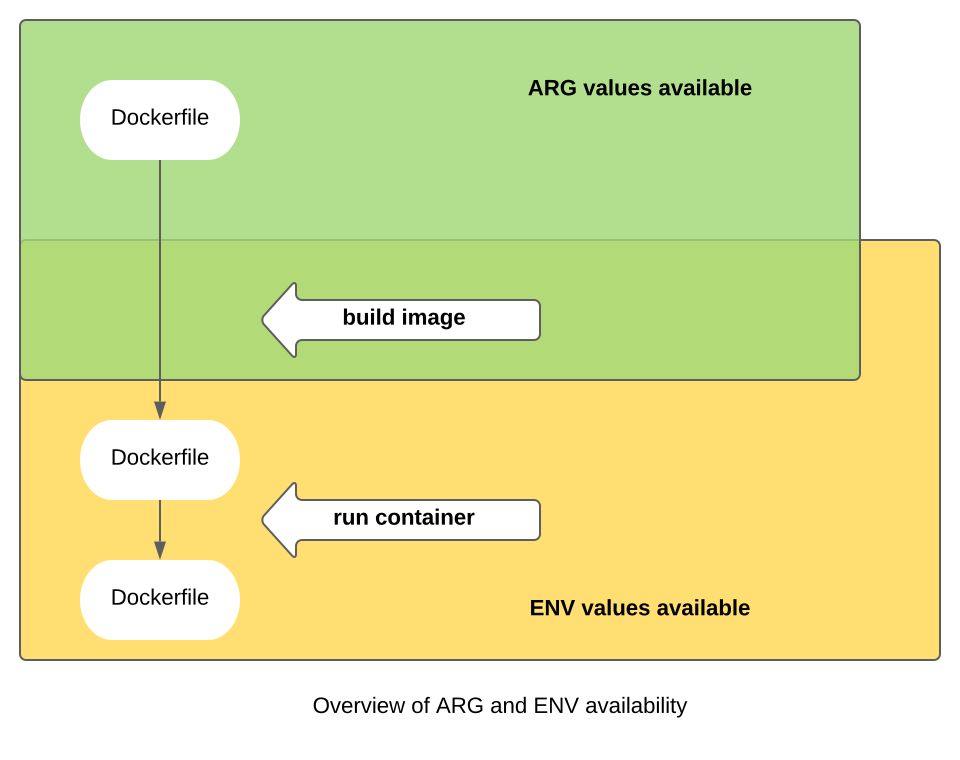
These can be left blank in the Dockerfile, or set default values. If you don't provide a value to expected ARG variables which don't have a default, you'll get an error message.
Here is a Dockerfile example, both for default values and without them:
ARG some_variable_name
# or with a hard-coded default:
#ARG some_variable_name=default_value

RUN echo "Oh dang look at that $some_variable_name"
# you could also use braces - ${some_variable_name}
When building a Docker image from the command-line, you can set ARG values using --build-arg:
docker build --build-arg some_variable_name=a_valueThis can be translated to using docker-compose.yml files. When using docker-compose, you can specify values to pass on for ARG, you can specify values to pass on for ARG, in an args block:
version: '3'

services:
  somename:
    build:
      context: ./app
      dockerfile: Dockerfile
      args:
        some_variable_name: a_value
When you try to set a variable which is not
ARGmentioned in the Dockerfile, Docker will complain.
We can do it when starting your containers, but you can also provide default ENV values directly in your Dockerfile by hard-coding them.
Also, you can set dynamic default values for environment variables.
When building an image, the only thing you can provide are ARG values, as described below. You can't provide values for ENV variables directly.
However, both ARG and ENV can work together. You can use ARG to set the default values of ENV variables.
# no default value
ENV hey

# a default value
ENV foo /bar

# or ENV foo=/bar

# ENV values can be used during the build
ADD . $foo

# or ADD . ${foo}
# translates to: ADD . /bar
And here is a snippet for a Dockerfile, using dynamic on-build ENV values:
# expect a build-time variable
ARG A_VARIABLE

# use the value to set the ENV var default
ENV an_env_var=$A_VARIABLE

# if not overridden, that value of an_env_var will be available to your containers !
Once the image is built, you can launch containers and provide values for ENV variables in three different ways, either from the command line or using a docker-compose.yml file. All of those will override any default ENV values in the Dockerfile.
Unlike ARG, you can pass all kinds of environment variables to the container. Even ones not explicitly defined in the Dockerfile. It depends on your application whether that'll do anything however.
docker run -e "env_var_name=another_value" alpine envFor a docker-compose.yml file:
version: '3'

services:
  plex:
    image: linuxserver/plex
    environment:
- env_var_name=another_valuedocker run -e env_var_name alpine envFor the docker-compose.yml file, leave out the equation sign and everything after it for the same effect.
version: '3'

services:
  plex:
    image: linuxserver/plex
    environment:
- env_var_nameInstead of writing the variables out or hard_coding them, we can specify a file to read values from.
The file looks something like this:
env_var_name=another_value
The file above is called env_file_name and it's located in the current directory.
docker run --env-file=env-file-name alpine envFor the docker-compose.yml file, we just reference a env_file, and Docker parses it for the variables to set.
version: '3'

services:
  plex:
    image: linuxserver/plex
    env_file: env_file_name