Repository navigation
Upload and Transcribe
This panel does two jobs:
-
Adds reference voices to
voices/for XTTS and Fish Speech cloning. - Transcribes audio with OpenAI Whisper (medium.en), which also powers the Verify with Whisper quality check and video subtitles.
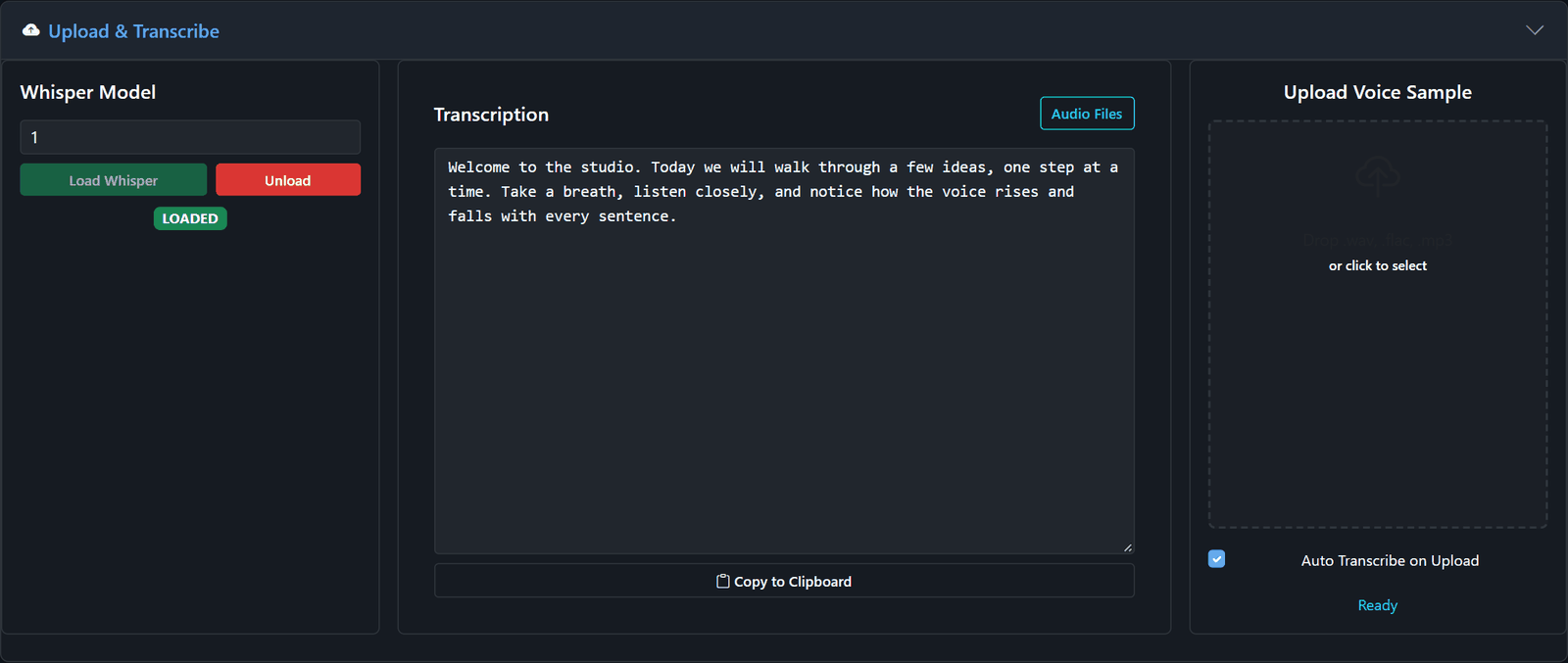
- Open Upload & Transcribe.
- Drag a
.wav/.mp3/.flacfile onto Upload Voice Sample, or click it to browse. - With Auto Transcribe on Upload ticked, Whisper writes out what's said: handy as the reference transcript for Fish Speech.
- Click Refresh in the XTTS or Fish panel to see the new voice.
What makes a good reference clip
- 6–20 seconds of one person speaking clearly
- No music, background noise or other voices
- Little room echo (a dry recording clones best)
- A natural read: the clone copies tone and pacing
- Pick a device under Whisper Model and click Load Whisper (CPU works; a GPU is much faster).
- Upload a file, or click Audio Files to pick one already in
voices/, then Transcribe. - Copy the text with Copy to Clipboard.
Transcriptions are cached next to the file, so asking again is instant.
One Whisper model serves this panel, Verify with Whisper in every speech engine, and the Video Production subtitles. While any job is using it, Whisper can't be unloaded or moved to another device; the server answers busy instead. It's released automatically when those jobs finish.
| Endpoint | Purpose |
|---|---|
POST /upload (multipart file) |
Add a voice file to voices/
|
POST /voice_transcribe {"filename": "MyVoice.wav", "device": "0"}
|
Transcribe a file in voices/
|
POST /whisper_load / POST /whisper_unload
|
Manage the Whisper model |
GET /whisper_status |
{"loaded": true} |
More in API Reference and chapter 4 of the manual.