Repository navigation
Video Production
Turn narration into a subtitled video without leaving the app. Whisper transcribes the audio into word-timed subtitles (an .srt is saved too), and FFmpeg renders them over a solid colour, a transparent background, or a slideshow of your images and video clips.
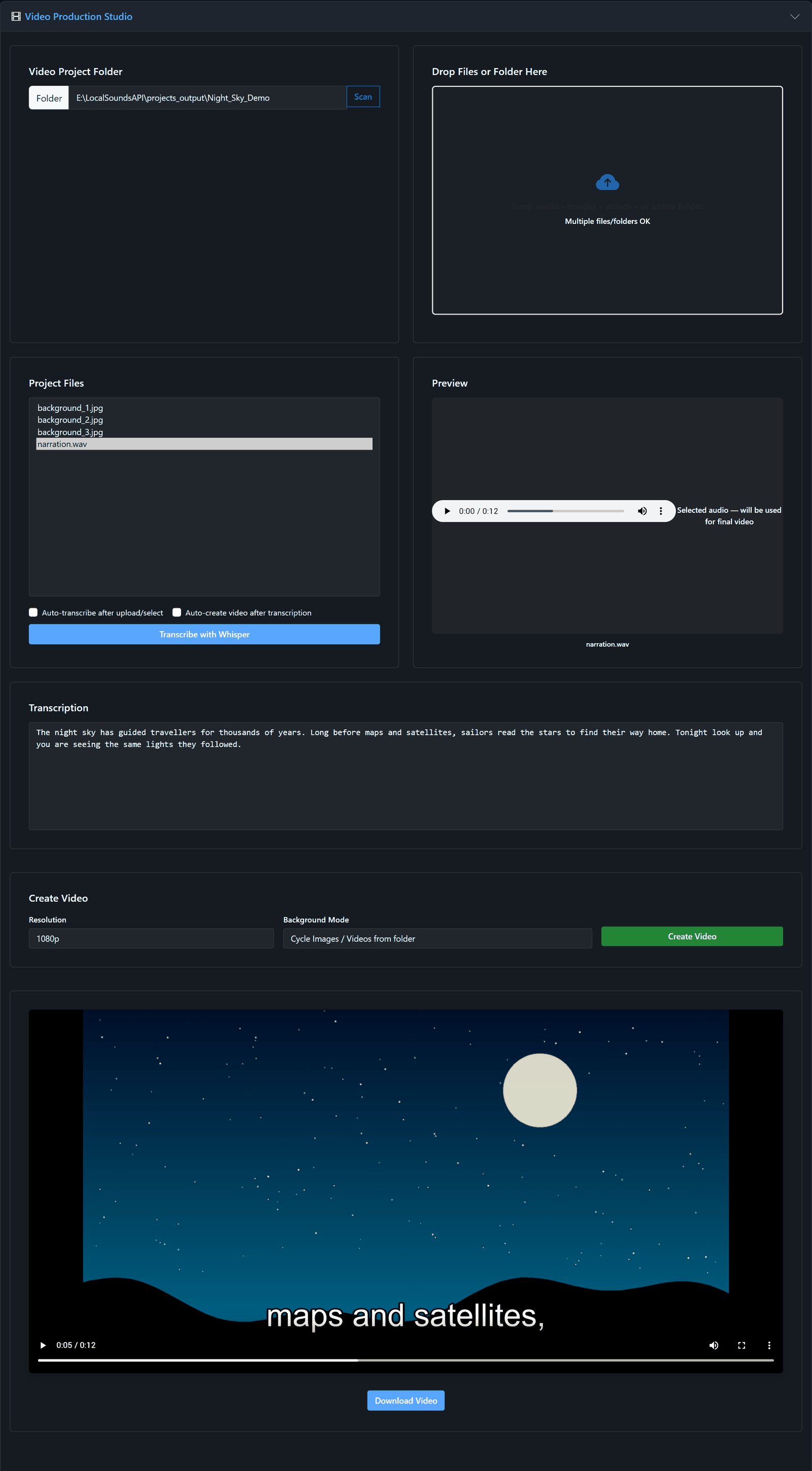
This demo video uses Kokoro narration (bf_emma) over three background images, with subtitles generated by Whisper.
-
Set the project folder. Type a folder path (e.g. one under
projects_output/) and click Load Project. Everything is read from and written to that folder. -
Add media. Drop narration audio (
.wav/.mp3) and, for slideshows, images or video clips onto the drop zone, or copy them into the folder. - Pick the audio file from the list. A preview player appears.
-
Transcribe. Click Transcribe. Whisper writes the text and saves
<name>.srtbeside the audio. Results are cached, so this only happens once per file. -
Choose the look:
- Resolution: 720p, 1080p, 1440p, 4K, or vertical 1080p / 4K (9:16) for Shorts, Reels and TikTok
- Background: solid red / green / blue (for chroma keying), cycle images / videos from the folder, or transparent (WebM with alpha) for overlaying in an editor
- Click Create Video, then play it in the page or Download.
Shortcuts: tick Auto transcribe and Auto make video to go from dropped audio to finished video in one step.
- Write a script with the Chatbot.
- Voice it with Kokoro, XTTS or Fish Speech, saving into a project folder.
- Add a music bed from Stable Audio or ACE-Step.
- Open the same folder here, transcribe, and render the video.
- Green-screen output keys cleanly in any editor; transparent WebM keeps soft subtitle edges.
- In slideshow mode each image is shown for 5 seconds, in folder order. Add enough images to cover the narration (a 30-second voice-over needs about 6). Use 16:9 images for landscape and 9:16 for vertical.
- Edit the
.srtby hand to fix a word, then render again.
More in chapter 10 of the manual.