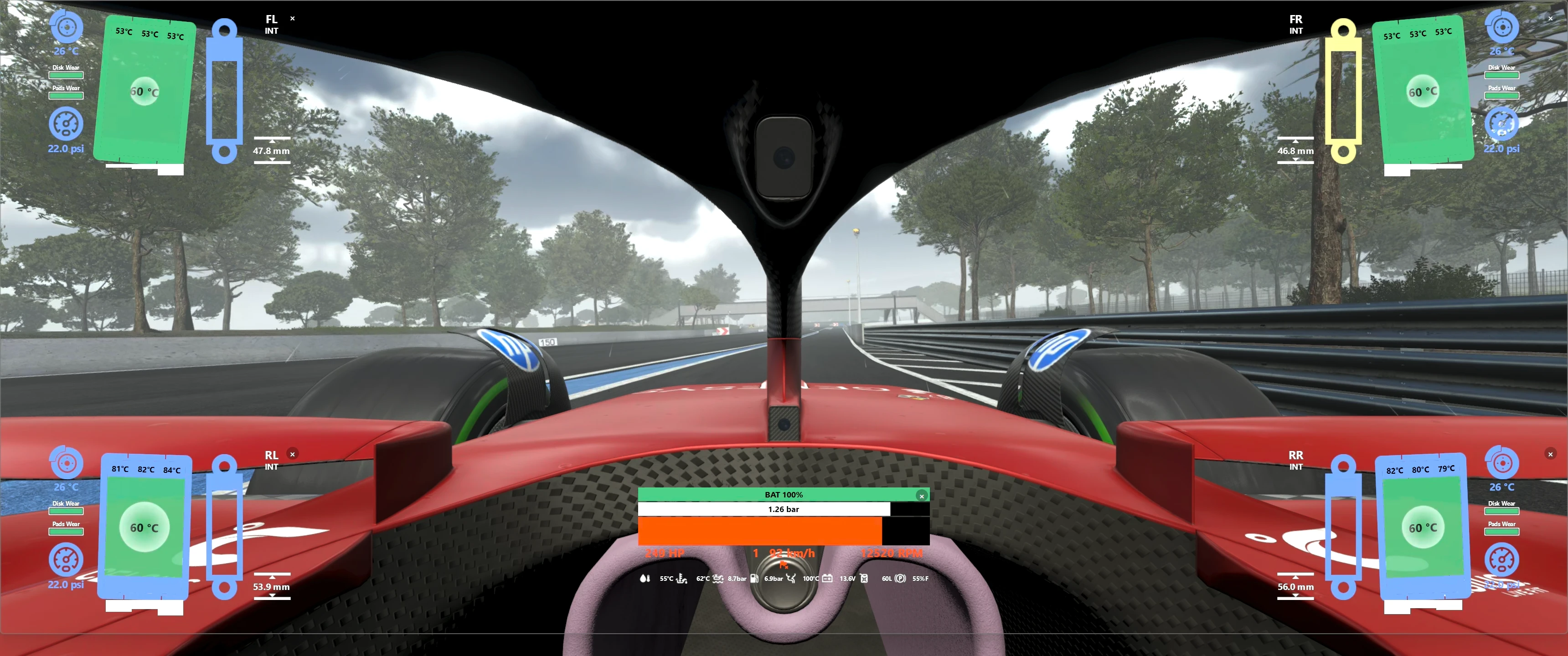
 (click the image to view the Youtube vídeo)
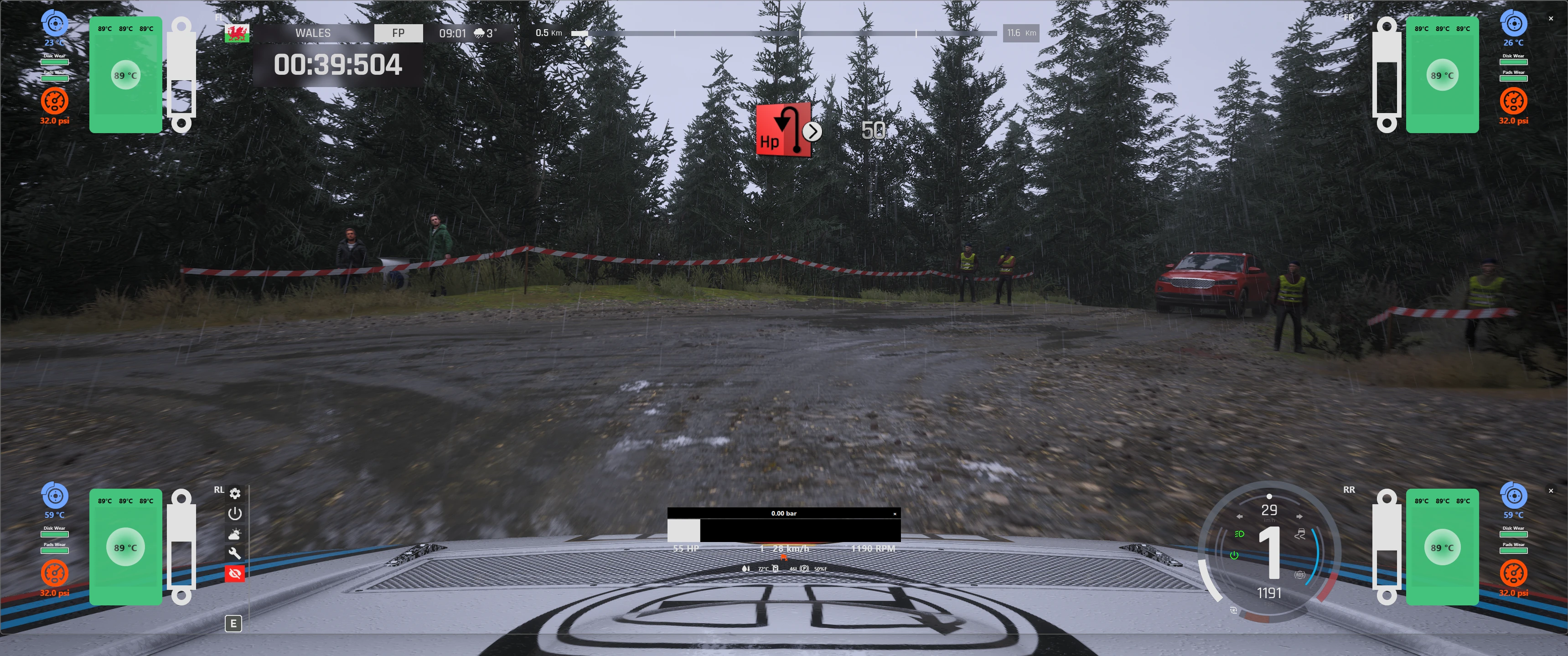
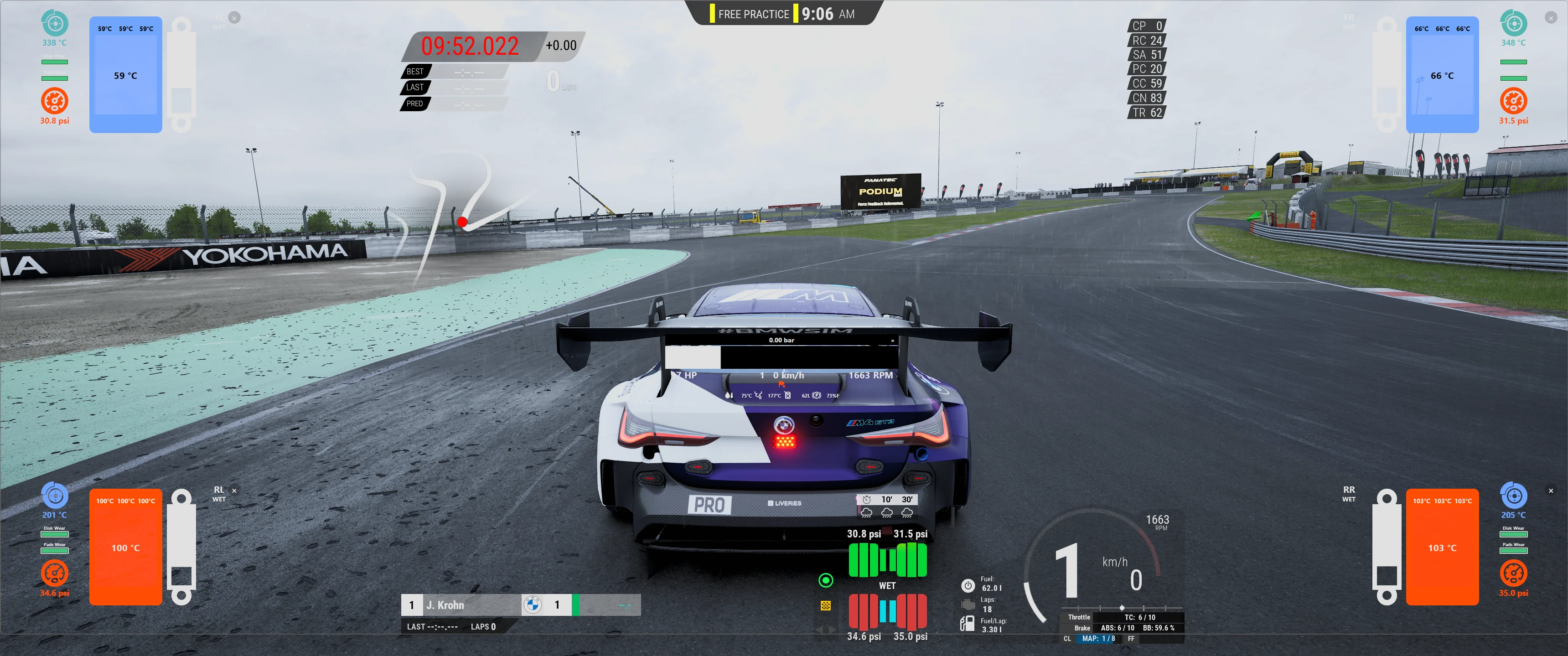
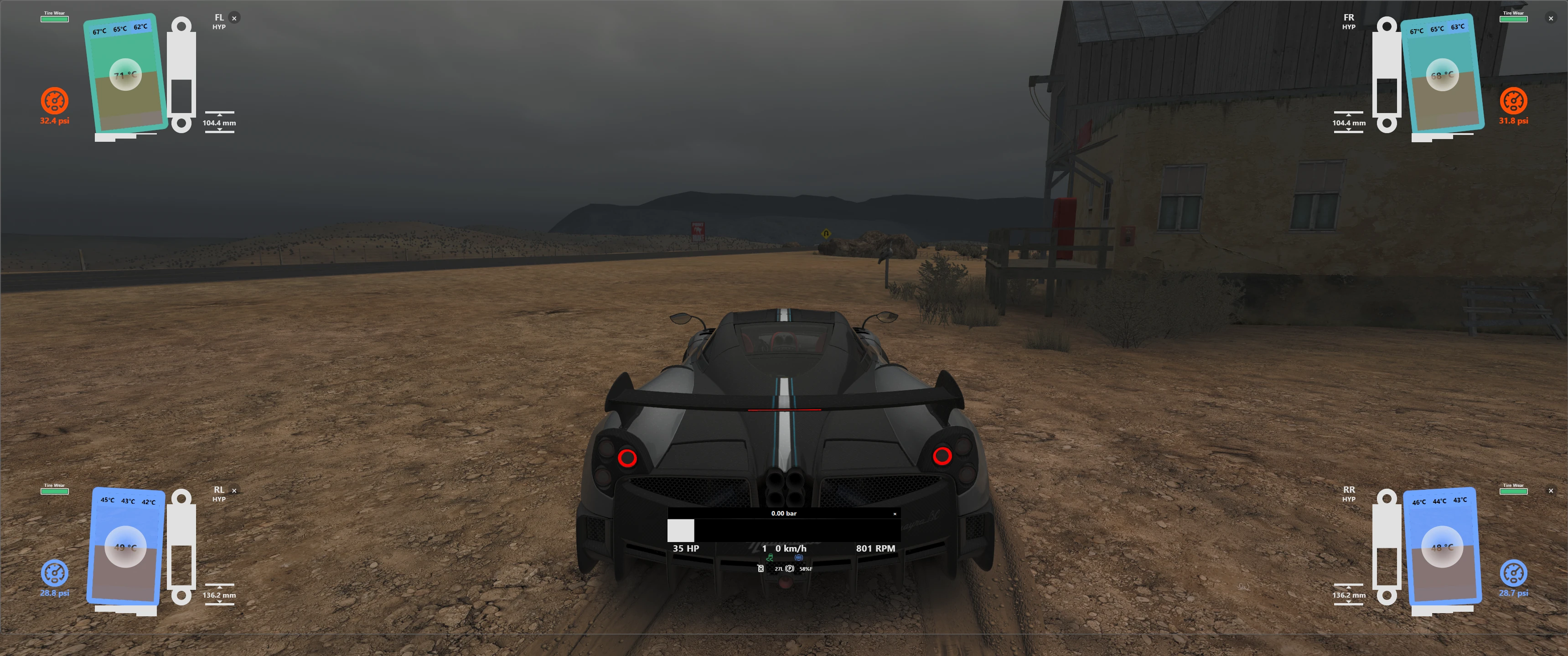
Transparent, always-on-top desktop overlay that displays live engine and per-wheel telemetry on top of every Assetto Corsa title — the original Assetto Corsa, Assetto Corsa Competizione, Assetto Corsa Evo, and Assetto Corsa Rally. Built with PySide6 and ported from the original AC1 LiveTelemetry plugin.
The overlay reads the game's three named shared-memory blocks (AC Evo:
Local\acevo_pmf_*; AC1, ACC, and AC Rally all share Local\acpmf_*) when a
game is running, or falls back to a synthetic data generator for development
and screenshots.
- Go to the releases page the download the latest version from GitHub or Overtake.gg.
- Double-click on it with the session already running so it auto detects which game to load the data from.
- Use
Ctrl+Shift+C(or Windows → Click-through in the tray) to unlock for repositioning,Ctrl+Shift+Lto start/stop logging, andCtrl+Shift+Qto quit.
- Build it once with
python build.py(see Building a redistributable executable). - Double-click
dist\LiveTelemetryEvo-<version>.exe. - Start any supported Assetto Corsa title. The overlay auto-detects which game is running as soon as it launches; the Detecting AC Environment... screen stays up until then.
- Use
Ctrl+Shift+C(or Windows → Click-through in the tray) to unlock for repositioning,Ctrl+Shift+Lto start/stop logging, andCtrl+Shift+Qto quit.
The project uses a local virtual environment so it does not touch the system Python.
python -m venv .venv
.\.venv\Scripts\Activate.ps1
pip install -r requirements.txt
python -m live_telemetry_evo
Or use run.bat, which uses the venv's Python directly (no activation needed).
python -m live_telemetry_evo                      # default — auto-detect the running game
python -m live_telemetry_evo --source ac-evo      # force Assetto Corsa Evo
python -m live_telemetry_evo --source acc         # force Assetto Corsa Competizione
python -m live_telemetry_evo --source acrally     # force Assetto Corsa Rally
python -m live_telemetry_evo --source ac1         # force original Assetto Corsa
python -m live_telemetry_evo --source synthetic   # animated mock data, no game required
python -m live_telemetry_evo --hz 120             # one-shot override; 0 (default) uses the
                                       # persisted tray choice (default 60)
python -m live_telemetry_evo --vr                 # force the VR overlay on (SteamVR)
python -m live_telemetry_evo --novr               # force VR off (pure desktop overlay)
The polling rate is persisted across sessions (30 / 60 / 100 / 120 / 144 / 250 Hz) and is changeable at runtime from the Polling Hz tray submenu —
the worker thread re-arms its timer without restarting. UI repaints
independently at the display refresh rate (QScreen.refreshRate()), so faster
polling never makes the widgets paint more often than your monitor can show.
In auto mode the overlay shows a Detecting AC Environment... message and
polls the running-process list every 500 ms for the game's executable,
matched exactly:
| Game | Executable |
|---|---|
| AC Evo | AssettoCorsaEVO.exe |
| AC1 | acs.exe, acs_x86.exe |
| ACC | acc.exe, AC2-Win64-Shipping.exe |
| AC Rally | acr.exe |
The EXE is the whole detection signal — only one AC title runs at a time, so it
is unambiguous, and a shared-memory block left behind by a crashed game or held
open by Content Manager or SimHub is never mistaken for a running game. The
countdown starts as soon as one of the supported games is found, which may be
while it is still loading; the readers retry until its telemetry appears. All
four live sources attach via Win32 OpenFileMappingW; explicit --source
overrides skip detection and start their reader immediately.
Important: AC1, ACC, and AC Rally publish under the same shared-memory
tag names (Local\acpmf_*) — only one of those games can run at a time
anyway, and the --source flag tells the overlay which struct layout to
apply. Attaching with the wrong layout reads garbage values.
A plain always-on-top desktop window is invisible inside a headset — the VR compositor draws the game straight to the HMD and ignores desktop windows. So in VR the overlay submits the HUD to the SteamVR (OpenVR) compositor — each widget as its own overlay quad, placed on a gentle cylinder that wraps around the viewer so the assembly keeps the desktop layout (and each quad uploads only its own pixels at native resolution). One backend covers every PCVR headset that runs through SteamVR: a Pimax (PiTool → SteamVR) and a Meta Quest 3 (Link / Air Link / Steam Link / Virtual Desktop → SteamVR) look identical from here. The game still runs on the PC — this is PCVR, not the Quest's standalone mode.
VR mode is resolved from the CLI flags, defaulting to auto-detect:
| Invocation | Behaviour |
|---|---|
| (none) | Auto — poll for a running SteamVR runtime + connected HMD and turn the VR overlay on automatically when both are present. |
--vr |
Force VR on now. Falls back to the desktop overlay (with a log line) if SteamVR / the OpenVR runtime isn't available. |
--novr |
Force VR off, disabling auto-detection — pure desktop overlay. |
The HUD quad's placement is chosen from the VR placement tray submenu and persisted across sessions:
- Head-locked (default) — the panel follows your gaze, fixed in front of the eyes. Never jitters and is always visible; the safe choice across headsets.
- Fixed in place — the panel freezes in the play space exactly where it floats at the moment you select the mode: look where you want it, click the entry, and it stays there. Re-selecting it re-anchors at your current gaze. More immersive, but OpenVR world-locking can jitter on some streamed-link setups (notably Quest).
Switching placement updates the live overlay without a restart. The OpenVR
binding (openvr / pyopenvr) ships inside the released .exe; the import is
guarded, so machines without it or without SteamVR simply run the desktop
overlay as before.
Each game publishes a different subset of the per-widget signals. The
table below summarises what renders live data, what falls back to a
heuristic, and what hides entirely. For the shared-memory layouts and
why these differences exist, see MEMORY.md.
| Widget / signal | AC Evo | AC1 | ACC | AC Rally |
|---|---|---|---|---|
| Engine bar (RPM, gear, speed, gas/brake) | live | live | live | live |
| Live BHP / torque | live | curve | live | curve |
currentMaxRpm redline |
live | static | live | live |
| Driver-aid chips (TC/ABS/DRS/ERS/…) | full | partial | partial | partial |
| Analog readouts (water/oil temp, pressures, fuel) | full | partial | partial | partial |
| Performance-mode label | live | — | — | — |
| Inputs widget (pedals, steering, FFB, G-meter) | live | live | live | live |
| Tire core temperature | live | live | live | live (K→°C) |
| Tire I/M/O per-face temperatures | live | live | core fallback | core fallback |
| Normalised tire temps / pressure | live | curve fallback | curve fallback | curve fallback |
| Camber tire rotation | live | live | upright | upright |
| Contact-patch bars | live | live | hidden | hidden |
| Tire load circle | live | live | hidden | live |
| Suspension travel bar | live (session max) | live (car limit, else session max) | live (session max) | live (car limit, else session max) |
| Ride-height icon | live (per-wheel) | live (per-wheel) | hidden | hidden |
| Brake disc temperature | live | neutral (no temp) | live | live (K→°C) |
| Per-wheel lock blink | game flag | slip heuristic | slip heuristic | slip heuristic |
| ABS-modulating blink | merged signals | slip heuristic | game flag | game flag |
| Brake pad / disc wear bars | live | — | live | live (unknown scale) |
| Tire wear bar | hidden | live (self-calibrated) | hidden | hidden |
| Tire dirt overlay | live | live | live | live |
| Wheel ID + compound name | per-axle | uniform | uniform | uniform |
Legend. live = real-time signal from the game · curve =
synthesised from a built-in default curve · core fallback = missing
signal replaced with core temperature · static = read once at session
load · partial = only the fields that exist in that game's struct ·
slip heuristic = inferred from slipRatio / wheelSlip threshold under
braking · merged signals = OR of all three published "ABS active"
signals (physics int + physics intensity + graphics bool) · hidden =
widget element isn't drawn · — = unsupported on that game.
Tag-name collision. AC1, ACC, and AC Rally all publish under
Local\acpmf_* — only one of those games can run at a time anyway, and
the --source flag tells the overlay which struct layout to apply.
Attaching with the wrong layout reads garbage. AC Evo uses its own
Local\acevo_pmf_* namespace. Since the tag can't tell the three apart,
auto detection identifies the game by its executable instead — see
sources/detect.py.
AC Rally publishes all temperatures (tire core, brake, water,
exhaust) in Kelvin — the source applies −273.15 across the board.
wheelLoad IS populated (unlike ACC) so the load circle works, but
camberRAD, rideHeight, and tyreTempI/M/O are not (verified
empirically via tools/inspect_acrally.py).
ACC never writes camberRAD, rideHeight, wheelLoad, or per-face
tyreTempI/M/O even though the slots exist in the struct (the v1.8.12
PDF colour-codes them as unused). The PDF also mis-types currentMaxRpm
as float; ACC actually writes int32 like AC Evo (the source reads
it as int32 to avoid the denormal trap that would peg the RPM bar at
100 %). Source: bundled ACCSharedMemoryDocumentationV1.8.12.pdf.
AC1 doesn't expose live BHP, per-aid *_in_action flags, brake
pad/disc life, brake disc temperature, normalised temps/pressure, or a
per-wheel lock flag. To compensate, the source parses the car's
data.acd on connect: real torque curve drives both the live HP
readout and the rev-bar colour band per-car (the F1 2004 peak lands at
its real ~17 000 RPM instead of a hardcoded 5 500 RPM), per-compound
thermal performance curves drive tire_t_norm_*, and PRESSURE_IDEAL
drives tire_p_norm. AC1's tyreWear is a grip/health signal (not
a linear "% remaining"), so the wear bar self-calibrates to span the
~0.06 useful range below the fresh-tyre peak.
AC Evo has the most complete coverage; the field-by-field reference
is in docs/SHARED_MEMORY.md.
| Shortcut | Action |
|---|---|
Ctrl+Shift+R |
Reset every widget to its default position and visibility. |
Ctrl+Shift+C |
Toggle click-through (lock / unlock the overlay for dragging). |
Ctrl+Shift+S |
Cycle widget size XS → S → M → L → XL (wraps around). |
Ctrl+Shift+L |
Start / stop CSV logging of every telemetry frame. |
Ctrl+Shift+P |
VR: toggle placement (Head-locked ↔ Fixed in place). |
Ctrl+Shift+W |
VR: cycle panel spread / width (wraps around). |
Ctrl+Shift+D |
VR: cycle panel distance (wraps around). |
Ctrl+Shift+Q |
Quit the overlay. |
These use Win32 RegisterHotKey, so they fire even while the game has focus.
Each hotkey shares one code path with its tray-menu entry and is gated by the
same state that enables that entry — a key does nothing while its menu item is
greyed out:
- Reset / Click-through / Size act on the overlay widgets, so they wait until the widgets are placed (after the detection countdown reveals them).
- Logging waits until a game is detected and telemetry is flowing.
- VR Placement / Spread / Distance only act while the HUD is being rendered into a headset.
- Quit is always available.
Every global combo the overlay holds is one another application can collide
with while the overlay runs — Ctrl+Shift+D / W / P in particular overlap
common browser shortcuts, and won't reach the foreground app until the overlay
exits. Registration is per-key: if one combo is already taken on your machine,
the overlay logs which one (hotkey Ctrl+Shift+R unavailable (err=1409)) and
the rest keep working — use the tray menu for the affected action.
The overlay registers an icon in the Windows notification area. Left- or right-click it to open a menu organised into three categories — Data, VR, Windows — followed by the update and quit entries. Each category greys out until it can actually do something (the same gating the hotkeys follow, above).
Within every menu the entries are ordered alphabetically by label; the value-scale submenus (Polling Hz, Distance, Spread, Size) keep their natural numeric / scale order.
Data — enabled once a game is detected and telemetry is flowing:
- Open logs folder — opens the directory holding the CSV files alongside the executable.
- Polling Hz — submenu with
30 / 60 / 100 / 120 / 144 / 250Hz as a radio group; controls the shared-memory poll rate and the CSV row rate. - Start logging / Stop logging — toggles CSV capture of every
telemetry frame (raw + calculated) to
logs/<timestamp>_<source>.csv.
VR — enabled only while the HUD is being rendered into a headset:
- Distance — submenu of distances (
1.0 … 2.0 m); how far the whole panel floats from the viewer (the cylinder radius). - Placement — submenu (
Fixed in place/Head-lockedradio group) for where the HUD quad floats in the headset. Persists; updates the live overlay without a restart. Re-selecting Fixed in place re-anchors the panel at your current gaze. - Size — the same
XS / S / M / L / XLradio group as under Windows; scaling the HUD applies in the headset too. - Spread — submenu of width factors (
40% … 120%); how wide the widgets fan out sideways around the cylinder (lower pulls the corner widgets toward the centre of view). - Widgets — submenu with a checkable entry per panel (Engine, Inputs, and the four wheels) to show or hide each one; the choice persists.
Windows — enabled once the widgets are placed (after the countdown):
- Click-through — checkable; reflects current state.
- Reset positions — restores the default layout. The Inputs widget is hidden by default, so reset restores its position but leaves it hidden — use Widgets to bring it up.
- Size — submenu with
XS / S / M / L / XLas a radio group. - Widgets — the same per-panel show/hide toggles as under VR (one set of flags backs both menus and the desktop and headset views).
Then, always available:
- Check for Updates — manual re-trigger of the GitHub-releases
check (also fires automatically on launch). The label tracks state:
Check for Updates(idle, clickable) →Checking updates...(disabled) →Downloading update...(disabled) →Restart to Update(clickable; launches the freshly downloaded .exe and quits the current one). Failures revert to the idle label. - Quit — exits the overlay.
Each menu entry or submenu that maps to a hotkey shows it alongside the label (the VR and Size submenus carry the hint of the hotkey that cycles through their entries).
On launch the overlay asynchronously queries
github.com/albertowd/live-telemetry-evo/releases/latest (which serves
the latest tag as JSON — api.github.com is deliberately avoided since
some networks block it).
If the tag is newer than the running version it downloads the matching
LiveTelemetryEvo-<version>.exe asset into the folder next to the
running executable, then surfaces a tray balloon — and flips the tray
menu entry above to Restart to Update. The old .exe is left in
place so you can revert by double-clicking it; uninstalling is the
same single-file delete it always was.
- Re-downloads are skipped — if the matching asset already exists on disk (e.g. you downloaded it last session but didn't restart), the menu jumps straight to Restart to Update.
- The download writes to
<target>.partialand atomic-renames on success, so a crash mid-download never leaves a half-file under the final name. - Network errors are silent in the UI (diagnostics go to stdout). The menu falls back to Check for Updates so the user can retry.
- The check uses Python's stdlib
urllibover HTTPS — no QtNetwork dependency, no extra runtime traffic beyond a single JSON GET plus the asset download itself.
While Start logging is active, every telemetry frame the worker
publishes is written as one CSV row. The schema is auto-built from the
TelemetryFrame dataclass — any new scalar field appears as a new
column the next session — and rows are flushed every 60 writes so a
hard kill loses at most ~1 s of data at 60 Hz. The writer thread is
backpressure-bounded: if the disk stalls, the oldest queued row is
dropped rather than blocking the polling worker (drop count is printed
when logging stops).
Files land in <exe-dir>\logs\ for the bundled .exe or <cwd>\logs\
during dev, named YYYY-MM-DD_HHMMSS_<source>.csv.
| Action | Result |
|---|---|
| Drag a widget | Move it; position is persisted across sessions. |
Click the × on a widget |
Hide it; the hidden state persists across sessions. |
If you hide everything, Ctrl+Shift+R (or Reset positions in the tray) brings the
whole layout back.
- Click-through is ON by default so the overlay never steals mouse input from the
game. Toggle it off with
Ctrl+Shift+C(or tray → Windows → Click-through) only when you want to drag widgets. - A 5-second countdown is drawn full-screen before the telemetry widgets reveal, showing the detected game name above the digit and reusing the detection-screen font size so the two screens flow as one. The source still feeds frames during the countdown so values are live the moment the widgets appear.
- Widgets you hid in a previous session stay hidden; the tray Widgets submenu
(under Windows or VR) toggles any panel back, and
Ctrl+Shift+Rrestores the default layout (the Inputs widget stays hidden — show it from Widgets).
All widgets are painted in a logical coordinate system and scaled per screen, so the absolute pixel sizes here are reference values for the multiplier-1.0 baseline (1440p nominal). The overlay picks a multiplier from the screen's vertical resolution and multiplies it by your size factor (XS = 0.5 … XL = 1.5).
┌──────────────────── KERS / battery bar ─────────────────────────┐  hybrid only
├─────────────────────────── boost bar ───────────────────────────┤  turbo only
├─────────────────────────── RPM bar ─────────────────────────────┤
│                                                                 │
│   1234 HP                  3   148 km/h                7820 RPM │
│      PIT  TC  ABS  ESC  LC  DRS  ERS  OT  HEAT  KMAX  CMAX      │
│  WAT 92°  OIL 110°  OPR 4.5 bar  EXH 720°  BATT 38°  BIAS 55%F  │
└─────────────────────────────────────────────────────────────────┘
The KERS / boost slots render fully transparent (no black stripe) on cars that lack a hybrid system or a turbo — the widget rectangle stays the same height across cars, but cars without those features get a cleaner top edge.
| Element | What it shows |
|---|---|
| KERS / battery bar | Hybrid battery state-of-charge (0..1). Fill colour tracks SoC (green > 50 %, yellow > 20 %, else red), and turns blue whenever the battery is actively deploying (energy leaving the pack). The slot stays transparent on pure-ICE cars — auto-detected by graphics.has_kers on AC Evo and an activity heuristic (charge moved or throughput counter ticked) elsewhere. Label: BAT N / M kJ when the car publishes capacity, otherwise BAT NN %. |
| Boost bar | Current turbo boost as a fraction of max_turbo_boost (white below 90 %, green above). Slot is transparent on naturally-aspirated cars (max_turbo_boost ≤ 0.05); the rolling-max calibration only starts once a turbo car publishes a non-zero boost. The numeric label is bar, two-pass painted so it's legible over both filled and empty regions. |
| RPM bar | Engine speed as a fraction of redline. Uses rpm_percent from the graphics block when available, otherwise rpm / max_rpm. Colour tracks the engine's actual peak — on AC1 it uses the real torque curve from the car's ACD (engine.ini POWER_CURVE), on other games it self-calibrates from observed live BHP. White → blue (approaching peak) → green (at peak power) → red (past peak). Shift-up hint forces red, shift-down hint forces blue (the bar acts as a shift light). |
| HP label | current_bhp from the graphics block when available; otherwise the synthesised power curve interpolated at the current RPM, scaled by (1 + boost). On AC1 with data.acd loaded, this is the real per-RPM HP plus any hybrid deploy contribution folded in. |
| Gear label | R (reverse), N (neutral) or the forward gear number — matches AC's 0=R, 1=N, 2+=forward convention. Speed in km/h sits next to it. |
| RPM label | Live engine speed in RPM. |
| Aid chips | Up to 14 driver-aid / status chips, only rendered while their condition is true. The strip auto-compresses when many fire at once so nothing clips: PIT (yellow, pit limiter), TC (green, traction control — bright when cutting, dim when armed-but-idle), ABS (blue, same scheme), ESC (red, stability control), LC (green, launch control), DRS (blue, bright when deployed, dim when only available), ERS (yellow, kers/battery charging), OT (blue, ERS overtake / max-deploy mode armed — AC EVO), HEAT (red, ERS heat charging on — AC EVO), KMAX (red, per-lap deploy energy cap reached — AC EVO), CMAX (yellow, per-lap charge energy cap reached — AC EVO), WW (red, wrong way), INV (red, lap invalidated by a cut), LAST (white, final lap). |
| Readouts | Bottom row: WAT water temp °C, OIL oil temp °C, OPR oil pressure bar, FPR fuel pressure bar, EXH exhaust temp °C, BAT battery V, BATT battery temp °C (AC EVO), FUEL litres, BIAS brake bias (%F front — on ACC the per-car dash offset from the official documentation is applied, so the value matches the in-car display). Cells whose source publishes nothing for the current car are hidden so the strip shows only live values. |
Each chip and readout cell is keyed to an MDI
icon name. Drop a white-on-transparent PNG named <icon-name>.png (e.g.
car-brake-abs.png, water-thermometer.png) into resources/img/ and the cell
renders as a tinted icon; until the file exists it falls back to the text label.
Icon-name mapping:
| Cell | MDI icon | Cell | MDI icon |
|---|---|---|---|
| PIT | car-speed-limiter |
WAT | water-thermometer |
| TC | car-traction-control |
OIL | oil-temperature |
| ABS | car-brake-abs |
OPR | oil-level |
| ESC | car-esp |
FPR | gas-station |
| LC | rocket-launch |
EXH | smoke |
| DRS | car-cruise-control |
BAT | car-battery |
| ERS | battery-charging |
BATT | thermometer |
| OT | lightning-bolt |
FUEL | fuel |
| HEAT | fire |
BIAS | car-brake-parking |
| KMAX | battery-alert |
||
| CMAX | battery-charging-100 |
||
| WW | alert |
||
| INV | flag-remove |
||
| LAST | flag-checkered |
Phase 3 widget: driver inputs + dynamics + car state. Sits at the top of the screen, mirroring the engine bar's bottom-centre slot.
┌────────────────────────────────────────────────────────────────────┐
│ THR ▓▓▓▓▓▓▓▓▓▓░  85%                       ┌─────────┐             │
│ BRK ░░░░░░░░░░░   0%                       │   ⊕ ●   │  G-meter    │
│ CLU ░░░░░░░░░░░   0%                       │  rings  │             │
│ HBR ░░░░░░░░░░░   0%                       └─────────┘             │
│ STR ───•─────── -162°                          1.61 g              │
│ FFB ▓▓▓▓▓▓▓▓▓▓▓  97%      DMG  F R L I C   OUT 2  MODE QUAL        │
└────────────────────────────────────────────────────────────────────┘
| Element | What it shows |
|---|---|
| THR / BRK / CLU / HBR | Pedal % as horizontal bars (green / red / yellow / white). |
| STR | Steering input as a signed bar from the centre (left = blue fill leftward, right = blue fill rightward); numeric readout in degrees. |
| FFB | Force-feedback strength 0..1; turns red at ≥ 95 % to flag clipping. |
| G-meter | Circle with 0.5 g + 1.0 g reference rings. Dot at (g_lat, -g_long) scaled to a 1.7 g rim. Green below 1 g combined, yellow 1–1.5 g, red above. The combined-g magnitude is shown numerically below the meter. |
| DMG chips | Five zones (F = front, R = rear, L = left, I = right, C = centre). Dim outline below 5 %, yellow to ~25 %, red above. The whole row is hidden when the car is undamaged. |
| OUT chip | Number of tyres currently off-track (0 hides the chip). |
| MODE label | Performance-mode preset (e.g. WET, QUAL); hidden when empty. |
The widget is mirrored per side so the inner face of the tire (IMO temp grid + contact-patch bars) always points toward the screen centre, and the side-column widgets (brake, suspension, pressure, ride-height) always point toward the screen edge. Icons are tinted PNGs cached as alpha masks and re-coloured every frame.
┌────────────────────────────────────────┐ FL
│  brake  │   tire silhouette   │  susp  │
│  60×60  │   + temp grid (°C)  │   bar  │
│  80 °C  │   + dirt overlay    │        │
│ Disk ▓░ │   + load circle     │        │
│ Pads ▓░ │  (tilts by camber)  │  ride  │
│  pres-  │                     │  hght  │
│  sure   │                     │        │
│  60×60  │     ▆▆  ▂▂  ▂▂      │        │
└────────────────────────────────────────┘
   26.4 psi      (FL / SOF)       32 mm
| Element | What it shows |
|---|---|
| Tire silhouette | Tinted by composite tyre temperature: 75 % core + 25 % average of inner/middle/outer. The colour tracks the per-compound normalised temperature when the source publishes it (1.0 = on target), so the band stays correct across compounds. |
| Inner / middle / outer temp grid | Three columns, each with a top and a bottom rectangle, coloured by that face's temperature. The top bumps additionally show the value in °C; text colour automatically flips black or white per Rec. 601 luminance so the readout stays legible across the cold-blue → green → hot-red sweep. Lets you spot a single-edge overheat (camber too aggressive) or one-corner cooking. |
| Core temp band | Central horizontal band over the silhouette, alpha 85 %, coloured by core temperature, with the core value in °C drawn at the centre (same luminance-based black/white text rule). |
| Dirt overlay | Brown rectangle that grows from the bottom of the silhouette. tire_d is clamped to 0…4; full overlay = wheel is filthy. |
| Tyre-load circle | White ring centred on the silhouette. Diameter scales linearly with vertical wheel load: 0.049 px / N, clamped to 40…256 px. A typical static corner load (~3 000 N) fills the inner half; the ring saturates around ~5 200 N. |
| Camber rotation | The whole tire silhouette (with its IMO temp grid and dirt overlay) rotates around its centre by the live camberRAD value, visually amplified ×2 so a typical −2.5° setup reads as a ~5° tilt. Negative camber leans the top of the tire toward the car centre (= toward the screen-centre side of the widget) on both left and right wheels — the per-wheel raw-camber sign flip from camberRAD (ac_evo.py §9.7a) is handled internally so the tilt direction is consistent across the four corners. |
| Contact patch bars | Three white vertical bars hanging from the tire's bottom edge are the ground reference (there is no separate ground line). Each bar represents a lateral face of the contact patch — inner / middle / outer, with inner on the screen-centre-facing side — and its height encodes a camber × pressure × load heuristic: camber decides the lateral bias (tall inner bar under negative camber), pressure decides crown vs. bow (under-inflation grows the edge bars and shrinks middle; over-inflation reverses), load scales the overall extent. AC Evo doesn't publish tyre dimensions or stiffness so the bars are a qualitative indicator, not a calibrated geometry — temperatures (the high-fidelity contact-pressure proxy) live in the IMO band on the tire itself, the bars only convey which lateral part is touching. |
| Suspension bar | Tinted suspension graphic on the outer side of the wheel, showing live compression against a reference travel. The inner fill is the original AC plugin convention — the bar fills at full extension (droop) and shrinks as the suspension compresses (height ∝ 1 − travel_ratio). Counter-intuitive vs a typical "load grows" gauge but kept for parity.What the reference travel is. Two modes, and the mid-band colour tells you which: white = the car data's total mechanical travel ( static.suspensionMaxTravel), fixed per car; blue = self-calibrating, the deepest compression seen so far for this car. Yellow outside ±10 % of that reference, red outside ±5 %. AC EVO dropped the field from its static block and ACC's documentation marks it "Not shown in ACC", so both are effectively always self-calibrating; AC1 and AC Rally supply it for cars whose data carries it (Kunos cars usually do, mods often don't). The reference resets when you change car.It is not your setup. No AC title publishes bump-stop or packer position — the only suspension telemetry is current compression in metres (plus damage). Reducing the travel/packer range in the setup screen therefore can't shrink the bar's scale; it changes how much of the bar you use. Likewise, red means "near the reference", which only equals "on the bump-stops" when the car supplied a real mechanical limit.Caveat in self-calibrating mode. The reference is a one-way high-water mark: a single kerb strike, landing or off-track drop can set it for the rest of the session, after which normal driving never approaches it and the yellow/red bands stop appearing. Measured on a real AC1 stint, one off-track kerb hit raised a corner's reference by 21 % and left only 2 frames in 12 458 inside the red band. |
| Brake icon (top-inner) | AC Evo / ACC / AC Rally: tinted by brake disc temperature (curve peak ≈ 400 °C; cold below ~150 °C and hot above ~600 °C reduce stopping power); the °C label below the icon stays in the temperature-tint colour. AC1: the game never writes brakeTemp, so the icon sits on a neutral white base with no °C label. Either way, per-wheel lock triggers a 0.5 s yellow blink and ABS modulating on this wheel triggers a continuous blink — white on games with temp tint (so the blink contrasts against cold-blue / warm-green / hot-red alike), blue on AC1 (against the white base). |
| Disk / Pads wear bars | Two horizontal bars in the brake column between the brake-temperature label and the pressure icon, titled Disk Wear and Pads Wear. Each fills left → right (full bar = fresh) with green > 50 % life, yellow > 20 %, red below. Self-calibrated against the per-wheel max observed since session start, since AC EVO's padLife / discLife raw scale isn't pinned down — "max seen" stands in for "fresh", so the bar starts full and only shrinks. |
| Pressure icon (mid-inner) | Tinted by normalised pressure (1.0 = ideal cold pressure for the current compound). Bands sit tight: green within ±0.02 of 1.0, lerp through 0.01, then solid blue (under) or red (over). The label is the raw psi value. |
| Ride-height icon (outer-bottom) | White most of the time. Drops to red for 0.5 s when the height falls below 20 mm (bottoming-out warning). Label in mm. AC Evo cars publish per-axle ride height in metres for some cars and millimetres for others — the source auto-detects: any value with ` |
| Wheel ID + compound | FL / FR / RL / RR and, below it, the first three uppercase chars of the active compound (SOF, MED, HAR, INT, WET). |
| Colour | RPM bar | Tyre temp / pressure | Brake temp / wear / suspension |
|---|---|---|---|
| white | safely below peak | (transitional only) | mid-range / OK |
| blue | shift-down hint, or near-peak just before the redline | below ideal (cold tyre / underpressure / cold brake) | (only as the ABS blink) |
| green | at peak power | on target (within ideal band) | excellent / pad in window |
| red | past peak (or shift-up hint) | above ideal (hot / overpressure / hot brake) | bad — locked, fully worn, or suspension within ±5 % of its travel reference |
| yellow | — | — | warning band (close to limit, lock blink, pit limiter) |
| brown | — | — | dirt overlay |
Each TelemetryFrame carries:
Engine — rpm, max_rpm, gear, speed_kmh, turbo_boost, max_turbo_boost,
abs_level, tc_level, pit_limiter, plus AC Evo graphics-block fields when
available: current_bhp, current_torque, rpm_percent, tc_in_action,
abs_in_action, shift_up_hint, shift_down_hint.
Phase 1 chips (booleans): esc_active, launch_active, drs_available,
drs_enabled, ers_charging, wrong_way, valid_lap, last_lap.
Phase 2 readouts (zero = not published, hidden): water_temp_c, oil_temp_c,
oil_pressure_bar, fuel_pressure_bar, exhaust_temp_c, battery_voltage,
fuel_liters, brake_bias (0..1, fraction toward the front axle).
Inputs (Phase 3) — throttle, brake, clutch, handbrake (0..1);
steering (-1..1), steering_deg (signed degrees), ffb (0..1, 1.0 = clipping);
g_lat, g_long, g_vert (g); damage (5-tuple, 0..1 per body zone); tyres_out
(0..4); performance_mode (string).
Wheel (×4) — tire_t_c/tire_t_i/tire_t_m/tire_t_o (core / inner / middle /
outer °C) plus matching per-compound tire_t_norm_* (1.0 = ideal), tire_p (psi) +
tire_p_norm, tire_l (vertical load, N), tire_w (wear, 1.0 = fresh), tire_d
(dirt 0…4), camber (rad), susp_t / susp_m_t (current / calibrated-max travel,
m), height (mm), brake_t (°C) + brake_t_norm, lock, abs_active, compound.
The fields are populated either by the synthetic generator (animated coherent
"lap"), or read straight from AC Evo's three shared-memory blocks. Wheel order
in every per-wheel array is [FL, FR, RL, RR] — both AC1 and AC Evo agree on this.
A semantic gotcha: AC Evo's tyreWear is 0.0 = new, 1.0 = fully worn (opposite of
AC1's "% remaining"). The source flips it so the overlay can keep treating tire_w
as "remaining grip".
State and logs live next to the executable so the user can browse
them in the same Explorer window the app was launched from — no
%APPDATA% hunting. Resolution policy:
- Frozen build (.exe) —
<exe-dir>\positions.jsonand<exe-dir>\logs\*.csv. - Dev (
python -m live_telemetry_evo) — current working directory; both paths are git-ignored. - Override — set
LIVE_TELEMETRY_DATA_DIR=<abs-path>to redirect both (useful for a portable install on a shared machine).
positions.json schema:
{
  "engine": { "x": 700, "y": 16, "visible": true },
  "FL":     { "x": 16,  "y": 200 },
  "size_index": 2,
  "polling_hz": 60
}
A position is honoured on next launch only if the widget would land fully on screen
at the current resolution; otherwise it falls back to the layout default. Reset
(hotkey Ctrl+Shift+R or the tray entry) wipes the telemetry-widget entries; the
persisted size_index and polling_hz are preserved and only change via their
own controls.
.venv\Scripts\python build.pyReads the version from pyproject.toml, converts resources/img/icon.png to
resources/icon.ico (Pillow), then invokes PyInstaller in one-file windowed mode:
- Output:
dist/LiveTelemetryEvo-<version>.exe - Bundles the
resources/imgdirectory so the icon PNGs ship with the binary. - Removes the one-folder fallback PyInstaller drops alongside the onefile binary.
Requires the dev extras:
pip install -r requirements-dev.txt.github/workflows/release.yml runs on every v* tag push. It uses
windows-latest to run python build.py, then publishes a GitHub Release
with the resulting LiveTelemetryEvo-<version>.exe plus a SHA256SUMS.txt
attached. The release body is built from two parts: the matching
## [<version>] section of CHANGELOG.md (extracted by
tools/extract_changelog.py), followed by the auto-generated PR/commit
list since the previous tag.
# 1. Bump version in pyproject.toml.
# 2. Add the new ## [X.Y.Z] section to CHANGELOG.md (Keep a Changelog format).
# 3. Tag and push.
git tag v0.6.6
git push origin v0.6.6
The release page populates a couple of minutes later — no manual upload needed. If the changelog has no matching section the workflow still ships a release, with a placeholder body noting the missing entry.
When the game is running, dump real bytes / parsed fields to verify the struct layout or hunt unknown offsets:
python -m live_telemetry_evo.sources.dump physics --parsed
python -m live_telemetry_evo.sources.dump graphics --parsed
python -m live_telemetry_evo.sources.dump static  --parsed --watch 1.0
python -m live_telemetry_evo.sources.dump physics --bytes 256                # raw hex window
python -m live_telemetry_evo.sources.dump physics --scan 0.5 1.0             # aligned floats in [LO,HI]
python -m live_telemetry_evo.sources.dump physics --track-monotonic 60 0.5 1.0   # 60 s, find wear-like fields
The --scan and --track-monotonic modes are useful when AC Evo extends the layout
and the overlay needs to be re-pointed at a moved field.
src/live_telemetry_evo/
├── __main__.py                # `python -m live_telemetry_evo` entry point
├── app.py                     # CLI parsing, layout + size cycling, threads the source
├── window.py                  # frameless / translucent / always-on-top window + Win32 hotkeys
├── tray.py                    # system-tray icon + context menu (Data: Hz / logging; VR: placement / spread / distance; Windows: reset / click-through / size; update / quit)
├── updater.py                 # async GitHub-releases check + state-machine controller (idle / checking / downloading / restart)
├── layout.py                  # screen-size → multiplier and corner placements
├── settings.py                # JSON-backed positions / visibility / size / polling-Hz persistence
├── paths.py                   # always-local config + logs folder resolution
├── frame_bus.py               # cross-thread TelemetryFrame transport (latest-snapshot + CSV queue)
├── logger.py                  # CsvLogger — writer thread, schema auto-built from dataclasses
├── colors.py                  # palette ported from lt_colors.py
├── fonts.py                   # explicit font family chain
├── interpolation.py           # Power, TirePsi, TireTemp interpolators
├── resources.py               # PNG load + scaled-mask cache + tint helper
├── telemetry.py               # data shapes (TelemetryFrame / EngineData / WheelData)
├── sources/
│   ├── base.py                # TelemetrySource (Qt object, lives on a worker QThread)
│   ├── synthetic.py           # mock data generator
│   ├── ac_evo.py              # AC Evo shared-memory reader
│   ├── ac1.py                 # original Assetto Corsa shared-memory reader (+ ACD parser)
│   ├── ac1_acd.py             # decrypts `data.acd` to surface torque + tyre curves + ideal psi
│   ├── acc.py                 # Assetto Corsa Competizione shared-memory reader
│   ├── acrally.py             # Assetto Corsa Rally shared-memory reader
│   ├── _win32_mapping.py      # NamedMapping (OpenFileMappingW) shared by all live readers
│   └── dump.py                # `python -m live_telemetry_evo.sources.dump` for SHM debugging
├── vr/
│   ├── detect.py              # SteamVR-running + HMD-present probes (auto-enable signal)
│   └── overlay_output.py      # VROverlayOutput — OpenVR overlay quad: lifecycle, placement, RGBA submit
└── widgets/
    ├── countdown.py           # post-detection countdown — shows detected game name + digit
    ├── detection.py           # full-screen "Detecting AC Environment..." poller
    ├── draggable.py           # base widget — drag, click, close button
    ├── engine_view.py         # battery / boost / RPM bars + HP/RPM labels + aid chips + analog readouts
    ├── inputs_view.py         # pedals + steering + FFB + G-meter + damage / tyres-out / mode
    └── wheel_view.py          # tire, temps, pressure, suspension, wear, camber, height, dirt, lock, load
Widgets only know about TelemetryFrame shapes, so swapping the synthetic source for
the live AC Evo reader (or any future source) does not touch any UI code.
- AC Evo's struct layout is still partially undocumented. The structs in
sources/ac_evo.pyare seeded from the AC1 SDK plus the publicly confirmed AC Evo field names, with each value range-clamped to keep a wrong offset visible-but-bounded rather than crashy. If a field looks suspicious for a particular car, run the dump tool against a live session and confirm offsets before adjusting. - Click-through default is ON. This is deliberate — a full-screen overlay must
not steal mouse input from the game. Toggle it off with
Ctrl+Shift+C(or from the tray menu, Windows → Click-through) before trying to drag a widget. - VR quad geometry is tunable. The panel size and head-locked offset live in
labelled constants at the top of
src/live_telemetry_evo/vr/overlay_output.py(WIDTH_M,HEAD_DISTANCE_M,HEAD_DOWN_M) — the first things to adjust if the panel feels too large or too close in a given headset. Fixed in place uses the same offset relative to where you're looking when the mode is selected.
This project was kicked off by Kunos's official AC Evo shared-memory guide on
Steam:
Assetto Corsa EVO — Shared Memory documentation.
The struct layouts in src/live_telemetry_evo/sources/ac_evo.py are transcribed straight
from that guide — every field name and offset there comes from this thread. If
you want to extend the overlay with new fields, that's the canonical reference.