In this example, we will add authentication and access control to a React application with Userfront.
We will use Create React App for setup, along with React Router for client-side routing.
At a high level, React’s responsibility in authentication is to:
-
Send an initial request to Userfront to get the access token. This is what the signup and login forms do.
-
Send the access token to your server with each subsequent request.
Start by installing Create React App and React Router:
npx create-react-app my-app
cd my-app
npm install react-router-dom --save
npm start
Now our React application is available at http://localhost:3000
Just like it says, we can now edit the src/App.js file to start working.
Replace the contents of src/App.js with the following:
// src/App.js

import React from "react";
import { BrowserRouter as Router, Routes, Route, Link } from "react-router-dom";

export default function App() {
  return (
    <Router>
      <div>
        <nav>
          <ul>
            <li>
              <Link to="/">Home</Link>
            </li>
            <li>
              <Link to="/login">Login</Link>
            </li>
            <li>
              <Link to="/reset">Reset</Link>
            </li>
            <li>
              <Link to="/dashboard">Dashboard</Link>
            </li>
          </ul>
        </nav>

        <Routes>
          <Route path="/" element={<Home />} />
          <Route path="/login" element={<Login />} />
          <Route path="/reset" element={<PasswordReset />} />
          <Route path="/dashboard" element={<Dashboard />} />
        </Routes>
      </div>
    </Router>
  );
}

function Home() {
  return <h2>Home</h2>;
}

function Login() {
  return <h2>Login</h2>;
}

function PasswordReset() {
  return <h2>Password Reset</h2>;
}

function Dashboard() {
  return <h2>Dashboard</h2>;
}
Now we have a very simple app with routing:
| Route | Description |
|---|---|
/ |
Home page |
/login |
Login page |
/reset |
Password reset page |
/dashboard |
User dashboard, for logged in users only |
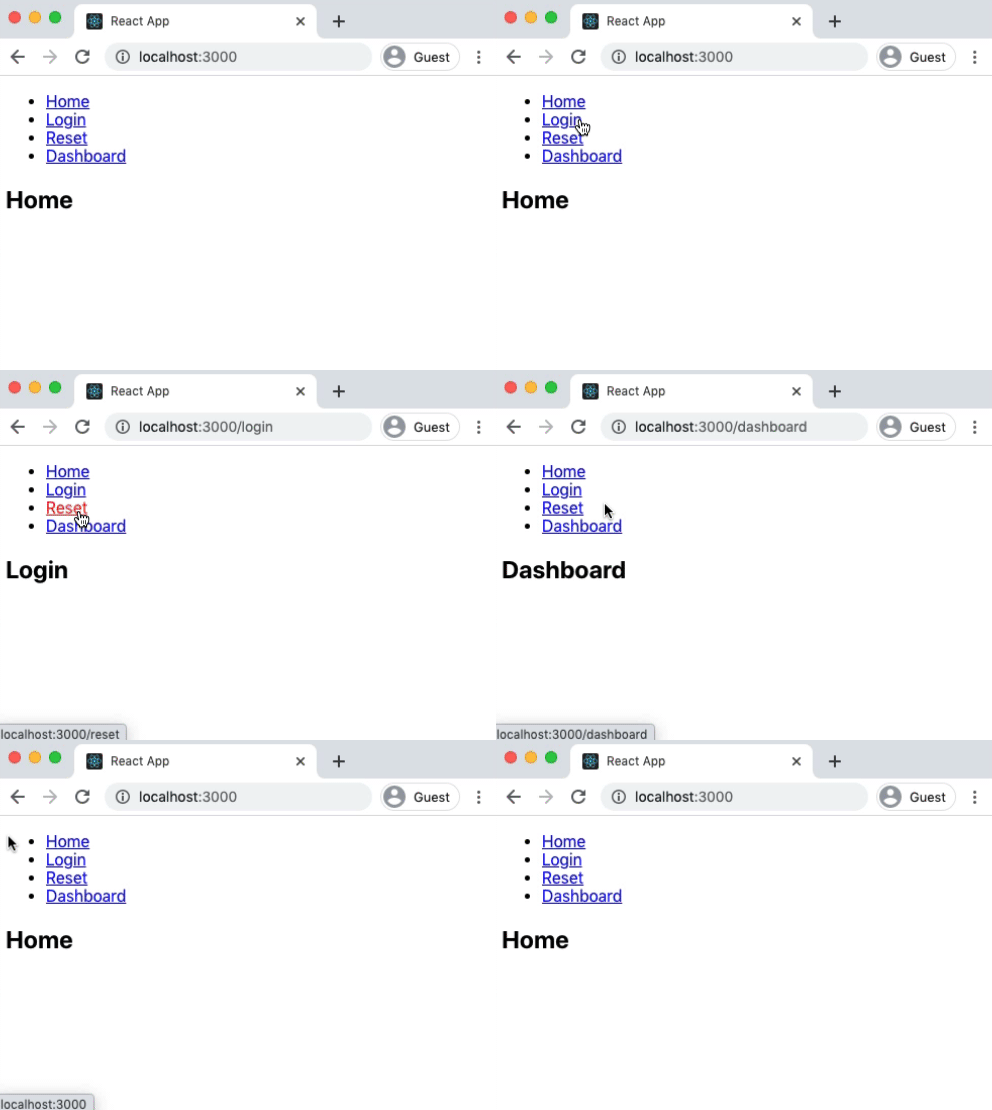
This is all the structure we need to start adding authentication.
In the Toolkit section of your Userfront dashboard, locate the instructions for installing your signup form:
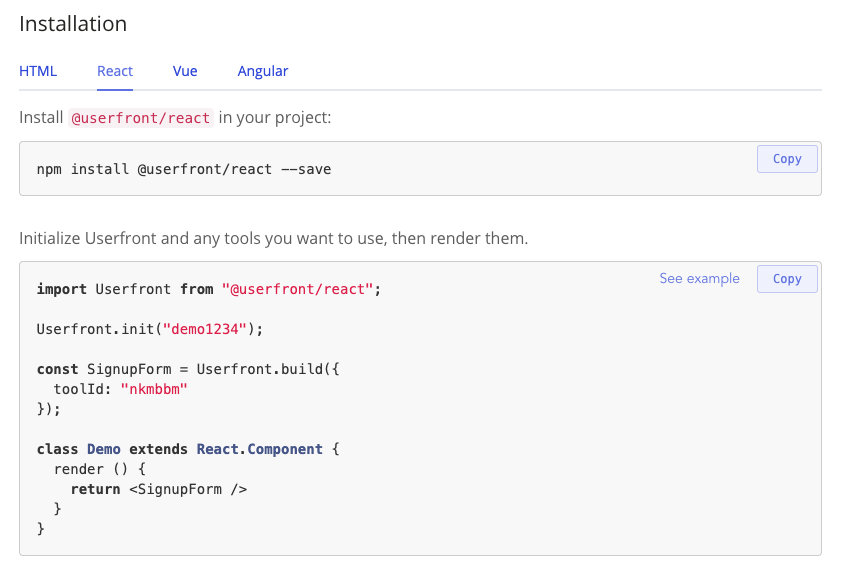
Follow the instructions by installing the Userfront react package with:
npm install @userfront/react --save
npm start
Add the signup form to your home page by importing and initializing Userfront, and then updating the Home() function to render the form.
// src/App.js

import React from "react";
import { BrowserRouter as Router, Routes, Route, Link } from "react-router-dom";
import Userfront from "@userfront/react";

Userfront.init("demo1234");

const SignupForm = Userfront.build({
  toolId: "nkmbbm",
});

export default function App() {
  return (
    <Router>
      <div>
        <nav>
          <ul>
            <li>
              <Link to="/">Home</Link>
            </li>
            <li>
              <Link to="/login">Login</Link>
            </li>
            <li>
              <Link to="/reset">Reset</Link>
            </li>
            <li>
              <Link to="/dashboard">Dashboard</Link>
            </li>
          </ul>
        </nav>

        <Routes>
          <Route path="/" element={<Home />} />
          <Route path="/login" element={<Login />} />
          <Route path="/reset" element={<PasswordReset />} />
          <Route path="/dashboard" element={<Dashboard />} />
        </Routes>
      </div>
    </Router>
  );
}

function Home() {
  return (
    <div>
      <h2>Home</h2>
      <SignupForm />
    </div>
  );
}

function Login() {
  return <h2>Login</h2>;
}

function PasswordReset() {
  return <h2>Password Reset</h2>;
}

function Dashboard() {
  return <h2>Dashboard</h2>;
}
Now the home page has your signup form. Try signing up a user:
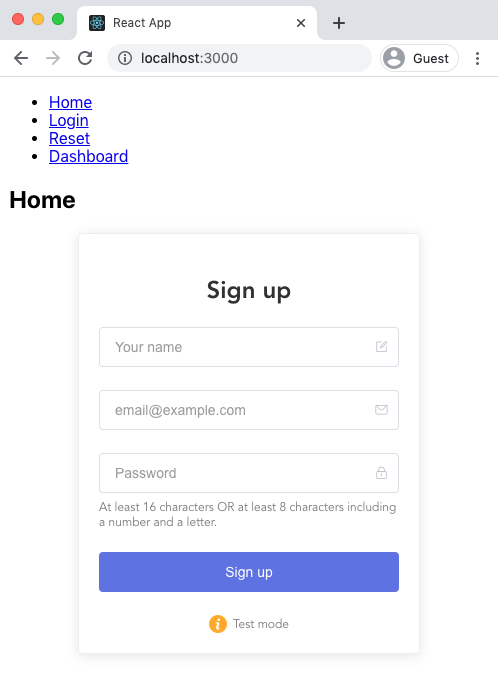
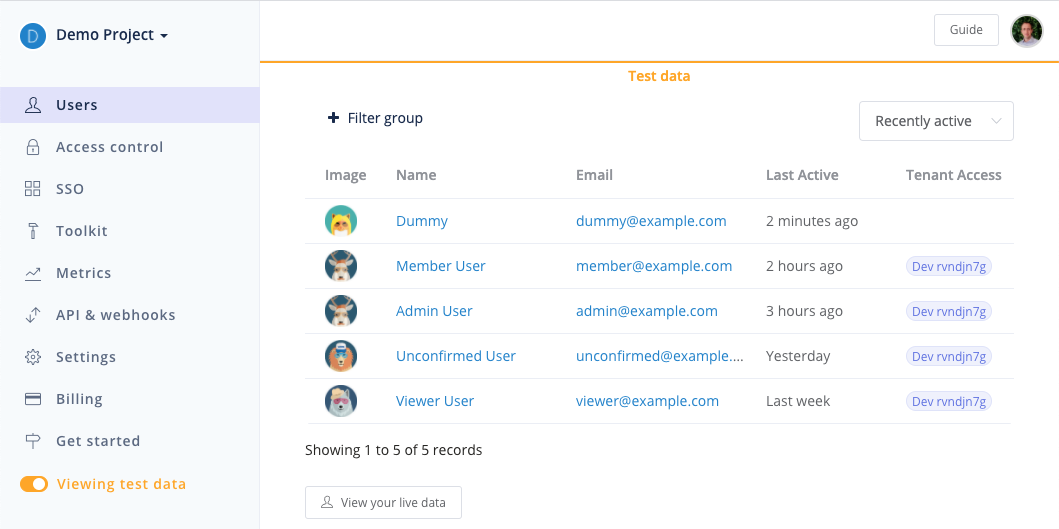
The form is in "Test mode" by default, which will create user records in a test environment you can view separately in your Userfront dashboard:
Continue by adding your login and password reset forms in the same way that you added your signup form.
And to allow a user to log out, we can call the built-in Userfront.logout method.
Update the Dashboard() method in src/App.js to add the login form, password reset form, and a logout button:
// src/App.js

import React from "react";
import { BrowserRouter as Router, Routes, Route, Link } from "react-router-dom";
import Userfront from "@userfront/react";

Userfront.init("demo1234");

const SignupForm = Userfront.build({
  toolId: "nkmbbm",
});
const LoginForm = Userfront.build({
  toolId: "alnkkd",
});
const PasswordResetForm = Userfront.build({
  toolId: "dkbmmo",
});

export default function App() {
  return (
    <Router>
      <div>
        <nav>
          <ul>
            <li>
              <Link to="/">Home</Link>
            </li>
            <li>
              <Link to="/login">Login</Link>
            </li>
            <li>
              <Link to="/reset">Reset</Link>
            </li>
            <li>
              <Link to="/dashboard">Dashboard</Link>
            </li>
          </ul>
        </nav>

        <Routes>
          <Route path="/" element={<Home />} />
          <Route path="/login" element={<Login />} />
          <Route path="/reset" element={<PasswordReset />} />
          <Route path="/dashboard" element={<Dashboard />} />
        </Routes>
      </div>
    </Router>
  );
}

function Home() {
  return (
    <div>
      <h2>Home</h2>
      <SignupForm />
    </div>
  );
}

function Login() {
  return (
    <div>
      <h2>Login</h2>
      <LoginForm />
    </div>
  );
}

function PasswordReset() {
  return (
    <div>
      <h2>Password Reset</h2>
      <PasswordResetForm />
    </div>
  );
}

function Dashboard() {
  const userData = JSON.stringify(Userfront.user, null, 2);
  return (
    <div>
      <h2>Dashboard</h2>
      <pre>{userData}</pre>
      <button onClick={Userfront.logout}>Logout</button>
    </div>
  );
}
At this point, your signup, login, and password reset should all be functional. Note that the login form on the /login page will automatically redirect to /dashboard if you are logged in.
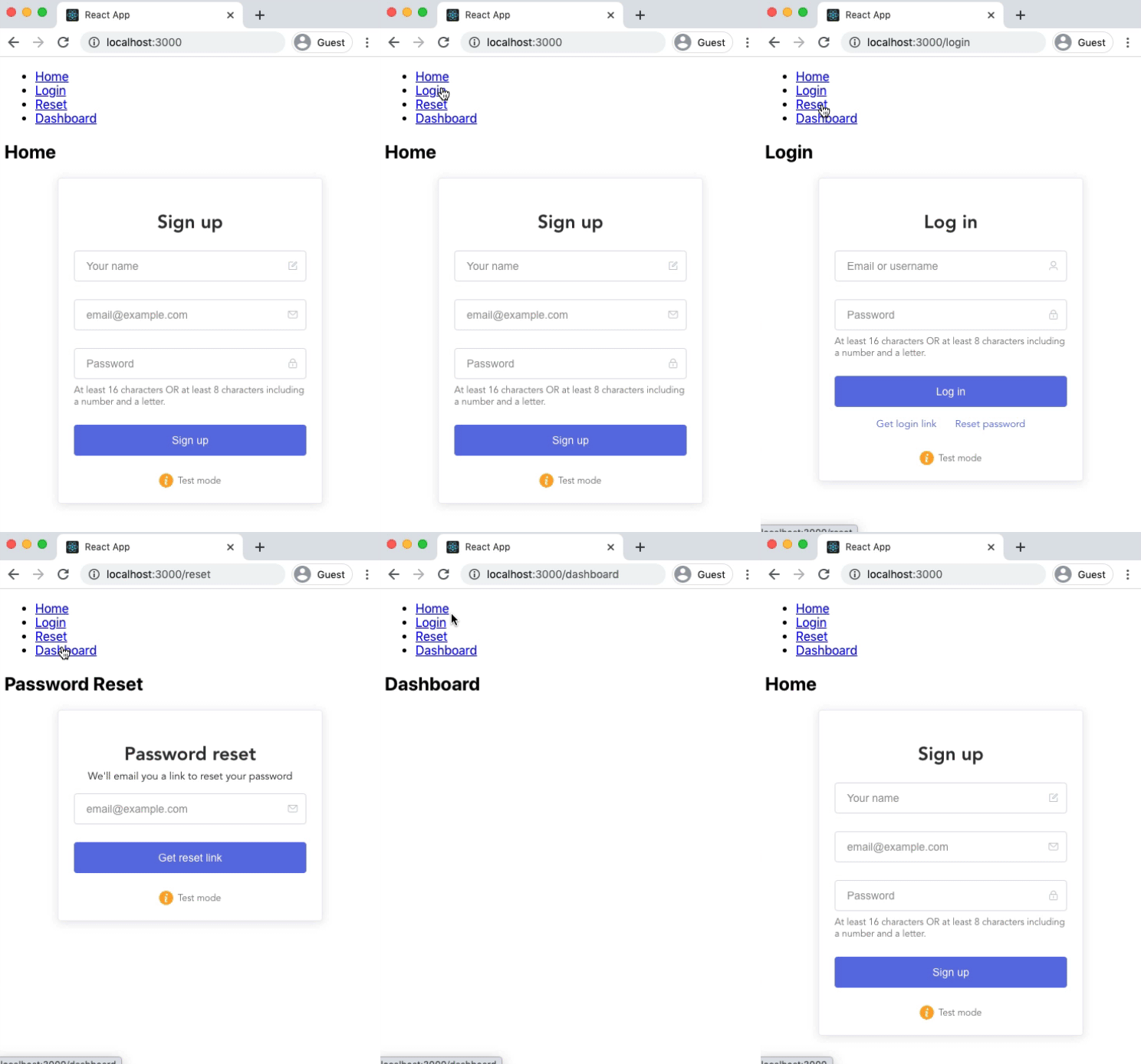
Your users can sign up, log in, log out, and reset their password.
Usually, we don't want users to be able to view the dashboard unless they are logged in. This is known as protecting a route.
Whenever a user is not logged in but tries to visit /dashboard, we can redirect them to the login screen.
We can accomplish this by wrapping the <Dashboard /> component in a <RequireAuth> component that checks to see if the user is logged in. When a user is logged in, their access token is available as Userfront.tokens.accessToken, so we check for this.
The RequireAuth component uses Navigate and useLocation from React Router to redirect the browser if no access token is present.
// src/App.js

import React from "react";
import {
  BrowserRouter as Router,
  Routes,
  Route,
  Link,
  Navigate,
  useLocation,
} from "react-router-dom";
import Userfront from "@userfront/react";

Userfront.init("demo1234");

const SignupForm = Userfront.build({
  toolId: "nkmbbm",
});
const LoginForm = Userfront.build({
  toolId: "alnkkd",
});
const PasswordResetForm = Userfront.build({
  toolId: "dkbmmo",
});

export default function App() {
  return (
    <Router>
      <div>
        <nav>
          <ul>
            <li>
              <Link to="/">Home</Link>
            </li>
            <li>
              <Link to="/login">Login</Link>
            </li>
            <li>
              <Link to="/reset">Reset</Link>
            </li>
            <li>
              <Link to="/dashboard">Dashboard</Link>
            </li>
          </ul>
        </nav>

        <Routes>
          <Route path="/" element={<Home />} />
          <Route path="/login" element={<Login />} />
          <Route path="/reset" element={<PasswordReset />} />
          <Route
            path="/dashboard"
            element={
              <RequireAuth>
                <Dashboard />
              </RequireAuth>
            }
          />
        </Routes>
      </div>
    </Router>
  );
}

function Home() {
  return (
    <div>
      <h2>Home</h2>
      <SignupForm />
    </div>
  );
}

function Login() {
  return (
    <div>
      <h2>Login</h2>
      <LoginForm />
    </div>
  );
}

function PasswordReset() {
  return (
    <div>
      <h2>Password Reset</h2>
      <PasswordResetForm />
    </div>
  );
}

function Dashboard() {
  const userData = JSON.stringify(Userfront.user, null, 2);
  return (
    <div>
      <h2>Dashboard</h2>
      <pre>{userData}</pre>
      <button onClick={Userfront.logout}>Logout</button>
    </div>
  );
}

function RequireAuth({ children }) {
  let location = useLocation();
  if (!Userfront.tokens.accessToken) {
    // Redirect to the /login page
    return <Navigate to="/login" state={{ from: location }} replace />;
  }

  return children;
}
Now, when a user is logged in, they can view the dashboard. If the user is not logged in, they will be redirected to the login page.
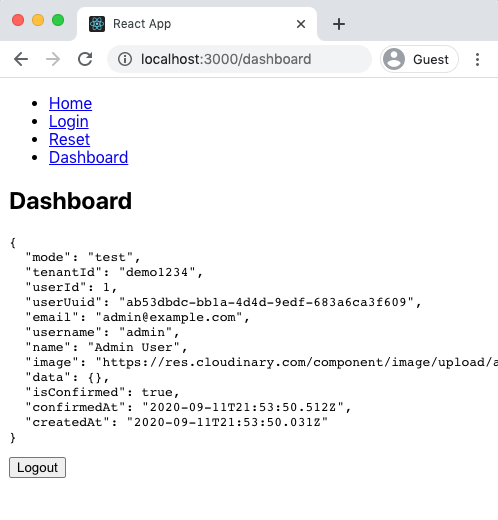
We now have a web application with signup, login, logout, password reset, and a protected route. Not bad!
We saw above that the frontend has an access token available as Userfront.tokens.accessToken when the user is logged in. This is a JWT access token that you can also use on your backend to protect your API endpoints.
There are many libraries to read and verify JWTs across various languages. Here are a few popular libraries for handling JWTs:
| Node.js | .NET | Python | Java |
Your React application can send the JWT access token as a Bearer token inside the Authorization header. For example:
// Example of calling an endpoint with a JWT

async function getInfo() {
  const res = await window.fetch("/your-endpoint", {
    method: "GET",
    headers: {
      "Content-Type": "application/json",
      Authorization: `Bearer ${Userfront.tokens.accessToken}`,
    },
  });

  console.log(res);
}

getInfo();
To handle a request like this, your backend should read the JWT access token from the Authorization header and verify that it is valid using the JWT public key found in your Userfront dashboard.
Here is an example of Node.js middleware to read and verify the JWT access token:
// Node.js example (Express.js)

const jwt = require("jsonwebtoken");

function authenticateToken(req, res, next) {
  // Read the JWT access token from the request header
  const authHeader = req.headers["authorization"];
  const token = authHeader && authHeader.split(" ")[1];
  if (token == null) return res.sendStatus(401); // Return 401 if no token

  // Verify the token using the Userfront public key
  jwt.verify(token, process.env.USERFRONT_PUBLIC_KEY, (err, auth) => {
    if (err) return res.sendStatus(403); // Return 403 if there is an error verifying
    req.auth = auth;
    next();
  });
}
Using this approach, any invalid or missing tokens are rejected by your server. You can also reference the contents of the token later in the route handlers using the req.auth object:
console.log(req.auth);

// =>
{
  mode: 'test',
  tenantId: 'demo1234',
  userId: 1,
  userUuid: 'ab53dbdc-bb1a-4d4d-9edf-683a6ca3f609',
  isConfirmed: false,
  authorization: {
    demo1234: {
      roles: ["admin"],
    },
  },
  sessionId: '35d0bf4a-912c-4429-9886-cd65a4844a4f',
  iat: 1614114057,
  exp: 1616706057
}
With this information, you can perform further checks as desired, or use the userId or userUuid to look up user information to return.
For example, if you wanted to limit a route to admin users, you could check against the authorization object from the verified access token:
// Node.js example (Express.js)

app.get("/users", (req, res) => {
  const authorization = req.auth.authorization["demo1234"] || {};

  if (authorization.roles.includes("admin")) {
    // Allow access
  } else {
    // Deny access
  }
});From here, you can add social identity providers like Google, Facebook, and LinkedIn to your React application, or business identity providers like Azure AD, Office365, and more.
To do this, create an application with the identity provider (e.g. Google), and then add those SSO credentials to the Userfront dashboard. The result is a modified sign on experience:
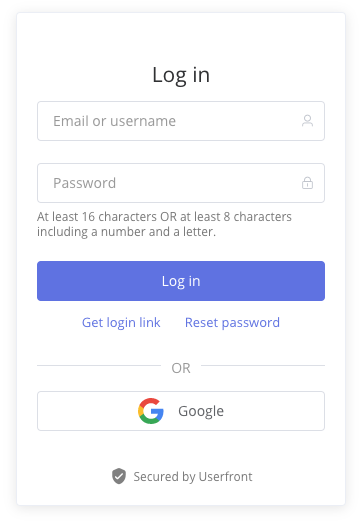
No additional code is needed to implement Single Sign On using this approach: you can add and remove providers without updating your forms or the way you handle JWT access tokens.