Desks and windows
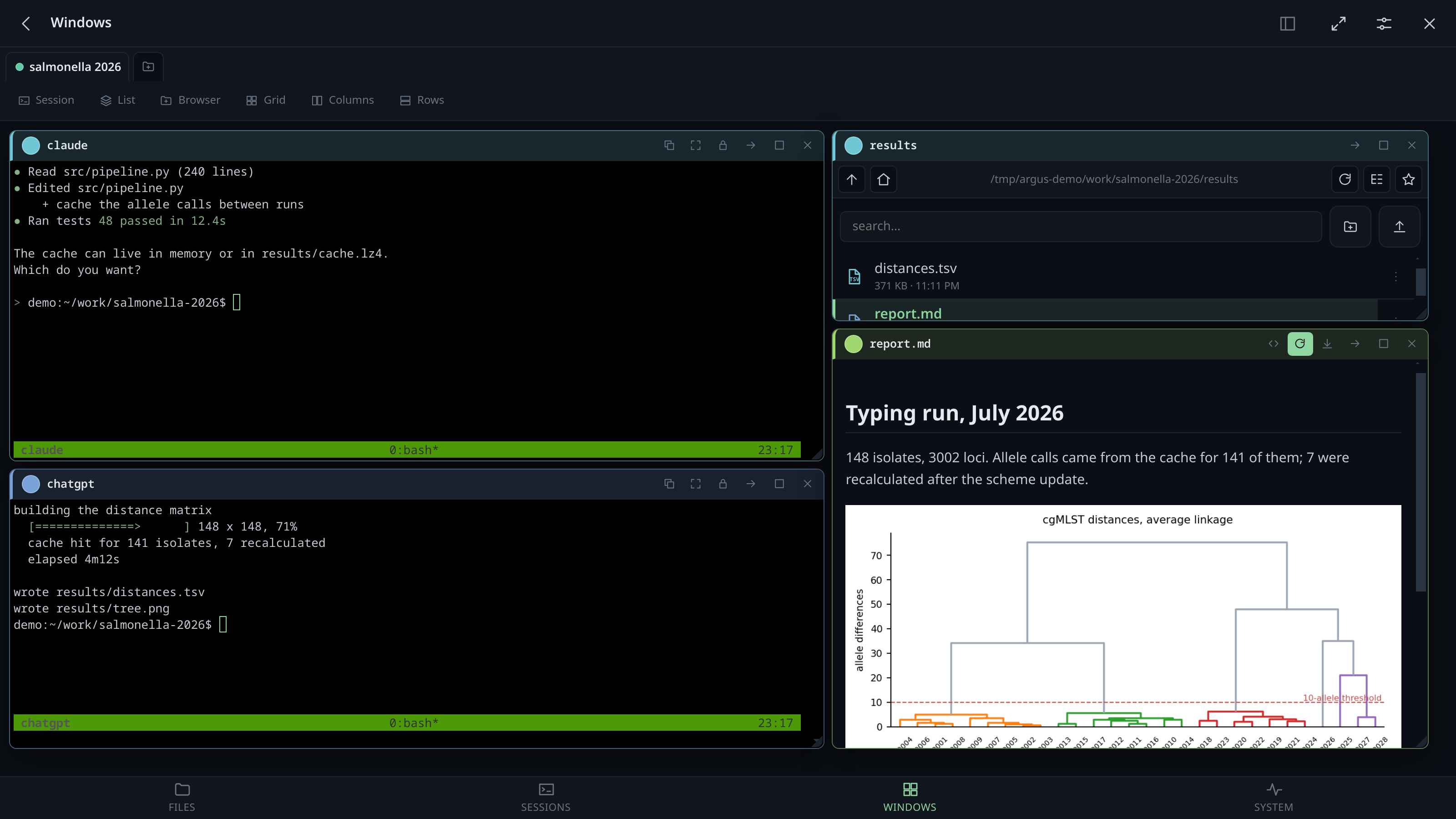
A desk is a set of windows that survives reloads. Terminals, file browsers, documents and proxied web pages, side by side.
Making one opens the list of tmux sessions straight away and takes as many as you tick — a desk is usually two or three sessions, and closing the sheet after each one meant opening it three times. The same sheet, from Session in the toolbar, adds more to a desk you already have.
-
Every tab says how many windows it holds — a quiet pill beside the name, not the accent one the link tray wears: that means something is waiting for you, and an inventory shouting the same way would cheapen it. It counts desks you have not opened this visit too, from the stored list, and it changes the moment a window opens or closes in any desk rather than only the one on screen.
-
Rename, colour, reorder by dragging the tab; pin the ones that stay, and they are held at the front however a drag ends.
-
Its own link:
#/wall?ws=3, copied from the tab menu. Opening it lands on that desk whatever was open last, on any device. -
The tab menu is on the tab: the ⋮ beside the name. Holding the tab and right-clicking it still open the same menu, but neither is a gesture anybody finds.
-
Its own folder: the tab menu's Choose the folder it opens in… decides where a file browser lands in that desk, and where a session started from it begins. Without one, the home directory.
It can be written with a placeholder —
{folder},{paper}, anything the desk's set defines — and what is stored keeps the placeholder, so changing the set moves the desk with it. The sheet shows what it resolves to while you type; if nothing fills it, browsers go home rather than to a folder with a brace in its name.The sheet offers the roots and the folders this desk's browsers are already showing — and above them a field for the one nobody can guess, which is usually the real answer: a desk is about one project, several levels down. Type it and folder names complete as you go; Tab finishes the word, or as far as the candidates agree, the way a shell does. The pencil beside a shortcut loads it into the field to carry on from. A folder that is not there is refused on the spot rather than quietly stored — a desk starting nowhere just sends every browser home with no explanation.
-
Windows can be moved or duplicated to another desk: the → button in the title bar, or by dragging the window onto another tab (hold Ctrl to duplicate).
It answers two questions, and it is ruled into two to say so. On the left, flat, what is
on the desk: Session, Windows, Links, Prompts, Browser — the ones that open a window or
count what is already there. Then a divider, and on the right the ones that say how it is
arranged, gathered into controls rather than left loose: Grid │ Columns │ Rows and
Custom │ 🖫.
Nine items of equal weight in a flat row read as an undifferentiated list, and on a phone whichever ones happened not to fit scrolled away. Now what scrolls off is a whole group.
Custom is a fourth arrangement beside the three the machine picks, and it behaves like them: press it and you are in it, and it stays lit while you are. It restores the desk rather than only the geometry — a window closed since comes back, a window opened since goes away, the one you were working in comes back on top — with six seconds to undo it.
Saving is the smaller button held inside the same control, because saving is not a fourth way to arrange a desk; it is something you do to this one. It writes down what is on screen, over whatever was there before, and goes out when there is nothing to write — when what you are looking at is already what is saved.
A dot on the corner means there is something saved here, which is the question you ask from across the room. Nothing saved: Custom is dimmed and the save button is the only live thing in the control. Saved but you have moved on: outlined, with the dot. Saved and you are in it: lit, and the tiling button goes out, because two claims of "this is the arrangement you are in" would be one too many.
It was two buttons of equal weight, Keep and Mine, and equals raise a question the toolbar could not then answer: press Grid, then Keep, and Grid is still lit while the thing you just saved sits behind a button that looks exactly as it did a moment ago. Below 560px wide the tiling buttons drop their words — their icons are the drawing of a grid, of columns, of rows — which buys back more than the outlines cost: measured, 750px of toolbar on a 390px phone against 802px before any of it.
-
Magnetic: windows snap to each other and to the edges of the desk, with a preview of where the drop will land — including into the gap between two windows, which it fills exactly.
-
Shared edges are splitters: widen one column and the next gives up precisely what the first took, clamped so neither is squeezed below its minimum.
-
And a column gives way as a column. Push one tall window against two rows stacked beside it and both rows give way, even when only one of them is actually touching the edge you are dragging — different widths, or a window not quite tall enough to reach the second row, used to leave the other one exactly where it was. What makes them a column is the outer edge they share and the fact that they are stacked, so the run is followed out as far as it goes. Each keeps whatever inset it had: the column gives way, it is not tidied up. Windows that share neither the edge nor the column are left alone.
-
Double-click the title bar to maximise, again to go back to the exact size it had before — remembered across reloads, not just for the session.
-
Grid, Columns, Rows arrange everything at once. They are things you do, not modes the desk stays in: closing a window afterwards does not re-tile anything.
-
Keep and Mine are the arrangement that is yours, at the end of the row of the ones the machine picks. Keep writes down how the desk looks right now — every time, over whatever was there before. Mine puts it back: the same windows, the same sizes and places, the same one in front. Mine appears only once there is something to go back to.
Two halves of one control, ruled together, rather than one button that changes its mind. A single button that saved the first time and restored ever after left no way to save again except a menu, and a menu is not where your hand is when you have just finished moving windows; two loose buttons in a row of flat ones read as two unrelated things.
It restores the desk, not only the geometry: a window you closed since comes back, and a window you opened since goes away, because "where I had them" means little if half of them are missing and three others have appeared. Nothing is lost — closing a window never touches the tmux session behind it — and the message that follows offers Undo for six seconds.
The desk's ⋮ menu carries the same two, and Forget the saved arrangement as well.
-
A narrow window folds its title bar. Below 520px wide, the buttons move into a ⋯ and the name, the
i, that and Close are left — which is what a phone always needs and what a small window on a big screen needs just as much. It was 340px once, which on a phone never triggered at all: a window there is about 380 wide, so nine buttons stayed on the bar and ate the session's name. The menu is read off the bar itself, so a window carrying buttons of its own needs no special case. See On a phone. -
A desk can be put away. The
_on its tab — beside the cross, because those are the two ways a desk leaves the strip and only one of them is final — or Put it away in its menu. It leaves the strip for the rail — between the places the app can go and the windows you have open, with its colour, its name and how many windows it holds. Clicking it brings it back and takes you there: parking is somewhere to leave a desk, not a state it lives in, and a desk you use but cannot find in the strip is worse than a crowded strip.Three things make it a park rather than a hiding place. It stays visible wherever you are — the windows below vanish when you leave the wall, rightly, but the reason to glance at a parked desk is that something in it might want you. It wears the same halo a tab does when a session in it is asking, worked out from the desk's own list rather than from windows on screen, because a desk parked since the page loaded has no windows on screen at all. And you cannot put away the last desk left — the desk you are standing on parks like any other, stepping you onto whichever one is left in the strip first.
-
Or put every other one away at once. The square icon beside
_, or Put the others away in the same menu: everything open except the desk you are looking at goes to the rail in one press, for the moment six open desks is five too many and only this one is the point. Same guard as parking one by hand — nothing to offer with only one desk already open — and the same rail, the same one click back. -
A window can go behind the others. Everything in a desk raises — clicking it, typing in it, opening something in it — and nothing lowered, so getting one out of the way meant clicking every other one in turn. The button on the title bar renumbers the stack with this one at the bottom and everything else in the order it was.
-
Opening something that is already open raises it. Click a path whose file is already in a window and that window comes to the front and flashes, instead of nothing at all happening because it was behind three others. Nothing is duplicated.
-
Windows lists every window in the desk, says which are hidden corner-to-corner behind another or have drifted off the edge, and brings the one you pick to the front. It carries the count of them on the button. For a terminal it also says where that session actually is — its tmux working directory, which is written down nowhere else and is what a hand-over sentence points at.
The bottom navigation carries one too: how many tmux sessions exist, wherever you are in the app. It turns amber while one of them is waiting for you, which is the difference between "there are five" and "one of them has stopped and wants something".
What an agent produces is mostly references: where it wrote the report, what port it is serving on, which file failed. They are the useful part of the output and the part that scrolls away — by the time you have read the sentence it is four screens up, and finding it again means scrolling back through the reasoning to get at the one line that pointed somewhere.
Links in the desk's toolbar opens the tray, and carries a count of what is waiting in it. The count moves as things are printed whether or not the tray window is open, which is the point of having it on the button — and it belongs to the desk you are on, so switching tabs shows that desk's own number rather than the last one's. Every absolute path and every URL that goes past in that desk's terminals lands in it, and clicking a line opens it the same way clicking it in the terminal would: a file in the viewer, a folder in a browser, a URL in a tab — a loopback URL through the proxy, like anywhere else. Ctrl (⌘ on a Mac) + click on a line does what it does on the terminal link it is a record of: the raw file or the raw URL, in a new tab, none of Argus's own chrome around it.
- Only what will still mean something later. An absolute path or a URL. A relative path means nothing once the pane that printed it has moved on, so it is left alone.
- Only what is really there. Each path is checked against the filesystem before it earns a line, so what collects is a short list of things that open rather than everything that looked like a path. A terminal prints a lot of the latter.
-
One line each, most-mentioned first. A path an agent prints in every message is
worth seeing without scrolling more than whichever happened to come up last, so a repeat
counts against the line it already has — shown as
×3on the row — rather than earning a second one; a tie (everything mentioned once, the ordinary case) falls back to newest first. The session it came from is named beside it when more than one is feeding the tray. - Kept with the desk, across reloads, up to 200 lines. Drop one with the ✕ on its row, or empty the whole tray from the button in the title bar.
- A filter at the top, because a tray with thirty things in it is a list you read rather than a thing you click. It says 3 of 5 while it is narrowing, and clearing the box brings everything back.
- Or let it empty itself. Empties after at the top of the tray takes 1, 3, 5, 10 or 30 minutes, or never. What it does is drop anything older than that span rather than wiping the lot on a timer — the same tidiness, without a link you were reaching for disappearing a second after it arrived. The choice belongs to the desk.
A full-screen program that paints over itself rather than scrolling is read as it stands on screen, so what it shows is caught too, without repeating.
Opening it is only one of the two things you want. The other is to hand the path to something already open, and for that you drag the line onto a window:
- onto a terminal it is typed into that session, quoted the way a shell wants it and with a trailing space. No Enter: deciding what to do with it is the whole reason you handed it over. This is the gesture for telling an agent which file to look at.
- onto a file browser that folder is shown; a file shows the folder holding it, with the file marked.
While you drag, the window under the pointer lights up and the label says what dropping would do, so nothing happens by surprise. On a phone the drag begins by holding the line rather than by moving it, so the list still scrolls with a finger.
Each line also has a copy button, for when the clipboard is where you wanted it.
Only what arrives while you are attached. The history from before lives in tmux's own scrollback, not in the browser's terminal, so a path printed yesterday is not there. Scrolling back through it in copy mode repaints the pane, and what is repainted is read.
Which desk you are on stays in this browser. The desks themselves and everything on them live on the machine and follow you to any device — that is the whole point of keeping the workspace there. Which one you are looking at right now does not: two devices are never on the same desk, the phone watching a build while the laptop reads a paper, so sharing it would mean whichever moved last dragged the other one with it. Found the hard way, by a second browser quietly moving the first one mid-sentence.