Repository navigation
Installation
Read Compatibility first. Back up your data and configuration, save your work and close other applications: Setup restarts the desktop while applying some components. Run Setup as your normal desktop user, not with sudo.
Download the appropriate xplasma-plus-1.0.1-installer-…tar.gz from the release page. Use the full installer asset, not GitHub's automatically generated Source code archive.
For verification, download SHA256SUMS, SHA256SUMS.sig and xplasma-release-key.pem from the same release into the folder containing the installer. Open a terminal there and run:
openssl pkeyutl -verify -pubin -inkey xplasma-release-key.pem -rawin -in SHA256SUMS -sigfile SHA256SUMS.sig
sha256sum --ignore-missing -c SHA256SUMS
The signature should verify and your downloaded installer should report OK. Stop if verification fails. To establish trust in the signer, compare the public key with a previously trusted release key; downloading the key beside the archive alone does not independently establish trust.
- Extract the tar.gz in your file manager.
- Open the extracted XPlasma-Plus-1.0.1 folder.
- Launch Start-Installer.desktop. If your desktop will not execute it, open a terminal in that folder and run
sh ./install.sh. - KDE may request administrator authentication to install Linux dependencies or selected login/boot components. Enter your password only in the local authentication prompt.
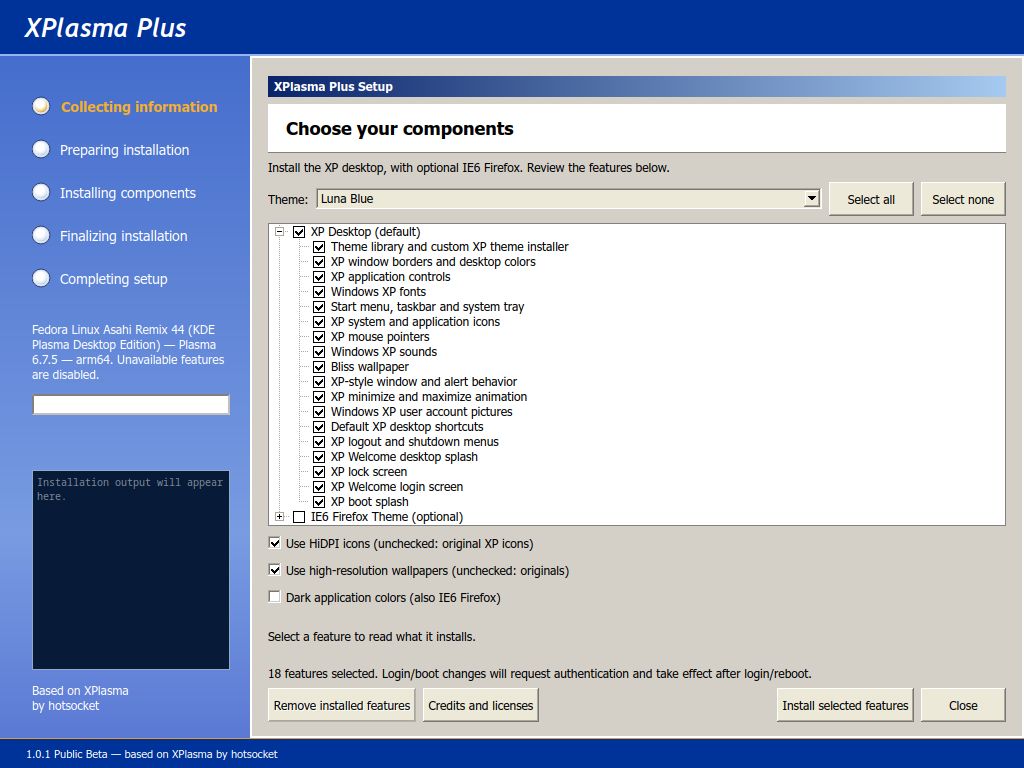
The screenshot is a preview of Setup on Asahi Linux; detected capabilities and available features vary by computer.
- XP Desktop (default) selects the desktop features. Expand the group to inspect individual components.
- IE6 Firefox Theme (optional) installs the browser replica separately. Inspect its default-browser sub-option if you want to keep your existing default browser.
- Theme chooses the initial visual style, such as Luna Blue, Royale or Zune.
- Use HiDPI icons selects the higher-resolution artwork. Uncheck for original XP artwork. Both choices retain the same mapped icon names and KDE-specific replacements.
- Use high-resolution wallpapers selects the larger original-composition photos; uncheck for the original files.
- Dark application colors (also IE6 Firefox) enables the dark application palette.
Select a feature to read its description. Disabled features show why they are unavailable. The beta does not include optional XP applications/games, custom tray menus or Codex additions.
Click Install selected features, review the close-programs prompt and continue. Complete any administrator prompts. The output panel below the left progress bar shows dependency installation, native builds and other work.
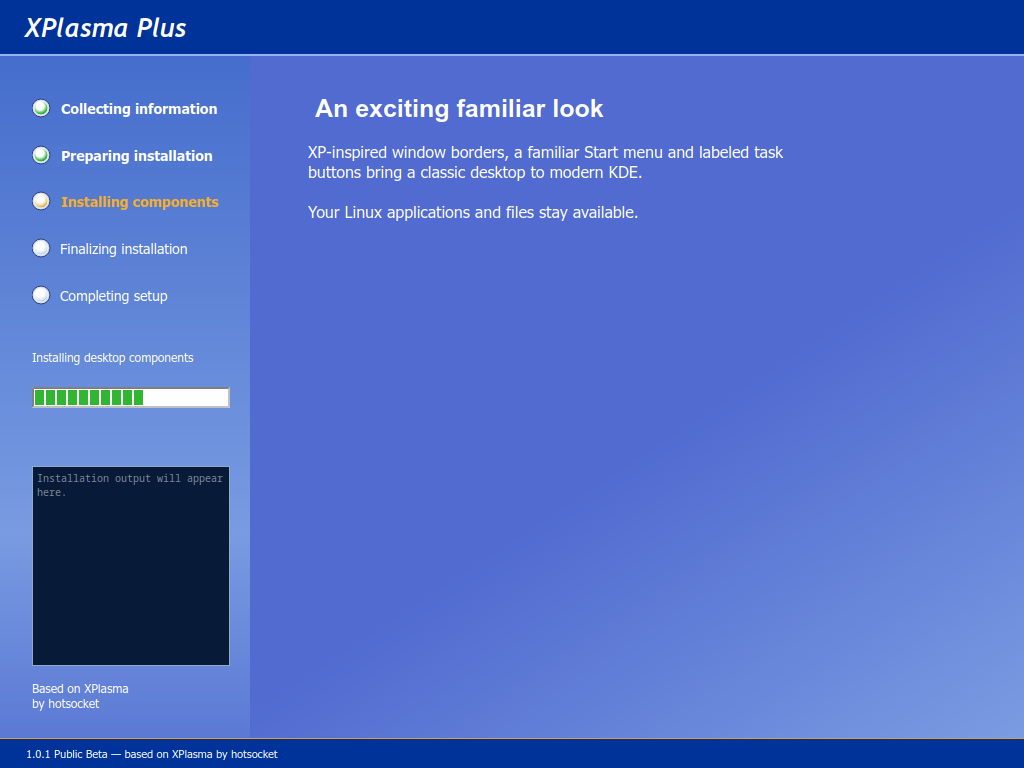
This image illustrates the progress layout, not a recording of a real install. Build time varies with CPU, internet speed and whether matching prebuilds are available. Keep Setup open until completion or recovery finishes. If it fails, preserve the output and follow Troubleshooting.
After successful installation, close and reopen applications, then log out and back in to refresh native components. Setup does not log you out or reboot automatically. Reboot when testing boot-screen changes. Keep the extracted installer for upgrades or removal.
Next: Customize your desktop or Firefox.