Repository navigation
Desktop Customization
Open XPlasma Plus Properties from Start; searching for “XPlasma” can help find the entry. You can also right click on the desktop and select it from the context menu. Make changes, then click Apply to apply them without closing Properties, or OK to apply and close.
On Themes, choose a preset. On Appearance, choose the window/button style, color scheme and font size. Theme presets can change several settings together; review the Pointers and Sounds tabs if you want independent choices.
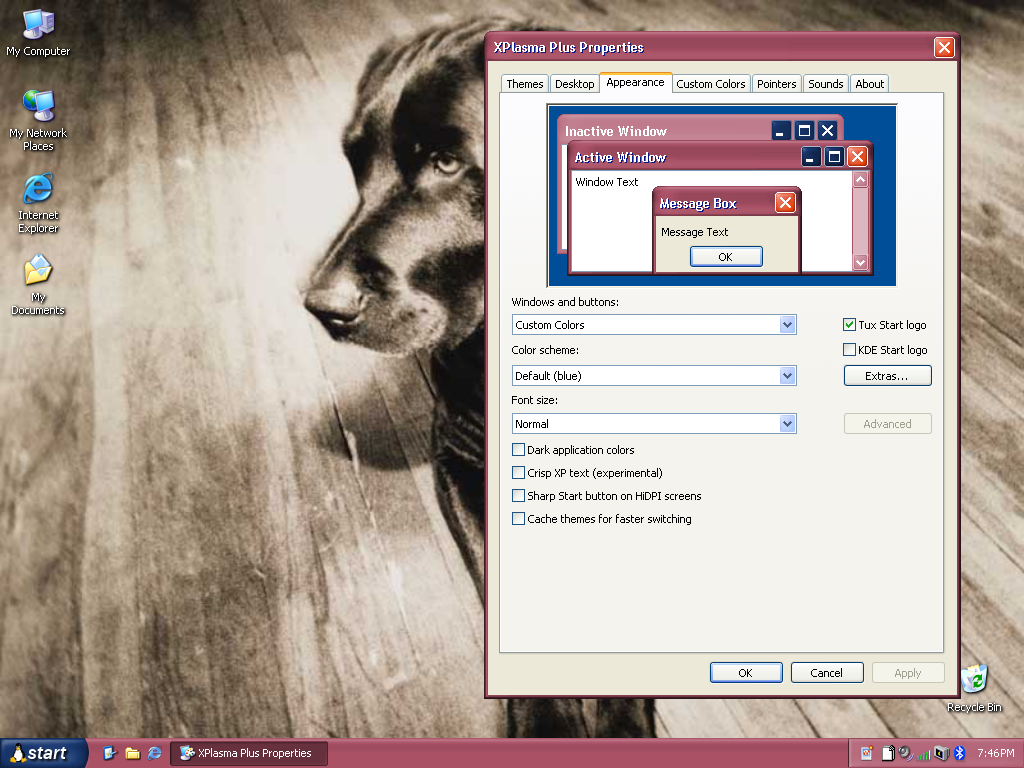
- Open Custom Colors and review its experimental-feature notes.
- Enable the desired custom-color controls, choose your colors and inspect the sample.
- Apply the result. Use Themes → Save As... to keep a named preset.
Luna is the only theme extensively tested with Custom Colors. Other themes are experimental. When custom colors are enabled for Royale, Noir, Embedded or Zune, generation uses the common Royale base. The original stock themes keep their distinct appearance when custom colors are disabled. Title-button fringe pixels follow the caption color rather than the button face.
Live theme colors are also experimental. Start with a simple preset and change one setting at a time when diagnosing a visual problem.
- Open Appearance.
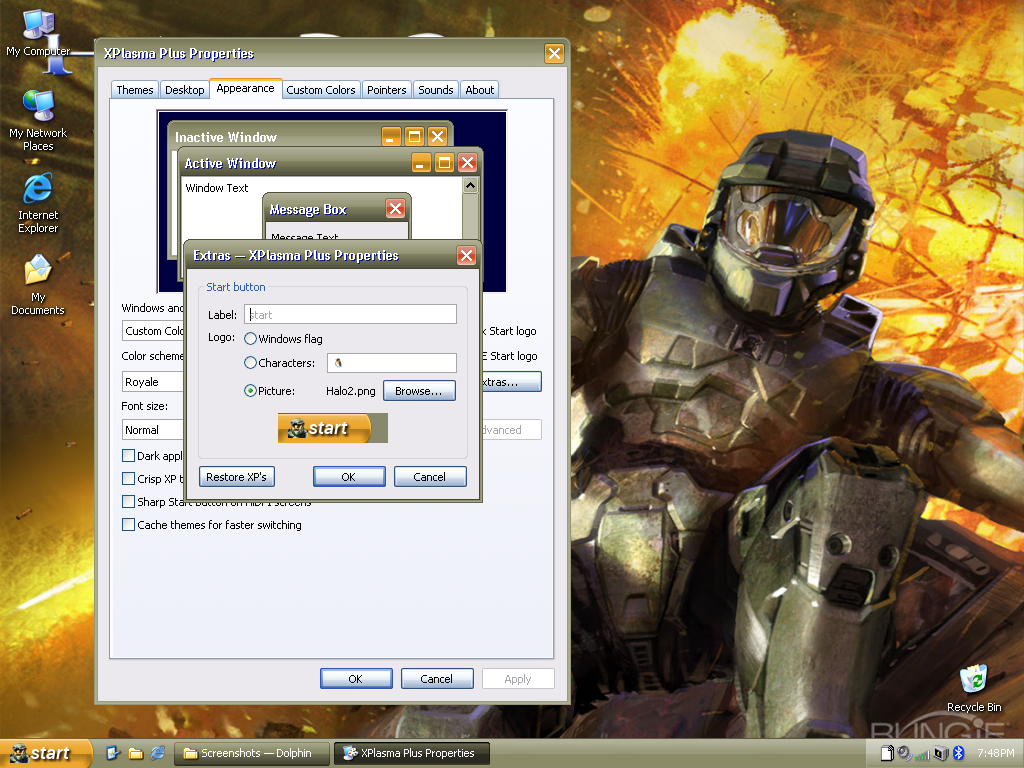
- Use Tux Start logo or KDE Start logo for a built-in alternate logo.
- For a custom logo or label, open Extras....
- Choose Windows flag, Characters, or Picture; for a picture, click Browse... and select your image. Edit Label if desired.
- Confirm the Extras dialog and click Apply in Properties.
Restore XP's in Extras restores the default label/logo settings. Keep your custom image available if you plan to edit or reapply the preset later.
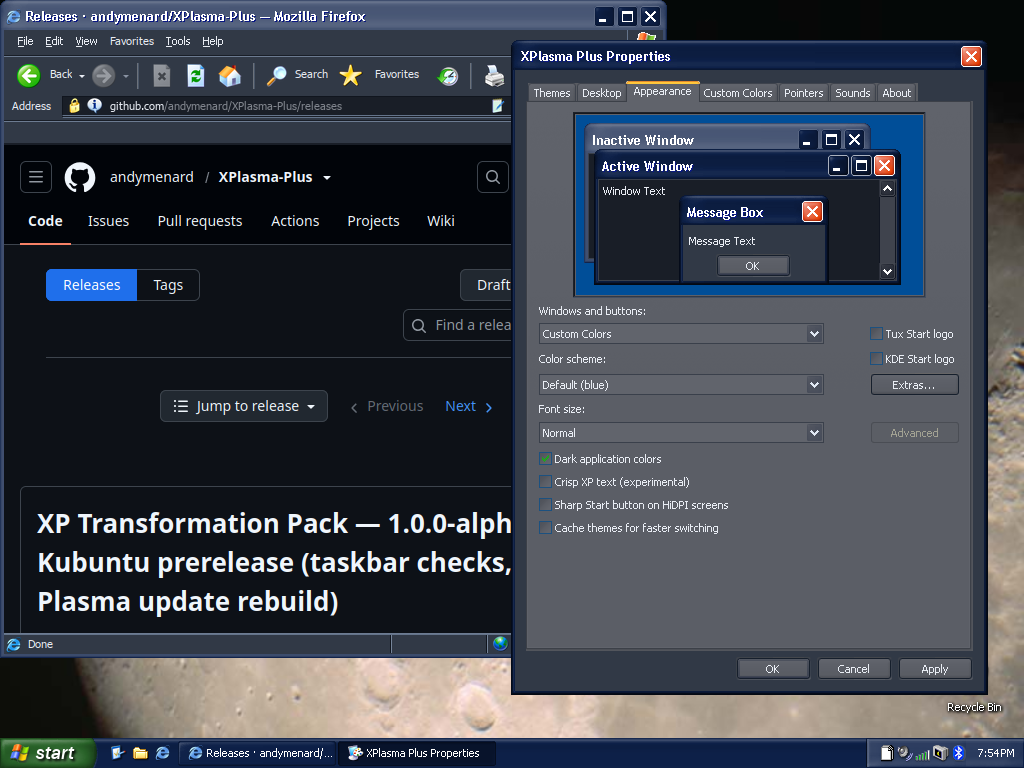
On Appearance, check Dark application colors, then apply. It changes application/font colors while retaining the selected shell theme. The optional IE6 Firefox theme follows this setting; restart the themed browser if it has not refreshed. Third-party applications and websites may have their own appearance settings.
On Desktop, choose a bundled background or browse for your own. Position offers Center, Tile, Stretch and Fill. Fill preserves proportions and crops the edges to fill the screen; Stretch can distort the image. Stock XP wallpapers appear before the additional collections.
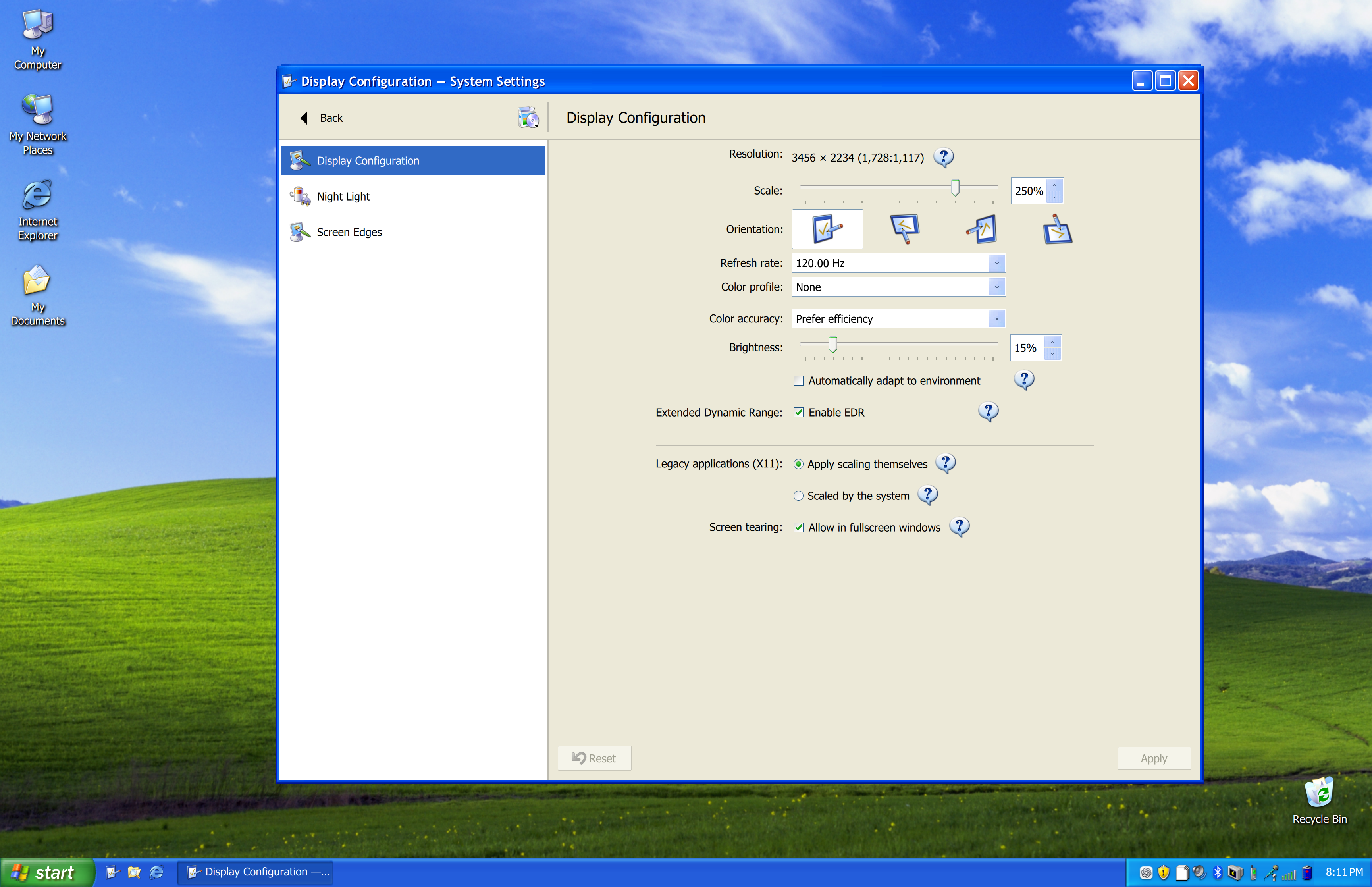
Set display scaling in KDE System Settings → Display Configuration. HiDPI icon/wallpaper choices belong to Setup; Sharp Start button on HiDPI screens belongs to Properties. They control different things.
Crisp XP text (experimental) is optional. It aims for pixel-style interface text, including optical choices for fractional scaling, but rendering can differ by app. Leave it off if it causes clipping or poor readability; reopen affected apps after changing it.
When first applying a theme, Properties can ask whether to cache generated themes. Cache themes for faster switching on Appearance lets you change this choice later. Caching trades disk space for faster repeated application; it is not required. Managed generated looks and disposable caches have retention limits and protect active themes and recovery information; this is not a hard limit on every file in your theme library. Do not manually delete theme/state folders to clean up.
On Themes → Install Theme..., choose Theme file or archive... for a supported XP .theme, .msstyles or archive, or Extracted theme folder... for a folder. Follow the import result, choose the imported entry and apply. These are XP visual styles, not Windows executables; an installer .exe may need its contents extracted separately. Use files from sources you trust and respect their licenses.
To remove a removable saved/imported entry, select it on Themes and click Delete, then read the confirmation. Built-in/protected entries cannot be deleted there. Shared artwork may be retained so other presets and the current desktop continue working; deleting an entry is not the same as purging all related assets.