Repository navigation
Lock Login and Boot
These are separate parts of the desktop. Select the desired features in Setup; unsupported components are disabled. Login/boot integration may require administrator authentication.
| Screen | When it appears | How to test |
|---|---|---|
| XP lock screen | Lock the running Plasma session, including lid-close locking when configured | Save work, then use KDE's Lock action; unlock with your normal credentials. |
| XP Welcome login screen | The SDDM greeter before starting a user session | Save work and log out; the system must be configured to use SDDM. |
| XP Welcome desktop splash | While the Plasma session starts after authentication | Log out and back in. |
| XP boot splash | Plymouth during system boot | Reboot after Setup and the boot-image rebuild finish successfully. |
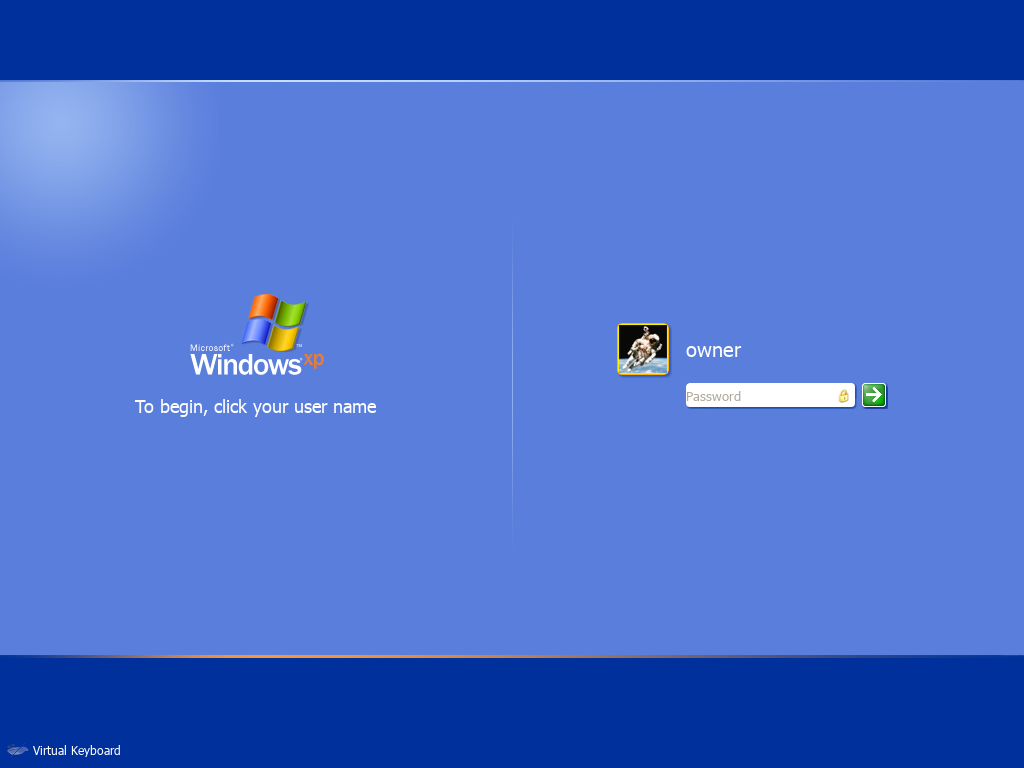
This is a capture of the installed theme in KDE's test mode. The account picture follows the user picture supplied by KDE; XP account pictures are also installed for selection in System Settings → Users. Change the account avatar there rather than expecting the wallpaper to control it.
A lock screen keeps your applications running. A full logout ends that session. On systems with other logged-in users, session switching can expose another session's lock screen; do not assume every password screen is SDDM. Include which action you used and whether other sessions exist when reporting a mismatch.
The XP Welcome login integration is for SDDM. A different display manager will not use an SDDM theme. Setup manages selected system components through the local administrator prompt. Avoid manually switching display managers solely to follow this tutorial; report the detected setup if the component is unavailable or does not apply.
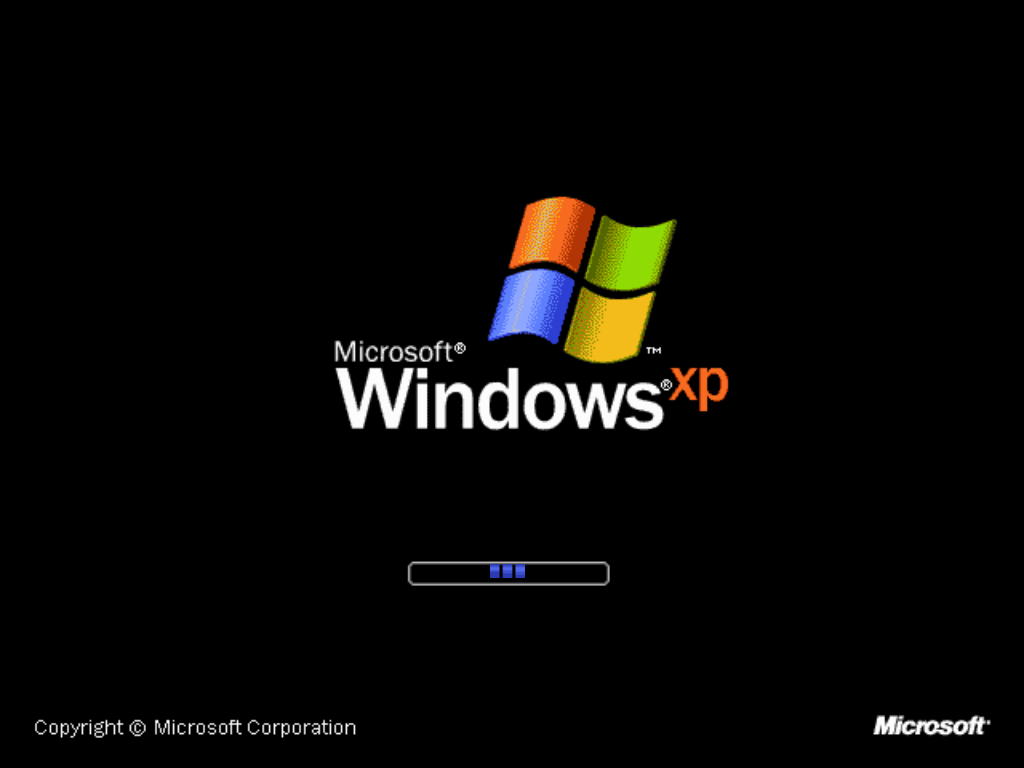
This image is a preview rendered from the bundled artwork and the Plymouth theme's layout, not a photograph of a boot. Real placement/display depends on firmware, graphics initialization and resolution. The blue blocks animate during boot.
An existing splash-enabled Plymouth setup using dracut or update-initramfs is required. Setup does not automatically alter bootloader arguments or force graphics drivers. Finish any administrator prompt and wait for successful boot-image generation before rebooting. If you see only text or a black screen, use Troubleshooting; the repository has a narrowly scoped Intel/Kubuntu workaround, not a universal boot fix.