Repository navigation
QR code (EN)
YaBS prints an EPC QR code ("GiroCode", "Zahlen mit Code") on invoices. Your customer scans it with a banking app, and the SEPA transfer is filled in: recipient, IBAN, BIC, amount and reference. No typing, no typos.
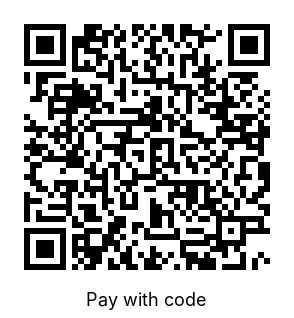
The example contains:
BCD
002
1
SCT
COBADEFFXXX
Müller & Söhne GmbH
DE89370400440532013000
EUR1234.50

Invoice RE-00042
| Field | Taken from |
|---|---|
| Recipient | Company info: business name (otherwise first name and name) |
| IBAN, BIC | The bank account assigned to the contact; otherwise the account of the company info |
| Amount | Gross amount of the invoice, in EUR |
| Reference | Type and number of the document, e.g. Invoice RE-00042
|
The code follows the EPC standard (EPC069-12, version 002, UTF-8).
- For invoices, part payment invoices and deposit invoices.
- Only if the company info has an IBAN (Control Panel → Company Info).
- For other documents (offers, orders, reminders, ...) or without an IBAN, the placeholder is removed from the document.
Works with ODT templates (LibreOffice / OpenOffice Writer):
- Open your template in Writer and insert any picture (Insert → Image) where the code should be.
- Right-click the picture → Properties → tab Options → Name:
QRCode.img - Set the size you want (about 3 × 3.2 cm; the code is square with the caption "Pay with code" below).
- Save the template and upload it again in Control Panel → Template Manager.
On export, YaBS replaces the picture with the QR code of the invoice. The template DE-Yabs-2.0.odt that comes with YaBS (new installations) already contains the code below the payment terms.
Deutsch: QR-Code
