Table
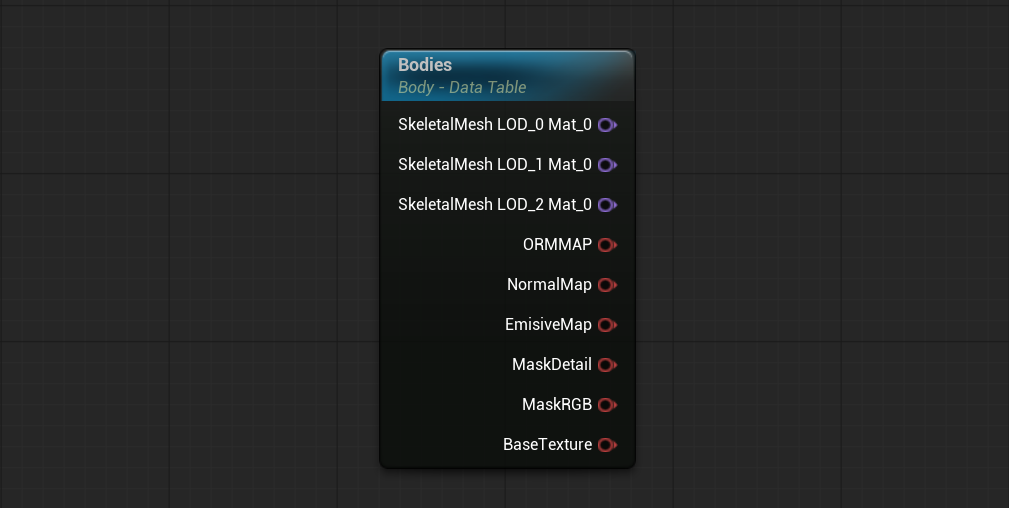
Automatically exposes a new option parameter where each option is a row of a Data Table. All pins act as a Switch node controlled by an automatically generated Enum Parameter.
Table Properties:
-
Parameter Name: Name of the exposed parameter.
-
Add None Option: If checked, a new "None" option will be automatically added to the Parameter's options. A "None" option can be considered as a new Table row with all the asset columns empty.
-
Table Gathering Mode: Source where the node gathers the data.
- Data Table: The data will be gathered from the provided Data Table asset.
- Struct + Asset Registry: Provide a Struct asset; at compile time, all Data Tables using it as Row Structure are gathered, as if their rows were merged into one large table.
-
Filter Paths: If Struct + Asset Registry is the method selected, users can specify where the asset registry can search the references of the struct. If there is no path specified, the asset registry will look through all the assets of the engine.
-
Default Row Name: Row used as the parameter's default value. If unspecified, the first row is used — or the auto-added "None" option, which is placed first.
-
Compilation Restrictions:
-
Version Column: When the CO has a Version Bridge asset, this selects the column holding each row's version, controlling which rows are compiled.
-
Compilation Filter Column: Specifies a column to determine whether a row will be compiled or not. If the value (or values) of a row matches the Compilation Filters of the Table Node, the row will be compiled.
-
UI:
-
Options UI Metadata Column: Select which column will be used as UI Metadata for the parameter values generated by the node.
-
Options Thumbnail Column: When the UI Thumbnails option of the Preview Instance tab is checked, a thumbnail appears next to each parameter value in the combo-box, taken from the texture or asset in the selected column's row.
-
Gather Tags: If checked and the data table contains a gameplay tags container column, these tags will be added to the UI Metadata tags. These tags can be used to filter parameter values in the Parameter Instance tab.
Layout Editor:
-
Mesh Section: Mesh Section to edit in the layout editor.
-
UV Channel: UV channel from the mesh section to edit in the layout editor.
-
Layout Editor: Widget that allows users to edit the UV layout of the previously selected Mesh Section. The UVs previewed in the widget are the UVs of the Default Mesh (the one set in the Structure Asset). You can find more information on how the layout editor works in the UV Layout Properties section.
Note
Supported Column Filter Types are: Float, Integers, Names, Strings, Text, Colors and Bools.
Note
Not all columns generate a pin. Some types that do not are: Anim Instance, Gameplay Tag Container, Mutable Param UI Metadata, Ints, Bools...
To create a Table you need these two assets:
-
Struct: Determines the Data Table structure. Asset required when creating a new Data Table.
-
Data Table: This asset stores the values of the rows.
The default value of each column in the Struct is used as that column's Reference Asset, defining the settings shared by every row in the column. Settings used by each type:
-
Skeletal Mesh / Static Mesh:
- Number of LODs
- Number of Materials
- Mesh section structure (Mesh sections must be in the same position)
-
Texture:
- Texture Size
- Texture Format
- LODBias
Note
Right clicking a pin gives you more options.
Warning
If a Material is connected to a Mesh Section, all the Materials must have the same parent as the one in the Mesh Section. This check can be disabled with Disable Table Materials Parent, located in Compilation Options.