Using Mutable from Blueprints
As seen in Basic Concepts, a Customizable Object Instance references a Customizable Object plus a set of parameter values. To create one, right click on an already existing Customizable Object and select Create New Instance.
TODO PICTURE
Once you have a Customizable Object Instance, create a new Actor Blueprint open it.

In the Blueprint Editor, create a Skeletal Component and add a Customizable Skeletal Component as a child.


Once created, select the Cusotmizable Skeletal Component, go to the details panel and chose the Customizable Object Instance to be used.

Also specify, with the Component Name, which Skeletal Mesh Component to use.

Add as many Skeletal Mesh Components as customization will require.

If setup correctly, in the Viewport you will se an already customized Actor.

At any time, you can change the parameters of a Customizable Object Instance. This change will not take effect until an Update is requested.
Boolean Parameter:

Enum Parameter:
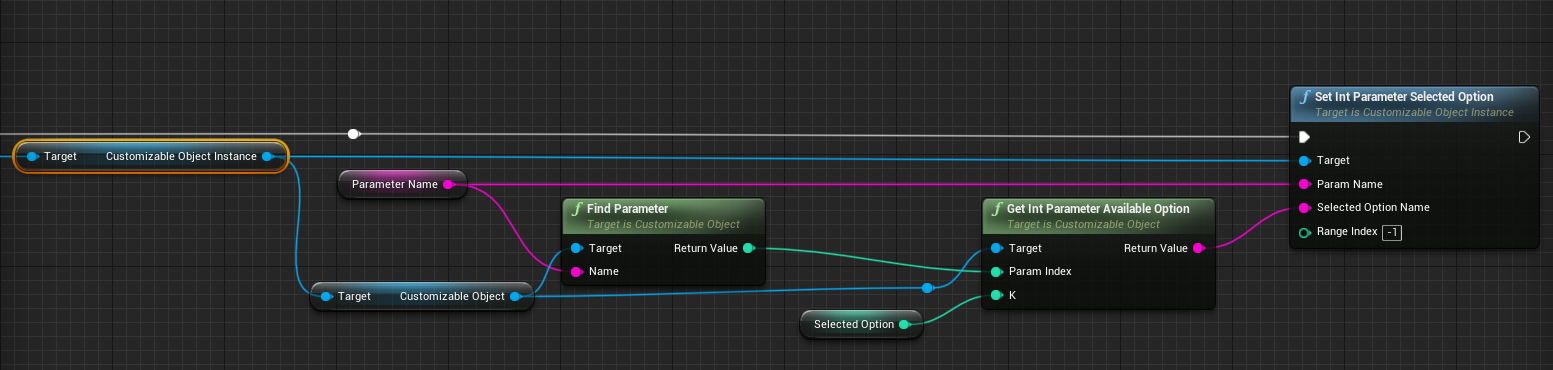
Float Parameter:

Color Parameter:

In addition to changing parameters, you can also change the State.

Once all parameters are set, to apply them you need to request an Update. Updates are always asynchronous, so expect some delay before seeing the resulting customizations.

Since the Updates are asynchronous, Mutable provides two ways to know when an update has finished.
By calling specialized Update with a delegate: TODO PICTURE
Or by using existing delegates in the Instance or Usage:
