
A tiny menu bar companion for macOS: timer, time tracker, to-dos, keep-awake, system monitor, clipboard history, file converter, window manager, a lite torrent client, screenshots, drawing over the screen, text recognition and more. You switch on the ones you need and arrange them across up to four tabs on the icon. One click, and everything you need is right there.




Bahasa Indonesia · Deutsch · English · Español · Français · Italiano · Nederlands · Polski · Português · Türkçe · Tiếng Việt · Русский · Српски · עברית · العربية · فارسی · اردو · हिन्दी · ไทย · 한국어 · 中文 · 日本語
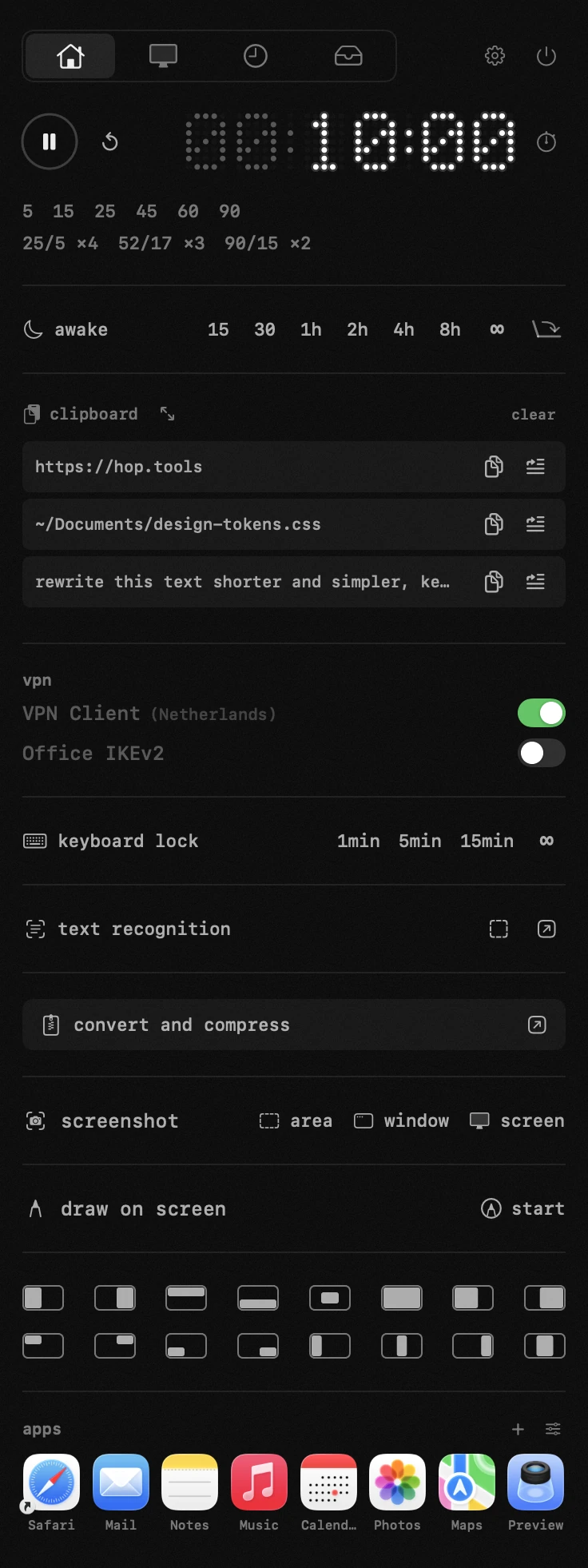
Hop lives in your Mac's menu bar and replaces a handful of small utilities: a Pomodoro-style timer, a time tracker with a to-do list, a caffeinate-style sleep blocker, a system monitor, a clipboard manager, a drag-and-drop file converter, a window snapper and a lite torrent client – one lightweight native app, with the modules you use arranged across up to four tabs on the icon.
- Hop.dmg – open and drag
Hop.appinto Applications (recommended) - Homebrew:
brew install --cask antonyshakirov/tap/hop Hop-x.y.z.zip– the same app as a plain archive (used by the built-in updater); see the latest release- Fast mirror: hop-dl.b-cdn.net/products/hop/Hop.dmg
Hop is signed with an Apple Developer ID and notarized by Apple, so macOS opens it like any other app. The source is public, and built-in updates are verified with Ed25519. Requires macOS 14 or newer.
The icon holds up to four tabs, and you drag each module into whichever tab you like – the timer on one, the monitor on another, the things you rarely open tucked away. The power button beside a module turns it off: it keeps its place and stops running – no key, no badge, nothing collected in the background.
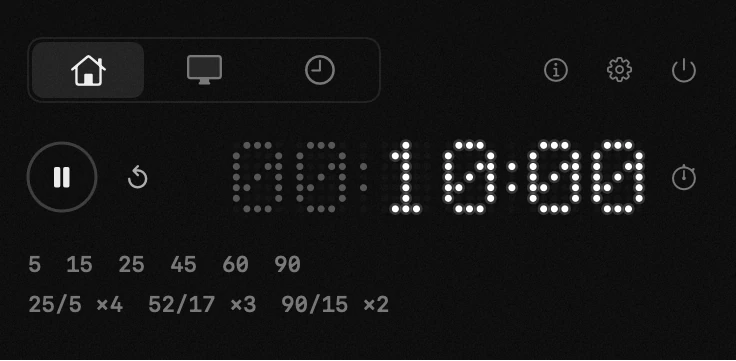
A dot-matrix countdown you set in one gesture: drag the digits, type the time like on a microwave, or pick a preset. Work-rest cycles (25/5 Pomodoro, 52/17, 90/15 – or your own), a stopwatch, a stash that keeps a running timer while you try another one, and a finish alert that can also pause your media. When the countdown ends it plays a single sound and the digits pulse until you reset it.
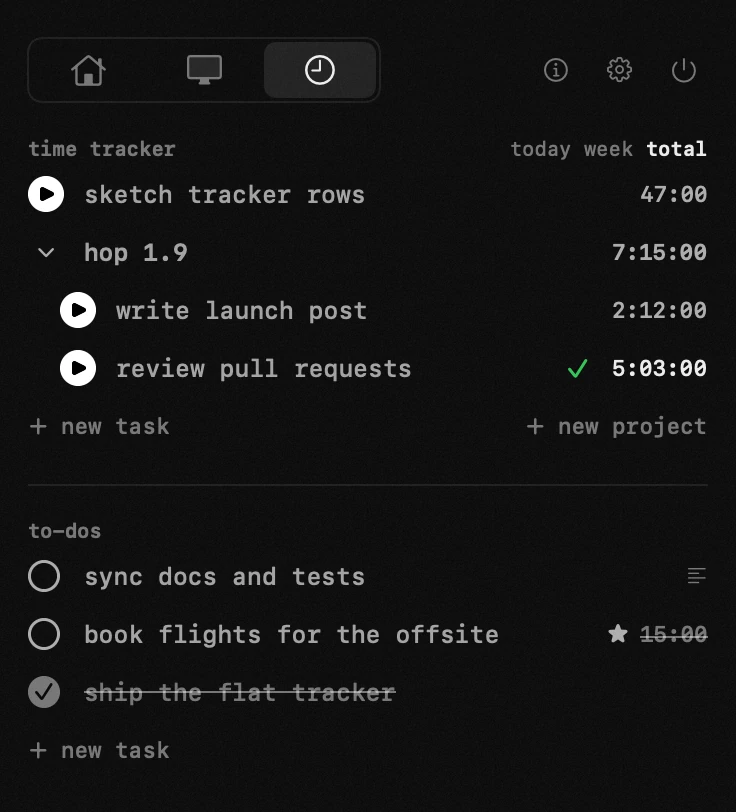
Tasks can be grouped into projects, each carrying the sum of its own, and one switch above the list shows today, this week or all of it. A task that is running counts the stretch you are in, from zero; the ✓ beside it closes that stretch and the row goes back to the period's sum. Open a task and every stretch of time it collected is listed: change how long one ran or when it happened, add a session nobody pressed play for, or delete one – hand corrections sit in the same list, so the lines always add up to the total above them. Leave one running too long and a banner reminds you after eight hours. A separate to-do list sits alongside, with finished items sinking to the bottom.
More than one task can run at once, and the menu bar shows the clock started last.
Click any task to open it: the full text on the first line, a description underneath, a star to mark a favourite. A to-do can also carry a reminder – a day, a time, and any weekdays you want it to repeat on – and Hop tells you when it is due with a banner you can snooze or tick off, a sound, a mark in the menu bar, whichever of the three you leave switched on.
Your own AI agent can add tasks too. The list is a plain JSON file and Hop
picks up changes to it while it runs, so an agent – or a script, or you in a text
editor – can append a task and watch it appear. Hop also performs commands from a
file and answers hop:// links, so that same agent – or a Shortcut you build
around one – can start a timer, add a task with a reminder, or read what is
running. See docs/automation.md.
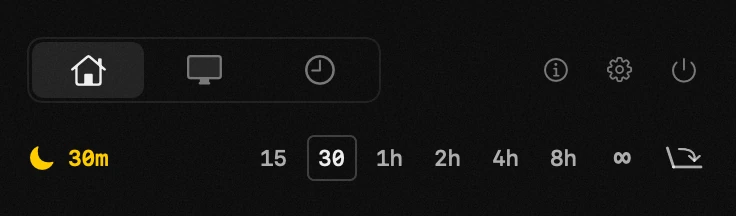
Keep the Mac awake for 15 minutes, 8 hours or forever – one click, no password. Optionally keep the display on, or keep working with the lid closed (handy for downloads, long builds and external displays).
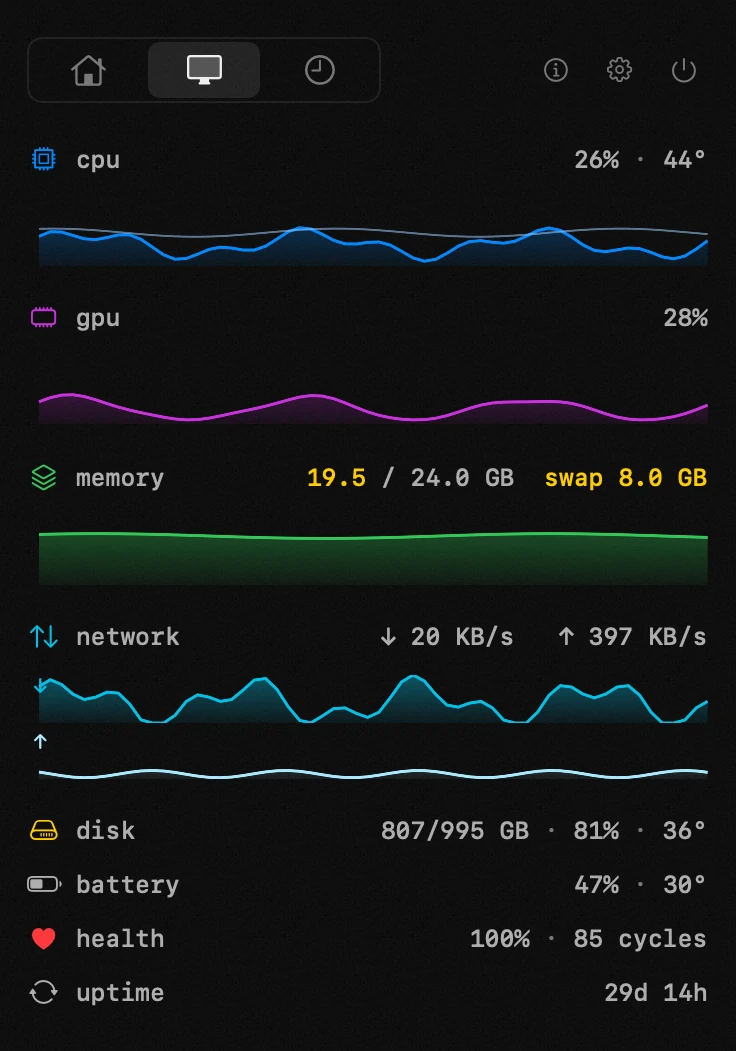
CPU and GPU load and temperature, memory and swap, network, disk, battery health and power draw – live values with sparkline charts, color thresholds you set yourself, °C/°F, and an uptime line. Readings come straight from macOS and update only while the tab is open. The memory row also speaks up when a lot of memory has gone to disk, and not only when macOS itself reports being short.
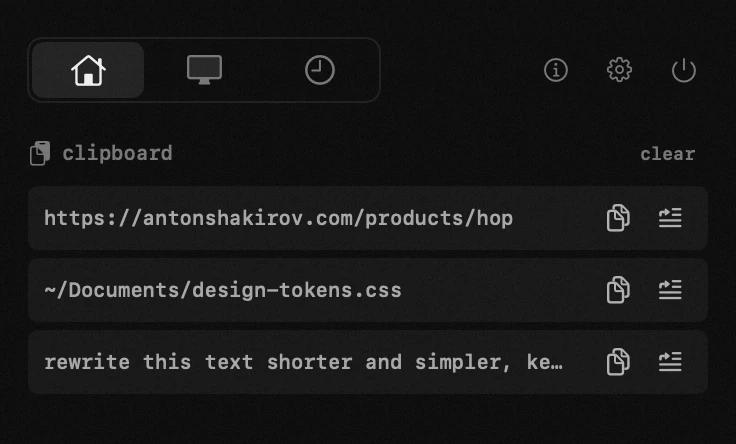
The last 100 (up to 300) things you copied – text, images and files – one click to copy back or paste straight into the previous app. Copied files are kept by name (several at once show as "name +N"), and pasting puts the actual file back. Passwords and other concealed input are never stored.
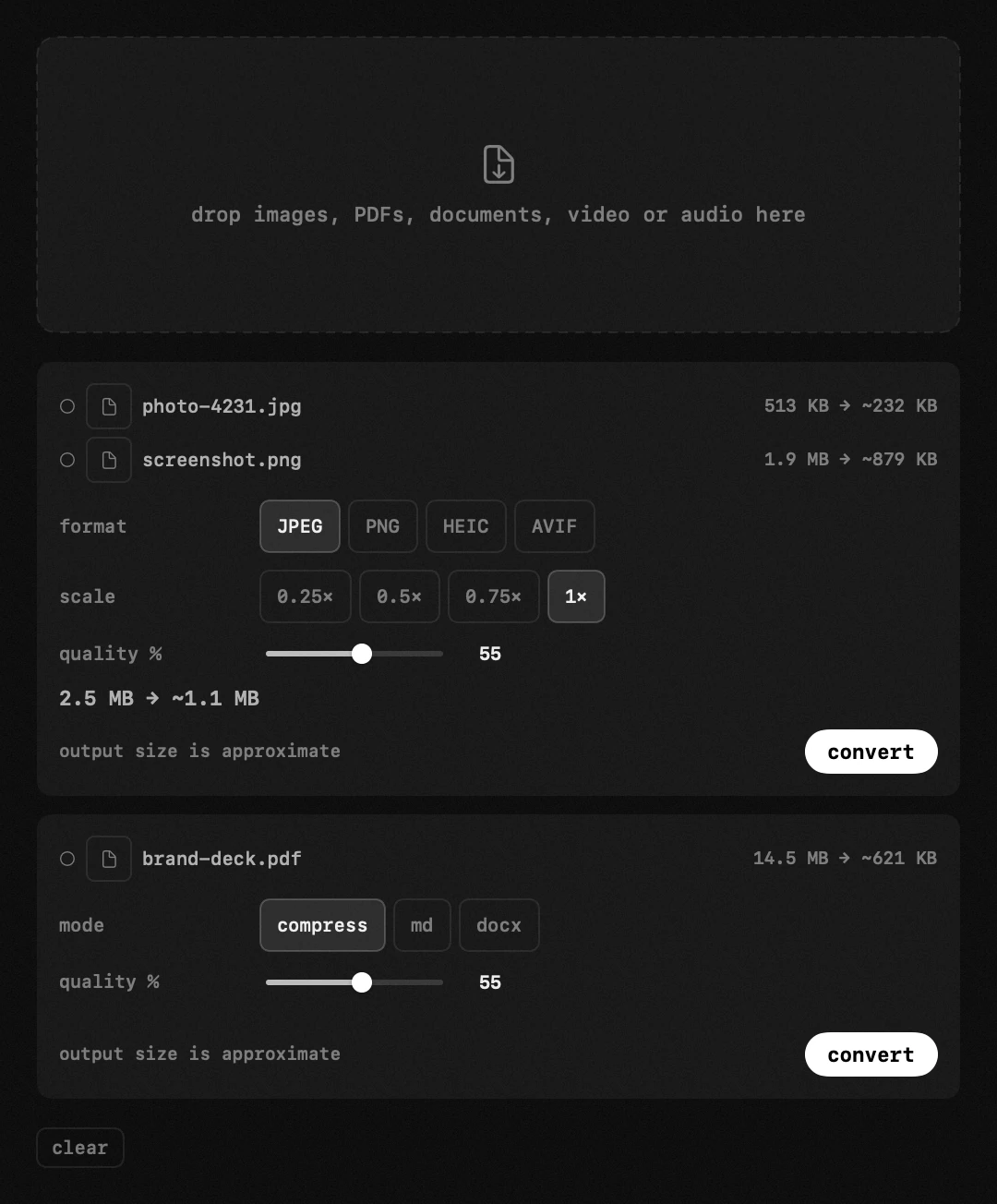
Drop a batch of images, PDFs, videos or audio onto the panel: JPEG, PNG, HEIC, AVIF and WebP out; PDF compression; HEVC video shrinking with a live, honest size estimate before you convert. Everything is processed locally. Video can also be reframed as it converts – 9:16, 4:5, square or 16:9, cropped to fill, padded, or laid over a blurred copy of itself – and the squeeze has a level of its own, so the size promised before you convert is the size you get.
One button sets a clip up for where it is going – reels, feed, tiktok, shorts or youtube – writing the frame, the resolution and the squeeze from what the platform itself recommends, with the resulting bitrate shown beside the dial. MKV and WebM are repacked into MP4 first (macOS opens neither) by a small helper that downloads once. Pages, Numbers and Keynote documents are exported in batches by the apps themselves – PDF, or docx, xlsx and pptx.
Web pages convert too: paste an address or drop a saved page, and it comes out as PDF, docx, Markdown, RTF or plain text.
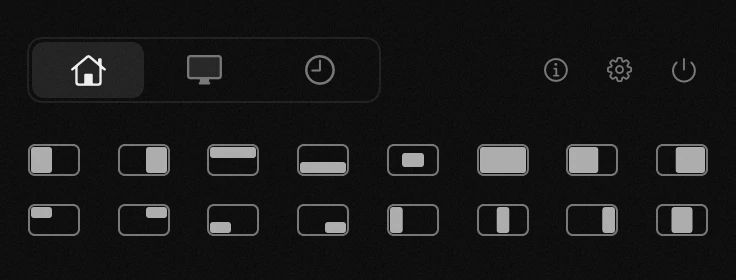
Snap windows to halves, quarters, thirds and center with a click on a zone glyph or a ⌃⌥ hotkey – no extra app needed.
A lite BitTorrent client in the same panel: drop a .torrent file or paste a magnet link, pick exactly which files to download – before or even during the download – pause, resume and seed, with an optional stop at ratio 1.0. The module is off by default; enabling it fetches the open-source engine as a small separate download (~26 MB, signature-verified) that talks only to Hop over a local port. Hop can also become the default app for .torrent files and magnet links.
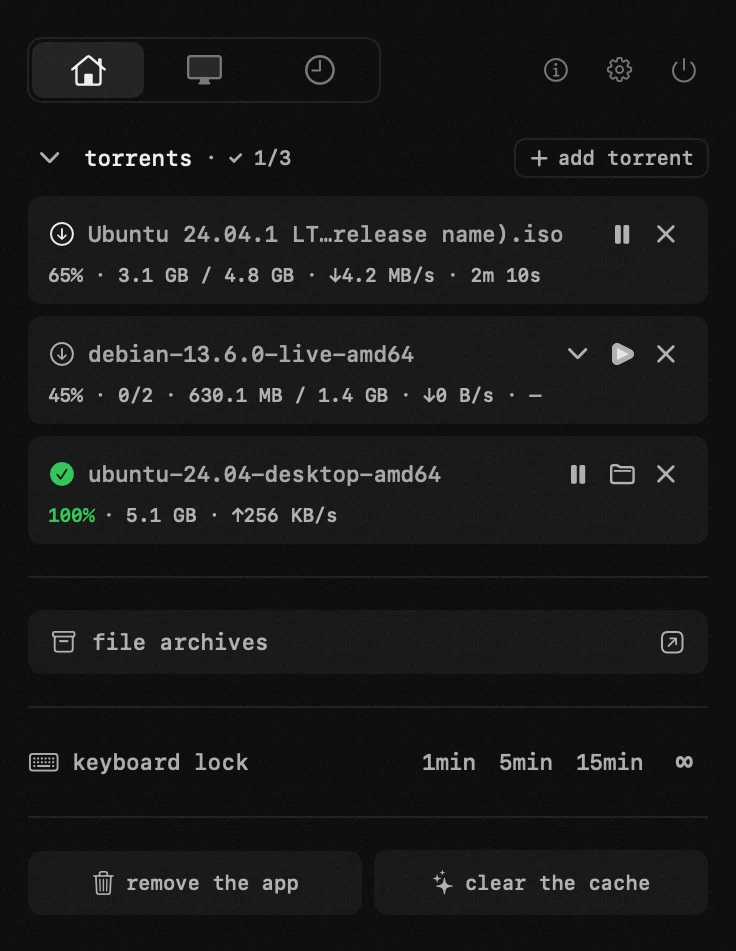
→ Lightweight torrent client for Mac
The module's row opens a window, and that window is where you drop things – ⌘V works too, several files at once. What you add waits in a list until you press the button: archives are unpacked, anything else is packed into one archive. Results land on the Desktop by default, or next to the original, or in any folder you choose. zip, rar, 7z, tar, tar.gz, tar.bz2, tar.xz and gz are covered; rar and 7z fetch a small signature-verified helper (~6 MB) the first time one turns up. Hop unpacks rar but never creates it – the format is proprietary. "Hop as the default for archives" in settings offers only rar when no Apple app owns it, and can take rar back from third-party apps; zip, 7z and the native formats stay with Archive Utility. It works with the module hidden, and the card shows the real state, so it can never claim a default Finder has given away. Double-clicking an archive in Finder unpacks it right beside the file, in a small progress window of its own, and a failed job leaves nothing hidden behind. Files Hop opens carry its own icon with the format written across it, so a folder of them reads at a glance.
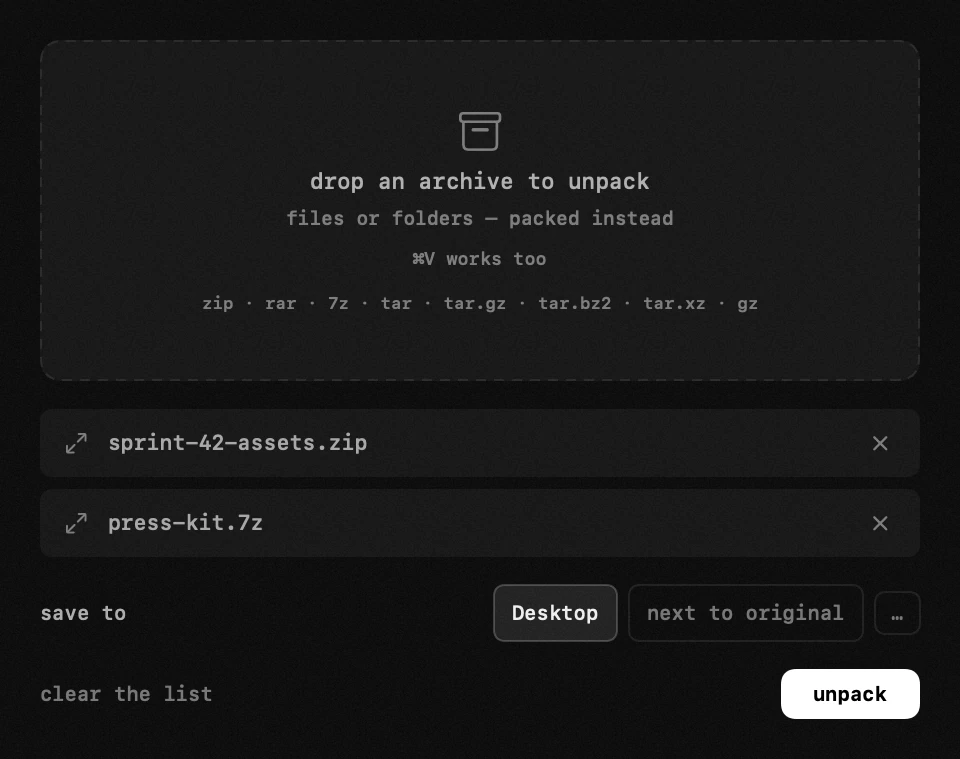
→ Unzip rar, 7z and zip on your Mac
The converter learned documents: markdown to PDF laid out by Hop itself, Word files (.docx, .doc, .rtf) to PDF or markdown, and a PDF's text pulled out as markdown – a scanned page is read with Apple's Vision. Native and offline, with no office suite bundled and nothing to download.
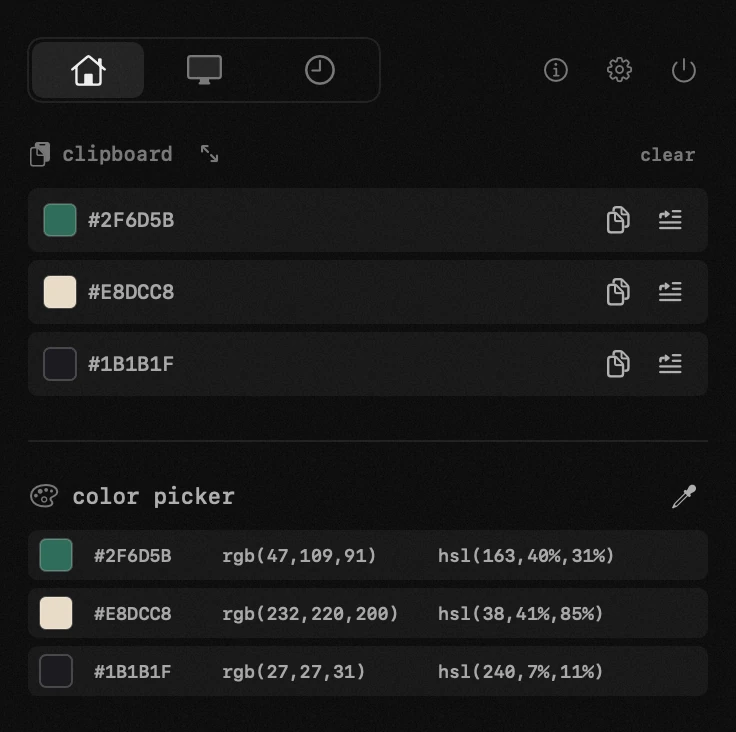
Pick any color on screen with the system loupe and it stays in a list, each row carrying hex, rgb and hsl in its own column – click one of the three and that notation is copied. The order never changes under the cursor, the list length and its visible rows are settings, and no screen-recording permission is needed: the loupe hands back one color and nothing else.
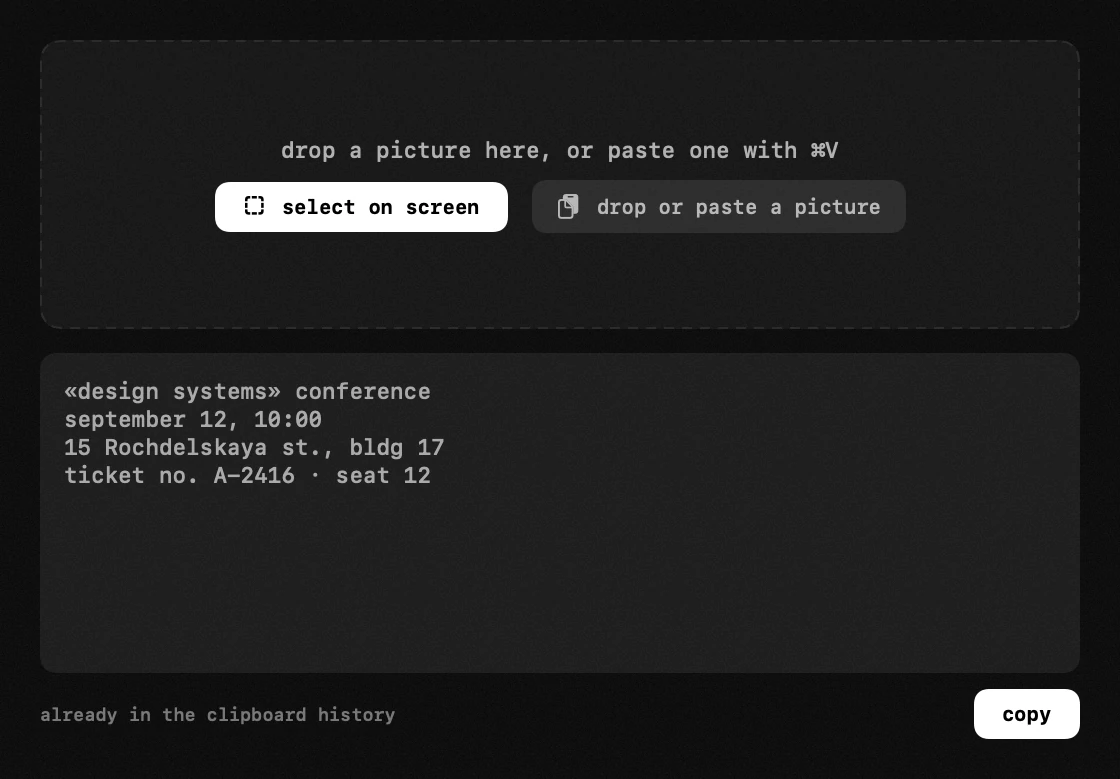
Frame an area of the screen, or drop a picture into the window and paste one with ⌘V: the text and any QR codes inside come out in a window you can read, edit and copy from, and land in the clipboard history at the same time. Line breaks are kept, so a table or a code snippet stays readable. Recognition is Apple's Vision, entirely on this Mac.
A reading that holds a web address gets an "open link" button, so the link inside a QR code on a bill opens in your browser without reaching for a phone. Web addresses only: a scanned code is untrusted input, so a phone number, a Wi-Fi password or a contact card stays plain text.
Frame an area, take the window under the pointer or a whole screen, and the editor opens with the picture already in it. Mark it up with a pencil, a marker, arrows, shapes, numbered steps and text, hide what nobody needs to see behind a blur or a mosaic — or blur everything EXCEPT the part you are pointing at. Then save the file or copy it to the clipboard.
The same rectangle can be taken again with one key, which is what a series of screenshots of one screen usually needs. A shot can be dressed for a page: a background, air around the frame, rounded corners, a shadow, a browser window bar — and your own watermark, in text or as an image.
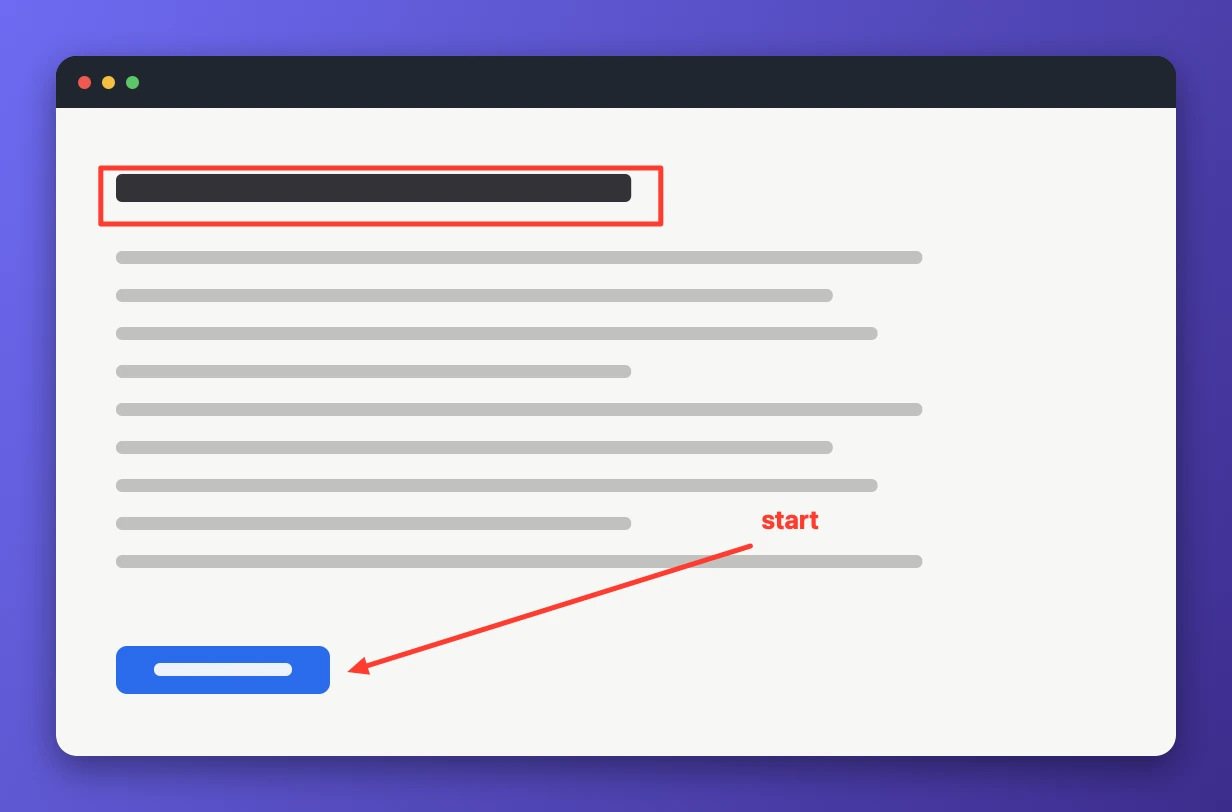
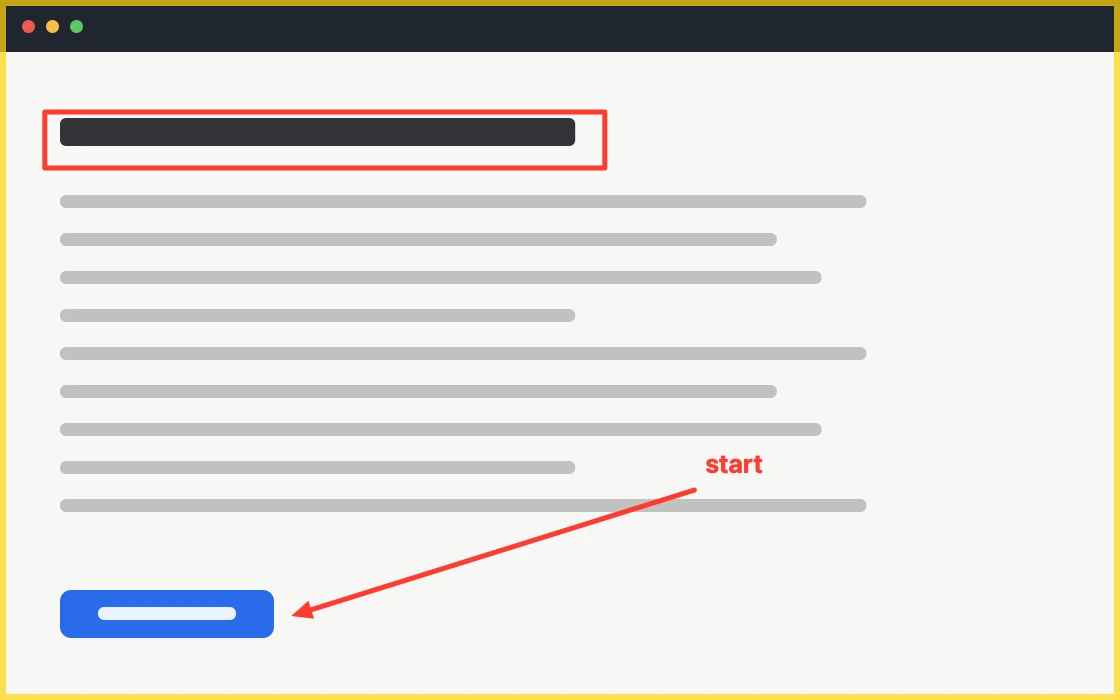
Draw straight on the screen during a call, a recording or a review: a pencil, a wide marker that leaves the text under it readable, arrows, shapes and numbered steps. Ink that fades on its own disappears a couple of seconds after you lift the pointer, so nothing has to be cleaned up mid-sentence. The loupe and the blur work on the live screen too: magnify a detail so everyone on the call sees it, or cover a name that should not have been there.
One switch hands the clicks back to the apps underneath while the marks stay on screen, so you can keep working with your notes in front of you. Save or copy captures the screen together with the drawing. The marks are visible to other people when you share the whole screen; a single shared window is composited by macOS alone and no layer can join it.
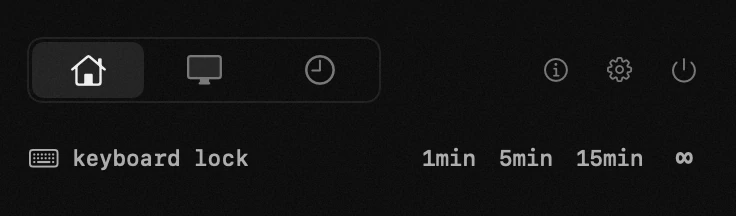
Tap 1, 5 or 15 minutes – or ∞ – and the whole keyboard stops responding, so it can be wiped without shutting the Mac down or closing the lid. A cover explains what is happening and the menu-bar icon turns into a keyboard. Four ways out: the cover's button, the panel's button, opening the panel, or holding esc + shift for five seconds. A short press of the power key is swallowed too; holding it still forces the Mac off, because that is handled in hardware.
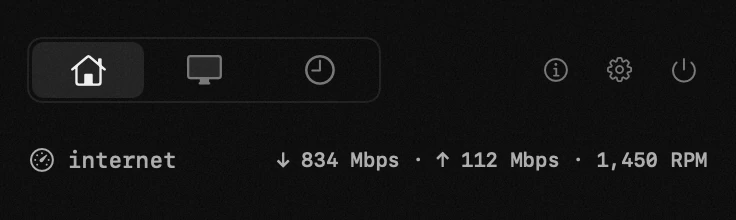
One tap measures your connection through macOS's own networkQuality, against Apple's servers – down, up and responsiveness, with the last result kept in the row.
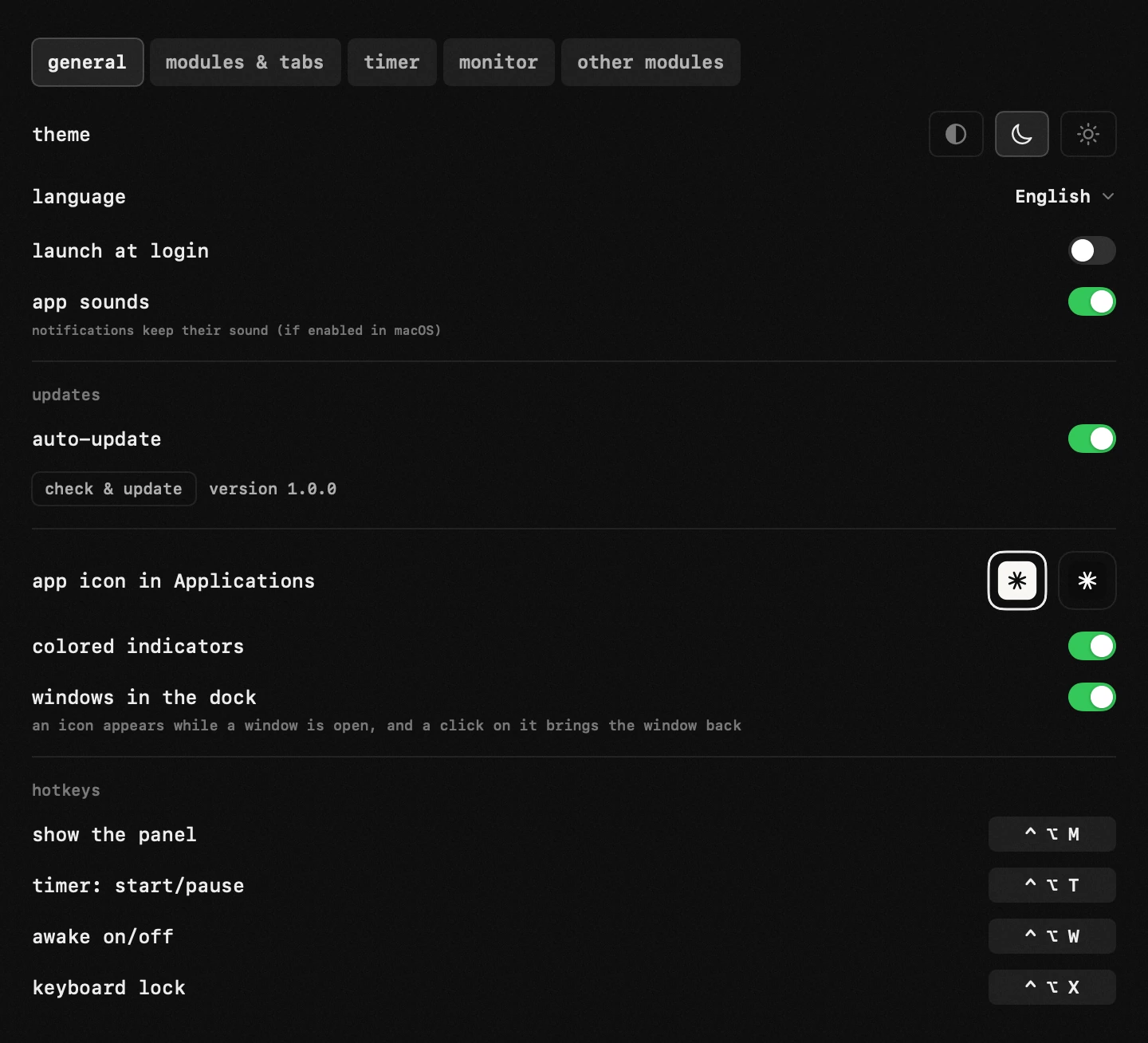
The icon carries small badges: the running time, keep-awake, a reminder that fired, a dot while a VPN is up (orange if it stops passing anything) and arrows while torrents move – colored or monochrome, each switchable. Hop's own windows appear in the Dock while they are open, so a click brings one back instead of opening the panel first, and the icon leaves with the last window.
Dark and light themes with a film-grain texture, global hotkeys, launch at login, and a safe mode that recovers the app from a crash loop – everything lives in one settings window.
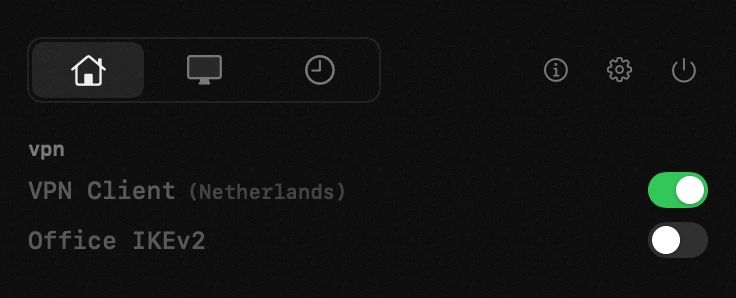
Every VPN your Mac knows about, with a switch each – whatever the brand. Hop reads the list straight from system settings, so a client you installed yesterday appears on its own and one you removed disappears; there is nothing to add or configure here, and no per-vendor support to wait for.
Switch a tunnel on and off without opening anything. While one is up, a small dot sits in the corner of the menu bar icon, next to the app's other indicators, so you can see it with the panel closed. It is green while traffic is going through the tunnel and turns orange when the tunnel is on but nothing is coming back through it, so a connection that quietly died stops looking like a working one – and the panel marks the row it means. Click a name and that VPN's own window opens for the times you need it – to pick a country or change a setting – and Hop quits the app again once you close the window, so it never sits in the Dock and the menu bar for a switch you touch twice a week. The connection stays up: the tunnel is held by the system, not by the app.
The row shows what the client itself reports – its name, and in brackets what the configuration adds, usually the country. Hop never guesses the country from the server's address: the address registry says where a range is registered, not where the machine stands, and a wrong country stated confidently is worse than none.
The dot can be switched off in settings – the module and its switches go on working without it.
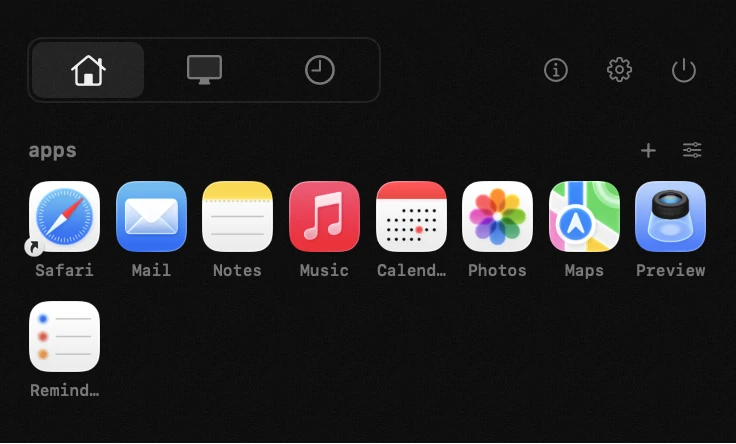
A grid of the programs you open all day, one click away without a trip to the Applications folder. Press + and pick them, or drag them in from Finder; nine fit across a row, up to eight rows.
Drag an icon to move it – a yellow line shows which two icons it will land between and the rest shuffle around it, like a home screen. The edit button starts the wobble, where each icon gets a ✕ and the grid can be given a name of its own; the names under the icons can be switched off there too, if you know your apps by sight. Keep as many grids as you like – work on one space, everything else on another – each with its own apps.
Grids are made and unmade where you arrange the modules – settings, or the module table itself, where the ✕ on a grid's chip deletes it for good. A new grid starts empty and says so until you fill it.
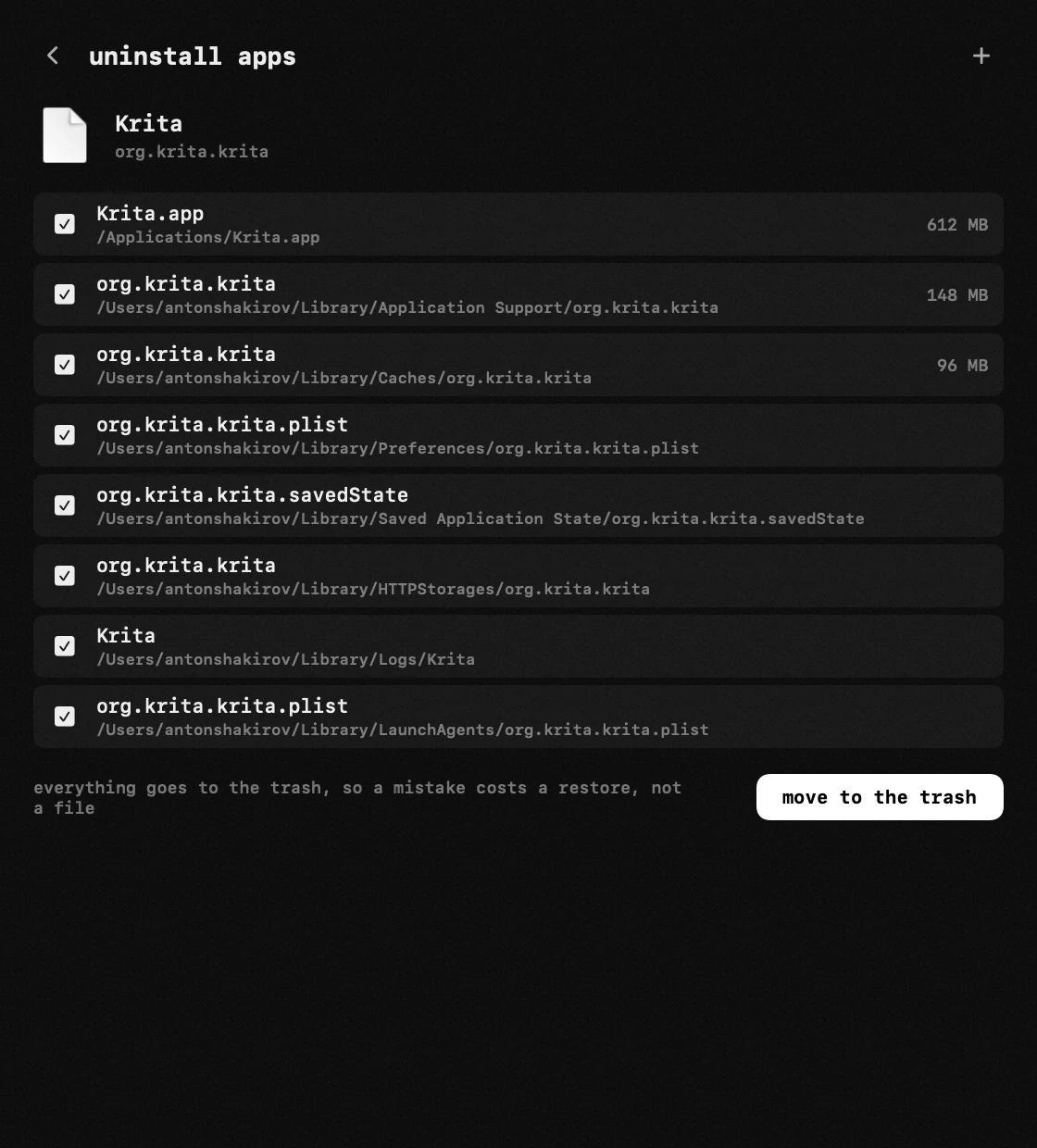
Drop an app on the row, or pick it from the list of everything installed, and it goes together with what it left in about thirty places – application support, caches, preferences, containers, launch agents, plug-ins, receipts and the rest. Each app in the list shows what it weighs, the bundle and its data apart. An app already in the Trash is still recognised: its identifier is read from the bundle sitting there, or worked out from the leftovers that spell it out.
Nothing is deleted. Everything moves to the Trash, so a mistake costs a restore rather than a file, and whatever macOS refuses to hand over is named with the reason instead of quietly skipped.
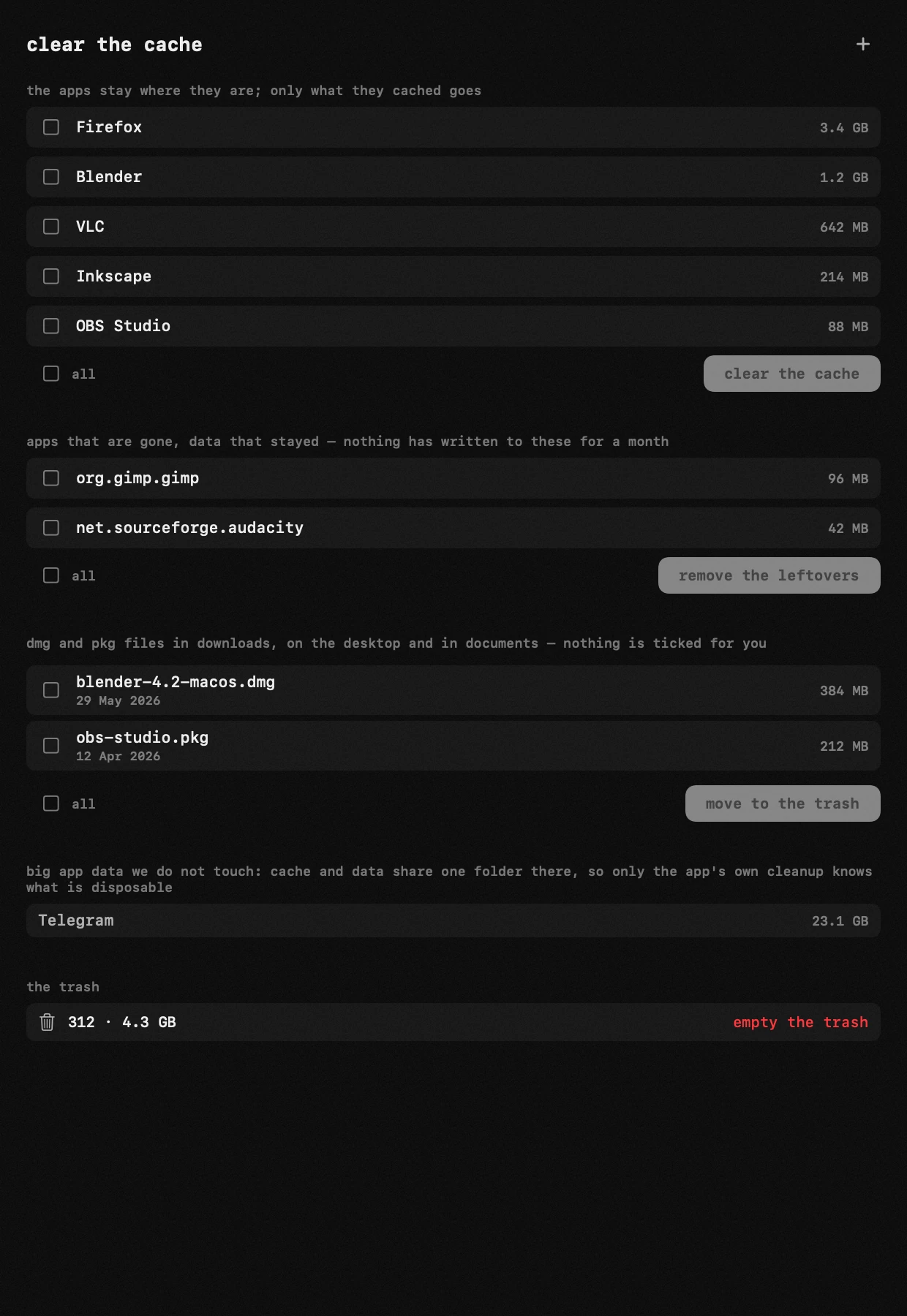
The same module cleans up without removing anything: every app holding a cache, biggest first; installers left in Downloads, on the Desktop and in Documents; the data of apps removed long ago; and the Trash with its size. One tick takes a whole section. What it deliberately leaves alone is listed too – a container where cache and data share one folder, a messenger's twenty gigabytes among them, since only that app's own cleanup knows which half is disposable.
Bahasa Indonesia, Deutsch, English, Español, Français, Italiano, Nederlands, Polski, Português, Türkçe, Tiếng Việt, Русский, Српски, עברית, العربية, فارسی, اردو, हिन्दी, ไทย, 한국어, 中文, 日本語 – the app follows your system language out of the box.
Hop is free and always will be. If it earns a place in your menu bar, a voluntary contribution keeps new features coming and the existing ones polished – it pays for the time this takes, nothing else.
Hop collects nothing. Not now, not later. No server of its own, no analytics, no telemetry, no accounts, no crash reports. Every permission below is asked by macOS only when the feature that needs it is actually used, and each one exists so that feature can work – nothing is collected on the side. You do not have to take this on trust: the app is open source, so the code that would do the collecting simply is not there. Search this repository for a tracking SDK or an analytics call and you will not find one.
Everything runs locally: no server, no analytics, no accounts. The app only touches the network to check for updates, when you run the built-in speed test, and – if you enable the torrent module – to fetch the engine once and move the torrent traffic itself. That update check sends the version you are running, and nothing that identifies you or your Mac. Updates and the torrent engine are delivered as signed archives and verified with an Ed25519 signature before installing.
The downloads badge at the top counts the click, not the person. The download
button and the Homebrew formula go through hop.tools, which writes the
request to its web server log the way any site logs a page view and redirects to
the file in the GitHub release. What the log keeps is a salted hash of the
address, so two clicks from one machine count once and the address itself is
never stored. None of this involves the app: it is measured before Hop is
installed, and a copy that never asks for an update counts all the same.
Hop asks for a permission only when the feature that needs it is actually used, and the settings window lists them all with their current state:
- network – hop.tools – update checks and downloads, plus the two optional helpers (the torrent engine and the 7-Zip archiver)
- network – torrents, speed test – peer traffic while the torrent module is on; the speed test runs macOS's own networkQuality against Apple's servers
- accessibility – pasting into the app underneath, the window manager and the keyboard lock
- screen recording – text recognition while it frames an area, screenshots, and the loupe and the blur on the drawing layer; the color picker does not need it
- notifications – the timer's alert and a finished torrent
- administrator password – once, for the closed-lid mode (pmset is root-only)
- launch at login – off unless you turn it on
Nothing is requested at launch, and nothing is asked for a module you have not turned on. There is no analytics, no telemetry, no account and no crash reporting: hop.tools is contacted only to ask whether a newer version exists – and to download it, or one of the two optional helpers, if you say yes. Everything else stays on this Mac: the clipboard history, tracked time, the to-do list, recognized text and picked colors.
Every permission above exists so a feature can work, and for nothing else. You do not have to take that on trust: Hop is open source, so the code that would have to do the collecting simply is not there – read it in this repository. The settings window has an "app permissions" page with the same list and each permission's current state.
Updating to 1.10.0 clears every permission once and asks for it again. A permission belongs to a code signature, and Hop's changed when Apple signed it, so the ones granted to the old signature were listed but no longer worked. From 1.10.0 on they survive an update.
Website: hop.tools
Hop is completely free – no trial, no pro tier, no in-app purchases. No ads, no data collection, no accounts: there is nothing to monetize and nothing to sell. It is a personal project – I built Hop for myself, use it every day, and share it. If it is useful, pass it on. And if you'd like to chip in, there is now a way to support Hop – purely a gift, with nothing locked behind it.
Swift Package Manager, macOS 14+, no external dependencies:
git clone https://github.com/antonyshakirov/hop.git
cd hop
swift build
./scripts/build-app.sh
Dev workflow, release pipeline and the behavioral spec live in docs/development.md and docs/spec.md.
Three ways, all of them welcome:
- Support Hop with a contribution – it goes straight into new features and fixes. Voluntary, no perks, no paywalled anything: every module is the same for everyone.
- Star the repo – stars are how other people find it.
- Open an issue – a bug report or an idea is worth as much as either of the above.
Made by Anton Shakirov. Released under the MIT license: use and modify freely, keep the copyright notice – passing the app off as your own work is a license violation.