Repository navigation
Element Geometry
Each element represents a rectangular(1) area. In the basic case, an element's area is expressed as two point properties: location and size.
- location specifies the location of the upper-left-corner of an element relative to the parent's upper-left-corner.
- size specifies the distance from the upper-left-corner of an element to its lower-right-corner.
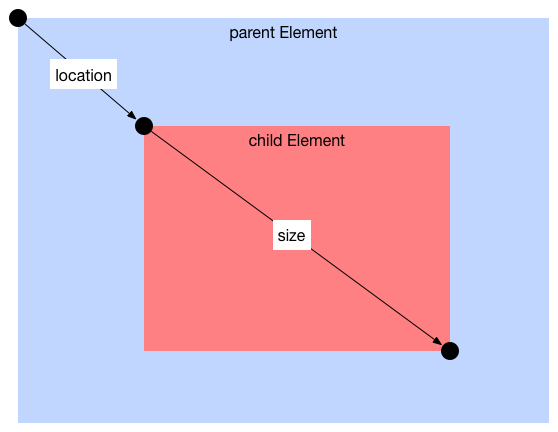
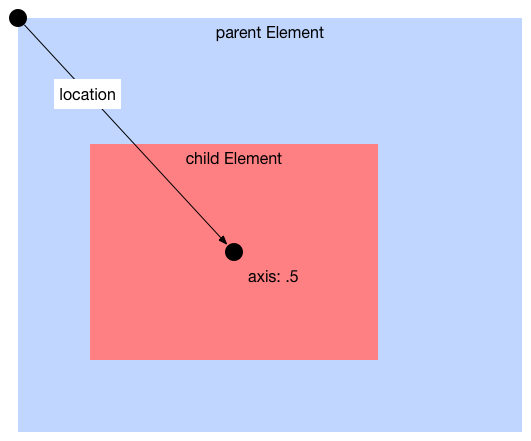
A third point property, axis can be used to shift the element's area proportionally to its size. By default axis is set to the upper-left-corner or point(0, 0). That is the basic case in the diagram above. However, if the axis is set to the center of the element, point(.5, .5), then the location property effectively specifies where the center of the element will be in the parent-space:
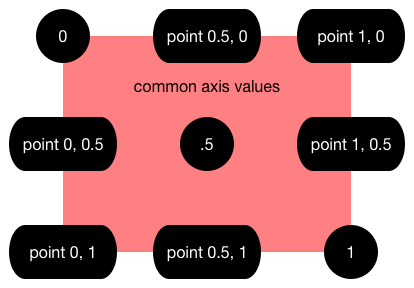
NOTE: If the x and y values for axis are different, you need to create a point object. For example, the top-center axis shown above needs to be: axis: point 0, .5
# diagram of the common named-points

 'topLeft'------'topCenter'--------'topRight'
     |                                 |
     |                                 |
'centerLeft'   'centerCenter'     'centerRight'
     |                                 |
     |                                 |
'bottomLeft'---'bottomCenter'-----'bottomRight'

# Values for each named-point:
topLeft:      point 0,   0
topCenter:    point 1/2, 0
topRight:     point 1,   0
centerLeft:   point 0,   1/2
centerCenter: point 1/2, 1/2
centerRight:  point 1,   1/2
bottomLeft:   point 0,   1
bottomCenter: point 1/2, 1
bottomRight:  point 1,   1

# Additional named-point aliases:
left:         topLeft
top:          topLeft
center:       topCenter
right:        topRight
bottom: bottomLeftTwo other properties are affected by the axis.
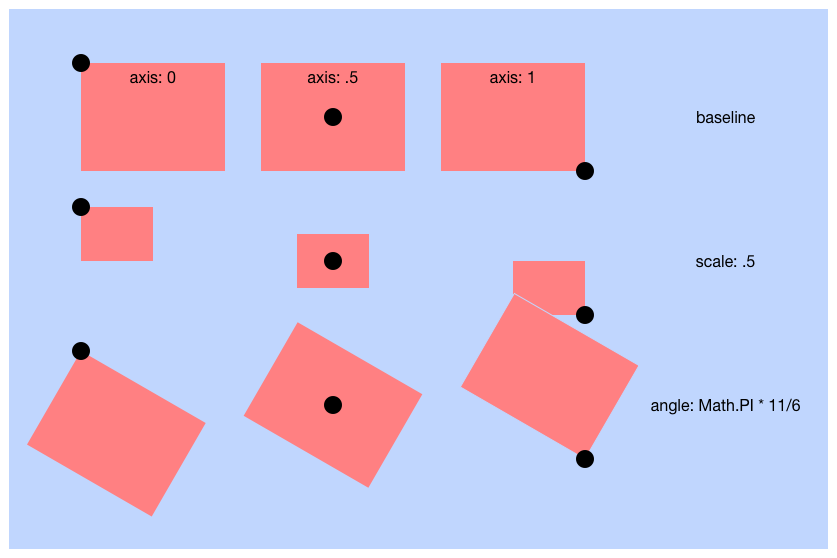
- scale is another point property. Its default values is point(1, 1). You can change the scale of an element and all its contents by changing its scale property. scale = 2 will double its size. scale = .5 will half it.
- angle is a number in radians. With it you can rotate an element. angle = Math.PI will rotate it 180 degrees. angle = Math.PI/2 will rotate it 90 degrees counter-clockwise.
Both scale and angle perform their transforms centered on the element's axis:
Ultimately there are just two properties that define an elements concrete geometry: elementToParentMatrix and currentSize.
The property elementToParentMatrix can be set directly, but usually it is computed from the currentLocation, currentSize, scale, angle and axis properties as follows:
elementToParentMatrix = Matrix
.translate axis.mul(currentSize).neg
.scale     scale
.rotate    angle
.translate currentLocationConcrete, Dynamic-Layout Properties:
- size
- location
Concrete Properties
- axis
- angle
- scale
Concrete/Computed Property
- elementToParentMatrix
SBD-SELF-NOTE: I think I'll split this into two properties: currentElementToParentMatrix and elementToParentMatrix
Computed, readonly properties:
- currentSize (concrete)
- currentLocation (virtual - computed from elementToParentMatrix and axis)
- drawArea: the rectangle that exactly covers all pixels touched by draw. Could be smaller or larger than logicalArea
- logicalArea: rectangle determined by @location, @axis and @size. Area used by parent's flow and parent layout's "childrenSize". Not affected by @padding
- paddingArea: logicalArea reduced/expanded by positive/negative @padding respectively. Children use this area for layout.
- @padding
- @margin
- Technically, each element represents a trapezoidal area. The 2D linear transformation matrix property elementToParentMatrix supports translation, rotation, scaling and skewing.