Guida rapida
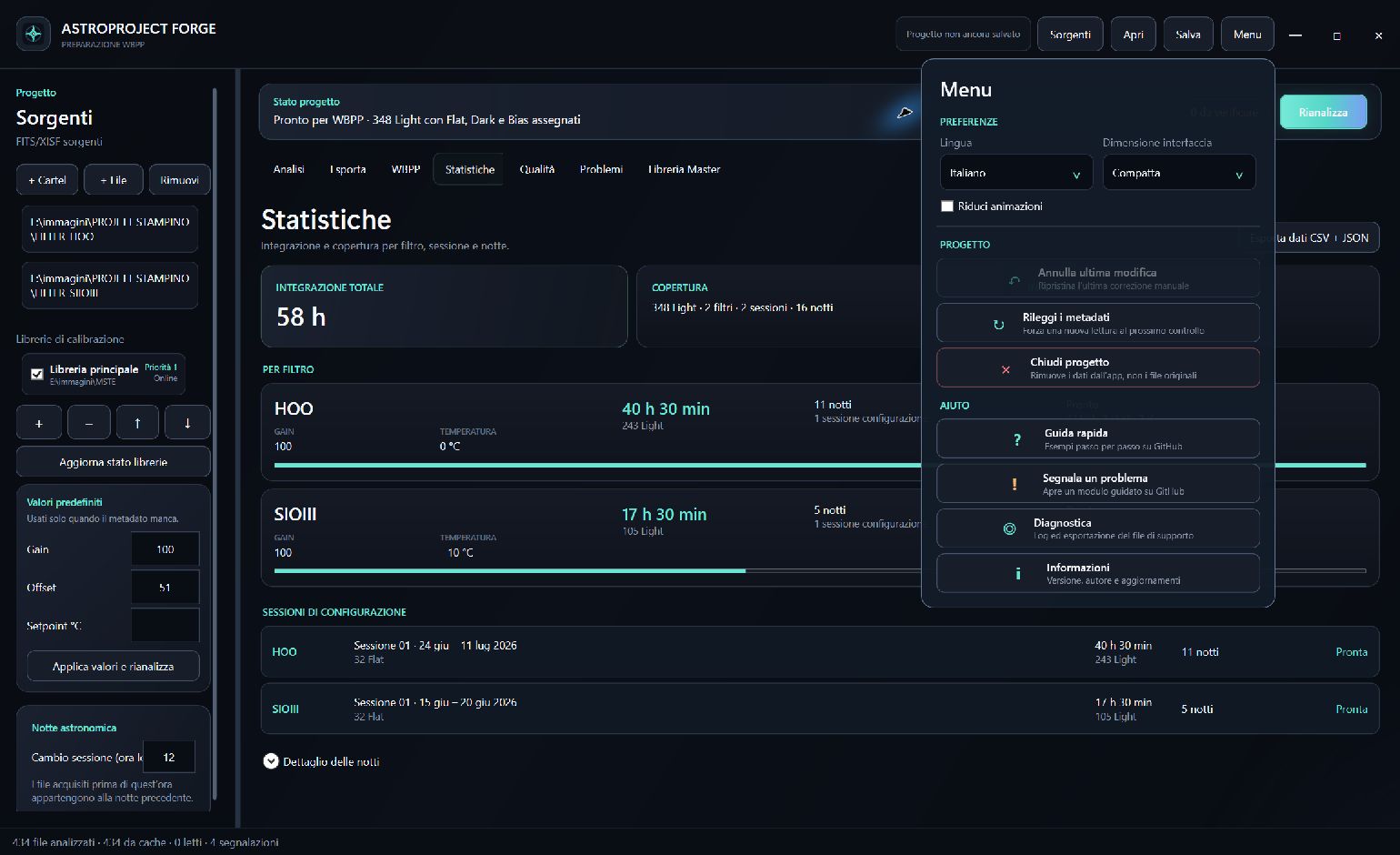
Apri Sorgenti e usa + Cartella o + File. Sono accettati FITS e XISF provenienti da qualunque software, purché header o percorso contengano informazioni sufficienti.
In Librerie di calibrazione, collega una o più cartelle Dark/Bias. La libreria non è codificata nel programma: puoi cambiarla, ordinarne la priorità o usarne più di una.
Gain, Offset e Setpoint nei Valori predefiniti sono fallback. L’header resta la fonte principale. Lascia vuoto ciò che non vuoi forzare.
Premi Rianalizza. La mappa viene organizzata così:
Filtro
└── Sessione di configurazione
    ├── Notti astronomiche
    ├── Flat della sessione
    ├── Master Dark
    └── Master Bias
I file dopo mezzanotte restano nella notte precedente fino all’ora configurata in Notte astronomica.
Seleziona un gruppo o un file per aprire l’Inspector. Puoi correggere metadati ambigui o collegare manualmente un Flat Set a un file, più notti o un’intera sessione.
Apri WBPP. Copia in PixInsight soltanto le Grouping Keyword mostrate dall’app, con Pre = ON e Post = OFF.
Apri Esporta, scegli una destinazione e avvia l’operazione. Gli originali non vengono modificati. Il progetto esportato contiene copie organizzate, metadati di gruppo e report di verifica.
Apri Menu → Guida rapida o Menu → Segnala un problema. Non servono termini tecnici: descrivi cosa hai fatto e cosa ti aspettavi.
Open Sources and choose + Folder or + File. FITS and XISF from any acquisition software are accepted when their headers or paths provide enough metadata.
Under Calibration libraries, connect one or more Dark/Bias folders. The library path is not hard-coded: you can replace it, reorder priorities or use multiple libraries.
Gain, Offset and Setpoint under Defaults are fallbacks. Headers remain authoritative. Leave a value empty when you do not want to force it.
Choose Analyze again. The project is organized as:
Filter
└── Configuration session
    ├── Observing nights
    ├── Session Flats
    ├── Master Dark
    └── Master Bias
Frames captured after midnight remain in the previous observing night until the boundary configured under Astronomical night.
Select a group or file to open the Inspector. You can correct ambiguous metadata or manually link a Flat Set to one file, multiple nights or a complete session.
Open WBPP. Enter only the Grouping Keywords shown by the app, with Pre = ON and Post = OFF.
Open Export, choose a destination and start. Original files are never modified. The exported project contains organized copies, grouping metadata and verification reports.
Use Menu → Quick guide or Menu → Report a problem. No technical language is required: describe what you did, what happened and what you expected.