Repository navigation
The Tray Menu
OpenShaker guide › Using OpenShaker
The tray icon's right-click menu, item by item, and the notifications OpenShaker shows while its window is hidden.
The icon is in colour while the haptics run and grey otherwise; hovering shows the state. Details on Is it working?. A small red ! means an update is available (Updating). Left-click opens the window.
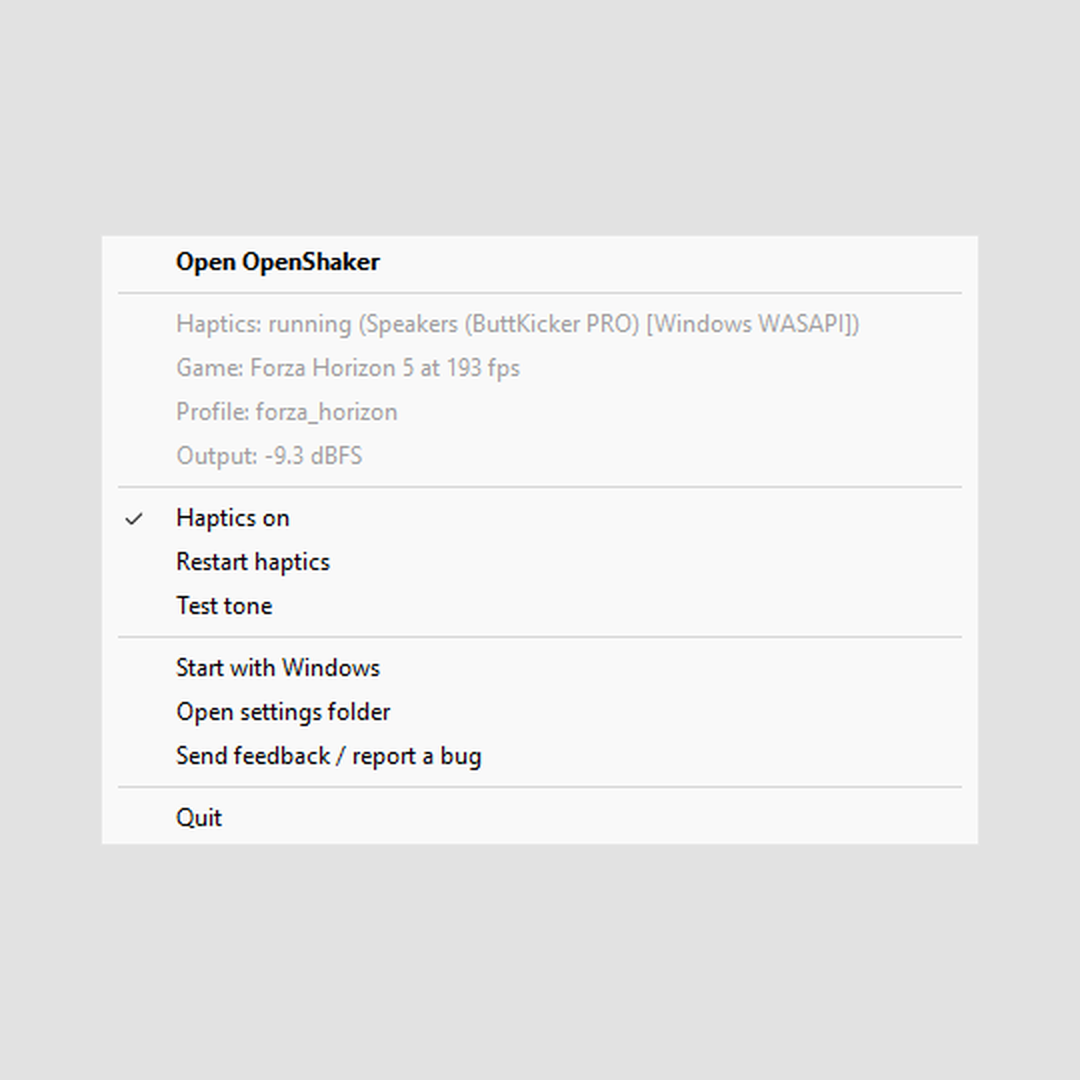
Right-click the icon for the menu. When a newer version is available, two items come first: Update to X.Y.Z (downloads, checks and installs it, then OpenShaker comes back in the tray) and What's new (the release page in your browser); see Updating. Then:
- Open OpenShaker shows the window and brings it to the front.
-
Status lines (grey, for reading only; refreshed about once a second):
-
Haptics: running (<device> [<audio system>]), orHaptics: running (<device> [<audio system>], N dropouts)if the audio has stuttered. Other states:Haptics: starting...,Haptics: NOT running,Haptics: offorHaptics: off (--no-start). -
Game: -,Game: none detected (waiting for telemetry)orGame: <game> at <fps> fps, plus(paused)when the game is paused or in a menu. -
Profile: <profile name>, for exampleProfile: forza_horizon(Horizon 5 and 6 both use it), orProfile: defaults. -
Output: silentorOutput: <level> dBFS. -
Problem: ...appears only when something is wrong. For example, when another program holds a game port you'll see "cannot bind UDP 5555 ... is HaptiConnect or another tool using it?"
-
- Haptics on is the same switch as in the window. A tick means on.
- Restart haptics does the same as the window button.
- Test tone does the same as the window button.
- Start with Windows is ticked when OpenShaker starts at sign-in. Click it to change that.
-
Open settings folder opens
%APPDATA%\OpenShakerin File Explorer. - Send feedback / report a bug opens the project's GitHub "new issue" page in your browser. You can choose "Bug report", "Idea / feature request" or "Hardware / feel report", and there is a Discussions link for questions. Nothing is attached or sent automatically. If no browser opens, the address appears in the window's message line: https://github.com/baddo-baddo/OpenShaker/issues/new/choose
- Quit saves your settings, stops the haptics, removes the icon and exits.
While the window is hidden, OpenShaker uses tray notifications to tell you about:
- the output device not being found (once per session);
- the shaker stopping: "<device> stopped playing. OpenShaker picks it up again when it is back.";
- an error when switching the haptics on or restarting them fails (the automatic retries stay quiet);
- the Haptics on switch not being saved;
- the first time you close the window (see Closing the window).
An available update never shows a notification: only the badge, the two menu items and the window's bar. An automatic update shows Updating to X.Y.Z... while it runs, and OpenShaker comes back in the tray.
Next: Presets and strengths
See also: The main window · Is it working?