Repository navigation
Using the Integration
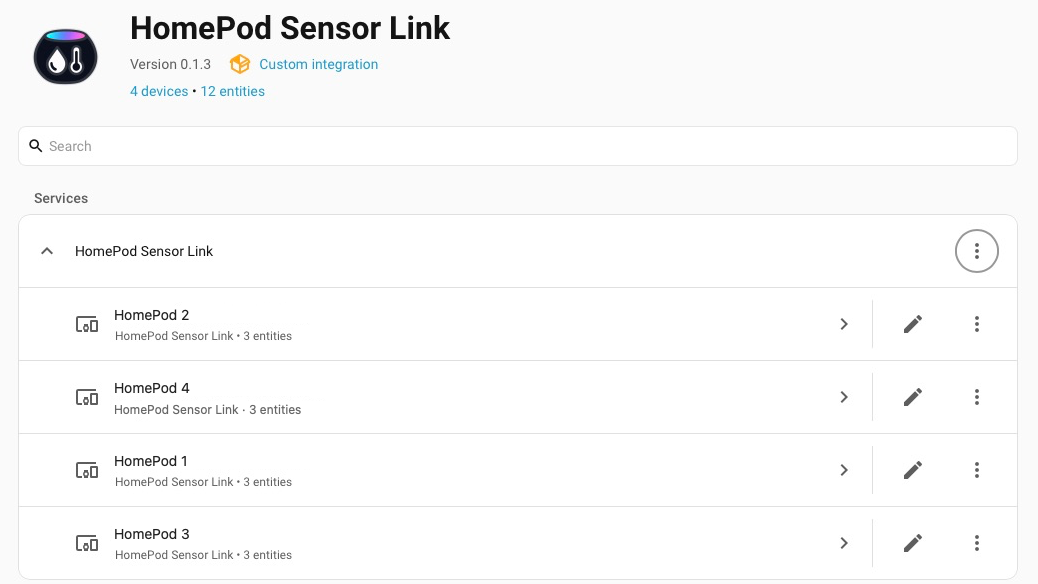
One integration entry manages one or more HomePods. Add or manage devices through Settings → Devices & services → HomePod Sensor Link → Reconfigure.
| Entity | Purpose |
|---|---|
| Temperature | Fresh authenticated Celsius reading for a newly provisioned device |
| Humidity | Fresh authenticated relative humidity percentage for a newly provisioned device |
| Sensor access diagnostic | Current check/recovery state and completed-check timestamps |
All temperature/humidity sensors use integration-owned regular User controllers. Native HomeKit entries, pairings and history remain untouched.
Measurements can stay constant while fresh reads continue. Use the diagnostic's last_completed attribute to see when a check last finished, and its status to identify access failures. last_checked records when an attempt started; it can advance even if that attempt hangs. Owned measurements become unavailable when setup is incomplete, access is blocked or their sample is more than ten minutes old.
From v0.2.0, stalled-check monitoring is built in. If a monitored HomePod has no completed check for fifteen minutes, the integration creates a Repairs issue and a persistent notification. The alert clears when checks resume. Paused or blocked devices and devices awaiting credentials are excluded.
This monitoring also runs when automatic pairing recovery is disabled. It reports stalled checks; it does not make pairing changes. See automation examples for details and optional notifications.
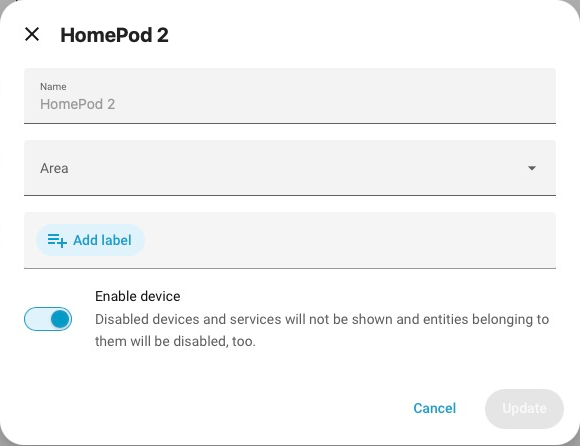
Open Settings → Devices & services → HomePod Sensor Link and select the pencil icon beside a device. Enter a name or choose an area, then select Update.
| Action | Behaviour |
|---|---|
homepod_sensor_link.check_now |
Run a check, including enabled recovery and pending setup or owned sensor publication |
homepod_sensor_link.check_recovery_access |
Perform a read-only administrator audit for recovery-enabled devices |
Both actions require a Home Assistant administrator and an active integration. Normal background checks run every five minutes. Manual checks use the same recovery limits.
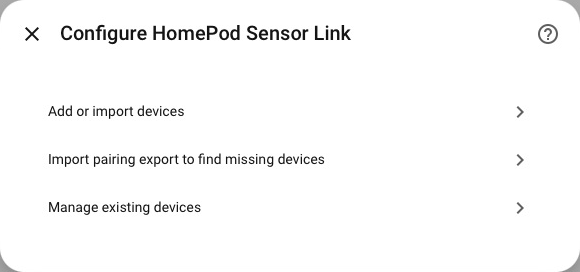
Open the integration’s menu and choose Reconfigure to add or manage HomePods. Under Manage existing devices, choose a HomePod first, then choose its action. Review the confirmation before submitting; removal also requires a confirmation checkbox. The recovery action shown matches the device's current setting.
When adding devices, review the selection and recovery policy, then complete credential verification. Home Assistant confirms the update while healthy devices keep running.
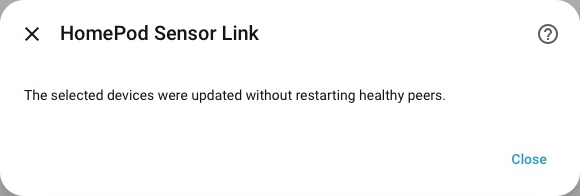
Recovery is on by default for newly added devices and requires verified administrator credentials. Monitoring-only setup discards the imported administrator secret after setup completes. Enabling recovery again requires re-importing it.
Previously adopted devices need a separate connection through Reconfigure → Create separate connections for previously adopted devices, using independently obtained administrator credentials and accessory identity. This creates new sensor entities with recovery off; update dashboards or automations if needed. Existing dedicated connections retain their entities, history and settings. Native HomeKit entries and history remain untouched.
Resume setup continues pending setup using the saved controller identity. Cancel setup pauses setup for that device. Ready devices continue working independently.
Removing a device deletes its owned credentials and recovery history. Removing the integration deletes all its owned credentials/history. Accessory pairing records remain on the HomePod; native sensors/history and unrelated storage remain untouched. See setup and security.