Repository navigation
Home

3Dscript.server is a Fiji plugin that is intended to run as a service on a shared workstation and allows 3Dscript.clients to submit jobs to be rendered with 3Dscript.
Details about 3Dscript can be found here
Typically, the following procedure is recommended:
- Select a workstation on which 3Dscript.server should be run (this machine should have a modern graphics card with as much (Graphics) memory as possible, the more the better.
- Install 3Dscript.server via its update site.
- Configure the workstation to start the server plugin upon booting.
- Install 3Dscript.server on a client via its update site.
- Run the client plugin to submit rendering jobs to the server plugin.
Schmid, B.; Tripal, P. & Fraaß, T. et al. (2019), "3Dscript: animating 3D/4D microscopy data using a natural-language-based syntax", Nature methods 16(4): 278–280, PMID 30886414.
Installation of client and server plugin is identical:
- Start Fiji
- Click on Help>Update
- Click on "Manage update sites"
- If 3Dscript is not yet installed, check the box in front of "3Dscript"
- Click on "Add update site"
- Enter Name: 3Dscript.server
- Enter URL: https://romulus.oice.uni-erlangen.de/imagej/updatesites/3Dscript-server/
- Click on "Close"
- Click on "Apply changes"
- Restart Fiji
The server is simply started by clicking on Plugins>3Dscript>3Dscript server
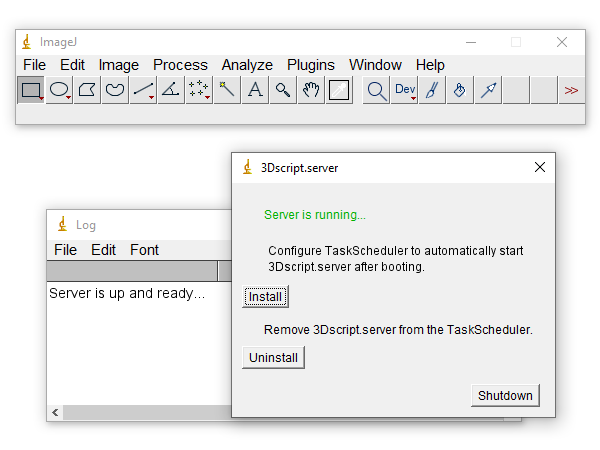
The client is started by clicking on Plugins>3Dscript>3Dscript client
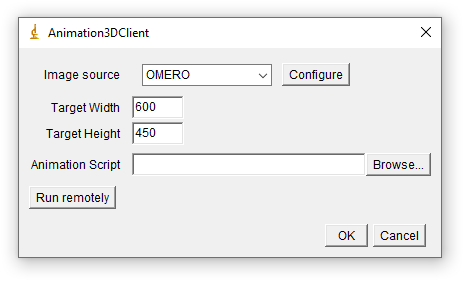
- Choose an image source, either OMERO or Shared file system, then click on Configure (see below)
- Enter the desired width of the resulting video
- Enter the desired height of the resulting video
- Choose an animation script (a file that was, e.g., generated with 3Dscripts Interactive Animation, for details see https://bene51.github.io/3Dscript)
- Click on Run remotely to choose a processing server (see below).
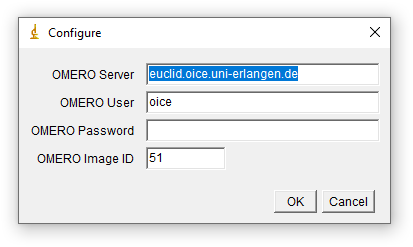
Enter (in order)
- The server address
- The OMERO user account under which to access the image
- The corresponding OMERO password
- The OMERO ID of the image to be rendered
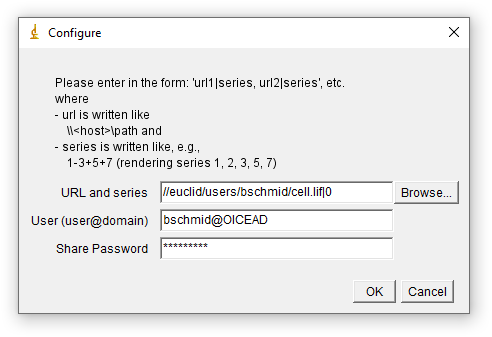
Enter (in order)
- The URL of the dataset to render, in the form of \\<server>\path|series\
On Windows, it is also possible to drag and drop the file (if it is mounted locally); the local path will automatically be converted to a valid URL
Series can be a single number or a range.
- The user (and domain) to access the shared file system
- The corresponding password
Click on Detect servers in local network
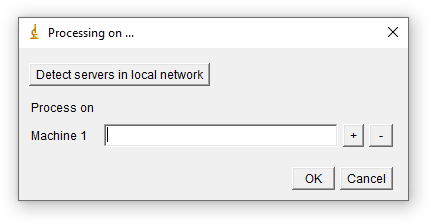
After a few seconds, all available servers (which run 3Dscript.server) in the local network are listed. You can exclude detected servers by removing them from the list using the minus button. If a server is not listed (e.g., because it is in a different subnet), you can add it manually by adding its hostname or IP address after clicking the plus button.
All servers that remain in the list when OK is clicked will be used for processing.