ITK 4.13.3

ITK (for Insight Toolkit) is an open-source, cross-platform library that provides developers with an extensive suite of software tools for image analysis. This library is necessary to use clITK.
Click on the link below: https://itk.org/download
In “An Earlier Release - No longer supported (4.13.3) > Library Source Code” click on “InsightToolkit-4.13.3.zip“ to download.
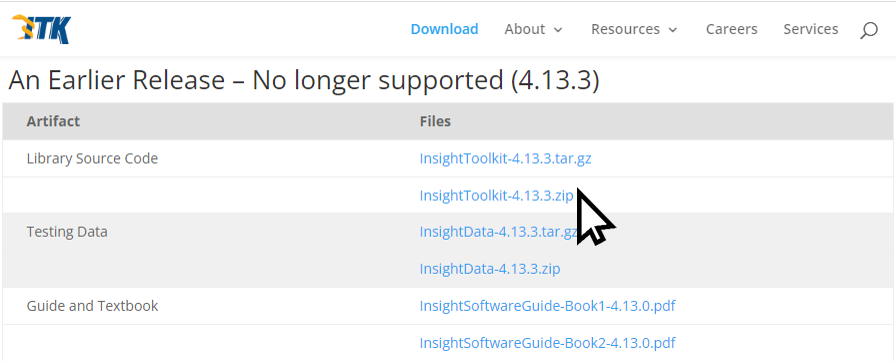
Create a folder “YOURITKFOLDER”. Uncompressed “InsightToolkit-4.13.3.zip“ here.
CAUTION: this path must not be longer than 35 characters, otherwise you may get an error message when you open the folder with Visual Studio 2022.
Open Visual Studio 2022 and click on “Open a local folder”.
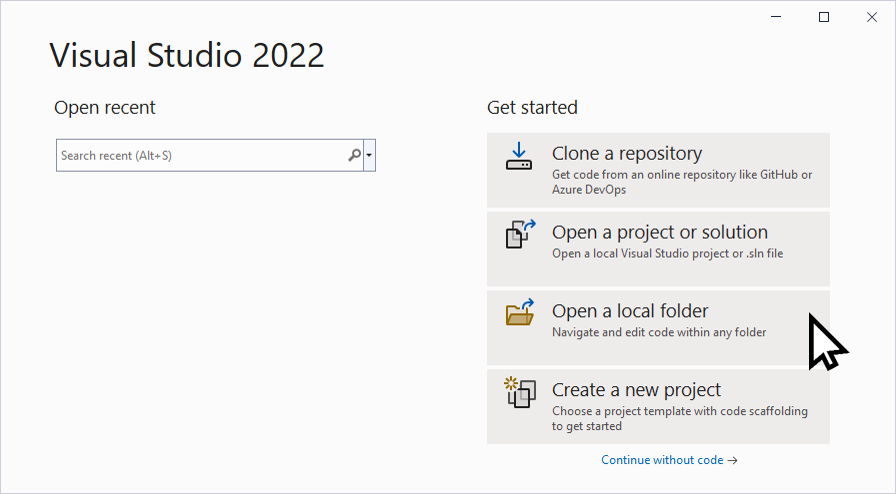
Select the folder “YOURITKFOLDER”. Wait the ending of CMake process (the output from CMake is displayed in the “Output” square in Visual Studio window). When the Cmake shows the message “CMake generation finished”, click on “Open CMake Settings editor” to edit the compilation parameters of ITK.
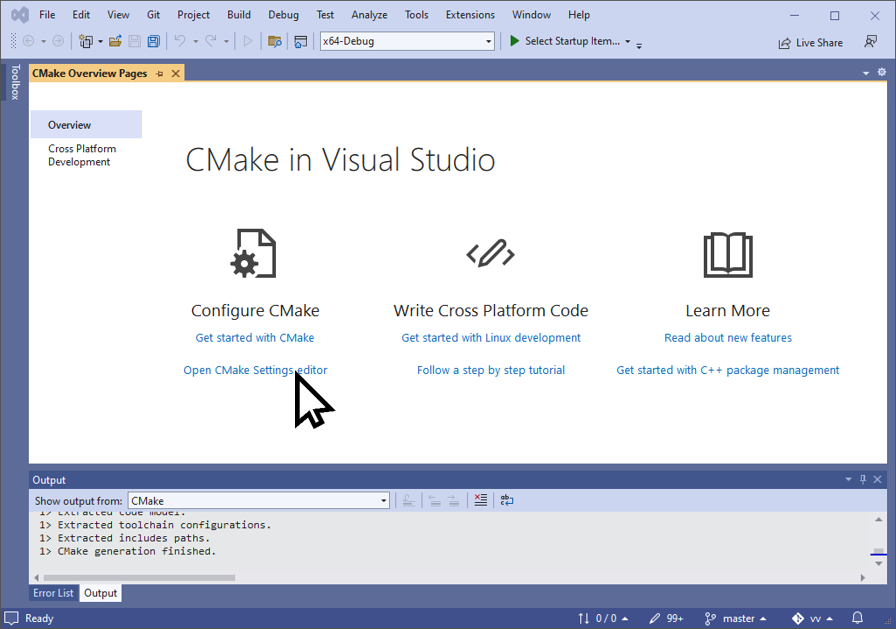
Wait again the “Cmake generation finished” signal and then in “CMake Variables and cache”:
- Checked “Show advanced variables”
- Make sure “BUILD_SHARED_LIBS” option is checked if so, go to the step 3. Otherwise, checked it. This option is now checked and in blod
- Save the CMakeSettings.json file (File > Save CMakeSettings.json or Ctrl + S)
- The option is checked and not in bold
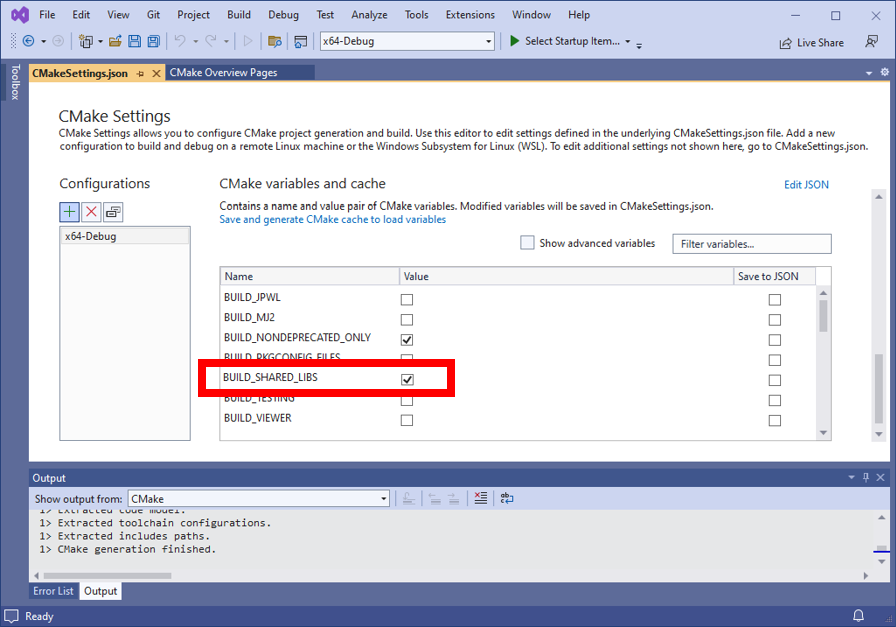
- Checked “Module_ITKReview”, this option is now checked and in blod
- Save the CMakeSettings.json file (“File” > “Save CMakeSettings.json” or Ctrl + S)
- The option is checked and not in bold
CAUTION: At this step, make sure that all changes have been applied correctly.
- To compile,
- Click on “Build” > “Build All” in the menu bar
- Click on “Build” > “Install ITK” in the menu bar
ITK is now install in YOURITKFOLDER/out/install/x64-Debug by default (you can change this folder with the option CMAKE_INSTALL_PREFIX)