QT 5.12

Qt is an cross-platform framework and tools for designe, develop & deploy user interfaces and applications. This software is necessary to use clITK.
Click on the link below: www.qt.io/download-qt-installer
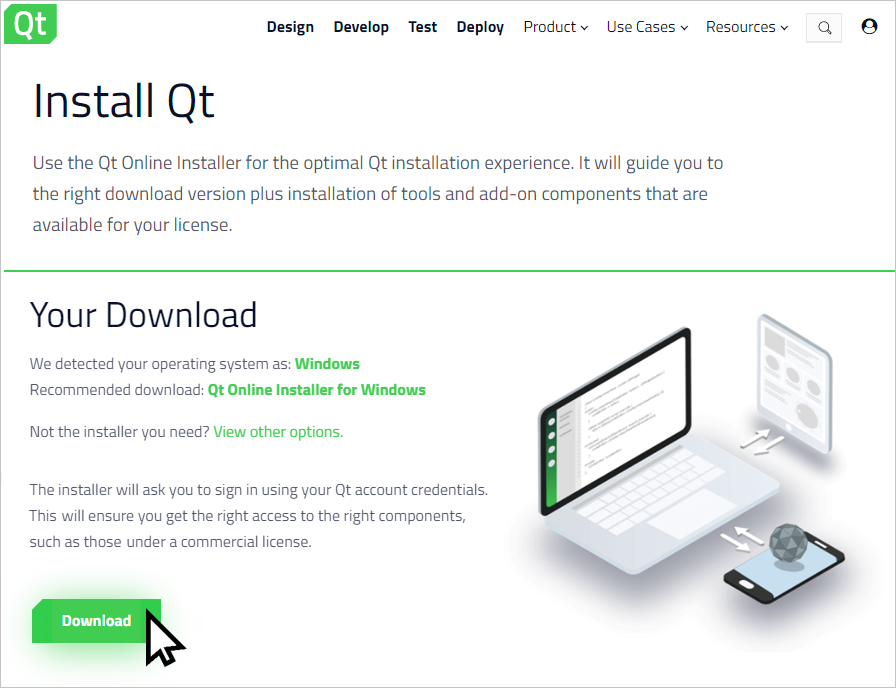
At the bottom of this page, click on “Download” button to obtain the “QT Online Installer for Windows”.
In your Download folder, click on “qt-unified-windows-x86-4.3.0-1-online.exe” file to open the QT Setup.
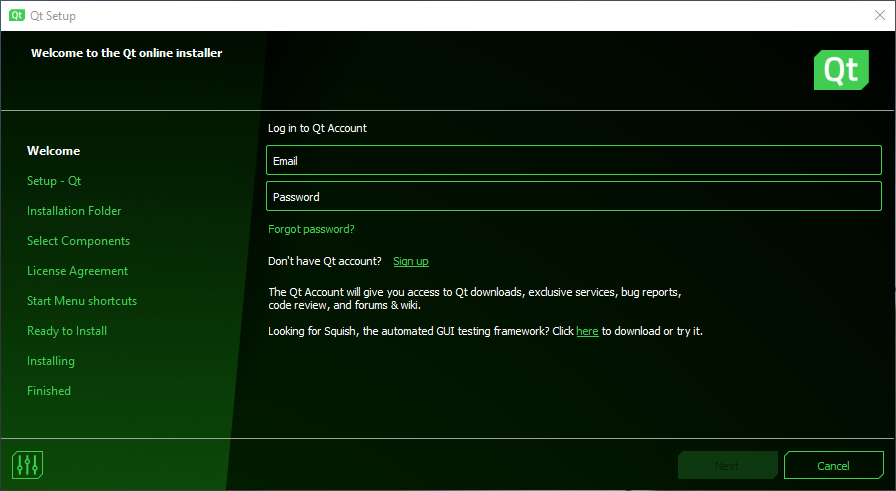
During the first step (on “Welcome” page) you must create a QT free account.
Click on sign up to completed this step or log in if you have one account.
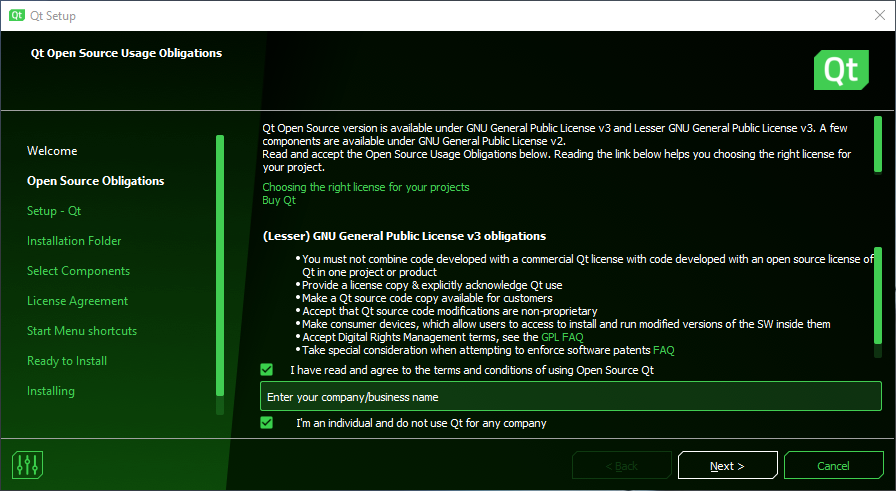
In the following “Open Source Obligations” screen, checked “I have read and agree to the terms and conditions of using Open Source QT” and “I’m an individual and do not use Qt for any company”. Click on “Next” button.
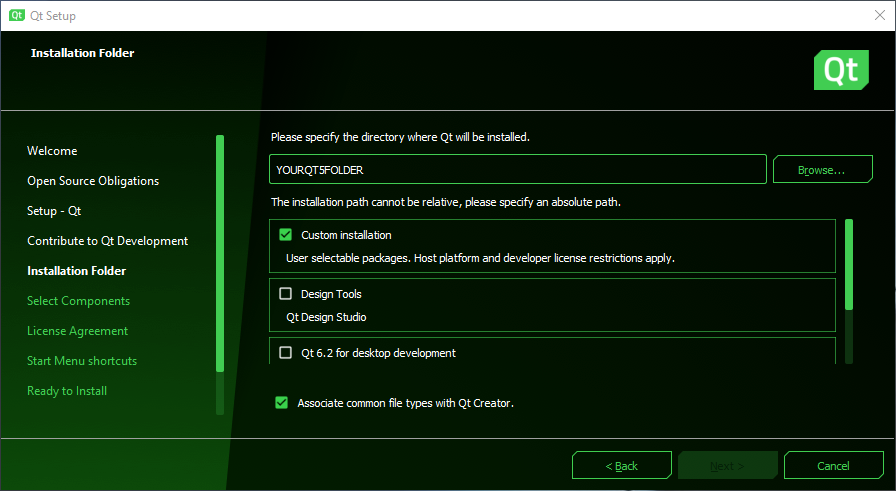
On “Setup – Qt” page, click on ”Next” button. On “Contribute to Qt Development” page, do your choice and click on ”Next” button. On “Installation Folder” page, selected the wanted directory for Qt (in this tutorial, names YOURQT5FOLDER), and checked “Custom installation” and click on ”Next” button.
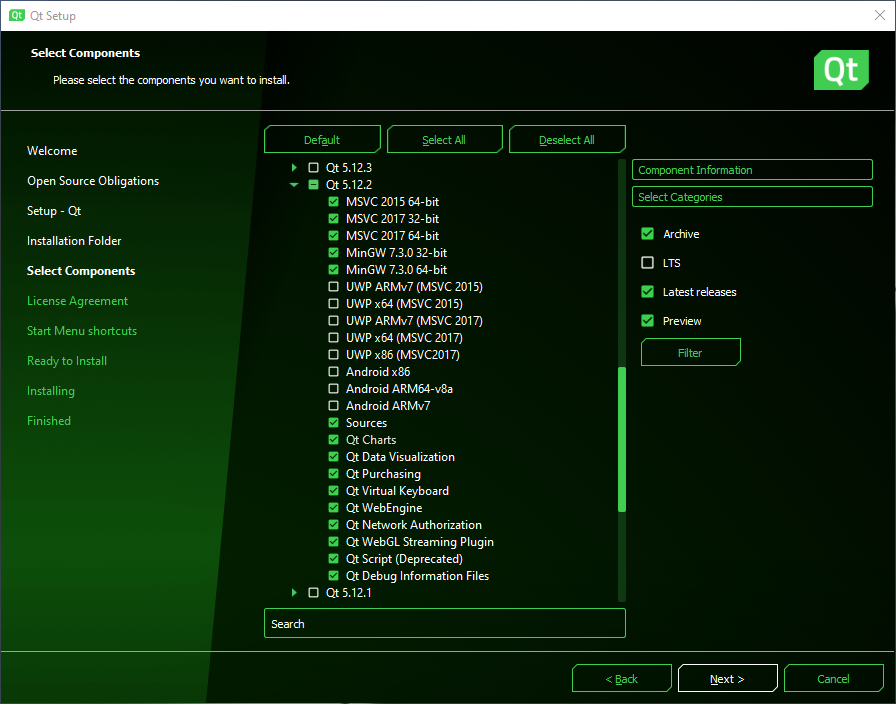
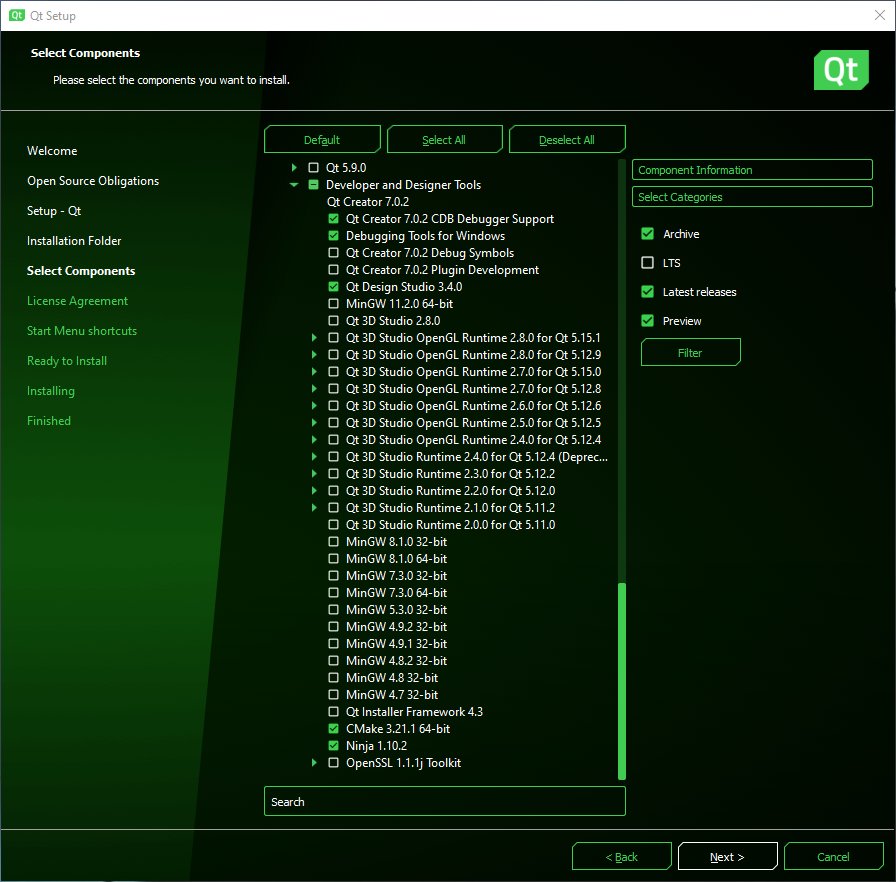
On “Select Components” checked the “Archive” > “Filter” and checked the component below.
In Qt 5.12.2:
In “Developer and Designer Tools:
Click on ”Next” button.
On “Licence Agreement” checked “I have read and agree to the terms contained in the license agreements” and click on ”Next” button.
On “Start Menu shortcuts” page, click on ”Next” button.
On “Ready to Install” page, click on ”Next” button.
On “Installing” page, please wait for the end of the installation.
Unckecked “Launch Qt Creator”, unchecked “OpenQt Design Studio README file” and click on ”Finish” button.