GPU Routing
GoldenMatch auto-detects the best compute environment for embedding-based features and routes accordingly. No code changes needed — just set environment variables.
GoldenMatch checks these in order and uses the first available:
| Priority | Mode | Detection | Use Case |
|---|---|---|---|
| 1 | Explicit |
GOLDENMATCH_GPU_MODE env var |
Force a specific mode |
| 2 | Remote |
GOLDENMATCH_GPU_ENDPOINT set |
Self-hosted GPU server |
| 3 | Vertex AI |
GOOGLE_CLOUD_PROJECT set |
Google Cloud managed embeddings |
| 4 | Local GPU | CUDA or MPS detected | Machine has a GPU |
| 5 | CPU-safe | Fallback | Lightweight scorers only (no embeddings) |
The easiest way to configure GPU routing is the interactive wizard:
goldenmatch setup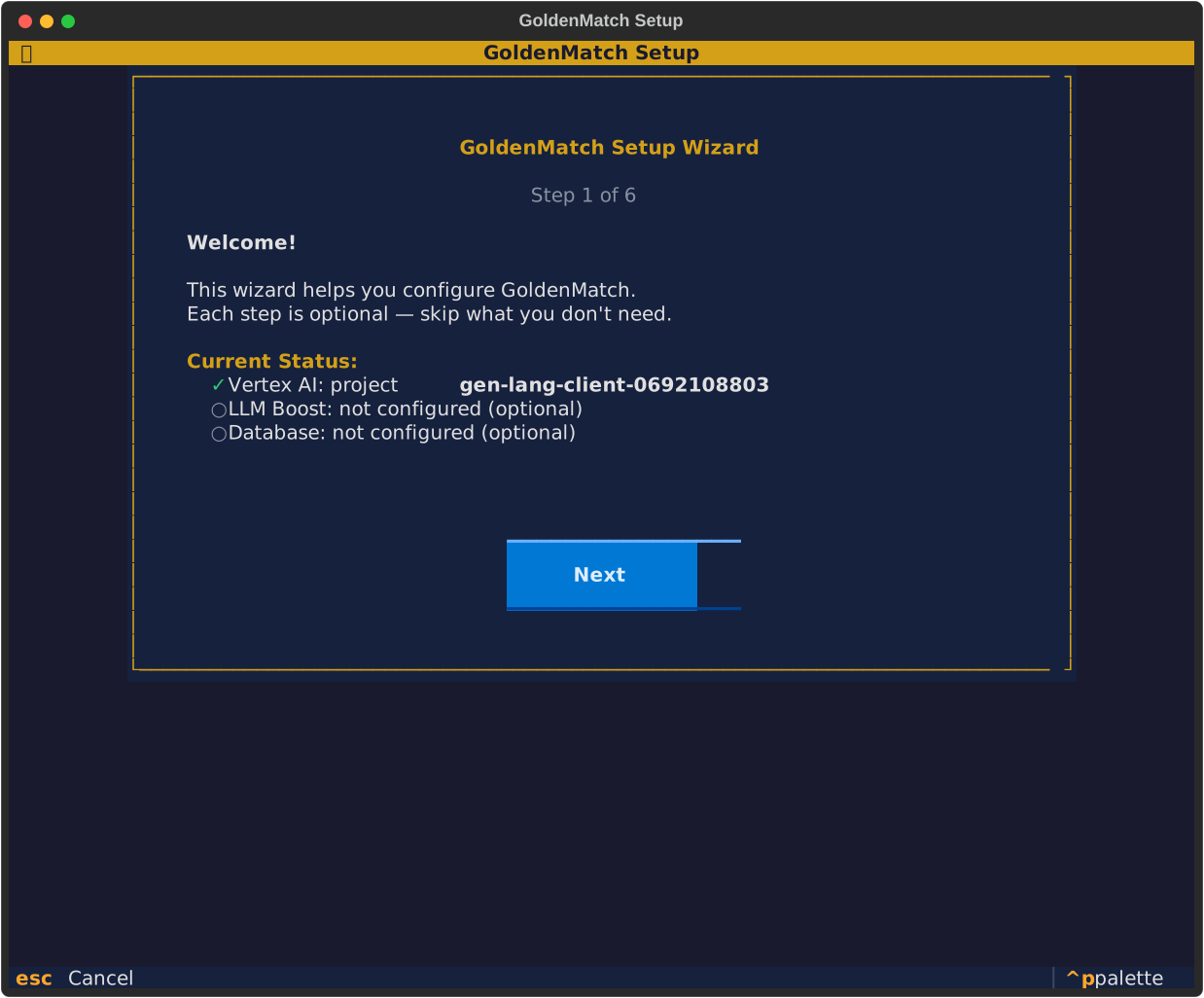
Select your GPU mode:
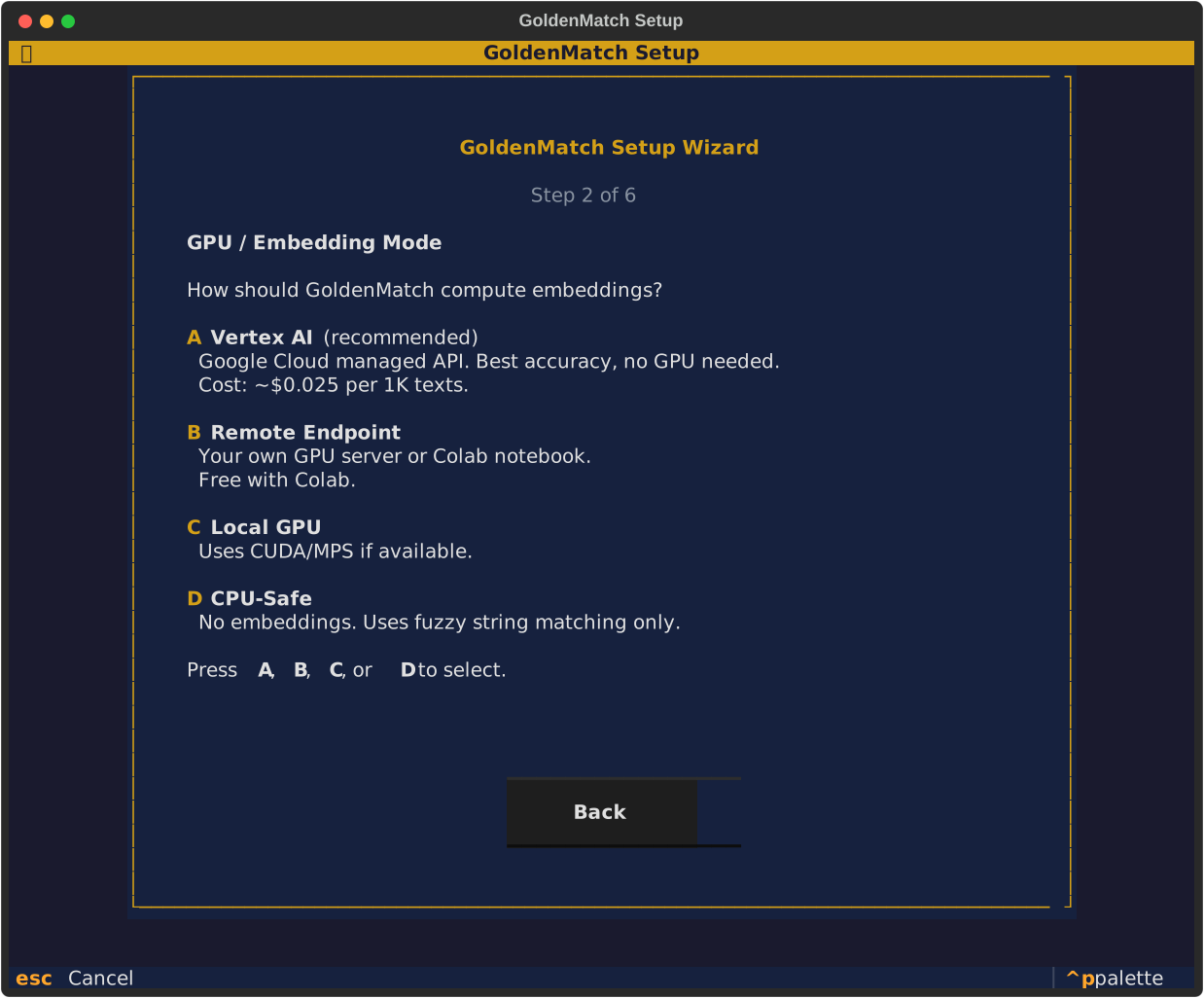
Get mode-specific setup instructions with copy-paste commands:

Best results, no hardware required. Uses Google's text-embedding-004 model.
# 1. Install gcloud CLI: https://cloud.google.com/sdk/docs/install
# 2. Authenticate
gcloud auth application-default login

# 3. Set your project
export GOOGLE_CLOUD_PROJECT=your-project-id

# 4. Run GoldenMatch — Vertex AI auto-detected
goldenmatch dedupe products.csv
Benchmark results with Vertex AI:
| Dataset | F1 Score |
|---|---|
| DBLP-ACM | 97.4% |
| Abt-Buy | 84.7% |
| Amazon-Google | 58.6% |
Cost: ~$0.025 per 1,000 texts embedded. A typical 10K record dedupe costs ~$0.50.
Run GoldenMatch's embedding server on any machine with a GPU.
On the GPU machine:
pip install sentence-transformers
python scripts/gpu_endpoint.py --port 8090
On your local machine:
export GOLDENMATCH_GPU_ENDPOINT=http://gpu-machine:8090
goldenmatch dedupe products.csv- Upload
scripts/gpu_colab_notebook.ipynbto Google Colab - Set runtime to GPU (Runtime > Change runtime type > T4 GPU)
- Run all cells — it will print an ngrok URL
- Set locally:
export GOLDENMATCH_GPU_ENDPOINT=https://xxxx.ngrok.io
goldenmatch dedupe products.csvIf your machine has CUDA or Apple Silicon (MPS), GoldenMatch uses it automatically:
pip install goldenmatch[embeddings]  # installs torch + sentence-transformers
goldenmatch dedupe products.csv # auto-detects GPUNo GPU, no cloud — uses only lightweight scorers (jaro_winkler, soundex, exact, etc.):
export GOLDENMATCH_GPU_MODE=cpu_safe
goldenmatch dedupe products.csv
Embedding-based features are disabled. Still works well for name/address matching.
If you don't have one: https://console.cloud.google.com/projectcreate
gcloud services enable aiplatform.googleapis.com --project=YOUR_PROJECT_IDOr via console: https://console.cloud.google.com/apis/library/aiplatform.googleapis.com
For local development (user credentials):
gcloud auth application-default loginFor production (service account):
# Create service account
gcloud iam service-accounts create goldenmatch-gpu \
  --display-name="GoldenMatch GPU" \
  --project=YOUR_PROJECT_ID

# Generate key
gcloud iam service-accounts keys create credentials.json \
  --iam-account=goldenmatch-gpu@YOUR_PROJECT_ID.iam.gserviceaccount.com

# Grant permissions
gcloud projects add-iam-policy-binding YOUR_PROJECT_ID \
  --member="serviceAccount:goldenmatch-gpu@YOUR_PROJECT_ID.iam.gserviceaccount.com" \
  --role="roles/aiplatform.user"

# Set env var
export GOOGLE_APPLICATION_CREDENTIALS=credentials.jsonexport GOOGLE_CLOUD_PROJECT=YOUR_PROJECT_ID
# Optional: change region (default: us-central1)
export GOOGLE_CLOUD_LOCATION=europe-west1
# Optional: change model (default: text-embedding-004)
export VERTEX_EMBEDDING_MODEL=text-embedding-004goldenmatch dedupe your_file.csv
# Output: "GPU mode: vertex (Google Cloud credentials found)"Any server implementing this protocol works with GOLDENMATCH_GPU_ENDPOINT:
POST /embed
Content-Type: application/json

{
  "texts": ["John Smith at 123 Main St", "Jon Smith on Main Street"],
  "model": "all-MiniLM-L6-v2"
}

Response:
{
  "embeddings": [[0.1, 0.2, ...], [0.3, 0.4, ...]],
  "model": "all-MiniLM-L6-v2",
  "count": 2
}
GET /health

Response:
{
  "status": "ok",
  "device": "cuda",
  "models_loaded": ["all-MiniLM-L6-v2"]
}
from goldenmatch.core.gpu import get_gpu_status
print(get_gpu_status())
# {'mode': 'vertex', 'embedding_available': True, 'device': 'cpu',
# 'project': 'your-project', 'model': 'text-embedding-004'}| Variable | Description | Default |
|---|---|---|
GOLDENMATCH_GPU_MODE |
Force mode: local, remote, vertex, cpu_safe | Auto-detect |
GOLDENMATCH_GPU_ENDPOINT |
URL of remote embedding server | — |
GOLDENMATCH_GPU_API_KEY |
API key for remote endpoint | — |
GOOGLE_CLOUD_PROJECT |
GCP project ID for Vertex AI | — |
GOOGLE_CLOUD_LOCATION |
GCP region for Vertex AI | us-central1 |
GOOGLE_APPLICATION_CREDENTIALS |
Path to service account JSON key | — |
VERTEX_EMBEDDING_MODEL |
Vertex AI embedding model | text-embedding-004 |


🟡 Golden Suite (Monorepo)
Suite Packages
- GoldenCheck · data quality
- GoldenFlow · transforms
- GoldenPipe · orchestrator
- InferMap · schema mapping
Getting Started
- Installation
- Quick Start
- Auto-Config Controller · enhanced through v1.12
- Configuration
- Verification · new in v1.5
- CLI Reference
Core Concepts
AI Integration
Advanced
- PPRL
- Domain Packs
- Streaming / CDC
- Database Integration
- GPU & Vertex AI
- REST API
- Interactive TUI
- Web UI · new in v1.7
- Evaluation
Reference
pip install goldenmatch
npm install goldenmatch